Ever needed to share your Wi-Fi password with a guest, only to realize you forgot it yourself? It happens to almost everyone. Your laptop remembers the password and connects automatically every time, but the actual characters are hidden away somewhere in Windows’ settings.
The good news is that Windows 11 stores every Wi-Fi password you’ve ever used on that device, and there are a few simple ways to dig it out. You don’t need any third party software, and you don’t need to be a tech expert either. Below are the three easiest methods, ranked from simplest to most advanced.
Before You Start
A couple of quick notes:
- You can only view the password for a network your PC has already connected to and saved. If you’ve never joined that Wi-Fi network on this device, none of these methods will work.
- You’ll need to be signed in as an administrator, or at least have access to an admin account, for some of these steps.
- These methods only reveal passwords stored on your own computer this isn’t a way to hack into a network you’ve never had access to.
Method 1: View Wi-Fi Password Through Network Settings (Easiest)
This is the most beginner friendly option since it’s all done through the regular Settings app no typing commands required.
- Click the Start menu and open Settings (or press
Windows + I). - Go to Network & internet.
- Click on Wi-Fi, then select Hardware properties or click on the network you’re currently connected to.
- Under “Related settings,” look for Advanced network settings, then find your Wi-Fi adapter.
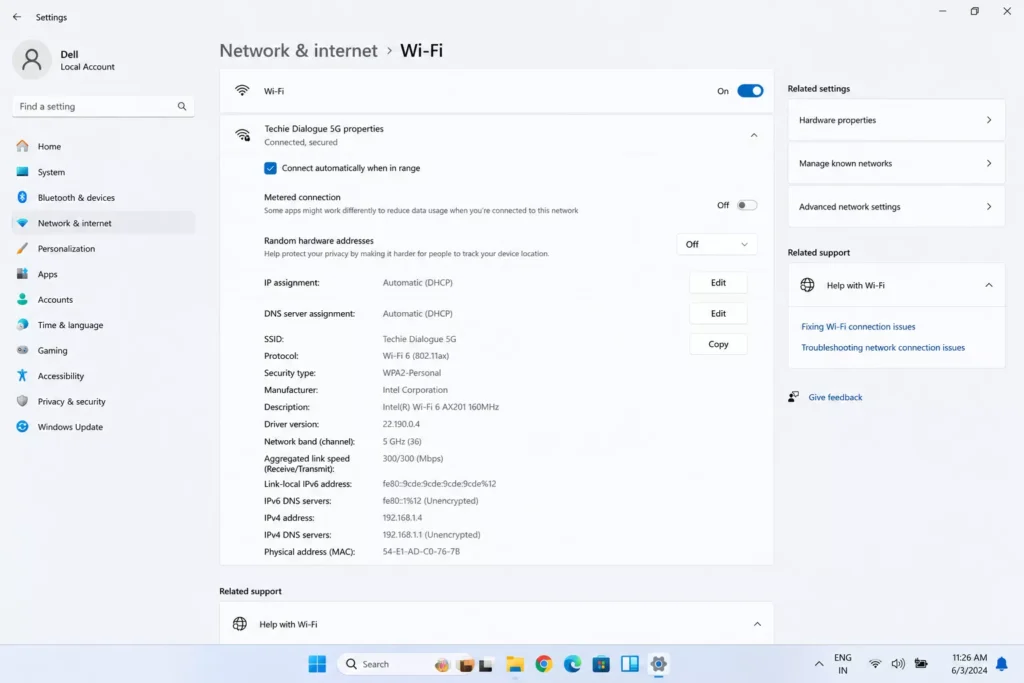
- Alternatively, right click the Wi-Fi icon in your taskbar, choose Network and Internet settings, click on your active network name, and scroll down to Network security key. Click the eye icon next to it to reveal the password.
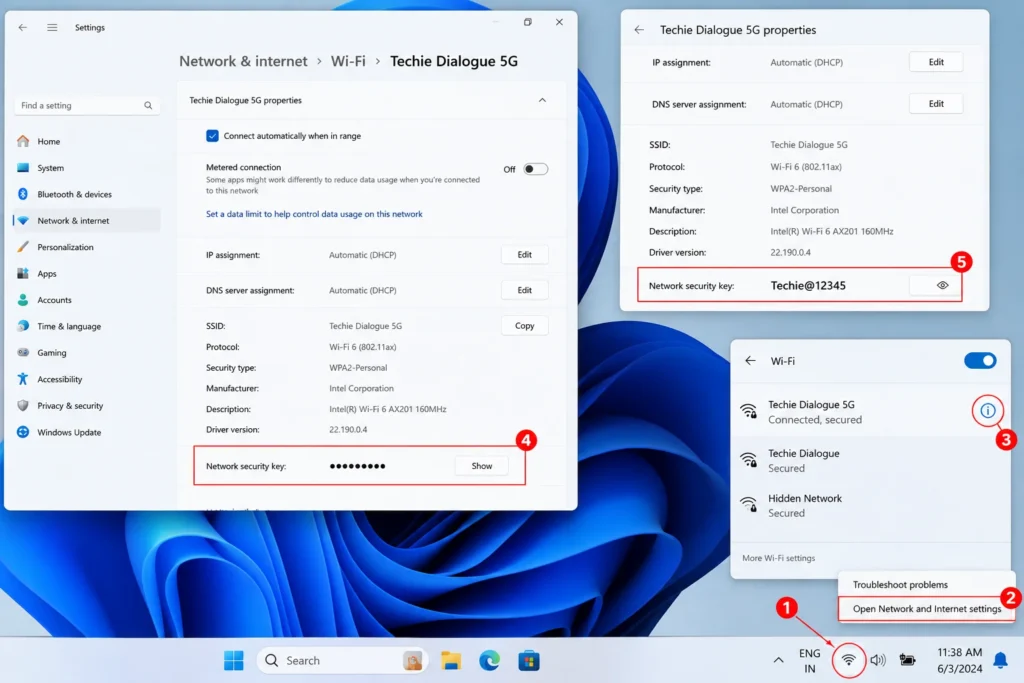
This method only works for the network you’re currently connected to. For any other saved network, you’ll need Method 2 or 3.
Method 2: Use Command Prompt to View Any Saved Wi-Fi Password
This is the most reliable method because it works for every network your PC has ever saved, not just the one you’re currently using.
- Click Start, type cmd, right click Command Prompt, and select Run as administrator.
- First, see a list of every saved Wi-Fi network by typing:
netsh wlan show profilesPress Enter, and you’ll get a list of network names (SSIDs) your computer remembers. - Pick the network whose password you want, then type the following command, replacing “NetworkName” with the exact name from the list:
netsh wlan show profile name="NetworkName" key=clear - Scroll down to the Security settings section. Look for Key Content that’s your Wi-Fi password, displayed in plain text.
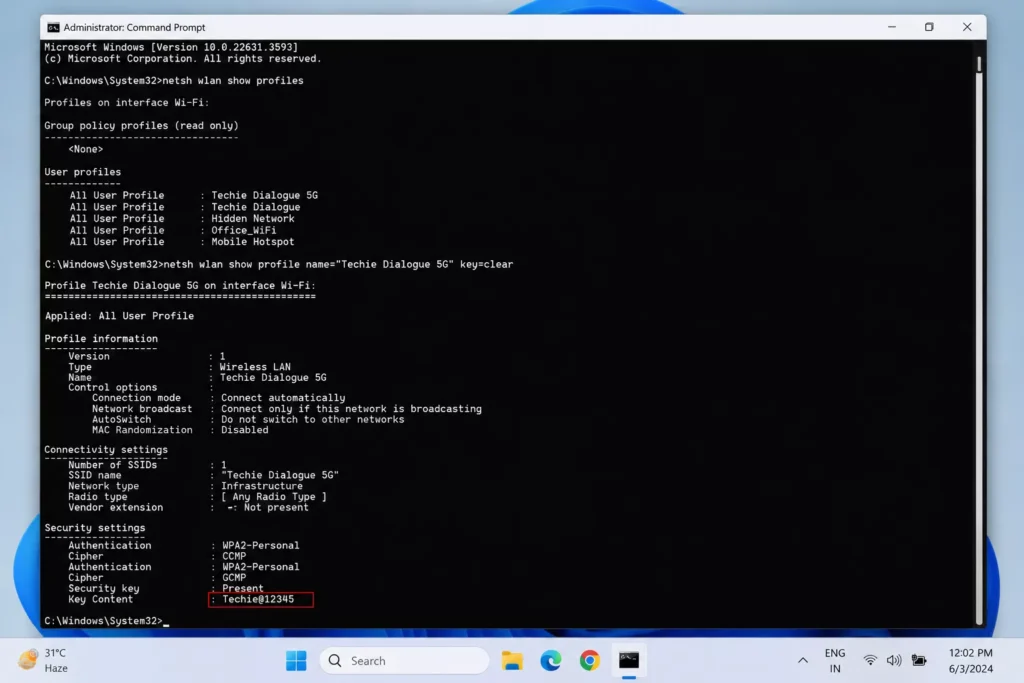
A couple of tips here: network names are case sensitive, and if the name has spaces in it, keep the quotation marks around it exactly as shown. If you get an error saying the profile wasn’t found, double check the spelling against the list from step 2.
Method 3: Use PowerShell to View Your Wi-Fi Password (For Users Who Prefer PowerShell Over Command Prompt)
If you’re more comfortable with PowerShell, the process is nearly identical.
- Right click Start and choose Windows Terminal (Admin) or PowerShell (Admin).
- To list saved networks, type:
netsh wlan show profiles - To reveal a specific password, use the same command as before:
netsh wlan show profile name="NetworkName" key=clear
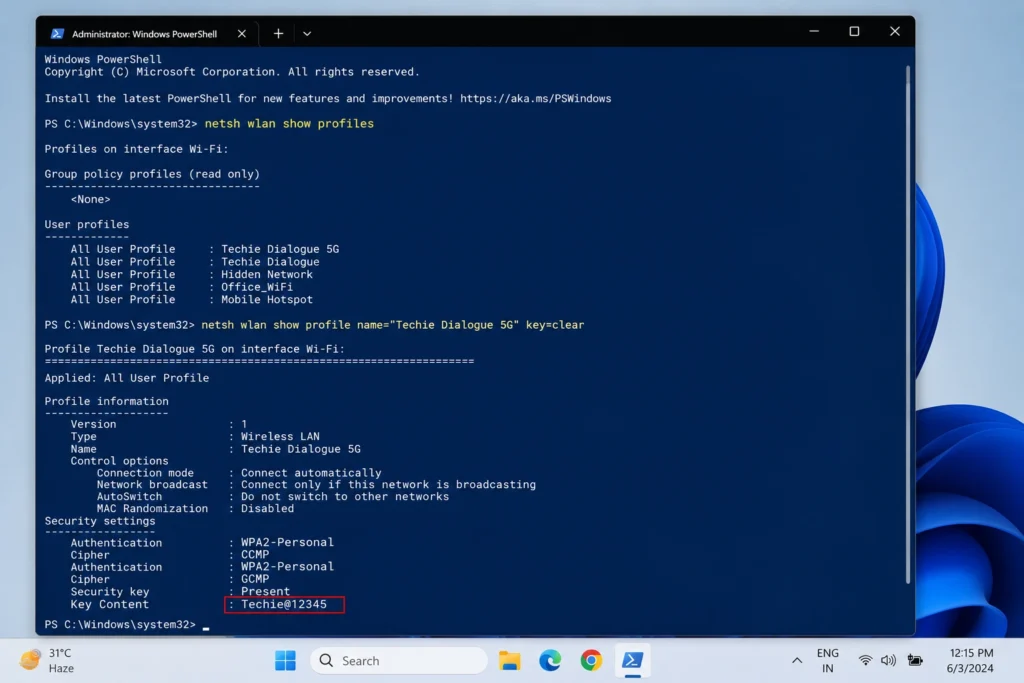
Yes, PowerShell still uses the netsh command underneath, since that’s a Windows networking tool rather than something exclusive to Command Prompt. It works exactly the same way either way.
Bonus: View All Saved Wi-Fi Passwords at Once
If you manage several networks and want to see all of them in one go, you can run a small batch script. Open Command Prompt as administrator and paste this:
for /f "tokens=3 delims=: " %i in ('netsh wlan show profiles ^| findstr /R "All User Profile"') do @echo %i & netsh wlan show profile name="%i" key=clear | findstr "Key Content"
This loops through every saved profile and prints the password right below each network name. It’s a real time saver if you’re troubleshooting multiple devices or setting up a new router and need to match old passwords.
Why Can’t I Just “See” the Password Like a Normal Text Field?
Windows hides Wi-Fi passwords by default as a basic security measure. If anyone who picked up your laptop for two minutes could see every password you’ve ever used, that would be a pretty serious privacy risk especially for shared or public computers. Requiring admin access and a specific command keeps casual snooping out while still letting the actual owner recover a forgotten password when needed.
Troubleshooting Common Wi-Fi Password Issues
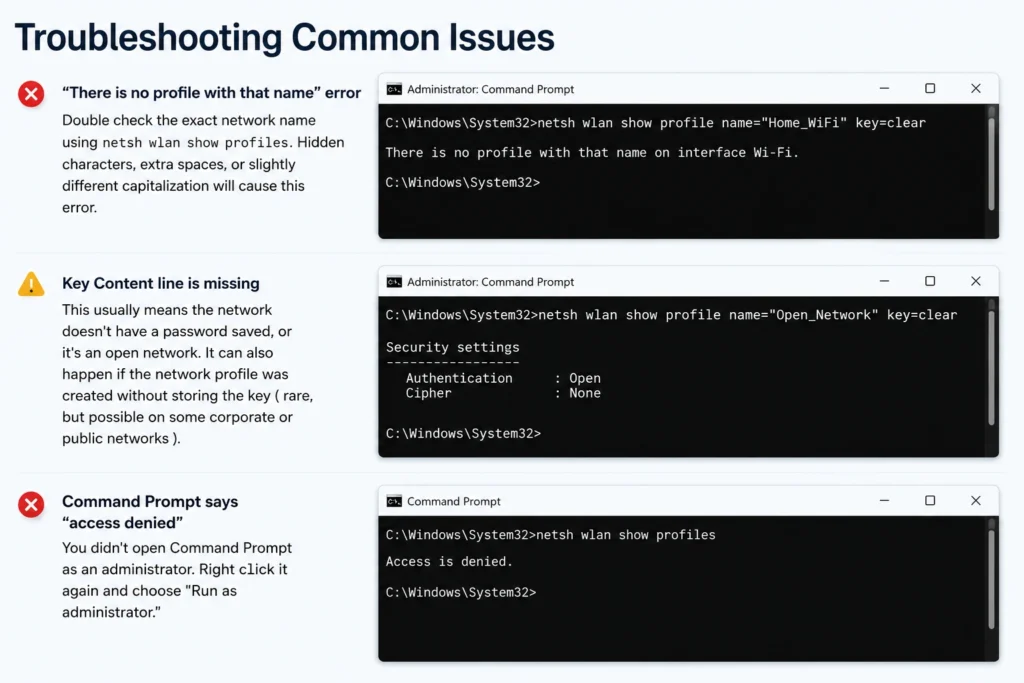
“There is no profile with that name” error Double check the exact network name using netsh wlan show profiles. Hidden characters, extra spaces, or slightly different capitalization will cause this error.
Key Content line is missing This usually means the network doesn’t have a password saved, or it’s an open network. It can also happen if the network profile was created without storing the key ( rare, but possible on some corporate or public networks ).
Command Prompt says “access denied” You didn’t open Command Prompt as an administrator. Right click it again and choose “Run as administrator.”
Is It Safe to View or Store Saved Wi-Fi Passwords This Way?
A common concern people have is whether pulling up a password like this creates any security risk. Generally, it’s safe as long as a few basic precautions are kept in mind:
- These commands only reveal passwords stored locally on your device nothing is sent over the internet or exposed to anyone else on the network.
- Since Command Prompt and PowerShell require administrator rights to run this command, someone would need to already have deep access to your PC to use this method against you, at which point Wi-Fi passwords are the least of your concerns.
- If you’re on a shared or work computer, it’s worth remembering that IT administrators can often see saved network profiles too, so avoid reusing the same password across sensitive accounts.
- If you ever suspect your Wi-Fi password has been seen by someone you don’t trust, the safest move is simply to change it from your router’s admin panel and reconnect your devices with the new one.
Related questions people also ask:
Can I view Wi-Fi passwords on Windows 11 without admin rights?
No, viewing saved passwords through Command Prompt or PowerShell requires administrator access.
Does this work on Windows 10 too?
Yes, the same netsh commands work identically on Windows 10.
Will this show my router’s admin password?
No, this only reveals the Wi-Fi network password, not your router’s admin login, which is a separate set of credentials.