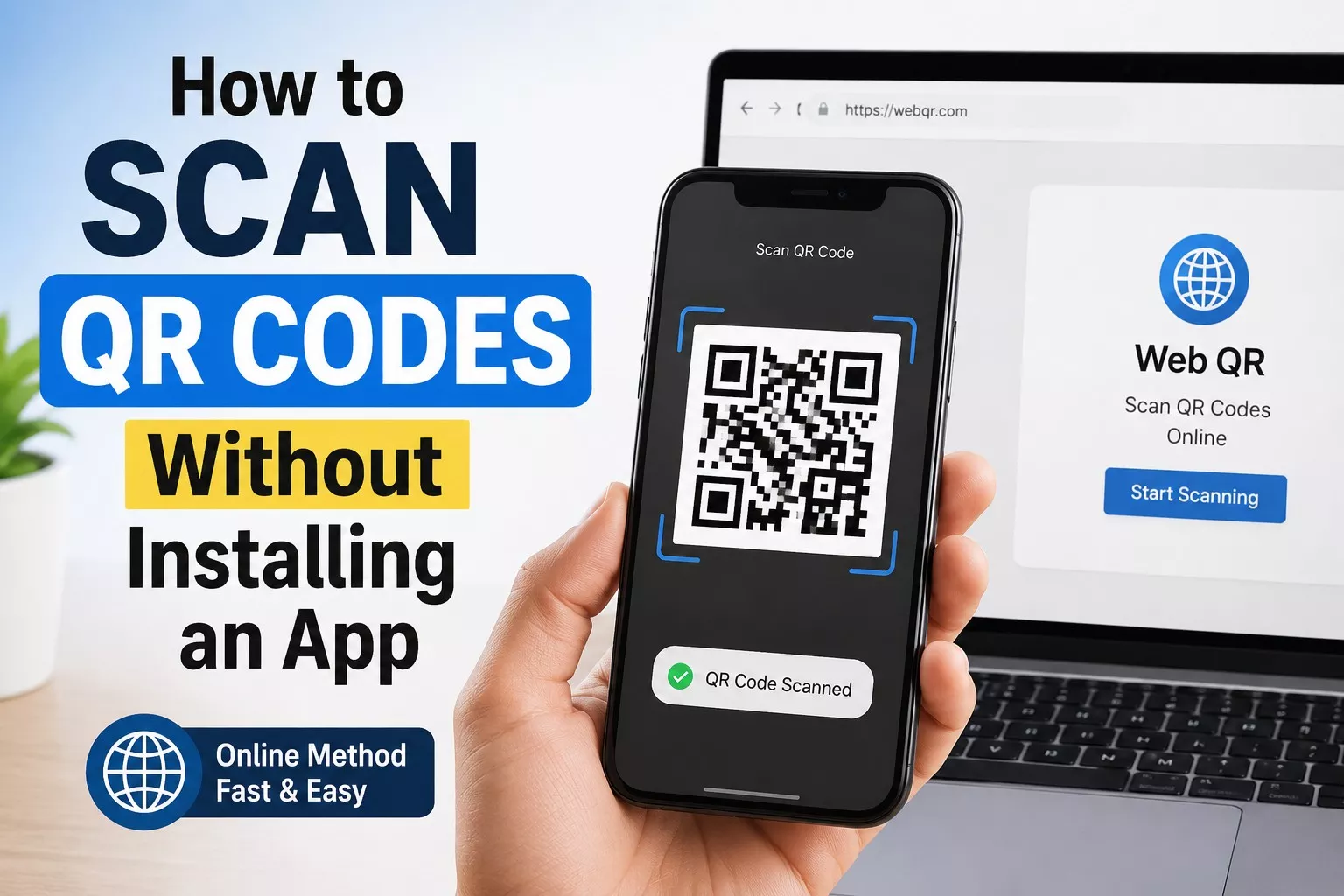

A few years ago, scanning a QR code meant digging through the app store, downloading some sketchy looking “QR Scanner Pro” app, and hoping it didn’t come loaded with ads or, worse, spyware. Thankfully, those days are mostly behind us. Most modern smartphones and computers can scan QR codes right out of the box, no extra downloads required.
If you’ve ever wondered whether you really need a dedicated app for this, the short answer is: probably not. Here’s how to scan QR codes using tools you already have.
Use Your Phone’s Built In Camera App to Scan QR Codes
This is by far the easiest method, and it works on the vast majority of phones sold in the last several years.
On iPhone ( iOS 11 and later ):
- Open the Camera app no third party app needed.
- Point it at the QR code and hold steady for a second or two.
- A notification banner will pop up at the top of the screen. Tap it to open the link, contact card, Wi-Fi network, or whatever the code contains.
If this doesn’t work automatically, check that QR code scanning is enabled by going to Settings > Camera and making sure the “Scan QR Codes” toggle is switched on.
On Android (most phones running Android 9 or later):
- Open the Camera app.
- Aim it at the code.
- A pop up or on screen prompt will appear, letting you tap through to whatever the code links to.
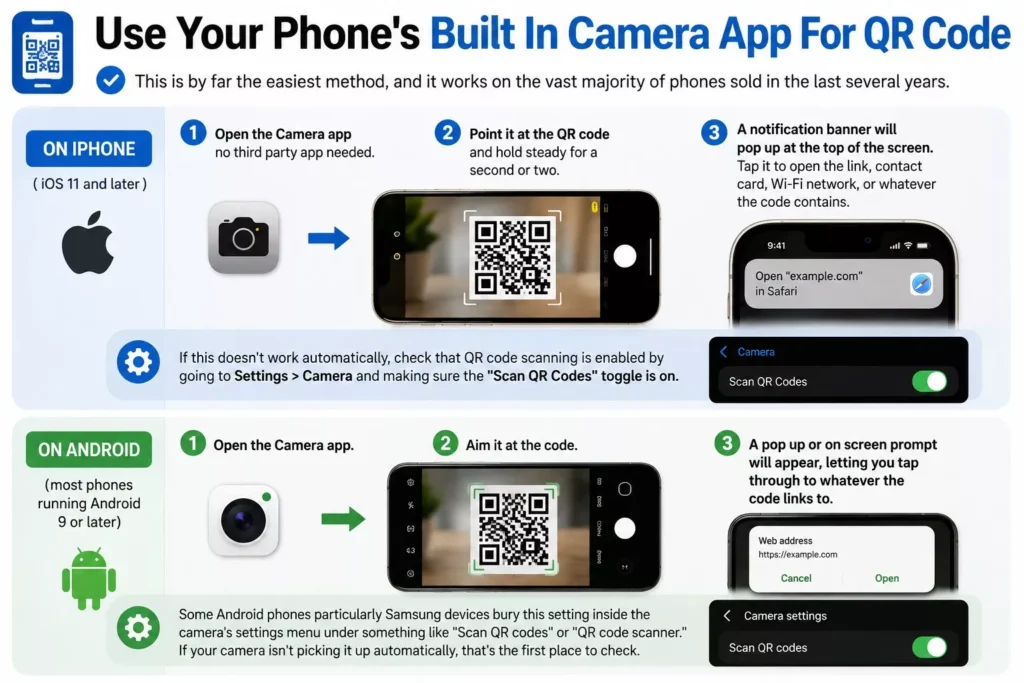
Some Android phones particularly Samsung devices bury this setting inside the camera’s settings menu under something like “Scan QR codes” or “QR code scanner.” If your camera isn’t picking it up automatically, that’s the first place to check.
Use Google Lens to Scan QR Codes
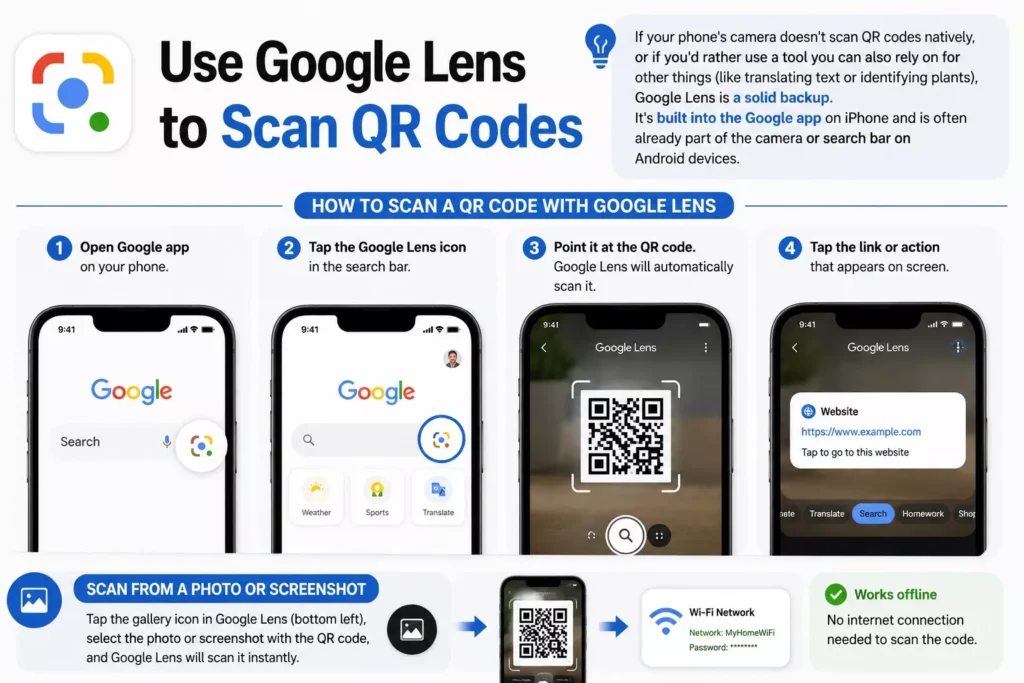
If your phone’s camera doesn’t scan QR codes natively, or if you’d rather use a tool you can also rely on for other things (like translating text or identifying plants), Google Lens is a solid backup. It’s built into the Google app on iPhone and is often already part of the camera or search bar on Android devices.
Just open Google Lens, point it at the code, and tap the link that appears. It also works great for scanning a QR code from a photo or screenshot already saved on your phone, which the default camera app sometimes struggles with.
Scan a QR Code From a Screenshot or Saved Image
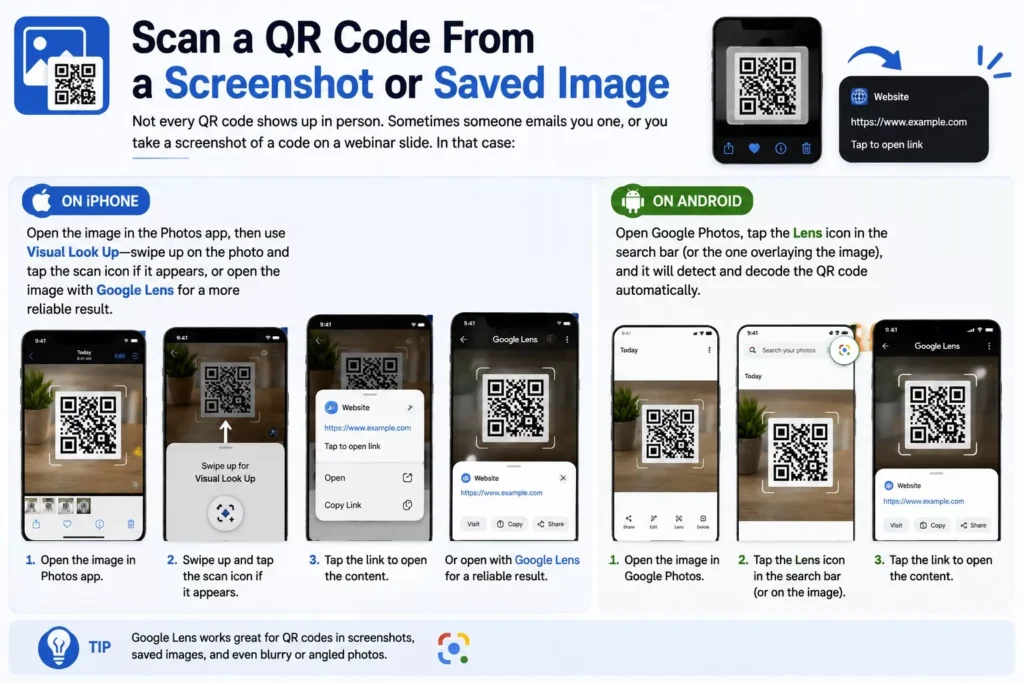
Not every QR code shows up in person. Sometimes someone emails you one, or you take a screenshot of a code on a webinar slide. In that case:
- On iPhone: Open the image in the Photos app, then use Visual Look Up swipe up on the photo and tap the scan icon if it appears, or open the image with Google Lens for a more reliable result.
- On Android: Open Google Photos, tap the Lens icon in the search bar (or the one overlaying the image), and it will detect and decode the QR code automatically.
Scan a QR Code on a Windows PC or Mac
Desktop and laptop computers don’t usually have a dedicated QR scanner built in, but you can still get the job done without installing anything extra.
Using your webcam:
- Windows 11’s Camera app can sometimes detect QR codes automatically when you point your webcam at one look for a link icon in the corner of the preview window.
- If that doesn’t work, open a browser, go to Google Lens or Bing Visual Search, and use the option to search with your camera.
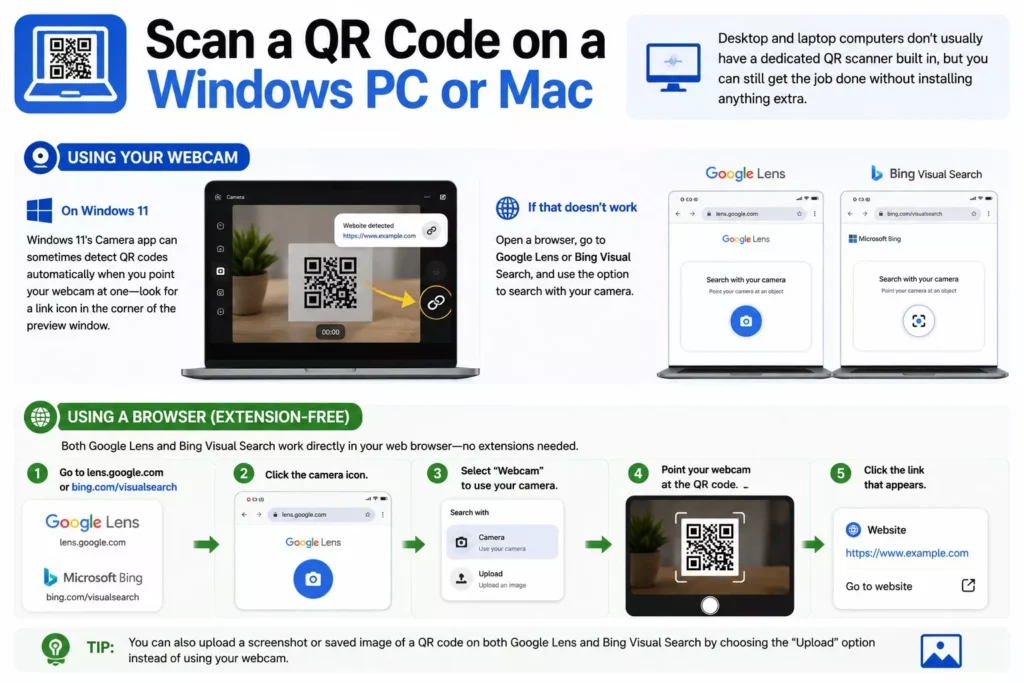
Using a browser extension free method: Most modern browsers, including Chrome and Edge, let you right click an image on a webpage and choose “Search image with Google Lens” or a similar option. If the image contains a QR code, Lens will decode it directly.
Use Your Phone to Scan for Your Computer
Sometimes the simplest solution is the best one: if a QR code appears on your computer screen, just pull out your phone and scan it the normal way. It sounds obvious, but plenty of people forget this works just as well for a code on a monitor as it does for one printed on paper.
Camera Not Detecting the QR Code? Try This
If you’ve pointed your camera at a code and nothing is happening, the issue is usually one of a few simple things. First, make sure you’re far enough back most cameras struggle to focus if the code fills the entire screen, so try stepping back six to twelve inches. Poor lighting or a glare on a glossy surface can also stop a code from being read, so tilt your phone slightly or move to a spot with better light.
If the code itself still won’t scan after that, double check that QR scanning is actually turned on in your camera settings, since some phones ship with it disabled by default. And if none of that works, a damaged, low resolution, or overly small printed code may simply be unreadable in that case, ask whoever provided it for a clearer version or the direct link instead.
Why You Don’t Need a Dedicated QR Scanner App
Third party QR scanner apps had their moment, but they’ve become largely unnecessary for a few good reasons. Built in camera scanning is just as fast, and it skips the extra step of switching between apps entirely. It also cuts out a common security risk: several QR scanner apps circulating on app stores over the years have been flagged for showing intrusive ads, tracking user data, or even redirecting scanned links through their own servers before sending you to the real destination.
Using your phone’s native camera or Google Lens keeps the process simple and puts you in direct control of where a scanned link actually takes you, without a third party sitting in the middle.
A Quick Note on QR Code Safety
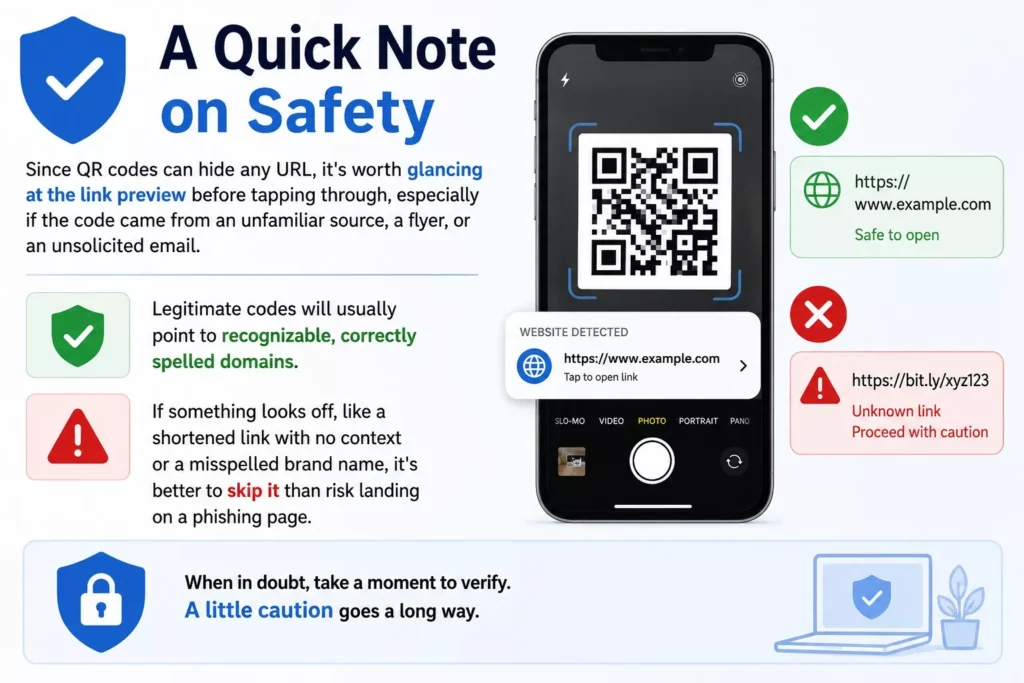
Since QR codes can hide any URL, it’s worth glancing at the link preview before tapping through, especially if the code came from an unfamiliar source, a flyer, or an unsolicited email. Legitimate codes will usually point to recognizable, correctly spelled domains. If something looks off, like a shortened link with no context or a misspelled brand name, it’s better to skip it than risk landing on a phishing page.
The Bottom Line
For the vast majority of people, there’s no real need to install a separate QR scanning app anymore. Your phone’s camera, Google Lens, and a couple of built in browser tricks cover nearly every situation you’ll run into, whether you’re scanning a restaurant menu, a Wi-Fi login, or a code someone sent you in an email. Save the storage space, skip the ads, and use what’s already on your device.