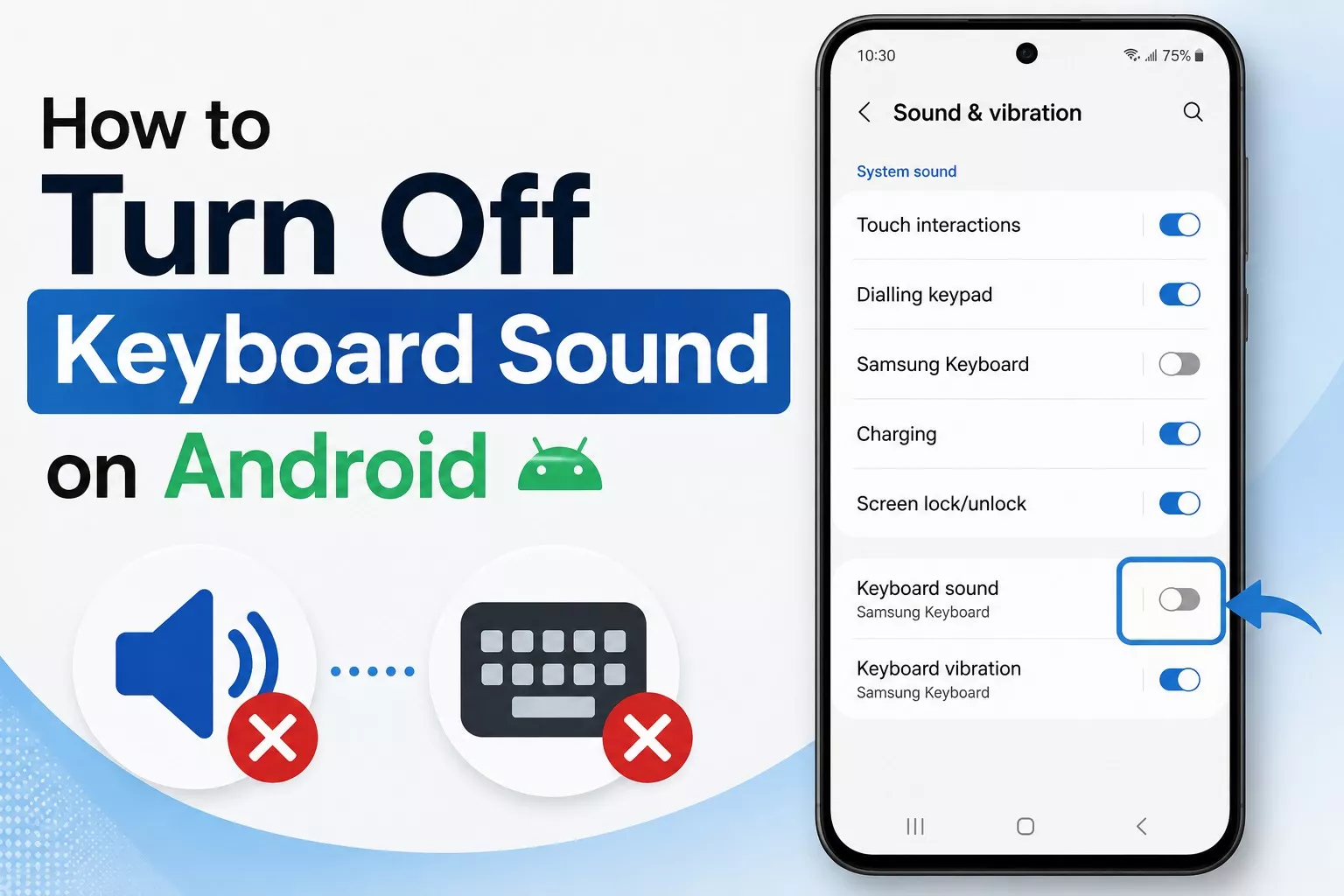

That little click sound your phone makes every time you tap a letter can be handy at first, but it gets old fast especially if you’re texting in a quiet room, sitting in a meeting, or just tired of hearing it a hundred times a day. Luckily, turning it off takes less than a minute, and the steps are pretty much the same no matter which Android phone you’re using.
Since Android phones use different keyboard apps depending on the brand, we’ll cover the most common ones below so you can find the right steps for your setup.
Method 1: Turn Off Keyboard Sound on Gboard (Most Common)
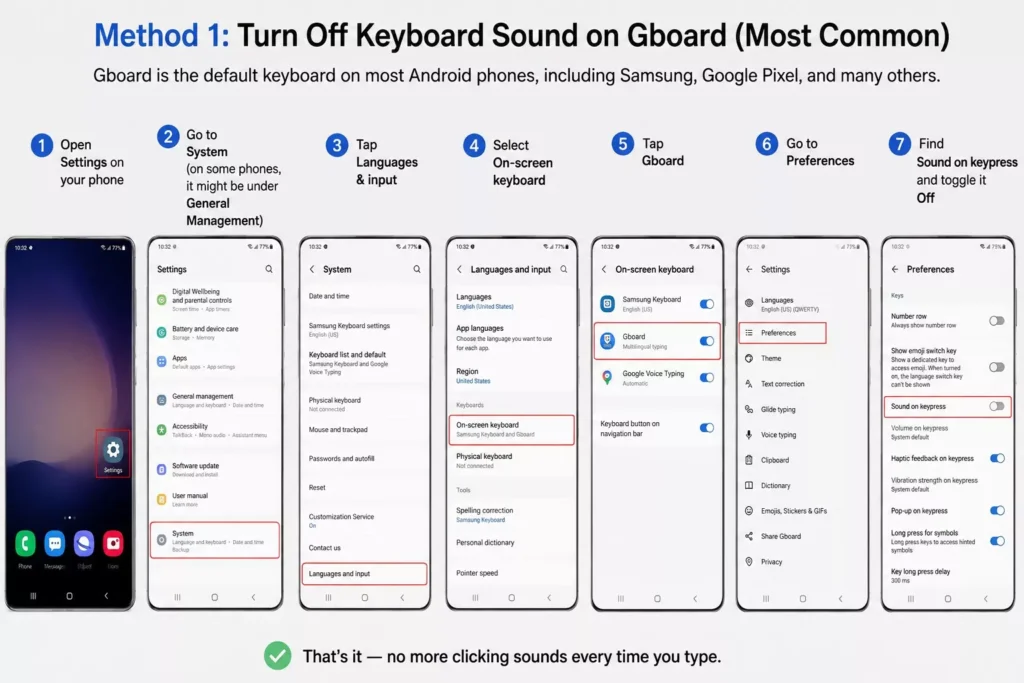
Gboard is the default keyboard on most Android phones, including Samsung, Google Pixel, and many others. Here’s how to silence it:
- Open Settings on your phone
- Go to System (on some phones, it might be under General Management)
- Tap Languages & input
- Select On-screen keyboard
- Tap Gboard
- Go to Preferences
- Find Sound on keypress and toggle it Off
That’s it no more clicking sounds every time you type.
A Faster Shortcut Turn Off Keyboard Sound on Android
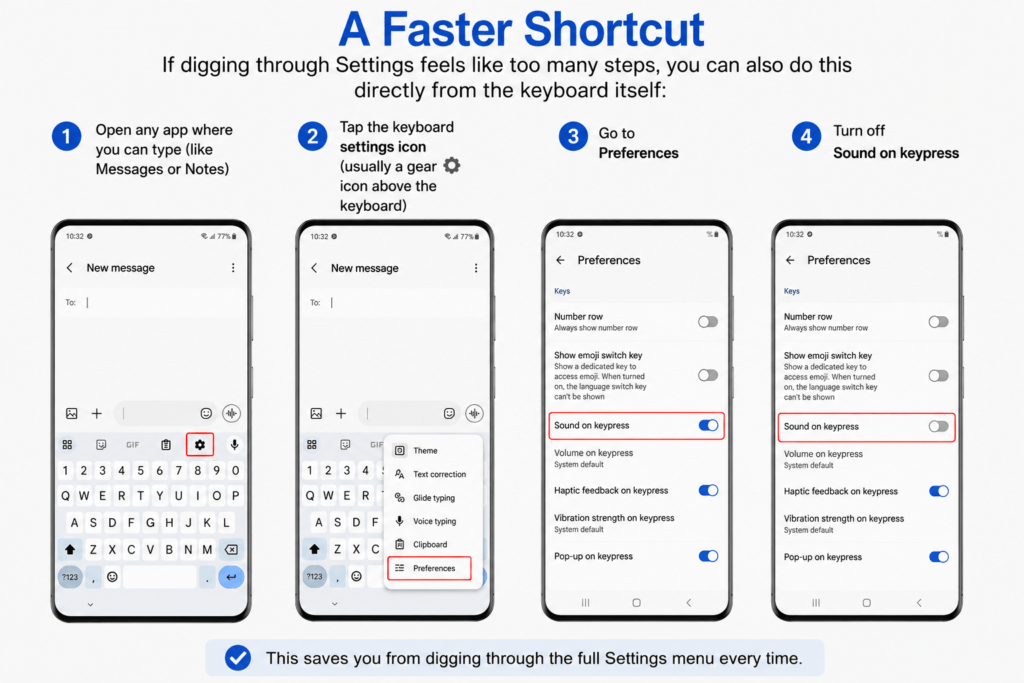
If digging through Settings feels like too many steps, you can also do this directly from the keyboard itself:
- Open any app where you can type (like Messages or Notes)
- Tap the keyboard settings icon ( usually a gear ⚙️ icon above the keyboard )
- Go to Preferences
- Turn off Sound on keypress
This saves you from digging through the full Settings menu every time.
Method 2: Turn Off Keyboard Sound on Samsung Andriod Mobile
If you’re on a Samsung device and using the built in Samsung Keyboard instead of Gboard, the steps are a little different:
- Open Settings
- Tap General Management
- Select Samsung Keyboard settings
- Tap Sound and vibration (sometimes labeled Feedback)
- Turn off Sound on keypress
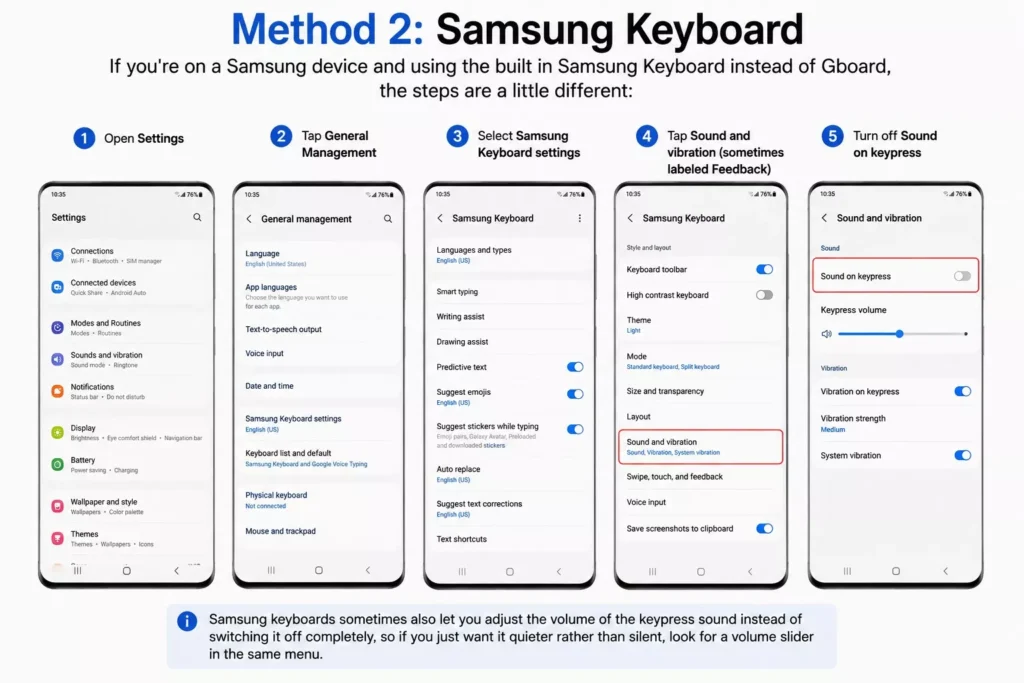
Samsung keyboards sometimes also let you adjust the volume of the keypress sound instead of switching it off completely, so if you just want it quieter rather than silent, look for a volume slider in the same menu.
Method 3: Turn Off Sound Through the System Volume (Quick Fix)
If you’re in a hurry and don’t want to go through keyboard settings at all, there’s a system wide trick that works on most Android phones:
- Press the volume down button on the side of your phone until the media/system volume is muted or turned all the way down
- On some phones, this alone stops keyboard sounds, since they’re tied to system sound rather than a separate keyboard setting
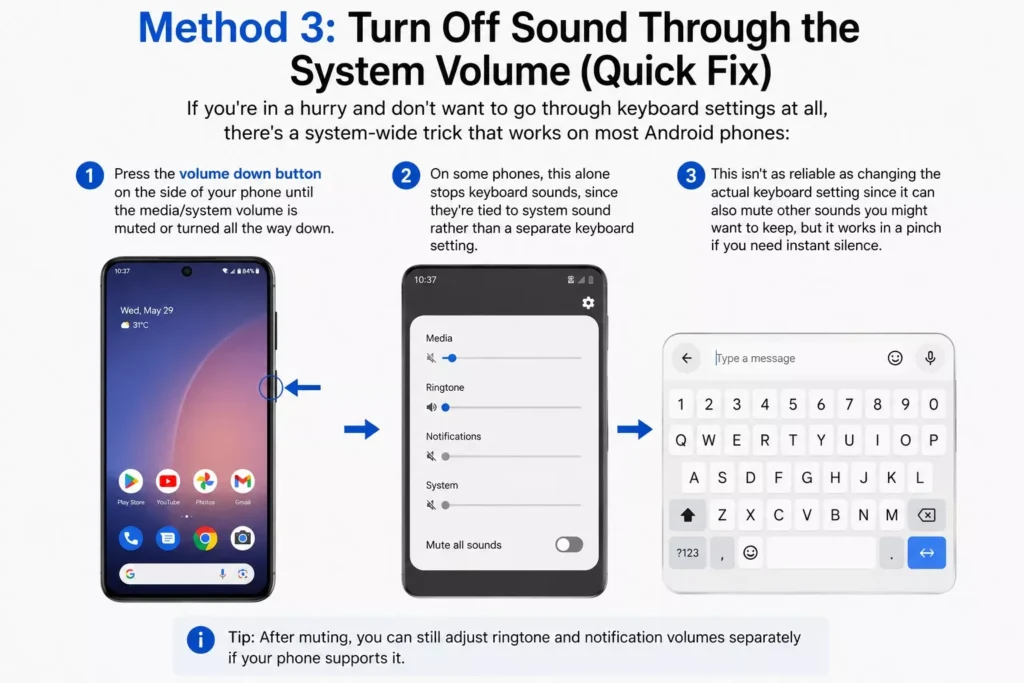
This isn’t as reliable as changing the actual keyboard setting since it can also mute other sounds you might want to keep, but it works in a pinch if you need instant silence.
Method 4: Other Keyboard Apps (SwiftKey, etc.)
If you use a third party keyboard app like Microsoft SwiftKey, the setting is usually found in a similar spot:
- Open the keyboard app itself, or find it under Settings > System > Languages & input > On-screen keyboard
- Look for a section labeled Sound, Preferences, or Feedback
- Turn off the option related to keypress sound
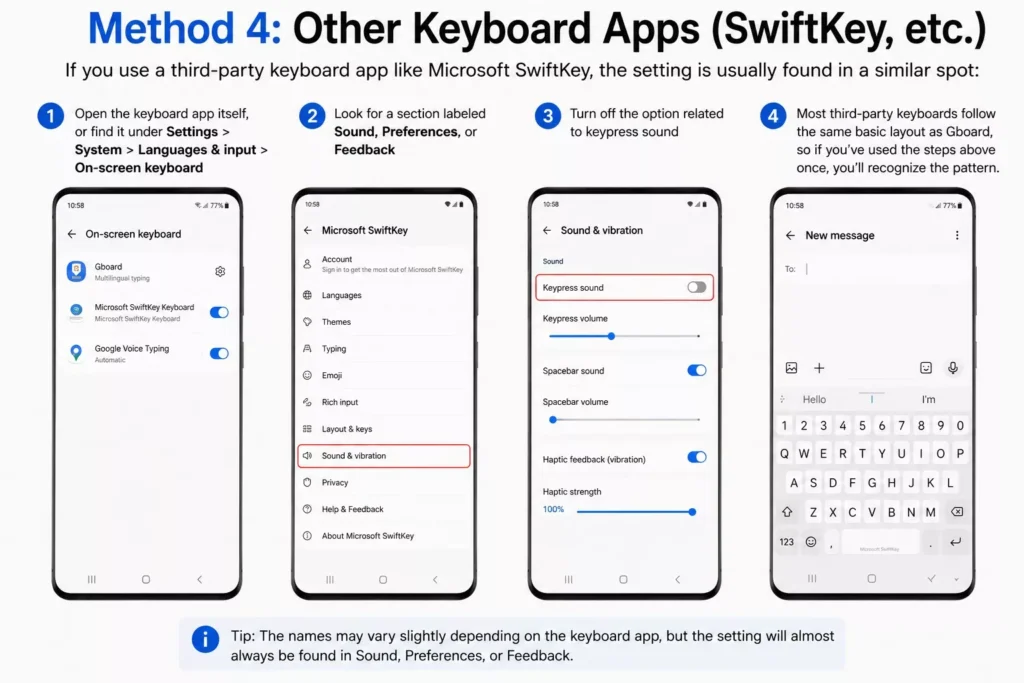
Most third party keyboards follow the same basic layout as Gboard, so if you’ve used the steps above once, you’ll recognize the pattern.
Why Does Android Turn On Keyboard Sound by Default?
It might seem odd that phones ship with this sound turned on in the first place, but there’s actually a reason behind it. The clicking sound is meant to act as feedback, letting you know your tap actually registered, especially useful for people who are new to touchscreen typing or who type without looking at the screen much. It’s borrowed from the same idea as physical keyboard clicks, which many people find satisfying or reassuring while typing.
That said, most people get used to typing on glass screens pretty quickly and stop needing the audio cue, which is exactly why this ends up being one of the first settings people turn off after setting up a new phone.
Keyboard Sound Keeps Turning Back On? Here’s Why
If you’ve turned off keyboard sound before but it somehow came back, you’re not imagining things this happens more often than you’d think, usually for one of these reasons:
- A system update reset your settings. Major Android or keyboard app updates sometimes reset preferences back to default, including sound settings.
- You switched keyboards. If you install a new keyboard app or switch between Gboard and your phone’s built in keyboard, each one has its own separate sound setting, so turning it off in one doesn’t affect the other.
- A factory reset or new phone setup. If you recently reset your phone or set up a new device, sound settings start fresh unless you restored a backup that included them.
- App specific settings. A few apps ( like certain dialer or messaging apps) have their own independent sound settings that override the system keyboard setting when typing inside that specific app.
If the sound comes back unexpectedly, it’s worth double checking which keyboard app is currently active under Settings > System > Languages & input, since you might be adjusting the wrong one without realizing it.
Bonus: Turn Off Keyboard Vibration Too
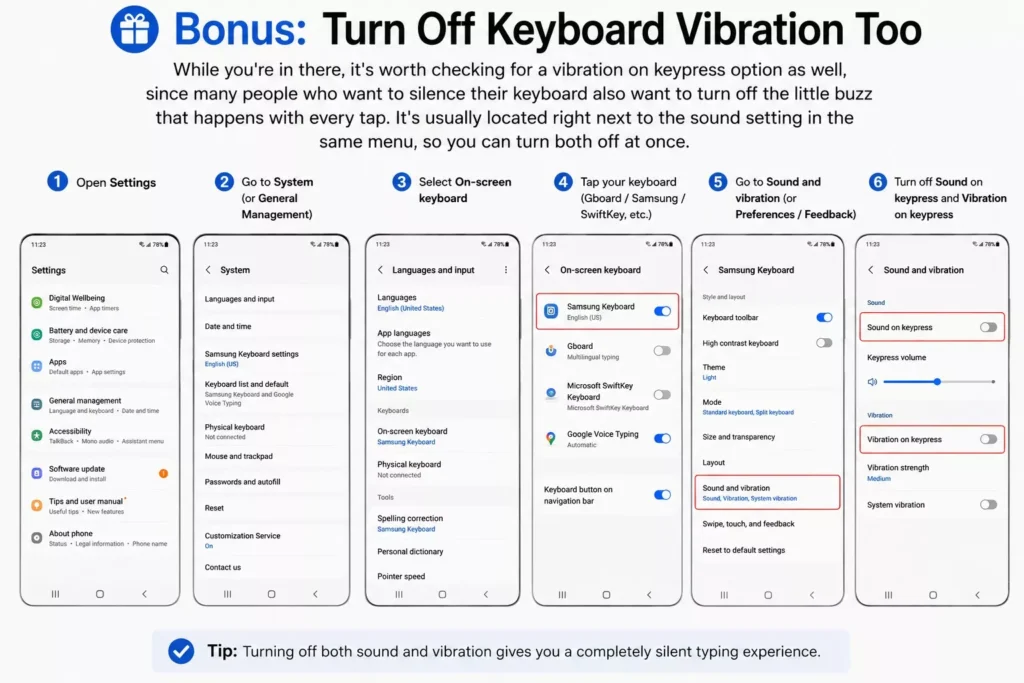
While you’re in there, it’s worth checking for a vibration on keypress option as well, since many people who want to silence their keyboard also want to turn off the little buzz that happens with every tap. It’s usually located right next to the sound setting in the same menu, so you can turn both off at once.