
If Microsoft Edge keeps popping up on its own, whether it’s right when you turn on your PC, after a Windows update, or randomly throughout the day, you’re dealing with one of the more common annoyances Windows users run into. It’s not random or a glitch most of the time, there’s usually a specific setting or background process causing it, and once you know where to look, it’s a quick fix.
Here’s how to track down exactly why Edge keeps opening on its own and shut it down for good.
Why Edge Keeps Opening Automatically
Before jumping into fixes, it helps to know this isn’t usually one single cause. Edge can launch on its own for a few different reasons: it’s set as a startup app, a background feature like “Startup Boost” is preloading it before you even open it, a scheduled task is triggering it, or another Windows feature (like widgets, news feeds, or certain notifications) is quietly opening it in the background without you realizing that’s what’s happening.
Working through the causes below in order usually resolves it, since most people are dealing with one or two of these rather than all of them at once.
1: Disable Edge from Startup Apps
This is the most common cause, and the first thing worth checking.
- Press Ctrl + Shift + Esc to open Task Manager
- Click the Startup apps tab
- Find Microsoft Edge in the list
- Right click it and select Disable
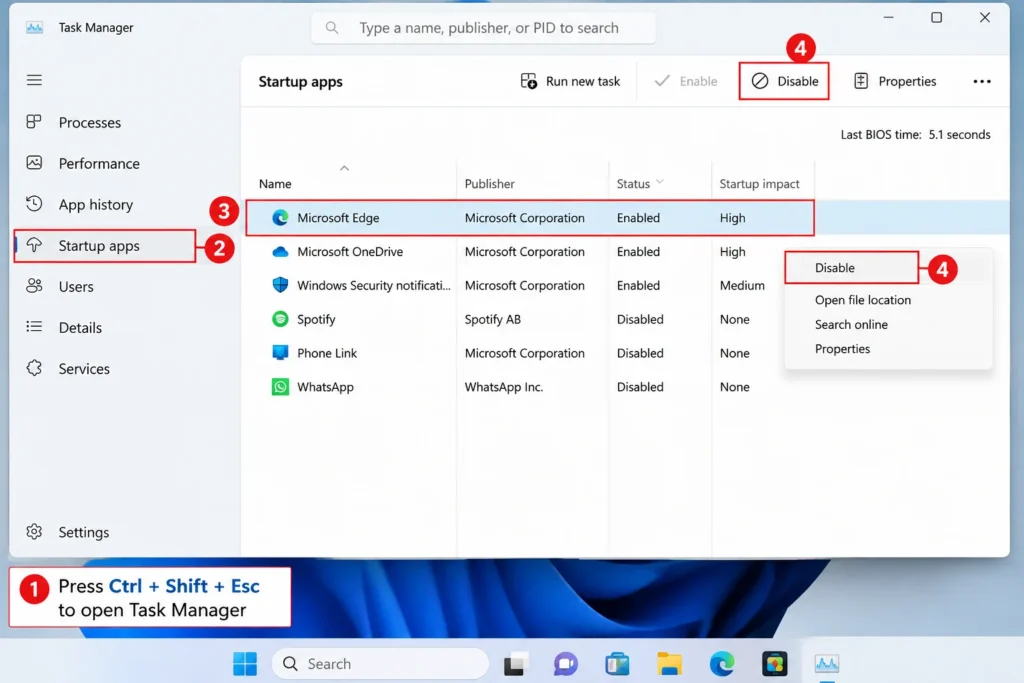
If Edge was launching every time you turned on your PC, this alone often fixes it completely.
2: Turn Off Startup Boost
This is a lesser known Edge specific feature that a lot of people don’t realize exists, and it’s a common reason Edge seems to “start itself” even when you didn’t add it to Windows startup.
- Open Microsoft Edge
- Click the three dot menu in the top right corner, then go to Settings
- Click System and performance in the sidebar
- Turn off Startup boost
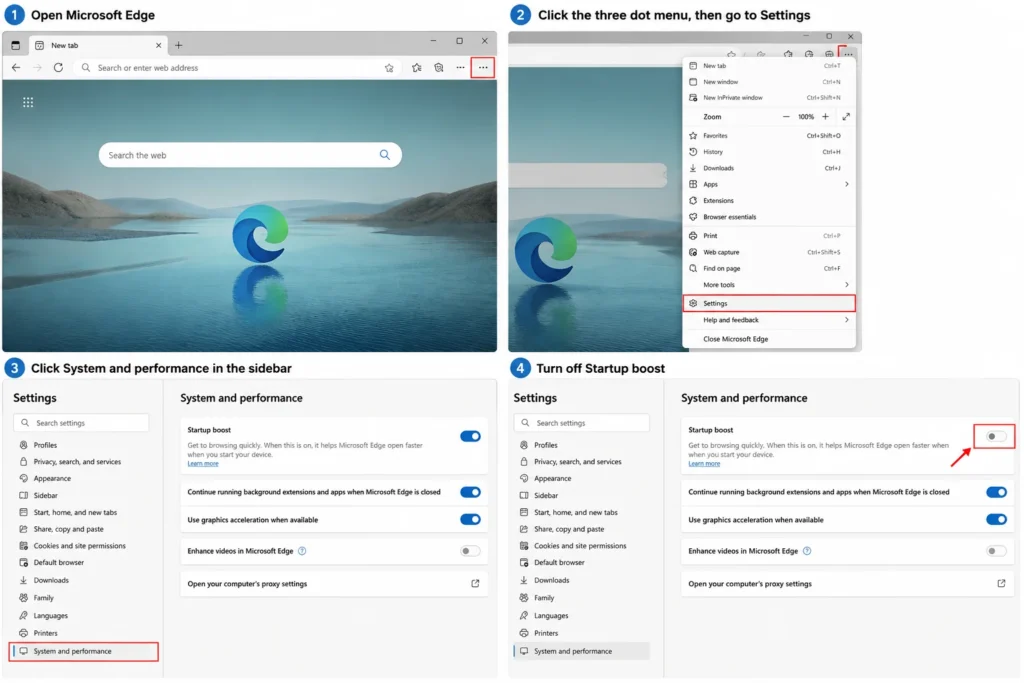
Startup Boost is designed to make Edge open faster by preloading parts of it in the background as soon as your PC turns on, which is exactly why it can feel like Edge is launching on its own even when you never manually opened it.
3: Disable Continue Running Background Extensions and Apps
This setting allows Edge ( and its extensions ) to keep running in the background even after you’ve closed every Edge window, which can make it seem like Edge is opening on its own when it never actually fully closed in the first place.
- Open Edge Settings ( three dot menu > Settings )
- Go to System and performance
- Turn off Continue running background extensions and apps when Microsoft Edge is closed
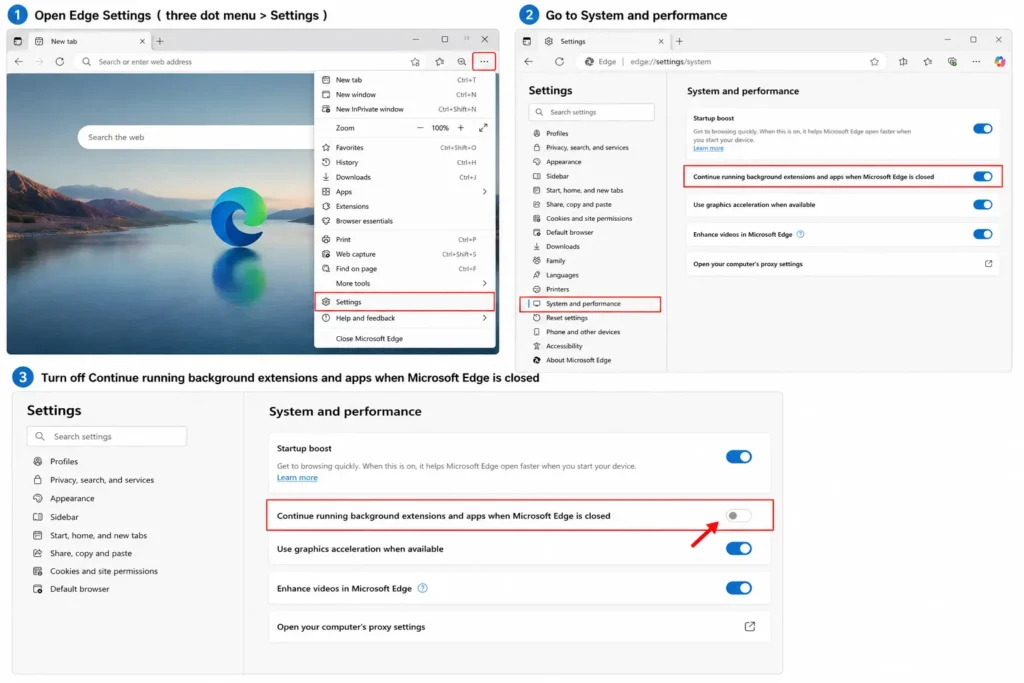
Once this is off, closing all your Edge windows actually closes Edge completely, rather than leaving it quietly active in the background.
4: Check for Scheduled Tasks Launching Edge
Sometimes a scheduled task, either one Windows created automatically or one left behind by an installed program, is set to open Edge at specific times or during startup.
- Search for Task Scheduler in the Start menu and open it
- In the left panel, expand Task Scheduler Library
- Look through the list for anything related to Edge or “MicrosoftEdgeUpdate”
- Click on a suspicious task, check its Triggers tab to see when it’s set to run
- If you find one causing the issue, right click it and select Disable
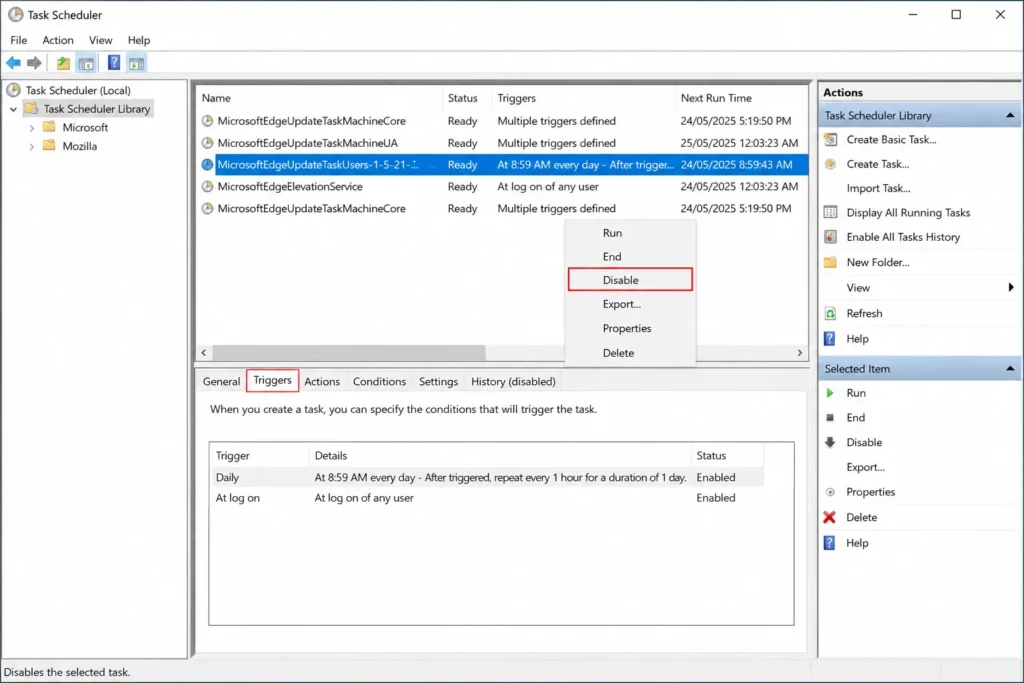
Be cautious here, some Edge related scheduled tasks are legitimately needed for updates, so disable only tasks you’re confident are related to Edge launching itself unexpectedly, rather than disabling everything Edge related you come across.
5: Turn Off News and Interests / Widgets
If Edge seems to open specifically when you click the weather or news icon on your taskbar, this isn’t really Edge opening on its own, it’s the Widgets or News and Interests feature using Edge’s engine to display content, which can feel like an unexpected Edge launch if you weren’t expecting it.
- Right click an empty area of your taskbar
- Look for Taskbar settings or Widgets in the menu
- Turn off Widgets if you don’t use this feature
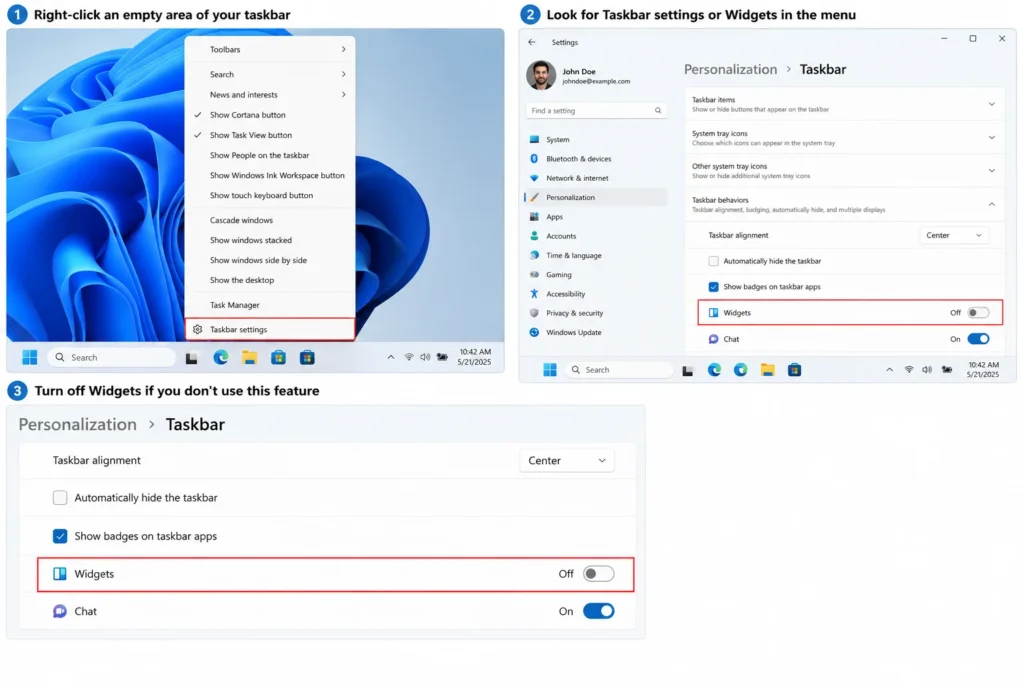
This won’t stop Edge from ever opening, since clicking Widgets is still a deliberate action, but it removes one common trigger people mistake for Edge randomly launching itself.
6: Check Your Default Browser and App Settings
If links from other apps, emails, or documents keep opening in Edge unexpectedly, this usually isn’t Edge “opening itself” so much as Edge being set as your default browser or default handler for certain file types.
- Go to Settings > Apps > Default apps
- Search for Microsoft Edge
- Review which file types and links are set to open with Edge
- Change these to your preferred browser if you’d rather links open somewhere else by default
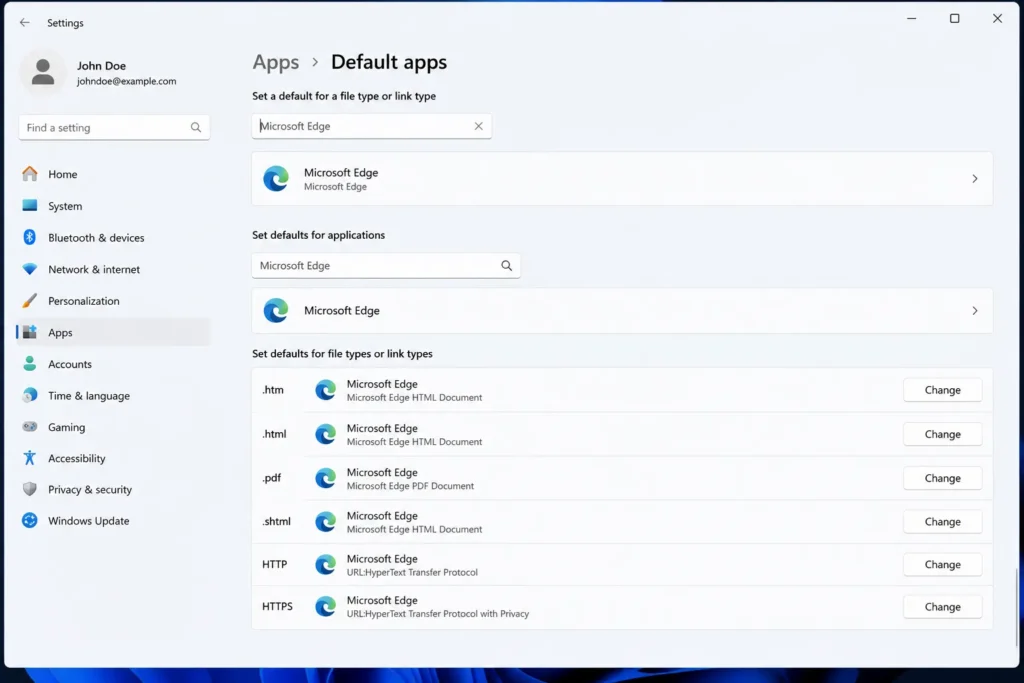
This is especially worth checking after a Windows update, since updates occasionally reset default app settings back to Edge without much warning.
7: Reset Edge Settings ( If Nothing Else Works )
If you’ve gone through everything above and Edge is still opening unexpectedly, resetting its settings back to default can clear out any unusual configuration causing the behavior.
- Open Edge Settings
- Go to Reset settings in the sidebar
- Click Restore settings to their default values
- Confirm the reset
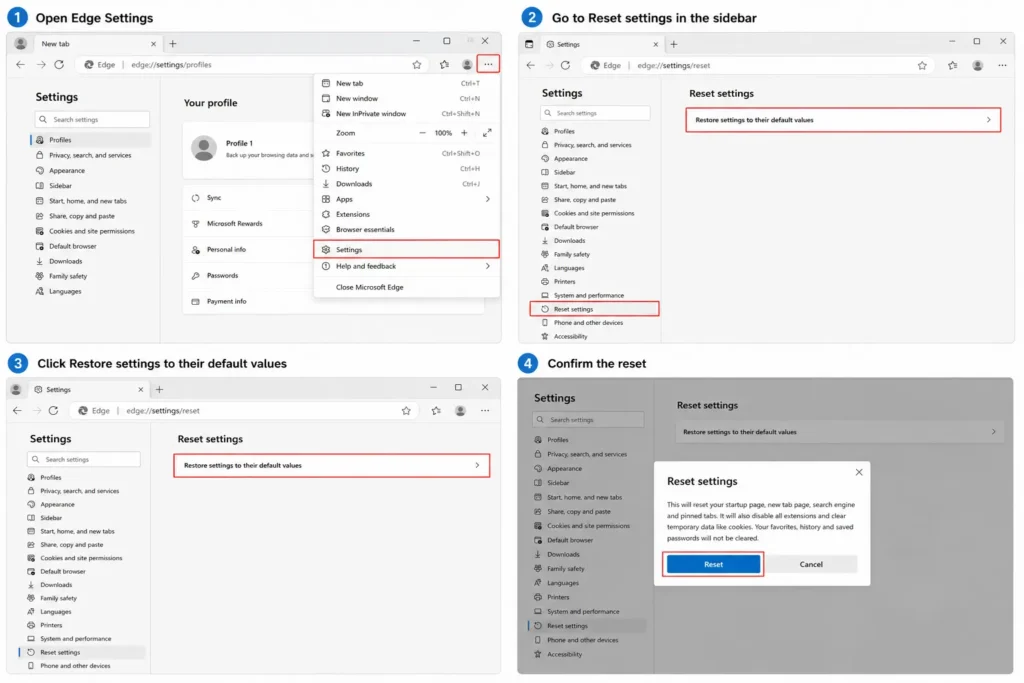
This won’t delete your bookmarks or saved passwords, but it will reset things like your homepage, startup behavior, and new tab settings back to Microsoft’s defaults, which is worth trying as a last resort before assuming something more serious is going on.
Still Happening After Every Fix ? Check Third Party Software
If you’ve worked through every method above and Edge is still opening unexpectedly, the cause might not be Windows or Edge itself, but a third party program installed on your PC. Some software, particularly antivirus tools, PDF readers, and certain productivity or browser extension apps, occasionally open Edge in the background to display update notifications, promotional pages, or license reminders.
To narrow this down, open Task Manager right after Edge unexpectedly appears and check the Processes tab for anything unusual running at the same time, sometimes the program responsible is listed right alongside Edge in the timeline of what just launched. You can also check Settings > Apps > Installed apps for any recently installed software you don’t fully recognize, since a fresh install is often what introduces this kind of unexpected behavior in the first place. Uninstalling or updating the specific program responsible usually resolves it when the issue turns out to be unrelated to Edge’s own settings entirely.
Is There a Legitimate Reason Windows Opens Edge Automatically Sometimes?
It’s worth knowing that not every instance of Edge opening unexpectedly is actually a problem to fix. Windows occasionally opens Edge briefly and automatically for legitimate system reasons, like displaying certain notifications, running a background update check, or handling specific system links, and this is normal, low impact behavior rather than something broken.
The methods above are aimed at stopping Edge from fully opening as a visible window you have to manually close, not necessarily every background process tied to Edge’s engine, some of which exist because parts of Windows 11 rely on Edge’s underlying components even if you never use Edge as your main browser.
Frequently Asked Questions
Can I completely uninstall Edge to stop this for good?
Not entirely, at least not through normal means. Edge is deeply integrated into Windows 11 and can’t be fully uninstalled the way a regular third party app can, since some system features rely on its underlying components. You can disable it from opening as a visible browser using the methods above, but complete removal isn’t officially supported by Microsoft.
Why does Edge open right after I install a Windows update?
This is common and usually intentional on Microsoft’s part, Edge sometimes opens after an update to show a “what’s new” page or highlight new features. It’s mostly a one time occurrence tied to that specific update rather than something that will keep happening regularly afterward.
Does disabling Startup Boost slow down Edge when I do want to use it?
Slightly, yes. Startup Boost exists specifically to make Edge open faster by preloading it in the background, so turning it off means Edge may take a second or two longer to fully open when you do want to use it. For most people, this small trade-off is worth it to stop Edge from launching unexpectedly.
Will these changes affect Edge’s ability to receive important security updates?
No, none of the methods here affect Edge’s update mechanism. Turning off Startup Boost, background extensions, or disabling it from startup apps only changes when and how Edge opens as a visible window, not whether it continues receiving security patches in the background.