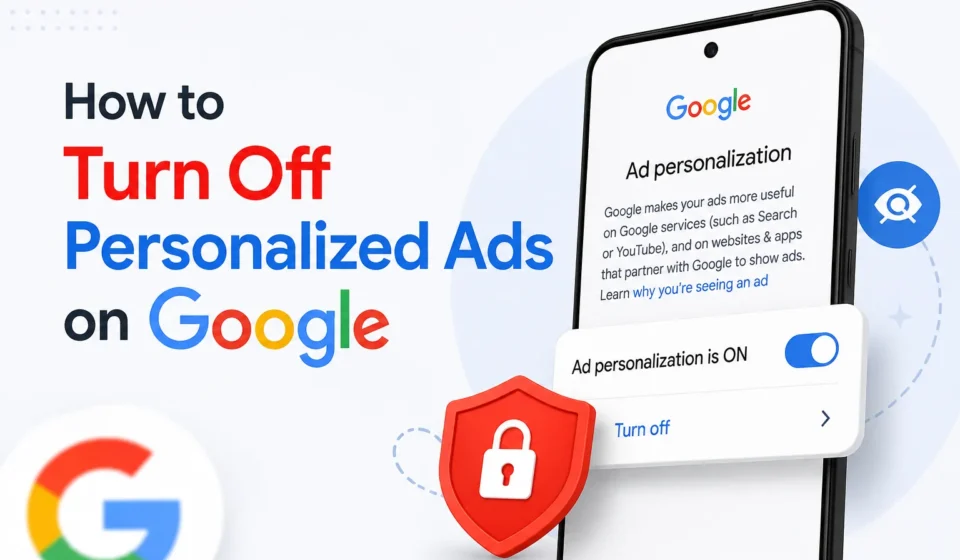

You’ve probably noticed it before: you talk about something, search for it once, or even just spend a little too long looking at a product online, and suddenly ads for that exact thing start following you around everywhere. That’s personalized advertising at work, Google building a profile of your interests based on your searches, YouTube history, app usage, and browsing activity, then using it to decide which ads to show you. Turning this off doesn’t stop you from seeing ads entirely, Google still needs to show something, but it does stop those ads from being built around your personal activity and interests.
Here’s exactly how to turn it off, along with what actually changes once you do.
What “Personalized Ads” Actually Means
It helps to understand what’s happening behind the scenes before turning anything off. Google collects data from things like your search history, the videos you watch on YouTube, apps you’ve installed through the Play Store, and websites that use Google’s advertising services, then uses this to build an advertising profile tied to your account. This profile includes inferred interests, like “cooking” or “home improvement,” and sometimes demographic guesses, like age range or general location, all used to decide which ads are more likely to catch your attention.
Turning off personalized ads doesn’t delete this underlying data automatically or stop Google from collecting activity data in general, that’s controlled separately through your activity settings. What it specifically does is stop Google from using whatever profile it has built to customize the ads you see, meaning you’ll start seeing more generic, less targeted ads instead.
Turning Off Personalized Ads Through Your Google Account
This is the main setting that controls personalized ads across Google’s own products and any website or app that uses Google’s ad network.
- Go to myadcenter.google.com while signed into your Google account
- Look for the toggle related to Personalized ads near the top of the page
- Turn it Off
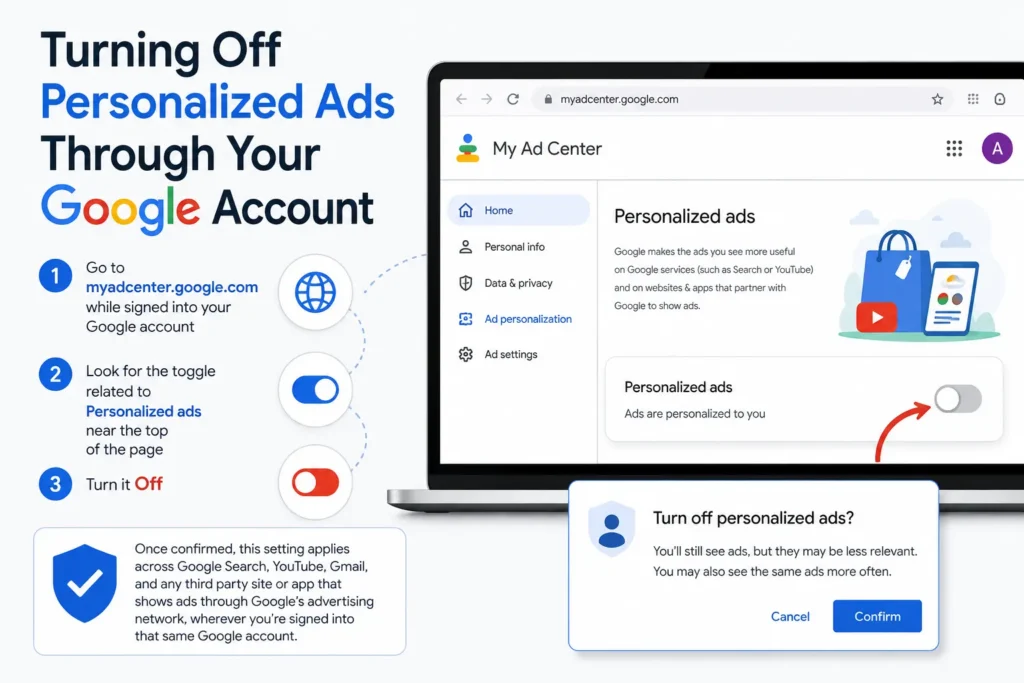
You may be asked to confirm this choice, since Google will show you a brief explanation of what changes. Once confirmed, this setting applies across Google Search, YouTube, Gmail, and any third party site or app that shows ads through Google’s advertising network, wherever you’re signed into that same Google account.
Turning Off Ad Personalization Specifically on YouTube
While the main Ad Center setting above covers YouTube as part of your overall Google account, YouTube has historically had its own dedicated settings menu as well, worth checking directly if you use YouTube heavily.
- Open YouTube and click your profile picture
- Go to Settings
- Click Privacy, or look for a section related to Ads
- Adjust any ad personalization settings shown there, which typically link back to the same Google Ad Center controls
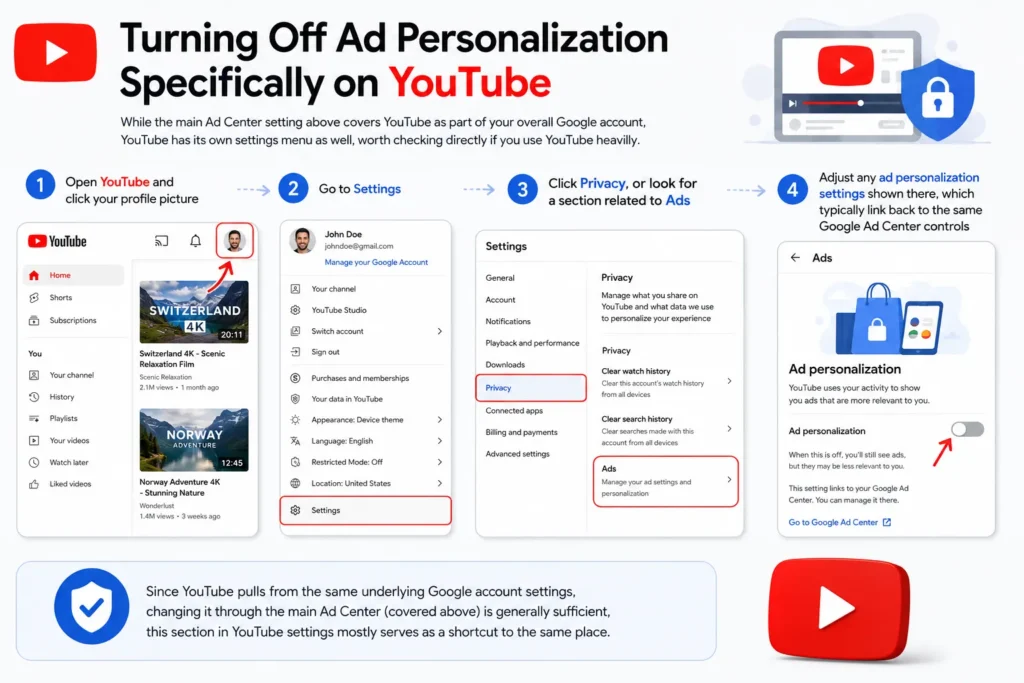
Since YouTube pulls from the same underlying Google account settings, changing it through the main Ad Center (covered above) is generally sufficient, this section in YouTube settings mostly serves as a shortcut to the same place.
Turning Off Personalized Ads on Android
If you’re specifically trying to limit ad personalization on your Android phone, including ads that show up within apps rather than just Google’s own products, there’s a device level setting worth adjusting too.
- Open Settings on your Android device
- Go to Google (sometimes found under Passwords & accounts or as its own dedicated section, depending on your phone’s manufacturer)
- Tap Ads
- Turn on Opt out of Ads Personalization
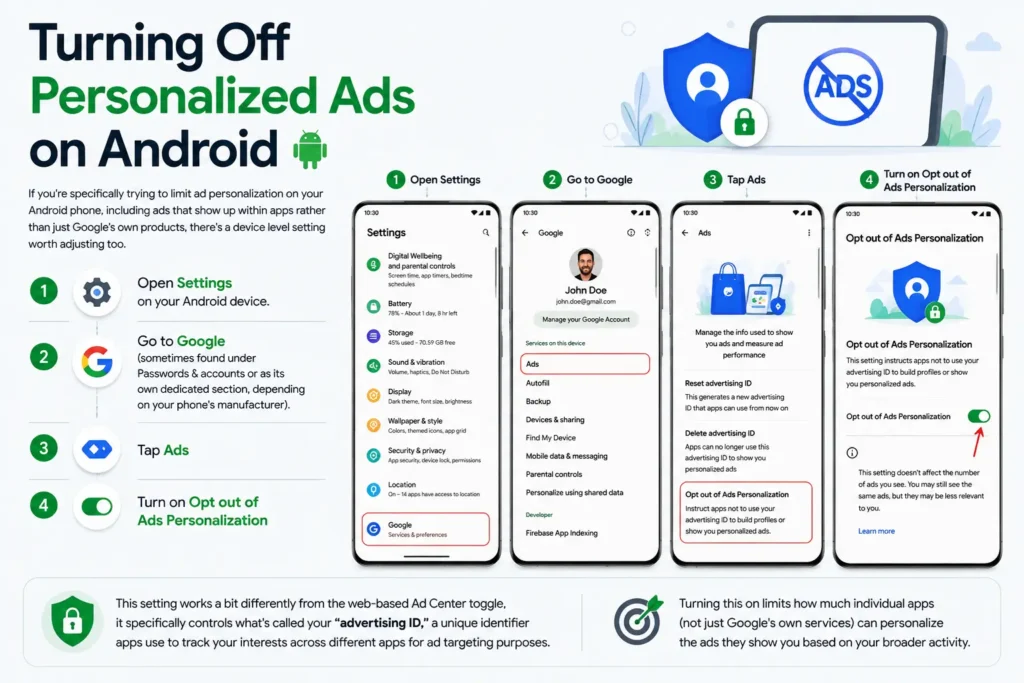
This setting works a bit differently from the web based Ad Center toggle, it specifically controls what’s called your “advertising ID,” a unique identifier apps use to track your interests across different apps for ad targeting purposes. Turning this on limits how much individual apps ( not just Google’s own services ) can personalize the ads they show you based on your broader activity.
Turning Off Ad Personalization on iPhone
If you use Google apps like Gmail, YouTube, or Chrome on an iPhone, the same Google Account-level setting (through myadcenter.google.com) still applies and works the same way as it does on any device, since it’s tied to your account rather than the operating system itself.
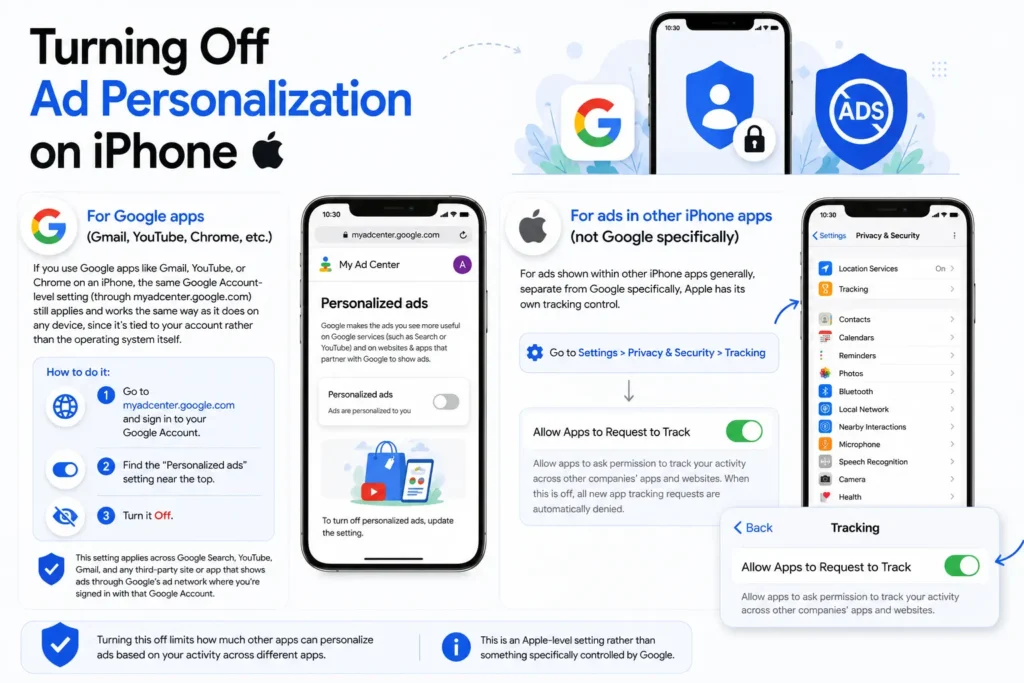
For ads shown within other iPhone apps generally, separate from Google specifically, Apple has its own tracking control found under Settings > Privacy & Security > Tracking, where turning off Allow Apps to Request to Track limits how much other apps can personalize ads based on your activity across different apps, though this is an Apple level setting rather than something specifically controlled by Google.
What Actually Changes Once You Turn It Off
This is worth setting realistic expectations about, since a common misconception is that this stops ads from appearing at all, it doesn’t. You’ll still see ads across Google Search, YouTube, Gmail, and any site using Google’s ad network, they just won’t be tailored to your specific browsing habits, interests, or search history anymore. Instead, you’ll typically see more general ads based on the context of what you’re currently viewing, like an ad related to the specific article you’re reading, rather than something based on your personal activity from days or weeks earlier.
Some people find this results in noticeably more repetitive or less relevant ads, since Google essentially loses the extra context it was previously using to guess what you might actually be interested in. Others prefer this tradeoff specifically because it reduces the slightly unsettling feeling of ads that seem to know a bit too much about recent searches or conversations.
Checking and Adjusting Your Ad Interest Profile Directly
Beyond the simple on/off toggle, Google actually lets you see and edit the specific interest categories it’s assigned to your account, which can be worth reviewing even if you decide to keep personalized ads turned on.
- Go to myadcenter.google.com
- Scroll down to see the list of interest categories Google has associated with your account
- Remove any specific categories you don’t want influencing your ads, without necessarily turning off personalization entirely
- You can also adjust settings related to your inferred age range or gender, if you’d prefer these not factor into ad targeting
This offers a middle ground option for anyone who doesn’t mind personalized ads in general but wants more control over specifically which interests and inferred details are being used, rather than an all or nothing choice between fully personalized and fully generic ads.
A Few Related Settings Worth Knowing About
Turning off personalized ads is a good first step, but it’s worth knowing it’s separate from a couple of related privacy settings that some people expect to be bundled together.
Web & App Activity, found under your Google Account’s Data & Privacy settings, controls whether Google saves your searches, browsing, and app usage in the first place, this exists independently of ad personalization and affects things like personalized search results and recommendations, not just ads specifically. Location History, similarly found under Data & Privacy, controls whether Google tracks and stores your physical location over time, which can separately factor into ad targeting related to nearby businesses if left enabled.
If your goal is broader privacy rather than just less targeted ads specifically, it’s worth reviewing these related settings as well, since turning off personalized ads alone doesn’t stop Google from collecting this underlying activity data, it just changes how that data (or lack of new personalization) gets used specifically for advertising purposes.
Keeping This Setting Consistent Across Devices
Since ad personalization is tied to your Google account rather than a specific device, turning it off through myadcenter.google.com on one device should apply everywhere you’re signed into that same account. That said, it’s worth double-checking on each device you regularly use, especially the separate Android device level “Opt out of Ads Personalization” setting mentioned earlier, since that one specifically affects the advertising ID used by other apps beyond just Google’s own products, and isn’t automatically synced the same way the main account level Google Ads setting is.
Does Turning Off Personalized Ads Affect Search Results Too?
This is a common point of confusion worth clearing up directly, since search results and ads can feel closely related but are actually controlled by different settings behind the scenes. Turning off personalized ads specifically affects the advertisements you see, it does not automatically make your regular Google search results less personalized. Your organic search results (the actual website links, not the ads at the top or bottom of the page) are influenced more by your Web & App Activity setting and general signals like your location and language, rather than the ad personalization toggle specifically.
If your goal is also reducing how personalized your regular search results feel, separate from ads entirely, that requires adjusting Web & App Activity under your Google Account’s Data & Privacy settings, or using something like an incognito or private browsing window, which limits personalization for that specific session without needing to change your account wide settings at all.
What Happens If You Change Your Mind Later
If you turn off personalized ads and later decide you’d rather have them back on, whether because you found the generic ads less useful or simply changed your mind, this is easy to reverse and doesn’t require rebuilding anything from scratch.
Simply return to myadcenter.google.com, find the same Personalized ads toggle, and switch it back On. Google generally retains your previous ad interest profile and settings for a period of time even after turning personalization off, so re-enabling it often restores a reasonably similar experience to before, rather than starting completely fresh as if you were a brand new user. That said, if a significant amount of time has passed with personalization turned off, the profile may have grown a bit stale, so it can take some new activity for the personalization to feel as accurate as it was previously, since Google’s ad targeting naturally adjusts based on your more recent behavior once it’s active again.