
Windows 11 knows where you are more often than most people realize. Between the operating system itself, individual apps, and even your web browser, there are several separate layers of location tracking running at once and turning off just one of them usually isn’t enough to actually stop it.
If you’re trying to lock down your privacy, save a bit of battery, or just don’t like the idea of Windows quietly logging your whereabouts, here’s every place you need to check.
Why Windows 11 Tracks Your Location in the First Place
Microsoft uses location data to power a handful of features: Weather and Maps obviously need it, but so do things like Find My Device, Windows Hello, and even some background diagnostics. Third party apps you’ve installed can also request access Zoom, Facebook, and plenty of shopping or delivery apps ask for it on first launch and quietly keep using it afterward.
None of this is inherently sinister, but it does mean your location is being pulled from more places than the average user expects. Turning it off is straightforward once you know where to look.
Method 1: Turn Off Location Services System Wide
This is the master switch. Disabling it here blocks location access for the entire operating system and every app on it.
- Open Settings ( Windows key + I ).
- Go to Privacy & security in the left sidebar.
- Click Location under the “App permissions” section.
- Toggle Location services to Off.
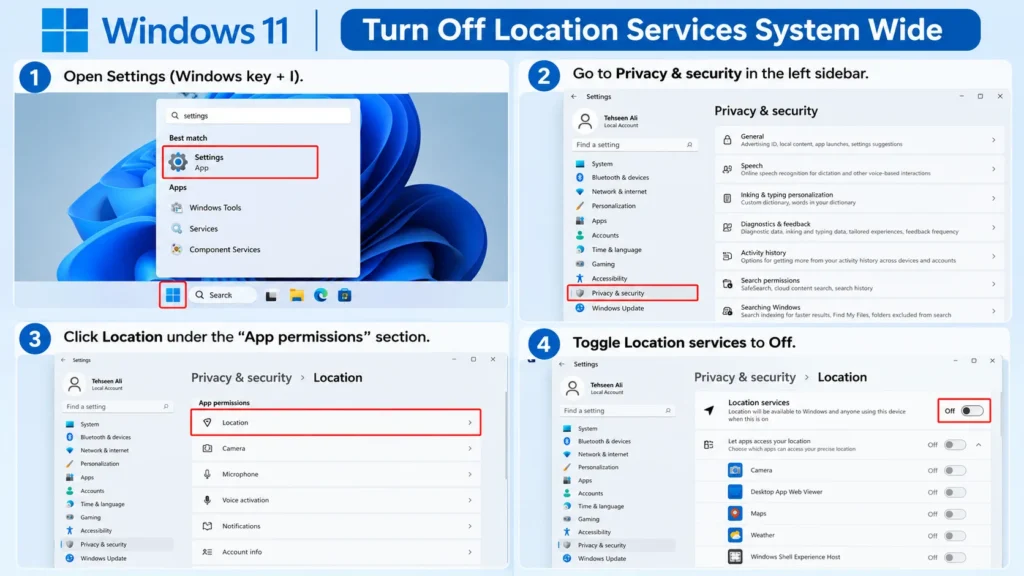
Once you flip this switch, no app Microsoft’s own or third party can request your location, regardless of what permissions it has individually. This is the fastest route if you want a clean, total shutdown.
Method 2: Block Location for Specific Apps Only
Maybe you still want Maps or Weather to work but don’t trust that random game you downloaded last week. In that case, leave the master switch on and manage apps individually instead.
Head back to Settings > Privacy & security > Location, and scroll down to App permissions. You’ll see a full list of installed apps with a toggle next to each one. Flip off anything you don’t want pulling your GPS or Wi-Fi based location there’s no need to disable location services globally just to stop one nosy app.
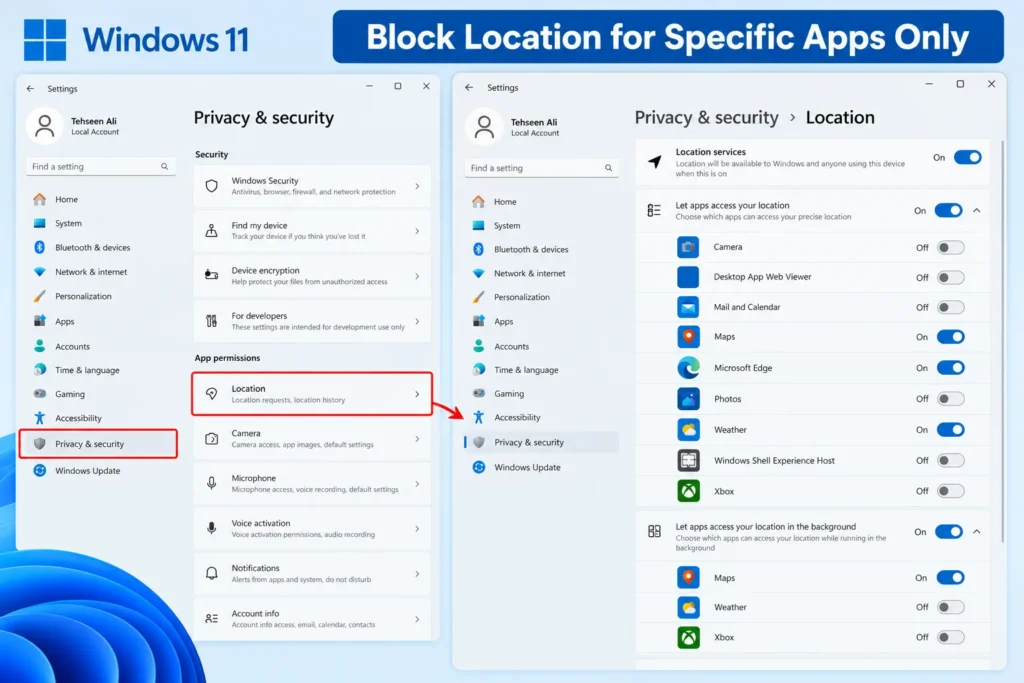
A quick note: some apps only ask for location “while using the app,” while others request it in the background too. If you scroll further down that same page, Windows separates these into “Let apps access your location” and, for apps that support it, a background access toggle. Worth checking both.
Method 3: Disable Location Tracking in Your Browser
Even with Windows level location services off, your browser can still ask websites for permission to use location through its own settings and sites like Google Maps, weather services, or food delivery platforms will prompt you for it constantly.
In Microsoft Edge:
- Open Edge and click the three dots in the top right, then Settings.
- Go to Cookies and site permissions.
- Click Location.
- Toggle off Ask before accessing (or set it so no sites are allowed by default), and remove any sites already listed under “Allow.”
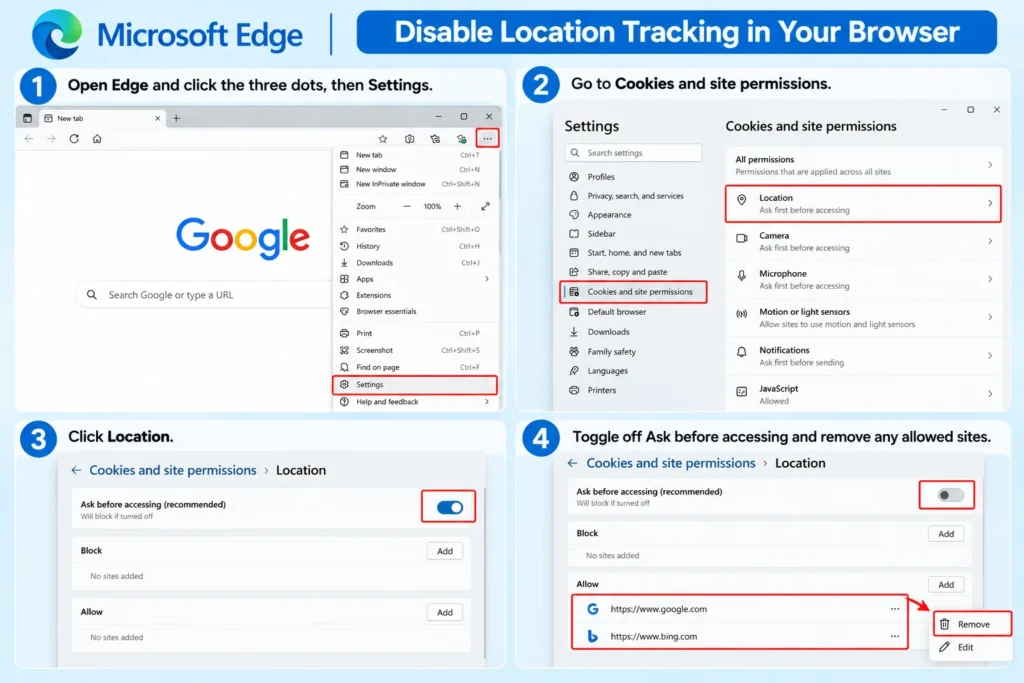
In Google Chrome:
- Click the three dots > Settings > Privacy and security > Site settings.
- Scroll to Location and switch it to Don’t allow sites to see your location.
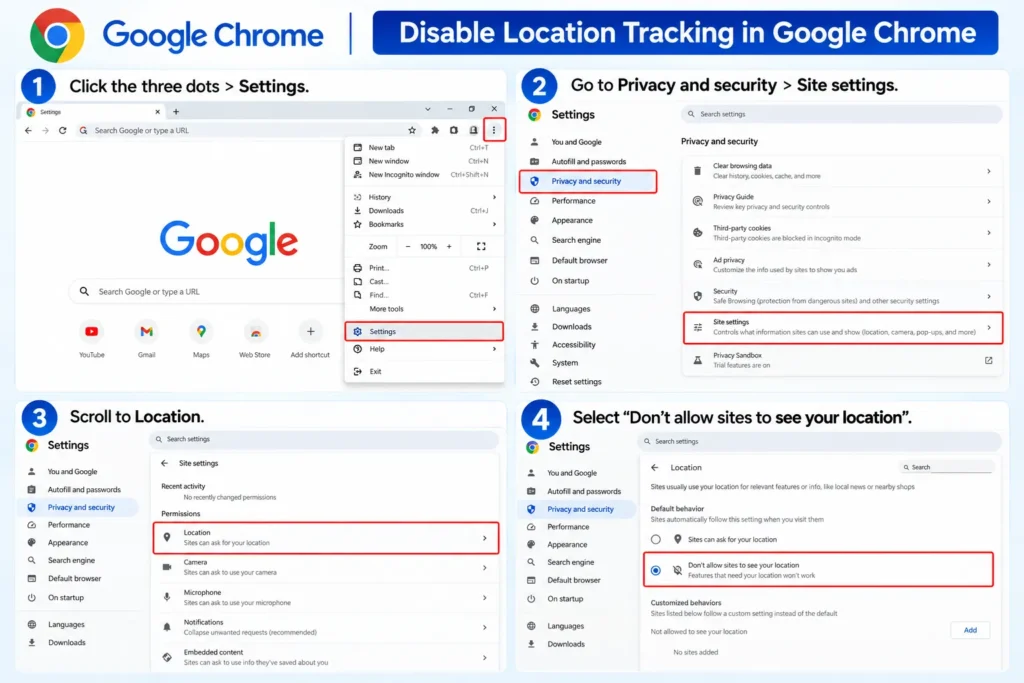
This step matters more than people give it credit for plenty of location “leaks” people worry about actually come from browser permissions granted months ago and forgotten.
Method 4: Clear Your Location History
Turning off tracking going forward doesn’t erase what’s already been logged. Windows keeps a local location history that some apps reference.
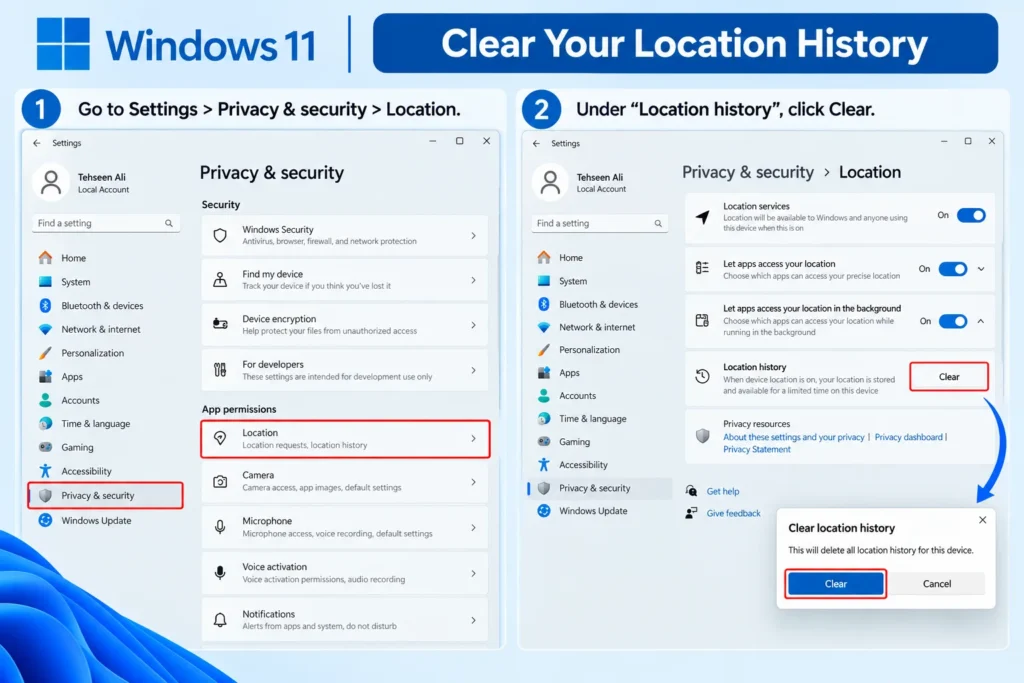
Go to Settings > Privacy & security > Location, and under “Location history,” click Clear. This wipes the history stored on your device. It’s a small step, but if you’re doing a full privacy cleanup, skip it and you’ve only done half the job.
Method 5: Turn Off Location via Group Policy or Registry (Advanced)
If you’re managing multiple machines, or you want a setting that’s harder to accidentally re enable, Group Policy gives you more permanent control. This only works on Windows 11 Pro, Enterprise, or Education Home edition doesn’t include the Group Policy Editor.
- Press Windows key + R, type
gpedit.msc, and hit Enter. - Navigate to Computer Configuration > Administrative Templates > Windows Components > Location and Sensors.
- Double click Turn off location.
- Set it to Enabled, then click Apply.
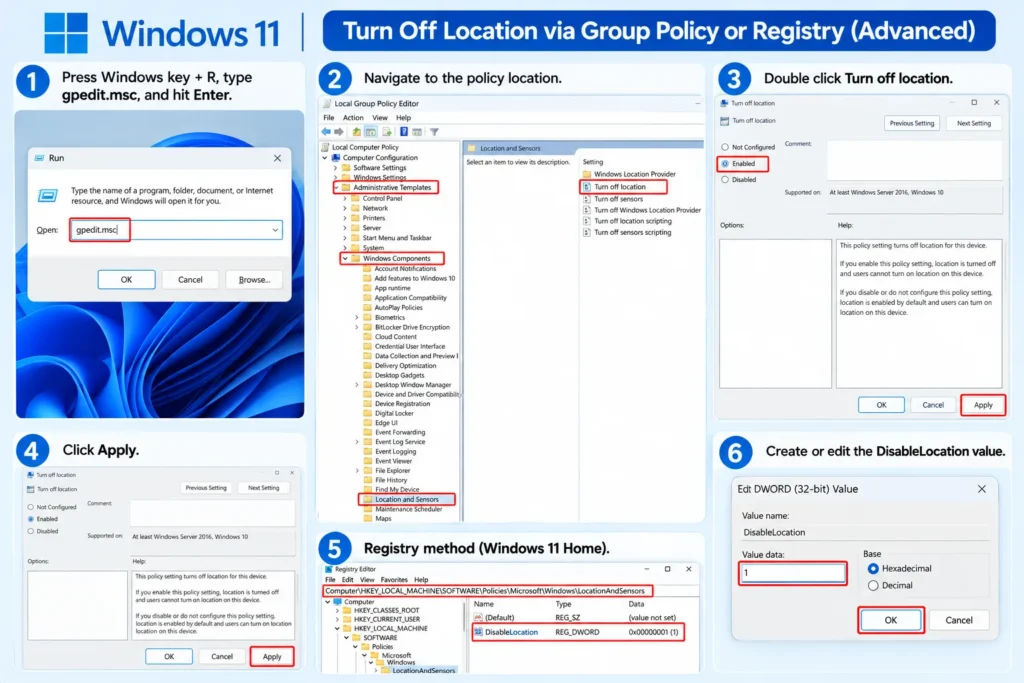
For Windows 11 Home users who still want this level of control, the equivalent registry tweak involves creating a DisableLocation DWORD value under HKEY_LOCAL_MACHINE\SOFTWARE\Policies\Microsoft\Windows\LocationAndSensors. If you’re not comfortable editing the registry, it’s safer to stick with the Settings app method a wrong edit here can cause other issues.
Does This Affect Find My Device?
Yes, and it’s worth knowing before you disable everything. Find My Device relies on location services being turned on to track a lost or stolen laptop. If you disable location system wide, you lose that safety net too. Some people choose a middle ground: keep location services on, but disable it individually for every app except the ones tied to security ( Find My Device, Windows Hello ).
Quick Recap
| Goal | Where to Go |
|---|---|
| Turn off location for everything | Settings > Privacy & security > Location > toggle off |
| Block specific apps only | Same page, scroll to App permissions |
| Stop websites from asking | Browser settings > Site permissions > Location |
| Erase past location logs | Settings > Privacy & security > Location > Clear history |
| Enterprise level lockdown | Group Policy Editor (Pro/Enterprise/Education only) |
Frequently Asked Questions
Does disabling location tracking save battery?
A little. GPS and Wi-Fi based location scanning do use some power, especially on laptops. It’s not a dramatic difference, but on older hardware it can help.
Will turning off location break Windows Update or security features?
No. Windows Update, Defender, and core OS functions don’t depend on your physical location. Only location aware features (Maps, Weather, Find My Device, time zone auto detection) are affected.
Can Windows still know my location through my IP address even with this off?
Technically, yes — websites and some services can make a rough guess based on IP address alone, which isn’t something these settings control. If that level of privacy matters to you, a VPN addresses that separately.
Does this work the same way on Windows 11 Home and Pro?
The Settings app method ( Methods 1 –4 ) works identically on both editions. Group Policy (Method 5) is Pro/Enterprise/Education only.