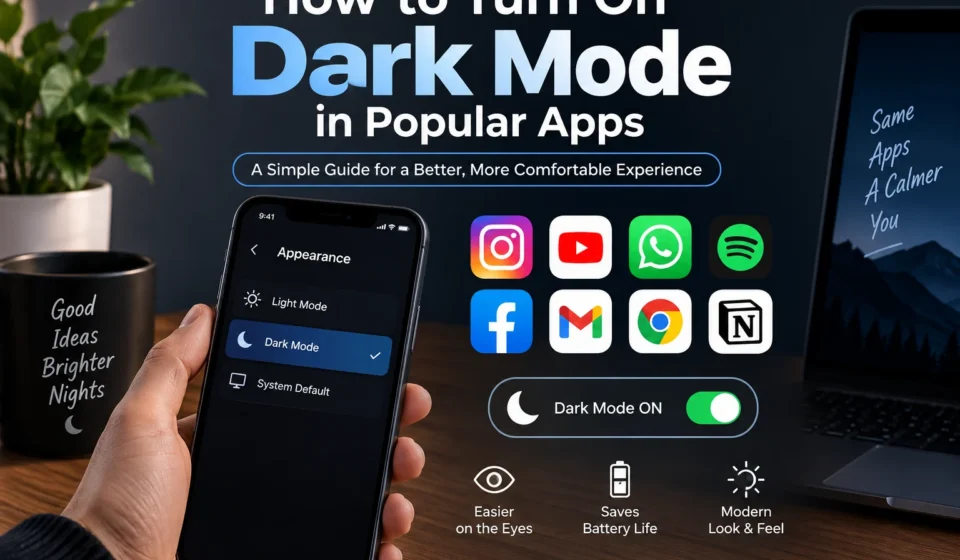

If your eyes have ever felt like they were staring into a flashlight at 11 PM while scrolling through an app, you already know why dark mode exists. It’s easier on the eyes, it saves battery on OLED and AMOLED screens, and honestly, it just looks sleeker. The good news is that almost every major app and operating system now has a built in dark mode you just have to know where to find the switch.
Below is a straightforward, no fluff walkthrough for turning on dark mode across the apps and platforms people use every single day.
Turn On Dark Mode on iPhone (iOS)
Apple made this one system wide, so once you flip it, it applies almost everywhere:
- Open Settings
- Tap Display & Brightness
- Select Dark
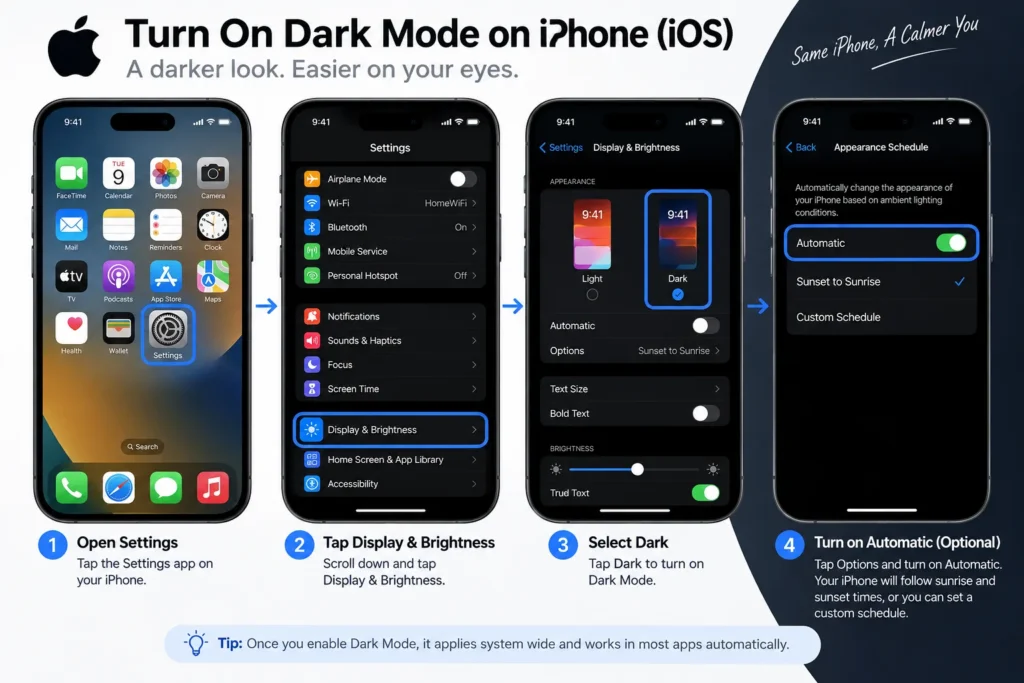
Want it to switch automatically at sunset? Tap Options under the Light/Dark toggle and turn on Automatic. This lets your phone follow sunrise and sunset times, or you can set a custom schedule.
Turn On Dark Mode on Android
Android’s system wide dark mode lives in a similar spot, though the exact wording can shift slightly depending on your phone brand (Samsung, Pixel, OnePlus, etc.):
- Open Settings
- Tap Display
- Toggle on Dark theme (or Dark mode, depending on your device)
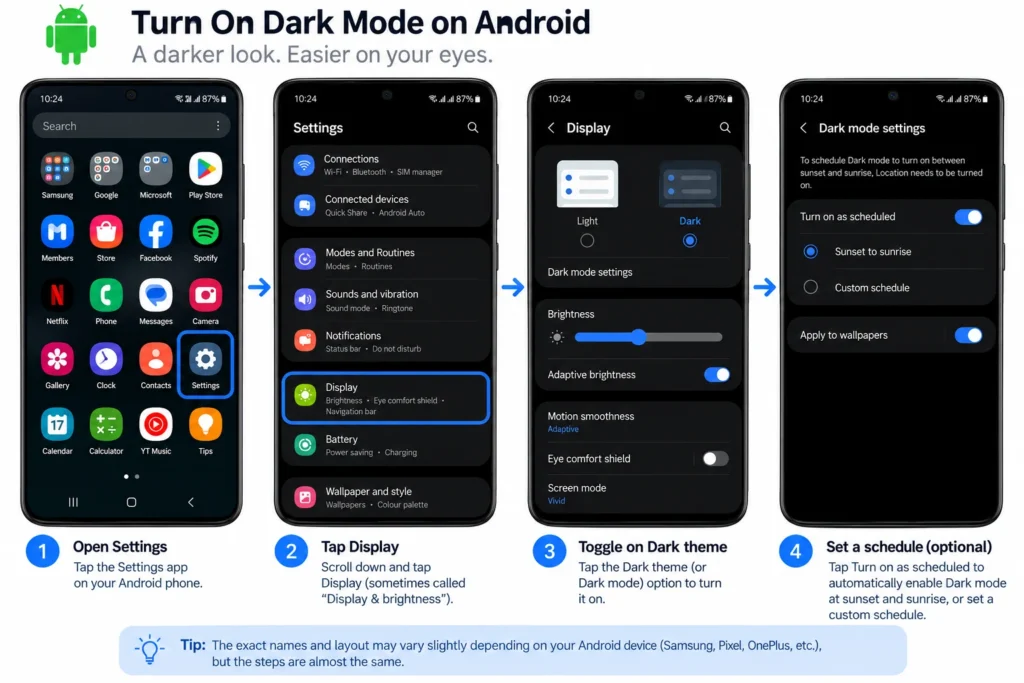
Most Android phones also let you schedule it look for an option like “Turn on automatically” right under the toggle.
Turn On Dark Mode on Windows 11
- Right-click on your desktop and select Personalize, or go to Settings > Personalization
- Click Colors
- Under “Choose your mode,” select Dark
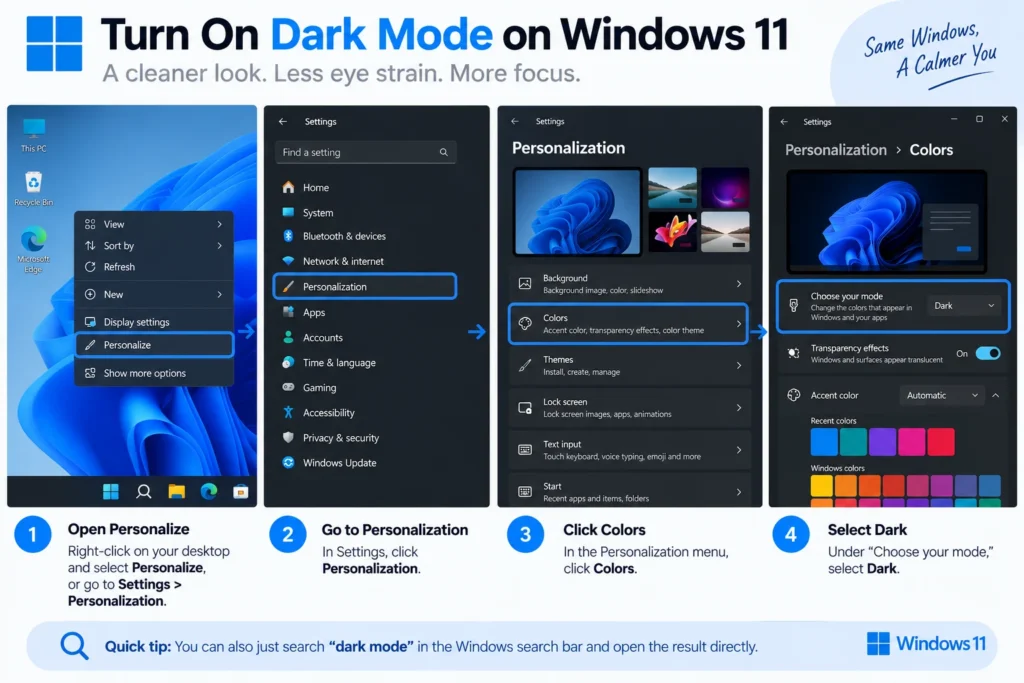
You can also just search “dark mode” in the Windows search bar if you don’t feel like digging through menus.
Turn On Dark Mode on Mac (macOS)
- Click the Apple menu in the top left corner
- Go to System Settings > Appearance
- Choose Dark
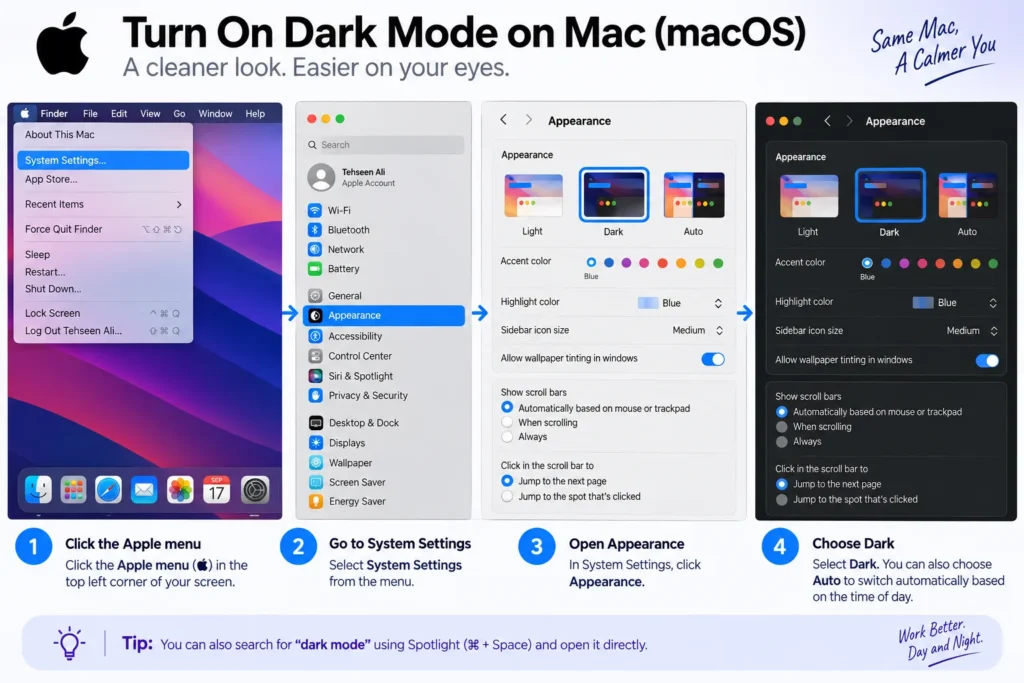
There’s also an Auto option that shifts your Mac from light to dark based on the time of day, which is genuinely one of the more underrated features in macOS.
Turn On Dark Mode in Google Chrome
Chrome’s dark mode usually follows your system settings automatically, but you can also control it separately:
- Click the three dot menu in the top right corner
- Go to Settings > Appearance
- Under “Theme,” pick Dark
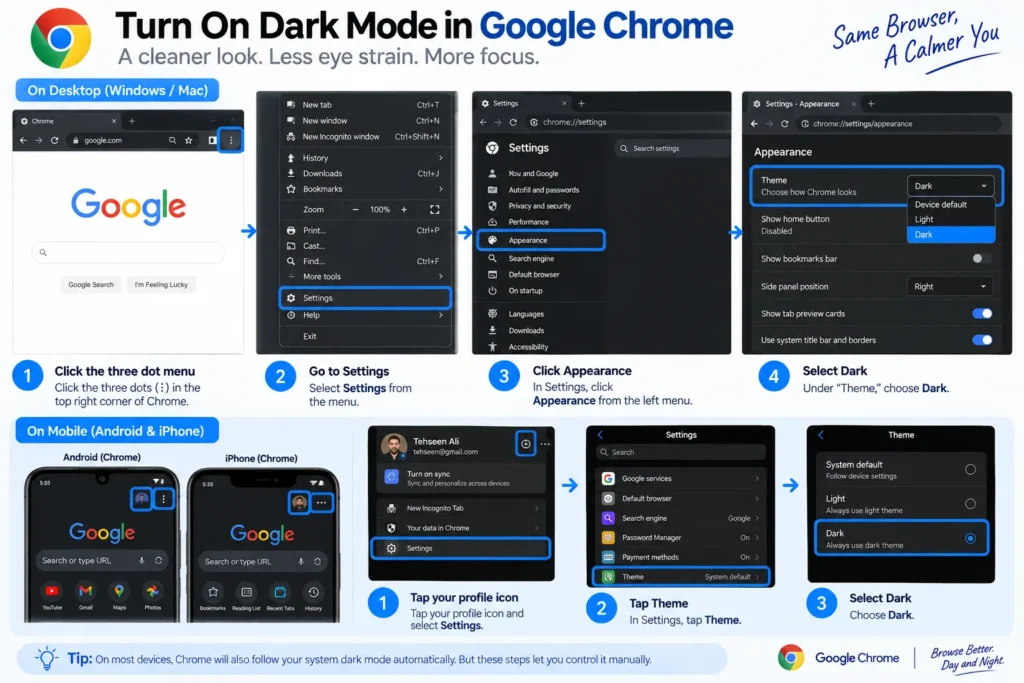
On mobile, tap your profile icon, go to Settings > Theme, and select Dark.
Turn On Dark Mode on YouTube
- Tap your profile picture ( top right corner )
- Select Settings
- Tap General
- Toggle on Dark theme
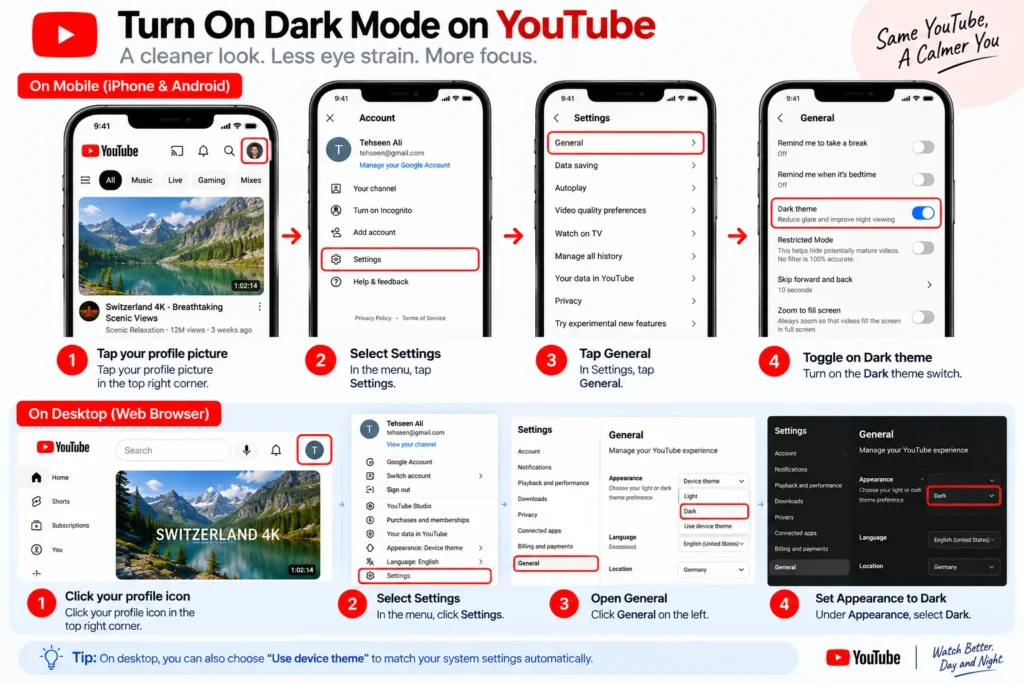
On desktop, it’s the same idea click your profile icon, then flip the “Appearance” toggle to dark.
Turn On Dark Mode on Instagram
Instagram doesn’t have its own separate dark mode toggle anymore it simply follows your phone’s system-wide display setting. So if you’ve already switched your iPhone or Android to dark mode using the steps above, Instagram will automatically follow suit.
Turn On Dark Mode on WhatsApp
- Open WhatsApp and tap the three dots (Android) or go to Settings (iPhone)
- Tap Chats
- Tap Theme
- Choose Dark
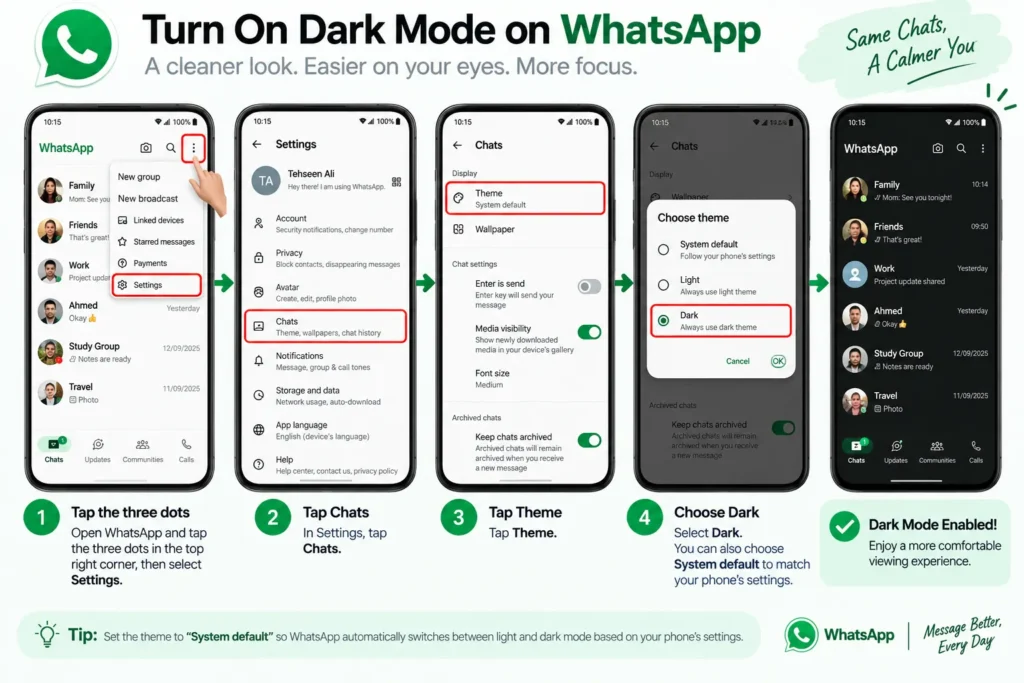
You can also set it to “System default” so it automatically matches whatever mode your phone is in.
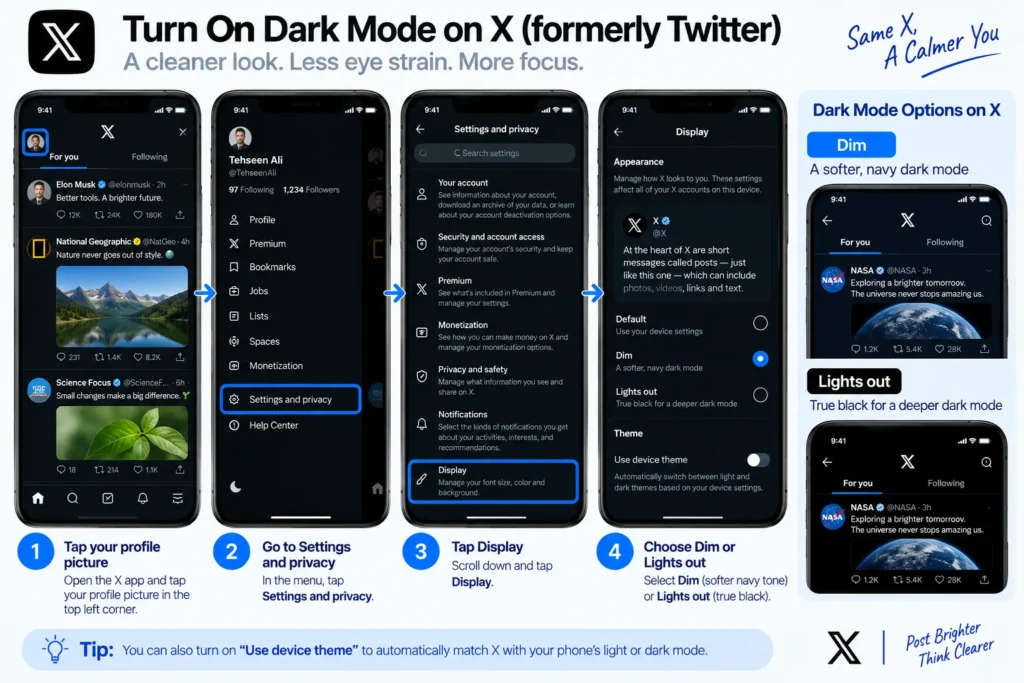
Turn On Dark Mode on X (formerly Twitter)
- Tap your profile picture
- Go to Settings and privacy > Display
- Choose between Dim and Lights out ( X’s version of dark mode has two shades Dim is a softer navy tone, Lights out is true black )
Turn On Dark Mode in Gmail
- Open the Gmail app
- Tap the hamburger menu (three lines, top left)
- Scroll down and tap Settings
- Tap General > Theme
- Choose Dark
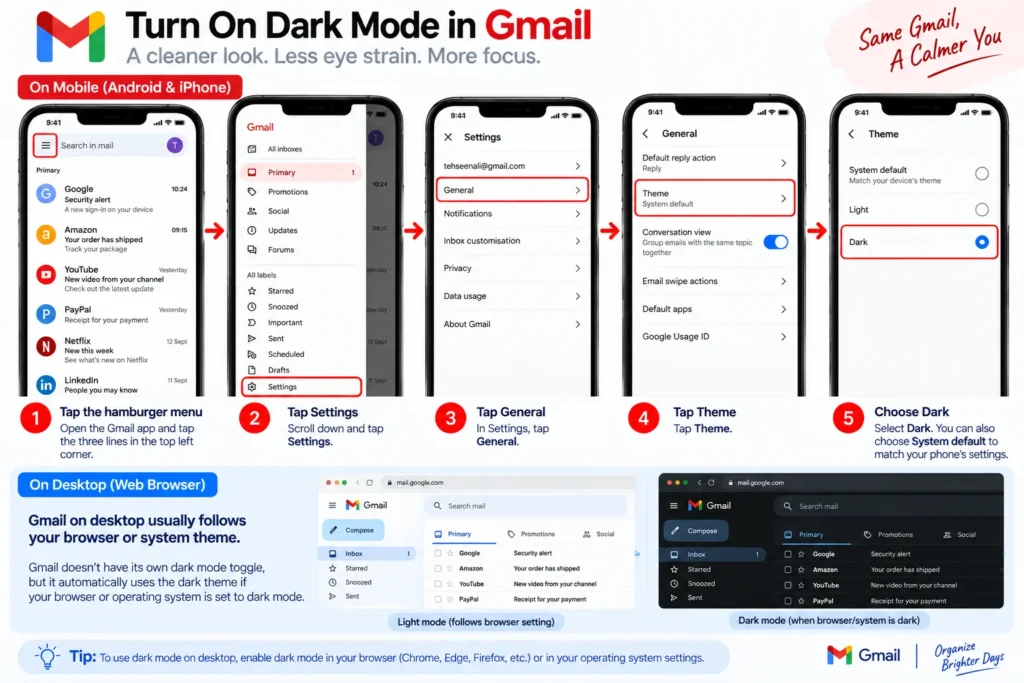
On desktop, Gmail typically follows your browser or system theme rather than offering its own toggle.
Turn On Dark Mode in Microsoft Word, Excel, and Outlook
- Open any Office app
- Click your profile icon or go to File > Account
- Under “Office Theme,” pick Black or Dark Gray
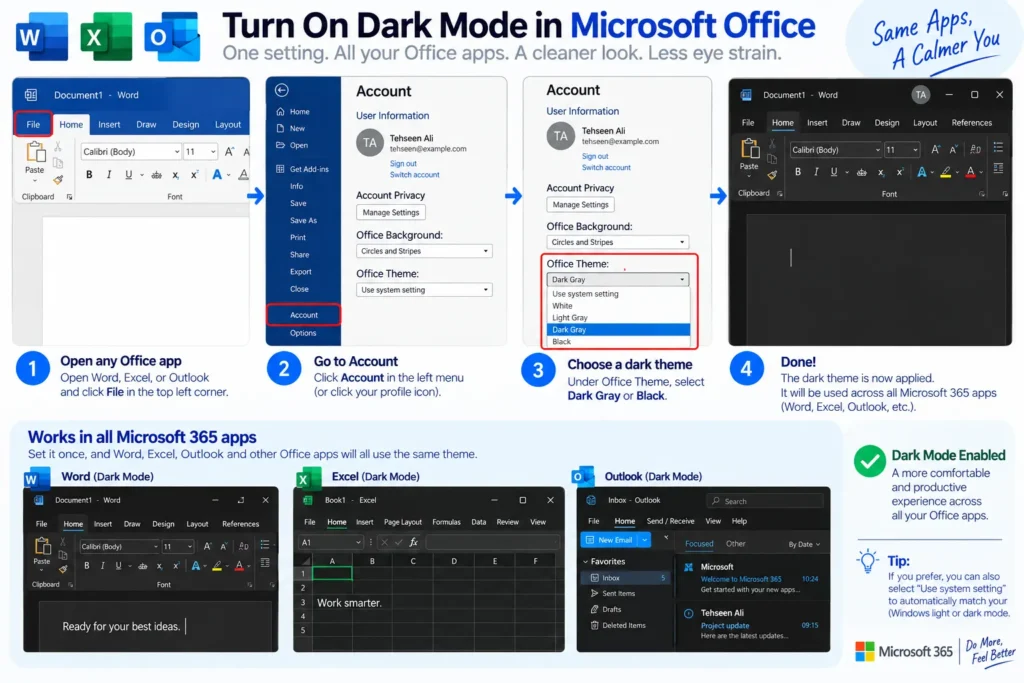
This setting applies across all Microsoft 365 apps at once, so you only need to set it one time.
Why Dark Mode Actually Matters
Beyond the obvious aesthetic appeal, dark mode has a few real benefits worth knowing:
- Battery life: On phones with OLED or AMOLED screens, dark mode can noticeably extend battery life since black pixels use little to no power.
- Eye strain: Using bright white screens in low light can cause more eye fatigue, especially at night.
- Focus: Some people simply find dark interfaces less distracting, since less light is competing for attention.
Does Dark Mode Actually Protect Your Eyes at Night?
There’s a common belief that dark mode is automatically “better” for your eyes, but the truth is a little more nuanced. Dark mode doesn’t magically eliminate eye strain what it really does is reduce the harsh contrast between a bright screen and a dark room, which is what usually causes discomfort during late night scrolling. If you’re using your phone in a dimly lit bedroom, dark mode genuinely helps because your pupils aren’t constantly adjusting to a glowing white background. But if you’re using your phone outdoors in bright daylight, dark mode can actually make text harder to read, since the low contrast doesn’t hold up well against sunlight. The takeaway: use dark mode when you’re in low light environments, and don’t feel guilty switching back to light mode during the day.
Dark Mode and Sleep: Is It Really Better Before Bed?
A lot of people assume switching to dark mode before bed will help them fall asleep faster, but the science says it’s not that simple. What affects your sleep the most isn’t the color of your background it’s the overall brightness and blue light exposure coming from the screen. Dark mode can help slightly because darker screens emit less overall light, but if your brightness is still cranked up, you’re not getting the full benefit. For genuinely better results before bed, pair dark mode with a lower screen brightness and, if your device has one, a “Night Shift” or “Blue Light Filter” feature. Together, these do a lot more for your sleep quality than dark mode alone ever could.
What to Do If Dark Mode Looks Buggy or Inconsistent
Every once in a while, you’ll turn on dark mode and notice something looks off maybe a white flash when an app opens, or a menu that stays stubbornly light while everything else goes dark. This usually isn’t something wrong with your phone; it’s simply an app that hasn’t fully finished implementing dark mode support on its end. The easiest fix is to check if the app has a separate, in app dark mode toggle rather than relying on your system-wide setting, since some apps ( like older versions of certain shopping or banking apps ) need to be told individually. If the glitch persists, updating the app to its latest version usually resolves it, since dark mode bugs are one of the more common things developers patch in routine updates.
Frequently Asked Questions
Does dark mode save battery on all phones?
Only on OLED and AMOLED screens, which can turn pixels fully off when displaying black. LCD screens don’t get the same benefit since the backlight stays on regardless of color.
Why doesn’t dark mode work in some apps even after I turn it on system wide?
Some apps haven’t been updated to support dark mode, or they require you to enable it separately inside the app itself rather than relying on your phone’s system setting.
Can I schedule dark mode to turn on automatically?
Yes, on most major platforms (iOS, Android, Windows, and macOS) you can set dark mode to activate automatically at sunset or on a custom schedule.