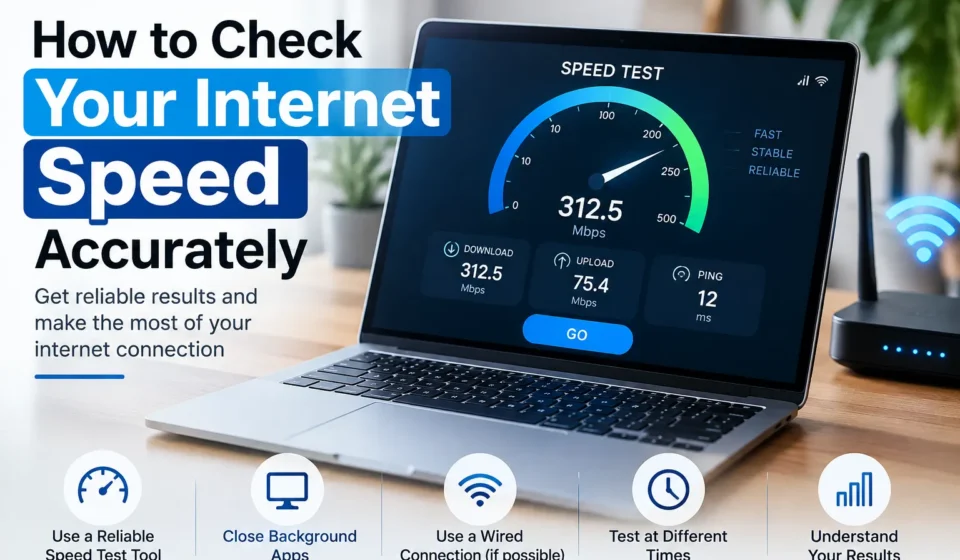

You run a speed test, get 240 Mbps, and yet Netflix is still buffering. Sound familiar? A lot of people check their internet speed the wrong way and walk away with a number that has almost nothing to do with what they’re actually experiencing. Here’s how to get a reading you can actually trust.
Rule #1: Stop Testing Over Wi-Fi If You Can Help It
This is the single biggest reason speed tests lie to you. Wi-Fi introduces its own bottlenecks distance from the router, wall thickness, interference from neighbors’ networks, even your microwave none of which have anything to do with the speed your ISP is actually delivering.
If you want the real number your provider is giving you, plug a laptop or desktop directly into the modem or router with an Ethernet cable and run the test from there. If you only have a phone or can’t run a cable, at least stand right next to the router with nothing else running on the network.
Pick the Right Testing Tool
Not all speed tests are built the same, and some are more accurate than others depending on what you’re trying to measure.
- Speedtest by Ookla – the most widely used, connects you to the nearest server automatically, gives download, upload, and ping.
- Fast.com (run by Netflix) – simpler, fewer numbers, but useful because it tests against Netflix’s own servers, which tells you something closer to real streaming performance.
- Your ISP’s own speed test tool – worth running alongside a third party one. If your provider’s own test and an independent one disagree wildly, that’s useful troubleshooting information in itself.
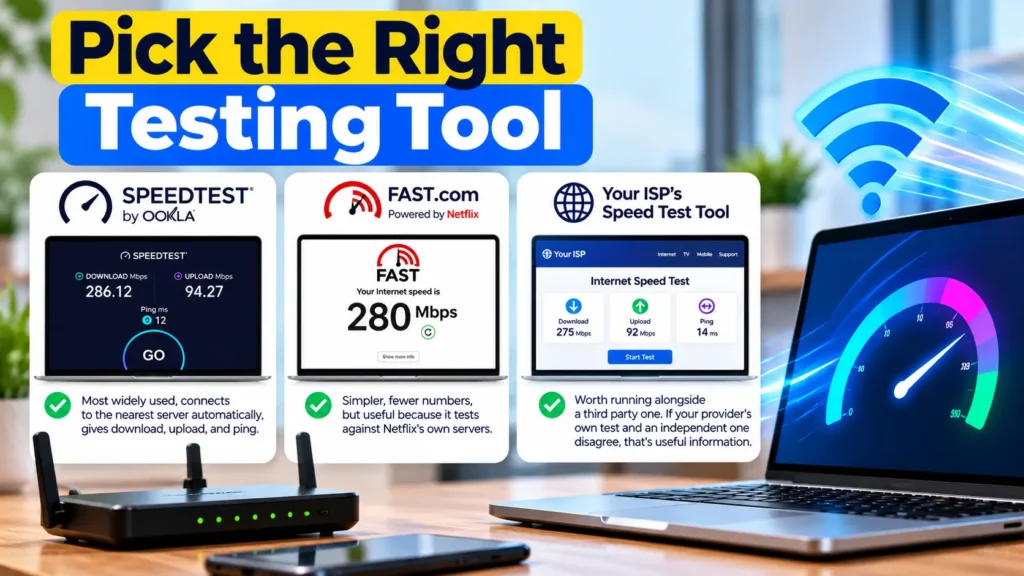
Running two or three different tools back to back and comparing results gives you a far more honest picture than trusting a single number.
Test at Different Times of Day
Internet speed isn’t a fixed number it fluctuates based on network congestion in your neighborhood, especially with cable internet where bandwidth is often shared among nearby households. Run a test at 9 AM and another at 9 PM, when everyone’s home streaming. If there’s a big gap, that tells you your connection struggles specifically during peak hours, which is different from a connection that’s just slow across the board.
Testing Your Speed on Mobile Data vs. Wi-Fi
If you’re troubleshooting a “slow internet” complaint, it helps to know whether the problem is your home network or something upstream from your carrier or ISP entirely. Turn off Wi-Fi on your phone, run a speed test on mobile data alone, then turn Wi-Fi back on and test again in the same spot. If mobile data is fast but home Wi-Fi is sluggish, the issue lives inside your house router placement, interference, or a plan that’s simply too slow for how many devices are connected. If both are slow, the problem is more likely with the broader network either your ISP or, if you’re on mobile data, weak signal in your area. This one comparison saves a lot of guesswork before you start blaming your router for something it didn’t cause.
Turn Off Everything Else First
Before you hit “Go,” close background downloads, pause cloud backups, and check whether anyone else in the house is streaming, gaming, or on a video call. A speed test run while four other devices are pulling bandwidth will give you a number that reflects none of them accurately including yours.
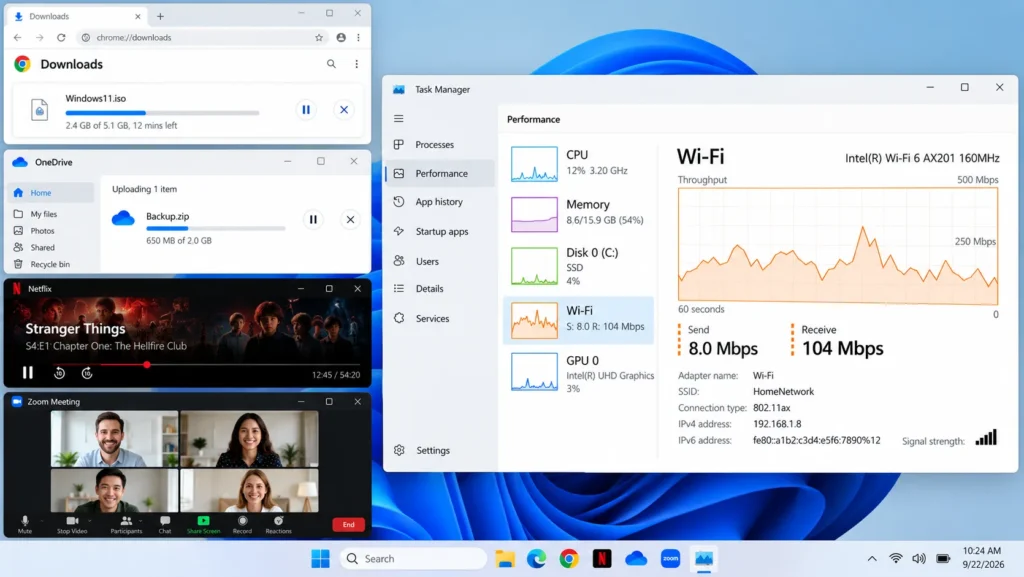
On Windows, you can quickly check what’s using bandwidth by opening Task Manager > Performance tab > Ethernet or Wi-Fi, which shows real time throughput. Worth a glance before testing.
Run the Test More Than Once
A single test result can be thrown off by a momentary network hiccup. Run it three to five times, a few minutes apart, and take the average rather than trusting the first number you see. If the results are wildly inconsistent one test at 200 Mbps, the next at 40 that inconsistency is itself a signal something’s wrong with your connection or router, not just noise.
Understand What the Numbers Actually Mean
- Download speed – how fast data comes to you. This is what matters most for streaming, browsing, and downloading files.
- Upload speed – how fast data leaves your device. Matters for video calls, uploading files, and live streaming.
- Ping (latency) – how long it takes for a signal to travel to the server and back, measured in milliseconds. Lower is better. This is the number that actually matters for gaming and video calls, far more than raw download speed.
- Jitter — how much your ping varies from one moment to the next. High jitter causes choppy calls and laggy games even when your download speed looks fine.
If your download speed looks great but video calls still stutter, ping and jitter are usually the real culprit not bandwidth.
Compare Against What You’re Paying For
Log into your ISP account or check a recent bill to see what speed tier you’re actually paying for. Most providers deliver somewhere between 80 – 95% of advertised speed under normal conditions, which is considered acceptable. If you’re consistently getting less than half of what you’re paying for, especially at different times of day and on a wired connection, it’s worth contacting your ISP that’s a legitimate service issue, not a testing quirk.
When the Numbers Still Don’t Add Up
If you’ve tested wired, tested at different times, closed background apps, and the number still doesn’t match your experience, the issue is often the router itself rather than the incoming connection. Old routers, outdated firmware, or a router placed far from where you actually use the internet can all throttle real world performance well below what’s coming into the house.
How a VPN Affects Your Speed Test Results
If you run a speed test while connected to a VPN, don’t be surprised if the number drops noticeably sometimes by half or more. VPNs route your traffic through an extra server, encrypt it, and often connect you to a location farther away than your ISP’s nearest test server, all of which adds overhead. This isn’t a sign your internet plan is broken; it’s just how VPNs work. If you want an accurate baseline reading of your actual internet speed, disconnect the VPN first, test, then reconnect it afterward if you want to see the difference for comparison. Testing with a VPN on is really only useful if your goal is specifically to check VPN performance, not your raw connection speed.
Frequently Asked Questions
Why is my speed test result different every time I run it?
Minor fluctuations are normal and caused by network congestion, server load on the testing site, and background activity on your own network. Large swings usually point to a connection or router problem.
Is Wi-Fi speed supposed to be slower than wired speed?
Yes, to some degree. Even a strong Wi-Fi signal typically runs a bit below wired speeds due to signal overhead. A big gap, though say losing more than 30 – 40% usually points to interference or distance issues.
Does the time of day really make that much of a difference?
On shared connections like cable, yes. Fiber connections tend to hold steady speeds regardless of time, since bandwidth generally isn’t shared with neighbors the same way.
What’s a “good” ping for gaming?
Under 20ms is excellent, 20 – 50ms is good for most games, and anything above 100ms starts to feel noticeably laggy in fast paced games.