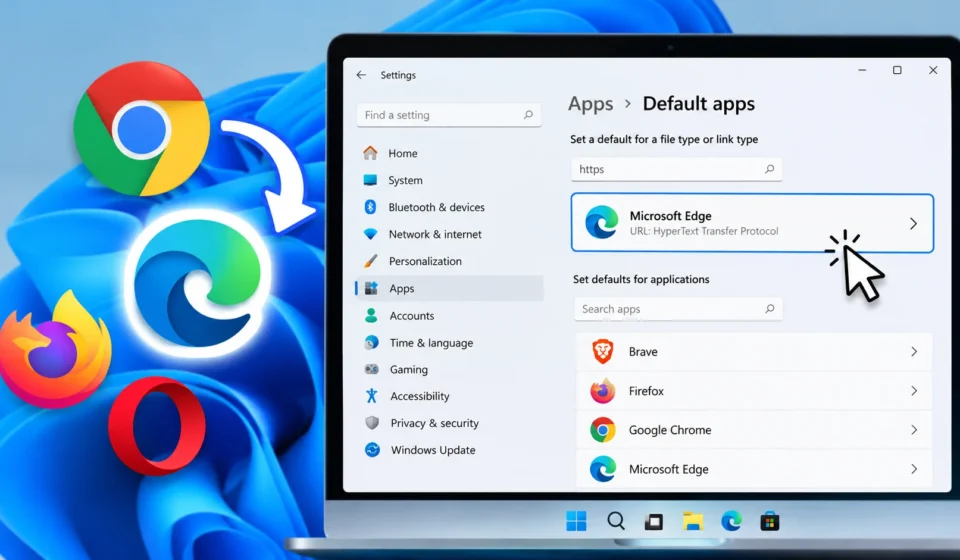

You install Chrome, or Firefox, or Brave and yet every link you click still opens in Edge anyway. Sound familiar? Windows 11 made this process more annoying than it used to be, splitting one simple setting across several screens instead of a single dropdown. The good news is it only takes a couple of minutes once you know exactly where to look. Here’s the complete, updated walkthrough.
Step 1: Open the Default Apps Settings
- Press Windows key + I to launch Settings
- Click Apps in the left sidebar
- Select Default apps
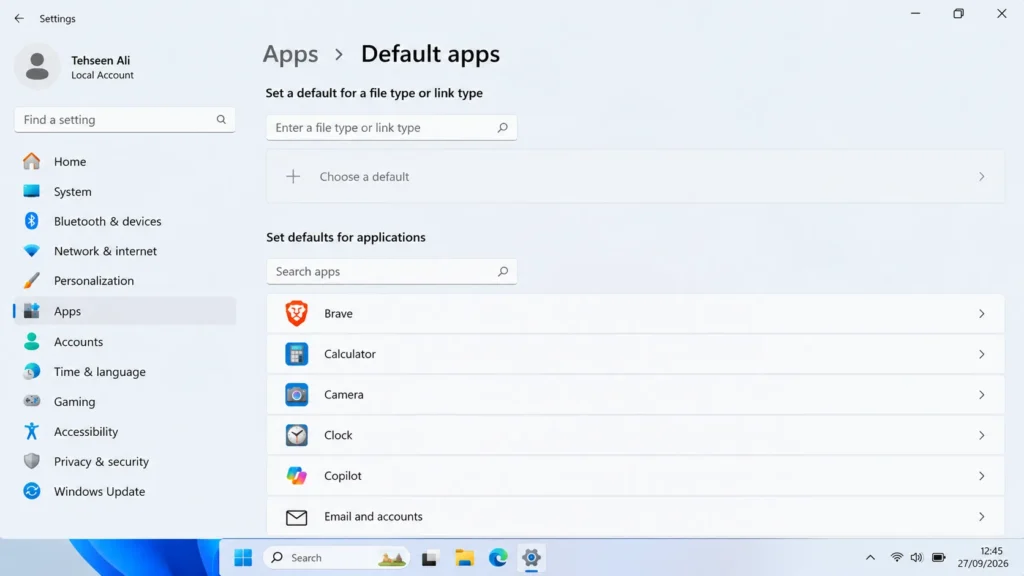
This is the central hub Microsoft uses to control which program opens which file type not just browsers, but PDFs, images, and more.
Step 2: Find Your Browser and Set It as Default
- In the search box under “Default apps,” type the name of the browser you want to use (Chrome, Firefox, Opera, Brave, etc.)
- Click on the browser once it appears in the list
- You’ll see a screen showing several file types and link types click Set default
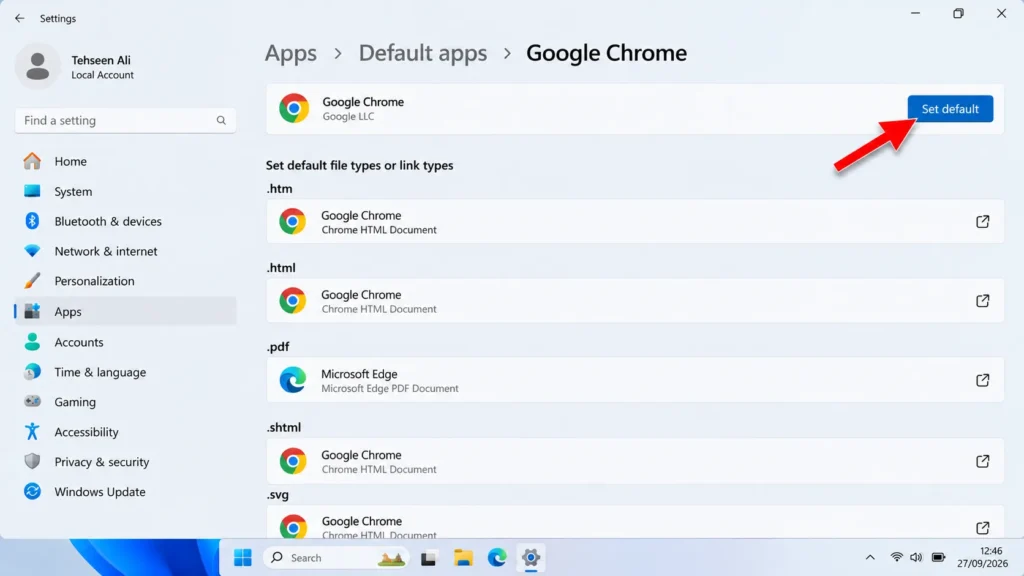
This one click automatically assigns that browser to handle the most common file types (.htm, .html) and web link protocols (http, https).
Step 3: Double Check the Individual File Associations (If Needed)
Occasionally, Windows 11 doesn’t apply the “Set default” button to every single file type in one go a leftover quirk from how Microsoft redesigned this menu. If you notice PDFs or certain links still opening in Edge:
- Go back to Default apps and select your browser again
- Scroll through the list of file types (.htm, .html, .pdf, .shtml, .svg, .xht, .xhtml)
- Manually click each one and choose your preferred browser from the popup
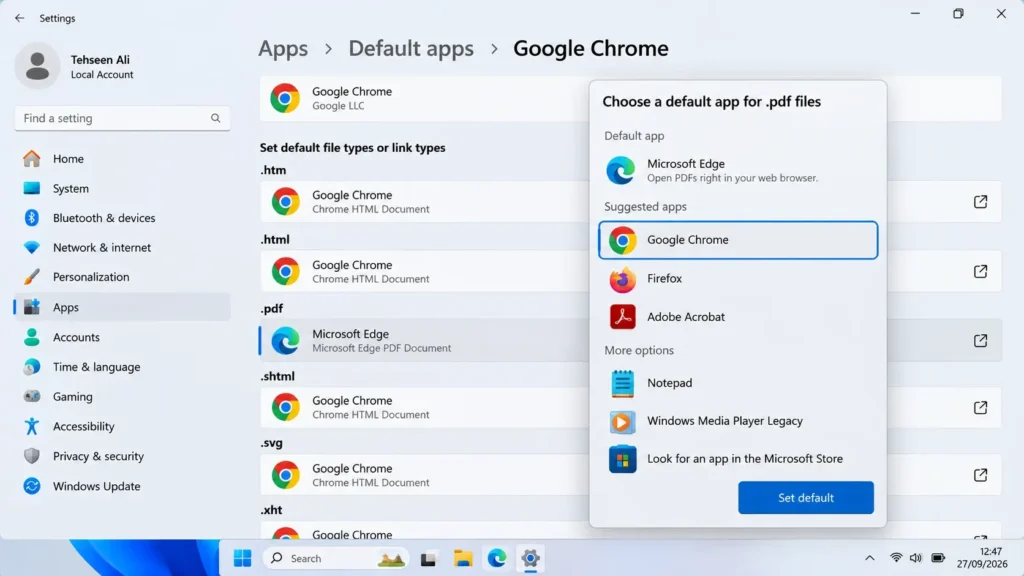
Most people never need to do this extra step, but it’s worth checking if things still feel inconsistent after the first attempt.
Why Does Windows 11 Make This Harder Than It Needs to Be?
This isn’t just you imagining things Microsoft genuinely restructured the default browser flow starting with Windows 11, compared to how simple it was in Windows 10. In earlier versions, one single toggle changed everything instantly. Now, the process is intentionally broken into more steps, and many people suspect it’s designed to nudge users toward sticking with Edge rather than switching away from it. It’s not a bug, it’s just friction and once you know the steps, it stops being a real obstacle.
Setting a Different Default Browser for Specific Links (Advanced)
Some people don’t actually want one browser for everything maybe you want work-related links opening in one browser profile and personal browsing happening in another. Windows 11 itself doesn’t offer a built in way to split this by link type, but a few third party tools like MultiApp Redirector or Browser Chooser step in to fill that gap. These tools sit quietly in the background and pop up a small menu whenever you click a link, letting you pick which browser opens it on the spot. It’s a bit of an unnecessary layer for most casual users, but if you juggle multiple browsers for different parts of your life, it can genuinely save time compared to manually copying and pasting URLs.
What Happens to Microsoft Edge After You Switch?
Switching your default browser doesn’t uninstall Edge or block it Windows still keeps it around for certain system level tasks, including some Windows Update processes and a handful of built in apps that quietly rely on it in the background. You’ll also likely still see Edge pop up occasionally, especially right after major Windows updates, since Microsoft has a habit of resetting default app preferences during bigger feature updates. If that happens, don’t panic just repeat the steps above, and your preferred browser will be back in charge within a minute.
Changing Your Default Browser on the Taskbar and Start Menu Shortcuts
Here’s something that trips a lot of people up: even after setting a new default browser, some pinned shortcuts on the taskbar or Start menu still stubbornly open Edge instead. That’s because those particular shortcuts were created pointing directly at Edge’s file path rather than “whatever the default browser is.” To fix this permanently, right click the pinned icon, select Unpin from taskbar (or Unpin from Start), then open your actual default browser, pin that instead by right clicking its taskbar icon while it’s running and selecting Pin to taskbar. It’s a small extra step, but skipping it is one of the most common reasons people think their default browser change “didn’t work” when really it’s just one leftover shortcut causing the confusion.
What to Do If Your Preferred Browser Isn’t Detected as an Option
If you install a browser and it doesn’t show up at all in the Default Apps search box, the most likely cause is that the installation didn’t fully register itself with Windows, which can happen with some lightweight or portable browser versions. The fix is usually simple: uninstall the browser completely, then download the full installer directly from the browser’s official website instead of a portable or zipped version, and reinstall it normally. Once reinstalled, restart your PC before checking Default Apps again a fresh restart forces Windows to re scan installed programs and usually resolves the issue. If it still doesn’t appear after that, it’s worth checking whether the browser has a separate “set as default” prompt built into its own settings menu, since some browsers handle this registration themselves rather than relying entirely on Windows to detect them.
Frequently Asked Questions
Will changing my default browser delete my bookmarks or saved passwords from Edge?
No. Changing the default browser only affects which app opens links and web files going forward. Nothing stored inside Edge, including bookmarks and saved passwords, is touched or deleted.
Do I need to restart my computer after changing the default browser?
No restart is required. The change takes effect immediately, and the next link you click should open in your newly selected browser right away.
Why does Windows keep switching my default browser back to Edge after an update?
This is a known behavior tied to major Windows feature updates, which sometimes reset default app settings. If this happens, simply repeat the steps in this guide to reassign your preferred browser.