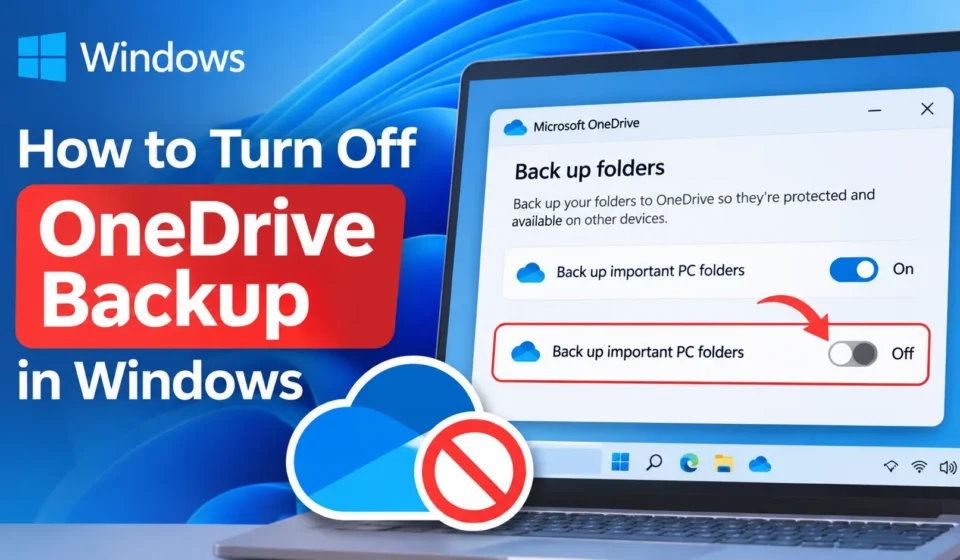

You open your Documents folder expecting a file you saved yesterday, and instead you find a little blue cloud icon and a “This file is only available online” message. If that’s ever happened to you, you’ve run into Windows’ automatic OneDrive backup a feature that quietly starts syncing your Desktop, Documents, and Pictures folders the moment you sign in with a Microsoft account. For some people it’s genuinely useful. For a lot of others, it’s an unwanted background process eating up storage, bandwidth, and control over their own files. Here’s exactly how to shut it off, at whatever level you need.
Turning Off Folder Backup ( Desktop, Documents, Pictures )
This is the setting responsible for most of the confusion, since it silently redirects your local folders into OneDrive without always making that obvious.
- Click the OneDrive cloud icon in your system tray ( bottom right corner, near the clock )
- Click the gear/settings icon, then select Settings
- Go to the Sync and backup tab
- Click Manage backup
- Toggle off Desktop, Documents, and Pictures
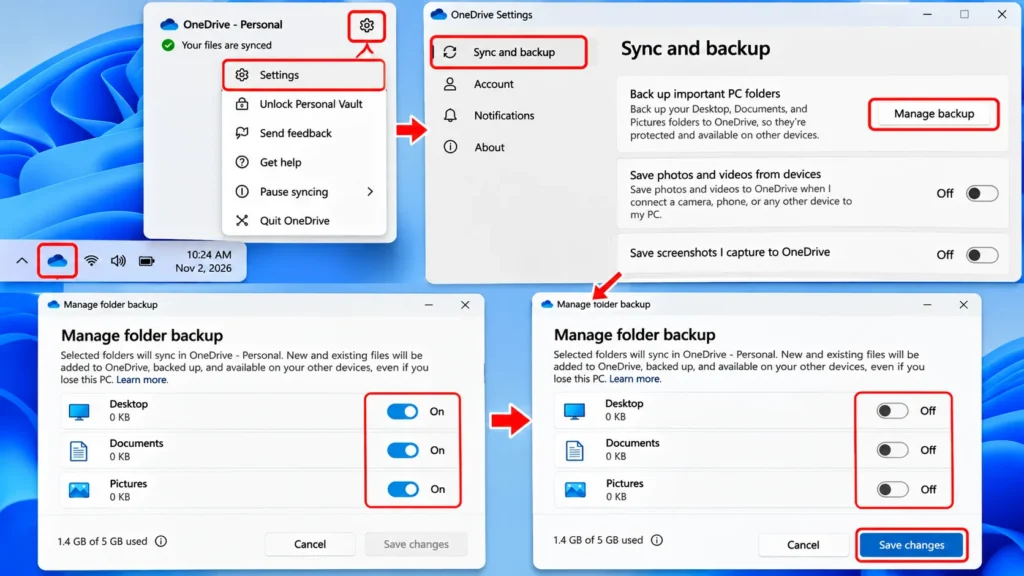
Windows will ask you to confirm go ahead and confirm the change. Your files stay exactly where they are; they just stop being mirrored into OneDrive going forward.
Pausing OneDrive Sync Temporarily
If you don’t want to fully disable anything but just need OneDrive to stop syncing for a few hours (say, you’re on a slow or metered connection):
- Click the OneDrive icon in the system tray
- Click Help & Settings (or the gear icon depending on your version)
- Select Pause syncing
- Choose 2 hours, 8 hours, or 24 hours
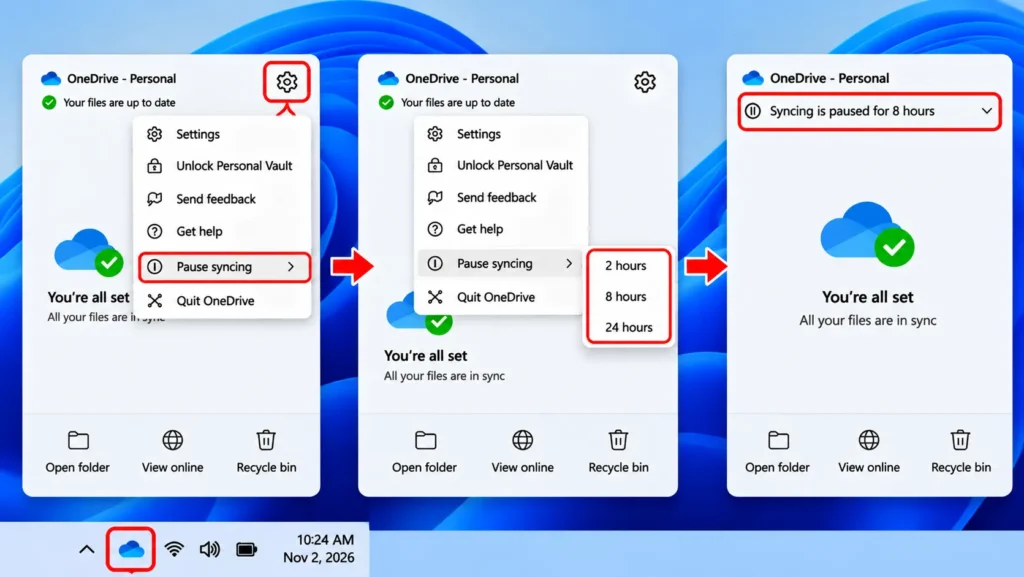
This is a temporary fix, not a permanent one syncing resumes automatically once the timer runs out.
Unlinking Your PC from OneDrive Completely
If your goal is to stop OneDrive from touching your files at all, unlinking your account is the more thorough option:
- Click the OneDrive icon in the system tray
- Click Help & Settings > Settings
- Go to the Account tab
- Click Unlink this PC
- Confirm when prompted
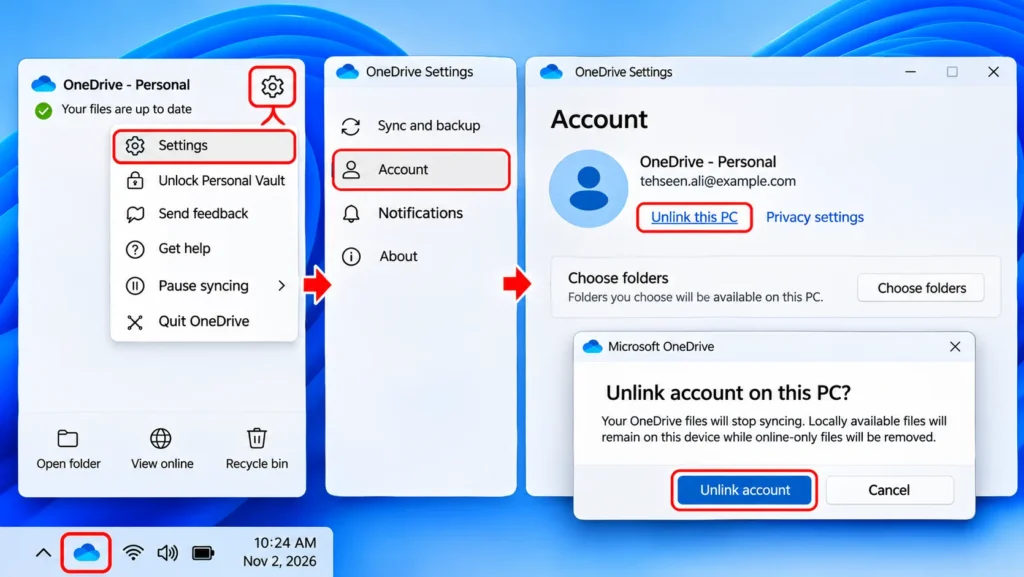
This stops all syncing immediately, though OneDrive itself remains installed. Your previously synced files stay on your PC they simply stop communicating with your OneDrive account.
Uninstalling OneDrive Entirely
For anyone who wants it gone completely, not just paused or unlinked:
- Press Windows key + I to open Settings
- Go to Apps > Installed apps
- Search for Microsoft OneDrive
- Click the three dot menu next to it and select Uninstall
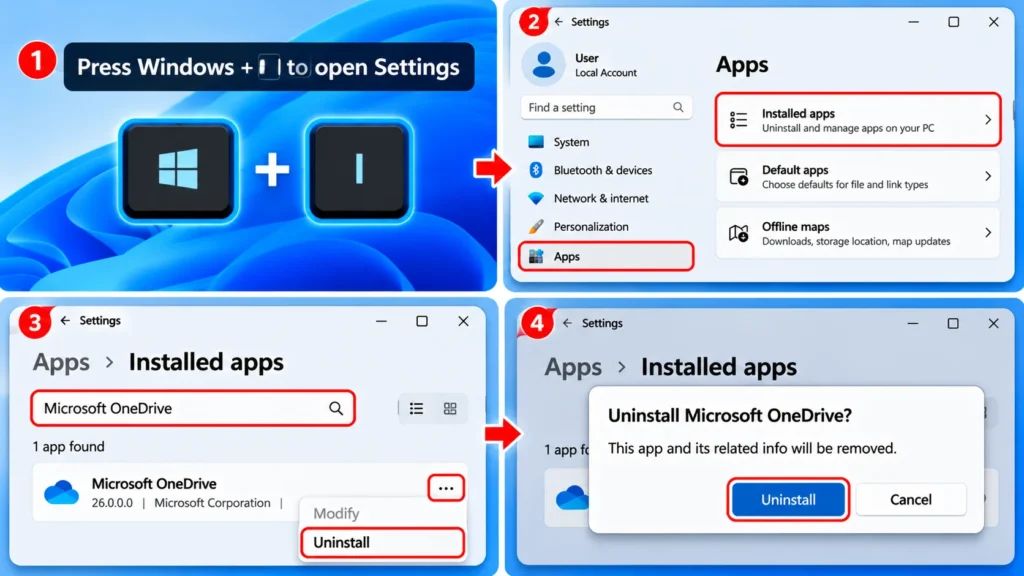
Keep in mind that some Windows 11 builds treat OneDrive as a semi protected system component, so depending on your version, you may need to confirm the uninstall a second time through a pop up window.
Why Does Windows Push OneDrive So Aggressively?
This isn’t an accident or a bug it’s a deliberate business decision. Microsoft makes money from OneDrive storage subscriptions, and bundling automatic backup into Windows setup is one of the simplest ways to get people using ( and eventually paying for ) more cloud storage. It’s similar to how many phone manufacturers pre-install their own cloud services by default. There’s nothing wrong with OneDrive as a product, but the way it’s enabled without a clear, upfront choice is what frustrates a lot of users who just wanted a normal, offline only Documents folder.
What Happens to Files Already Synced If You Turn Backup Off?
This is the part people worry about most, so it’s worth being precise. Turning off folder backup does not delete anything. Whatever files were already synced to OneDrive remain both in the cloud and on your local drive, fully intact. What changes is only future behavior new files you create or edit afterward will no longer automatically upload to OneDrive. If a file is currently showing as “online only” ( meaning it only exists in the cloud, not physically on your drive ), you’ll want to make sure it’s fully downloaded before unlinking or uninstalling, or you could temporarily lose local access to it until you manually re-download it.
Should You Actually Turn Off OneDrive Backup?
It depends entirely on how you use your PC. If you frequently switch between multiple devices, or you’ve had a hard drive fail on you before and wished you’d had a backup, OneDrive’s automatic syncing is doing real, practical work in the background. On the other hand, if you’re someone who already backs up manually, uses an external drive, or simply doesn’t want a middleman between you and your own files, turning it off gives you back full local control just make sure you have some other backup plan in place before you do, since the safety net disappears the moment you turn this off.
Frequently Asked Questions
Will turning off OneDrive backup delete my files?
No. Files that were already synced remain both locally and in the cloud. Only future automatic syncing stops.
Can I turn OneDrive backup back on later if I change my mind?
Yes. You can re-enable folder backup or re-link your account at any time through the same OneDrive settings menu.
Does turning off OneDrive backup free up storage space on my PC?
Not directly, since your local files stay in place either way. However, it does stop new files from being duplicated into the cloud, which can help manage your OneDrive storage limit if that’s a separate concern.