
PDF has quietly become the default file format for almost everything, contracts, invoices, resumes, reports, forms, and eBooks. But the moment you need to actually change something inside a PDF, most people assume they have to buy Adobe Acrobat. That’s no longer true. In 2026, there are several genuinely free PDF editors that let you edit text, merge files, fill forms, and even run OCR on scanned documents, without a subscription and without slapping an ugly watermark across every page.
In this guide, we’ll walk through the best free PDF editors of 2026, what each one is actually good at, their real limitations, and how to pick the right one for your specific workflow, whether that’s on Windows, Mac, Android, iOS, or straight in your browser.
How We Picked the Best PDF Tools
Not every tool that calls itself “free” actually is. Many lock real editing behind a paywall and only let you draw boxes or sticky notes on top of the PDF, that’s annotation, not editing. For this list, we focused on four things:
- Does it edit actual text, not just add comments or shapes on top of the page
- Does it add a watermark to your exported file
- Do you need to create an account just to use basic features
- How usable is the free tier, daily limits, file size caps, and so on
With that in mind, here are the tools that hold up in 2026.
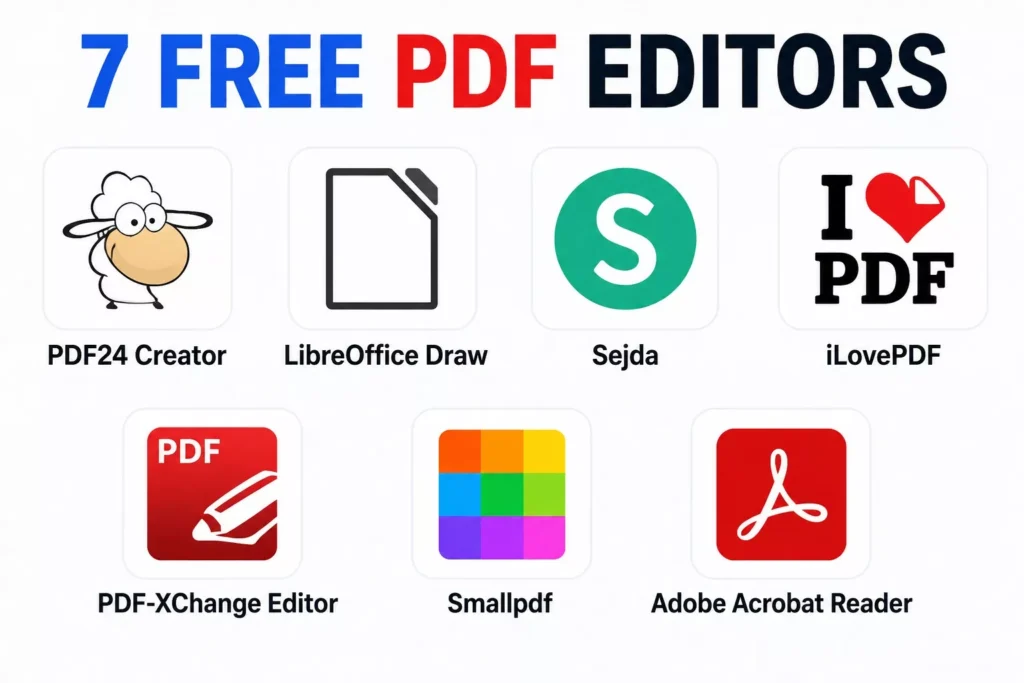
1. PDF24 Creator — Best Free Desktop Editor for Windows
PDF24 Creator is a downloadable Windows application that covers nearly everything a typical user needs: editing, merging, splitting, compressing, converting, and creating PDFs from scratch. Unlike a lot of “free” desktop software, it doesn’t add watermarks or cap how many times you can use it per day.
It also includes built-in OCR, so you can make scanned documents searchable and editable, a feature that’s often locked behind a paid tier elsewhere. Because it runs locally, your files never leave your computer, which matters if you’re working with anything sensitive.
Best for: Windows users who want a full featured, offline tool with no strings attached. Limitation: Windows only, so Mac and Linux users will need something else.
2. LibreOffice Draw — Best for Editing Existing Text
Most free PDF tools only let you add new text boxes on top of a page. LibreOffice Draw is one of the few free tools that lets you click directly into existing text and change it, move images around, reorder or delete pages, and adjust formatting, much closer to how Adobe Acrobat’s paid editor behaves.
To use it, open LibreOffice Draw, go to File Open, and select your PDF. Each page loads as an editable canvas. When you’re done, export or save it back as a PDF.
Best for: Anyone who needs to genuinely rewrite text inside a PDF, not just annotate it. Limitation: Complex layouts or unusual fonts can shift slightly if the original fonts aren’t installed on your system, so double-check formatting heavy documents before finalizing.
3. Sejda — Best Browser-Based Editor with Real Text Editing
Sejda works both online and as a desktop app, and it’s one of the few browser tools that lets you modify existing text for free, not just annotate. It’s also strong for page level operations, rearranging, deleting, rotating, and inserting pages, which makes it a solid choice if you’re restructuring a document rather than rewriting it.
Best for: Quick, no install editing from any device with a browser. Limitation: Free tier usage is capped per day (and per file size), so heavy daily use may hit limits.
4. iLovePDF — Best for Merging, Splitting, and File Management
If your main need isn’t rewriting text but organizing documents, combining multiple PDFs into one, splitting a large PDF into separate files, compressing file size, rotating pages, or converting to and from other formats, iLovePDF is one of the most reliable free tools for that specific job. It supports a generous number of operations per day on the free tier and doesn’t require an account for basic tasks.
Best for: Merging, splitting, compressing, and converting PDFs in bulk. Limitation: Text editing capabilities are limited compared to Sejda or LibreOffice Draw.
5. PDF-XChange Editor — Strong Windows Alternative to Acrobat
PDF XChange Editor is another Windows tool that supports real text editing on its free tier, along with annotation, form filling, and basic page management. It’s a favorite among users who want an Acrobat-like interface without the subscription.
Best for: Windows users who want a familiar, Acrobat style editing experience for free. Limitation: Merging documents on the free tier adds a small watermark, so it’s not fully watermark free for every feature.
6. Smallpdf — Best for Quick Edits on Mobile
Smallpdf’s browser interface is clean and works especially well on phones and tablets, which makes it a good pick if you mostly need to sign a document, add a quick annotation, or make a small edit while you’re away from your desktop.
Best for: Fast, on the go edits from a mobile browser. Limitation: The free plan limits how many operations you can run per day, and some features require creating an account.
7. Adobe Acrobat Reader — Best Free Option for Viewing and Forms
Adobe’s free Reader isn’t a text editor, but it remains the standard for viewing PDFs reliably, adding comments, and filling out interactive forms. If your need is mostly reading, reviewing, or filling forms rather than rewriting content, it’s worth having installed alongside one of the editors above.
Best for: Viewing, commenting, and filling out forms. Limitation: No real text editing capability, for that, you’d need paid Acrobat or one of the tools above.
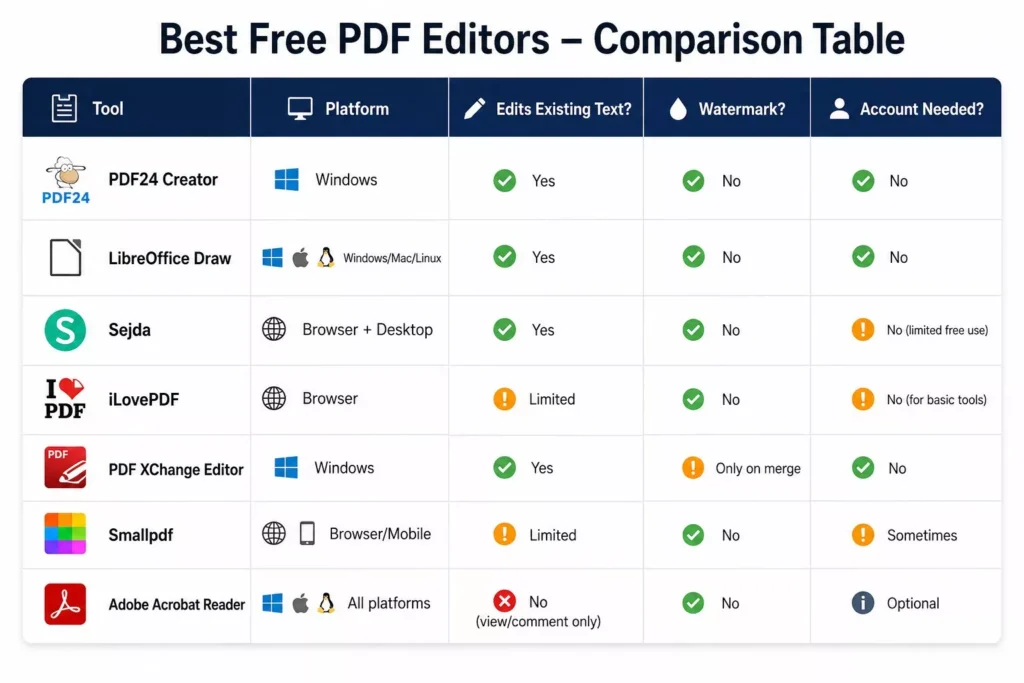
PDF Software Comparison
Which One Should You Use?
- Working with sensitive or confidential documents? Stick to desktop tools that process files locally, like LibreOffice Draw or PDF24 Creator, instead of uploading to a browser based service.
- Just need to sign or lightly mark up a file? Sejda or Smallpdf will handle it in a couple of minutes without installing anything.
- Merging, splitting, or compressing a batch of files? iLovePDF is purpose-built for that.
- Want a full offline replacement for Acrobat on Windows? PDF24 Creator or PDF XChange Editor are the closest free equivalents.
- Only need to read and fill forms? Adobe Acrobat Reader covers that without any extra software.
Frequently Asked Questions
Is there a completely free PDF editor with no watermark in 2026?
Yes. PDF24 Creator, LibreOffice Draw, Sejda, and iLovePDF all let you export files without adding a watermark, at least for their core features.
Can I edit the actual text in a PDF for free, not just add comments?
Yes, but only a handful of tools support this, LibreOffice Draw, Sejda, and PDF XChange Editor are currently the most reliable free options for editing existing text rather than layering annotations on top.
Is it safe to upload sensitive PDFs to online editors?
It depends on the tool and the document. Browser based editors typically upload your file to their servers for processing, so for confidential material it’s safer to use a desktop tool that works offline, such as LibreOffice Draw or PDF24 Creator.
What’s the best free PDF editor for Mac?
LibreOffice Draw works well on Mac for real text editing, and macOS’s built in Preview app is a solid free option for basic tasks like merging, rotating, and signing PDFs.
Final Thoughts
There’s no single “best” free PDF editor for everyone in 2026, the right choice depends on whether you need to rewrite text, reorganize pages, sign a document, or just view one safely. If privacy matters most, lean toward offline desktop tools. If speed and convenience matter more, a browser based editor will usually get the job done in minutes. Whichever you pick, it’s worth checking each tool’s privacy policy before uploading anything you wouldn’t want stored on someone else’s server.