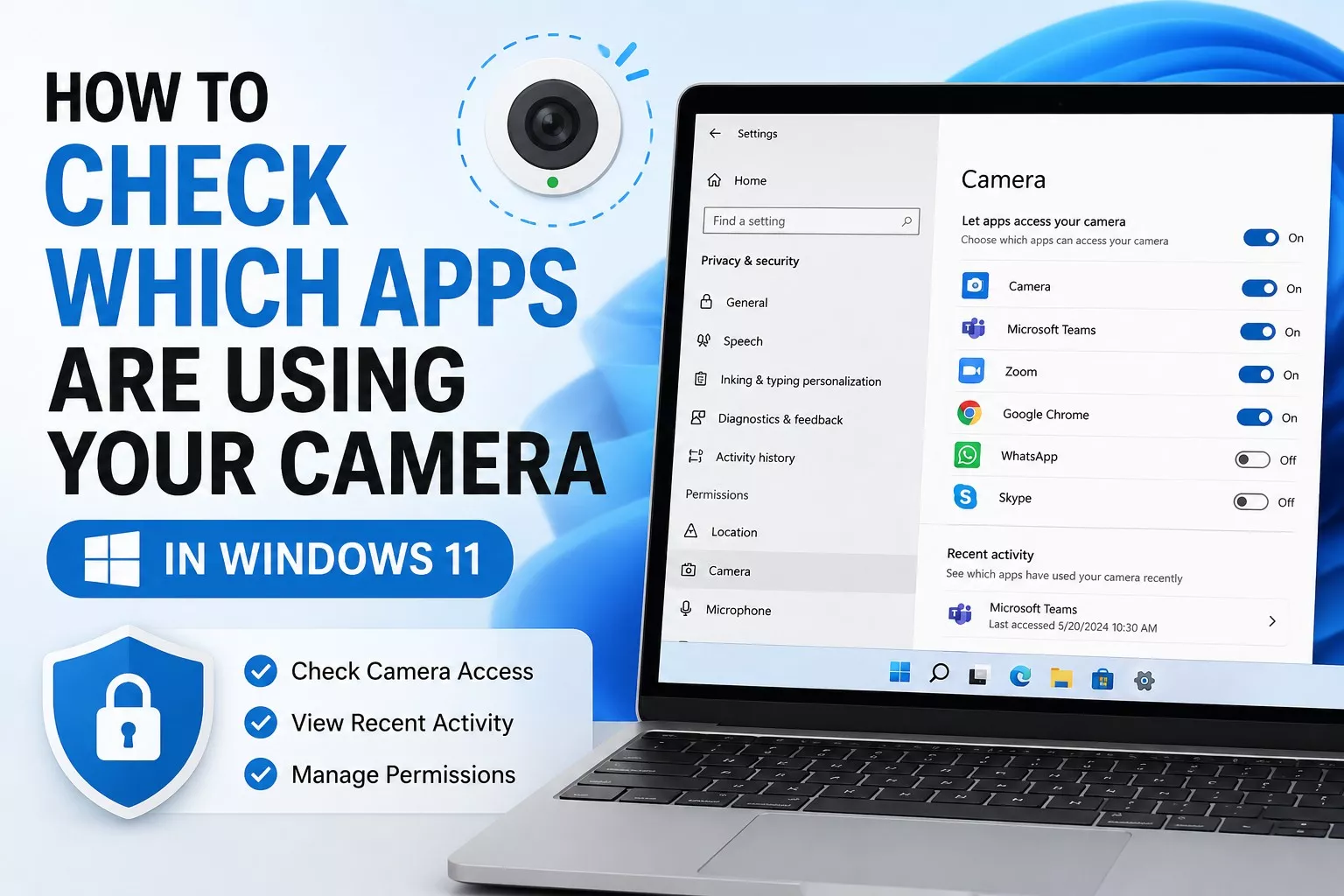

If you’re concerned about privacy or notice your webcam turning on unexpectedly, Windows 11 makes it easy to check which apps have access to your camera.
You can use the built in privacy settings to see which apps are allowed to use the camera, check recent camera activity, and block camera access for apps that don’t need it.
In this guide, we’ll show you how to check which apps are using your camera in Windows 11 and how to manage their permissions.
How to Check Which Apps Are Using Your Camera
The easiest way to check camera access is through Windows 11 Settings.
Step 1: Open Windows Settings
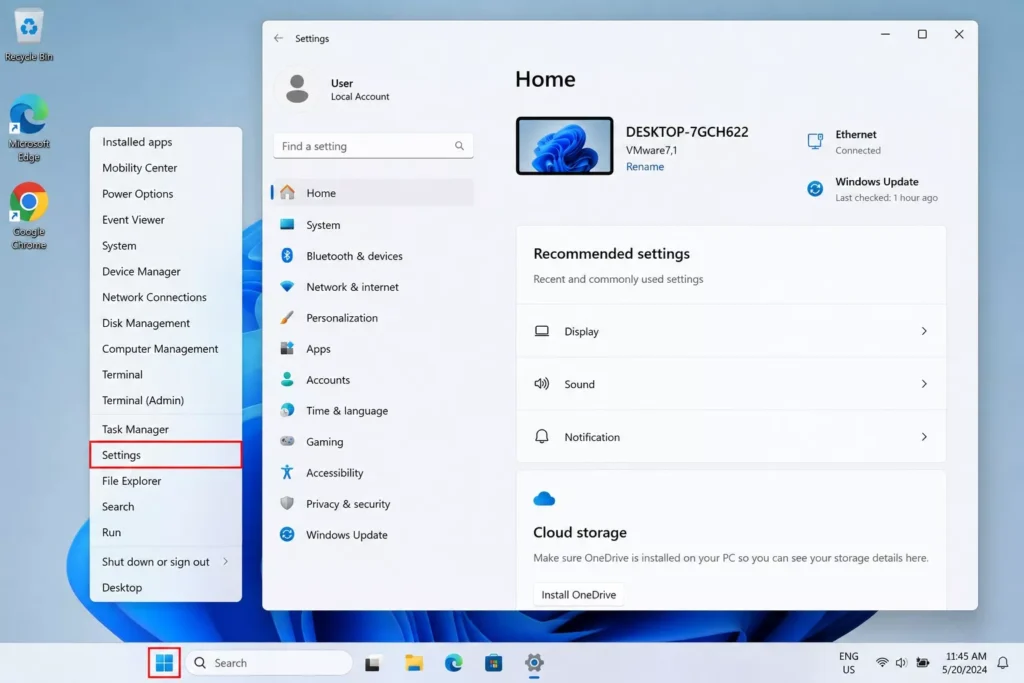
Press Windows + I on your keyboard to open the Settings app.
You can also right click the Start button and select Settings.
Settings
Step 2: Go to Camera Privacy Settings
In Settings, select:
Privacy & security > Camera
This page contains the main privacy controls for your webcam.
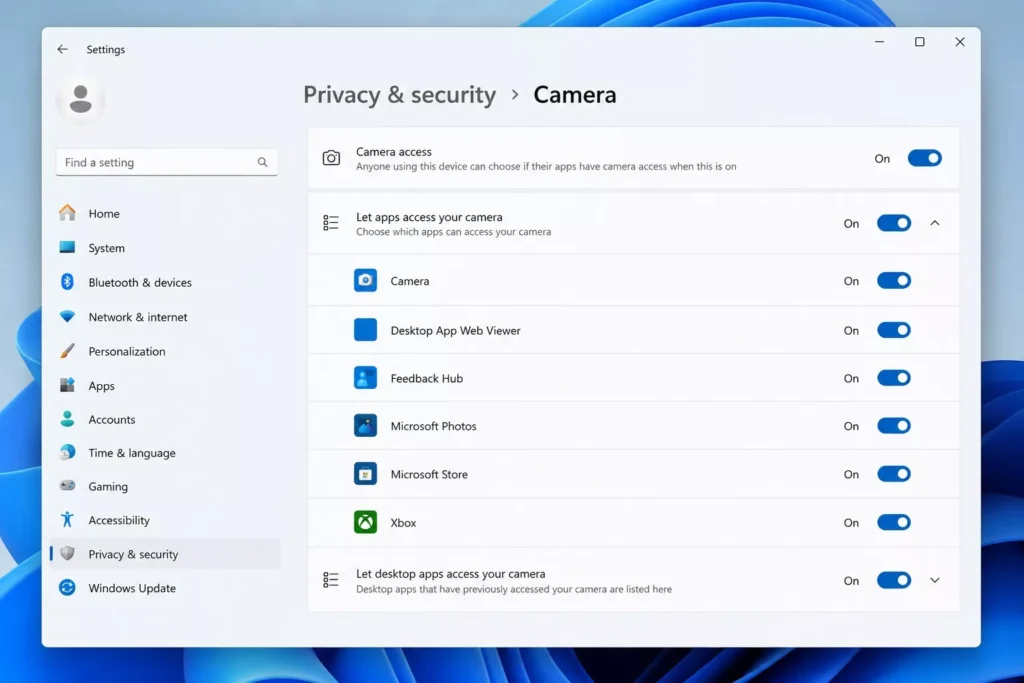
Step 3: Check Which Apps Have Camera Access
Make sure Camera access is turned on.
Next, look under Let apps access your camera.
Windows will show apps that can request access to your camera. Depending on the app, you may see an On/Off switch next to it.
If the switch is On, the app is allowed to access your camera.
If you don’t want an app to use your webcam, simply turn its permission Off.
How to Check Recent Camera Activity
Windows 11 can also show which apps have recently accessed your camera.
Go to:
Settings > Privacy & security > Camera
Look for the Recent activity section and expand it if available.
Here, Windows can display apps that recently accessed or requested access to your camera. This is particularly useful if your webcam light turned on unexpectedly and you want to find out which app may have caused it.
The exact information displayed can vary depending on your version of Windows 11.
Check Desktop Apps Using Your Camera
Scroll further down the Camera settings page and look for:
Let desktop apps access your camera
Traditional desktop programs are handled differently from some Microsoft Store apps.
Programs such as web browsers, video conferencing software, and other desktop applications may appear in this area.
Windows may not provide an individual On/Off camera permission switch for every desktop application. Instead, you can control whether desktop apps as a group are allowed to access the camera.
How to Know When Your Camera Is Being Used
Most laptops and webcams have a small indicator light next to the camera. The light normally turns on when an application is actively using the webcam.
Windows may also display a camera privacy indicator when camera access is active.
If your camera light turns on when you aren’t making a video call, recording a video, or intentionally using the webcam, check:
Settings > Privacy & security > Camera > Recent activity
This may help you identify the application responsible.
How to Stop an App from Using Your Camera
If you find an app that doesn’t need camera access:
- Press Windows + I to open Settings.
- Select Privacy & security.
- Click Camera.
- Find the app you want to restrict.
- Turn its camera permission Off.
You can enable the permission again later if the app needs access to your webcam.
Don’t Forget Browser Camera Permissions
If you use video calling or meeting websites, your browser may also have permission to access your camera.
For example, a website opened in Chrome or Edge can request camera access through the browser.
If you’re concerned about a website using your webcam, review the camera permissions in your browser and remove access for websites you no longer use or recognize.
This is important because Windows may show that your browser is accessing the camera, while the actual camera request is coming from a website open inside that browser.
What to Do If Your Camera Turns On Unexpectedly
If your webcam turns on without an obvious reason, first close any video calling, recording, or communication apps.
Also check your open browser tabs, especially websites that use video calls or webcam features.
Then go to:
Settings > Privacy & security > Camera
Review the available recent activity and disable camera access for apps you don’t recognize or don’t need.
If the camera continues to activate unexpectedly and you cannot identify the cause, run a security scan using Windows Security.
Frequently Asked Questions
How do I see which apps have camera access in Windows 11?
Go to Settings > Privacy & security > Camera. You can see supported apps that have permission to access your webcam and change their permissions.
Can I see which app recently used my camera?
Yes. Open Settings > Privacy & security > Camera and check Recent activity, if available on your Windows 11 version.
How do I stop an app from accessing my camera?
Open Settings > Privacy & security > Camera, find the app, and switch its camera permission to Off.
Why is my camera light on in Windows 11?
An application or website may currently be accessing your webcam. Check open video apps, browser tabs, and the Recent activity section under Windows camera privacy settings.