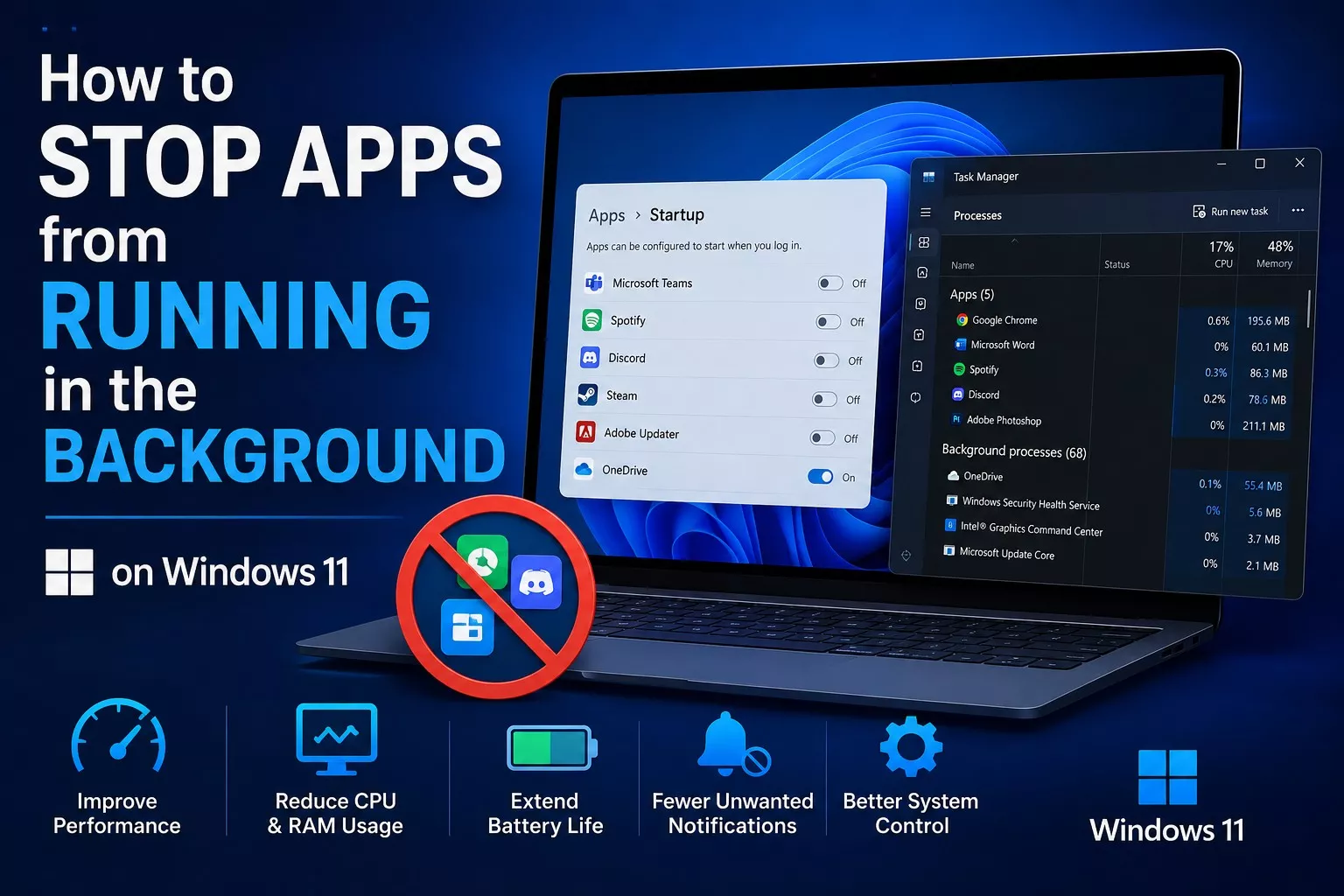

If your Windows 11 PC or laptop feels sluggish, your battery drains faster than it used to, or your fans seem to spin up for no reason, background apps could be the culprit. These are programs that keep running even when you’re not actively using them, quietly consuming RAM, CPU, and even your internet data.
In this article, we’ll walk through several practical ways to identify and stop background apps on Windows 11.
What Are Background Apps and Why Do They Matter?
Background apps are programs that continue to run without being visibly open, checking for notifications, syncing data, downloading updates, and more. Left unchecked, they can cause a few common problems:
- Faster battery drain, especially on laptops
- Higher RAM and CPU usage, which slows down your system
- Unnecessary data consumption in the background
- Privacy concerns, since some apps send or receive data without your direct involvement
Method 1: Disable Background Apps from Windows 11 Settings
This is the easiest and most common way to manage background apps.
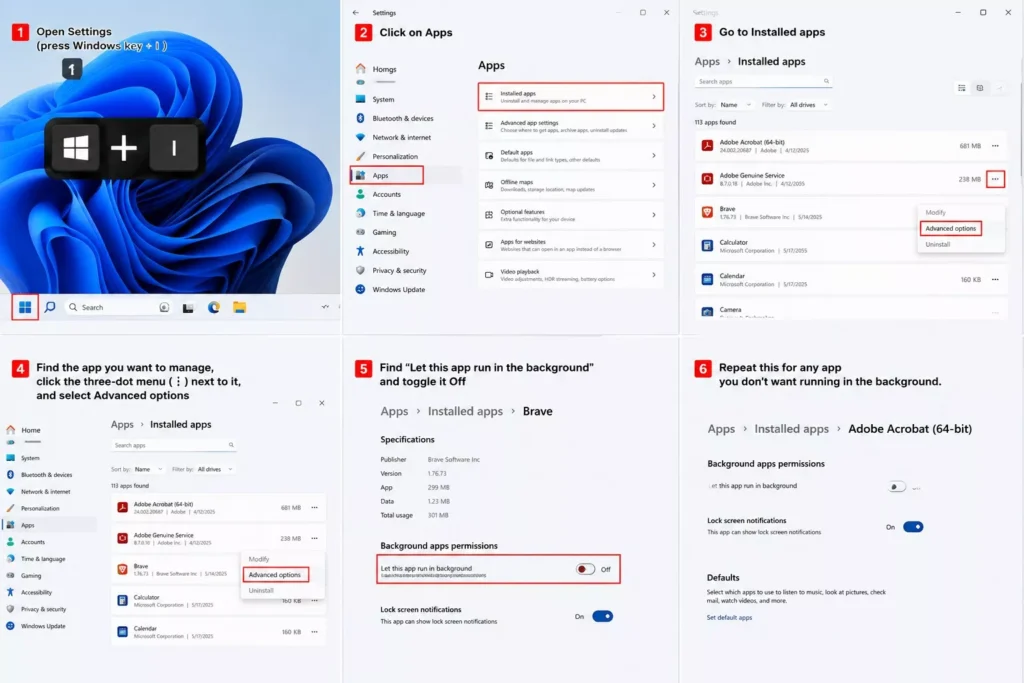
- Open Settings ( press Windows key + I )
- Click on Apps
- Go to Installed apps
- Find the app you want to manage, click the three dot menu ( ⋮ ) next to it, and select Advanced options
- Find “Let this app run in the background” and toggle it Off
Repeat this for any app you don’t want running in the background.
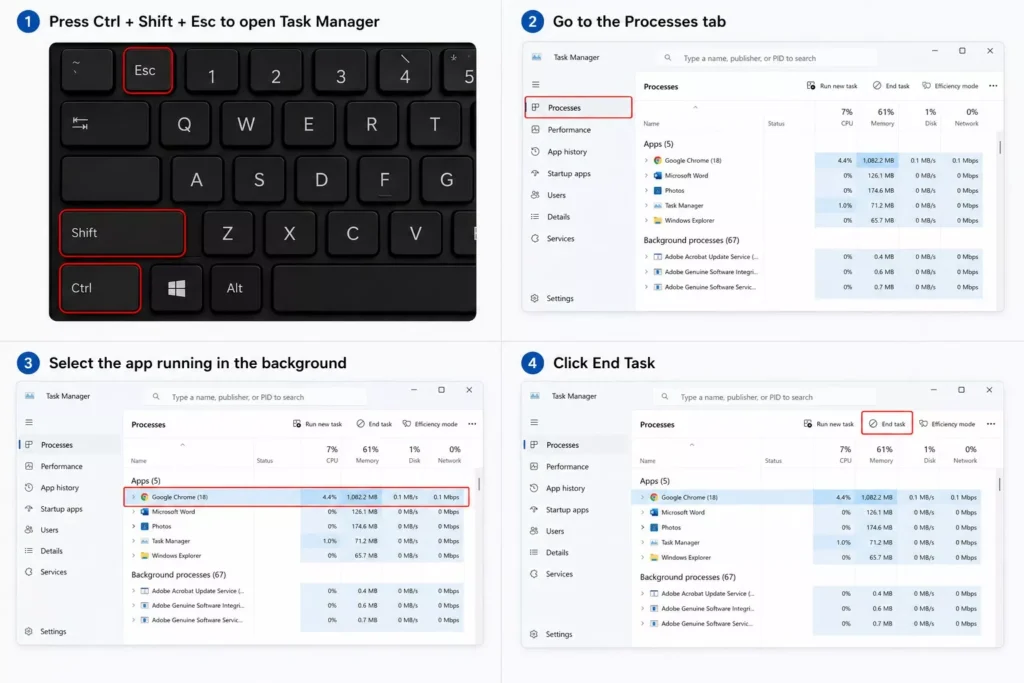
Method 2: Close Background Processes via Task Manager
If you want to stop an app immediately, Task Manager is the quickest option:
- Press Ctrl + Shift + Esc to open Task Manager
- Go to the Processes tab
- Select the app running in the background
- Click End Task
Keep in mind this is a temporary fix, the app may start running in the background again the next time it opens or after a restart.
Method 3: Disable Startup Apps in Windows 11
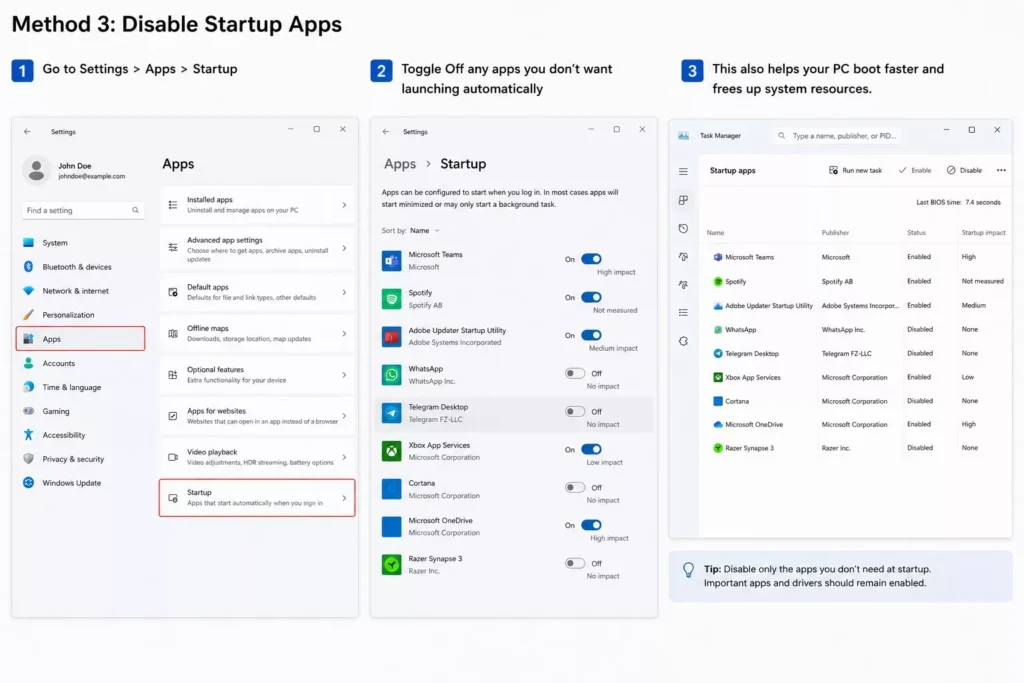
Many apps launch automatically when Windows starts and continue running in the background from that point on. To stop this:
- Go to Settings > Apps > Startup
- Toggle Off any apps you don’t want launching automatically
This also helps your PC boot faster and frees up system resources.
Method 4: Manage Background App Permissions via Privacy Settings
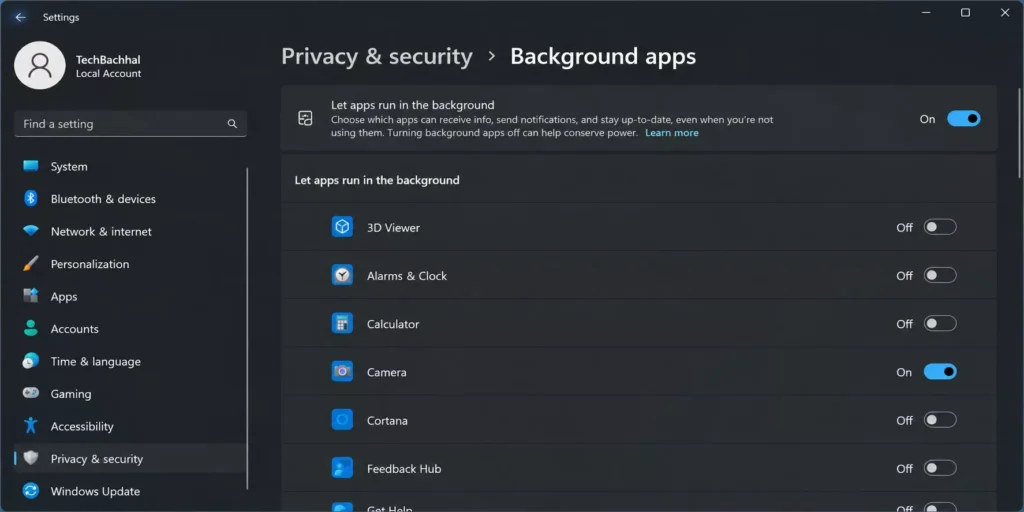
Windows 11 also lets you control background activity through privacy settings:
- Go to Settings > Privacy & Security > Background apps
- From here, you can manage background permissions for individual apps
Method 5: Use Battery Saver and Efficiency Mode
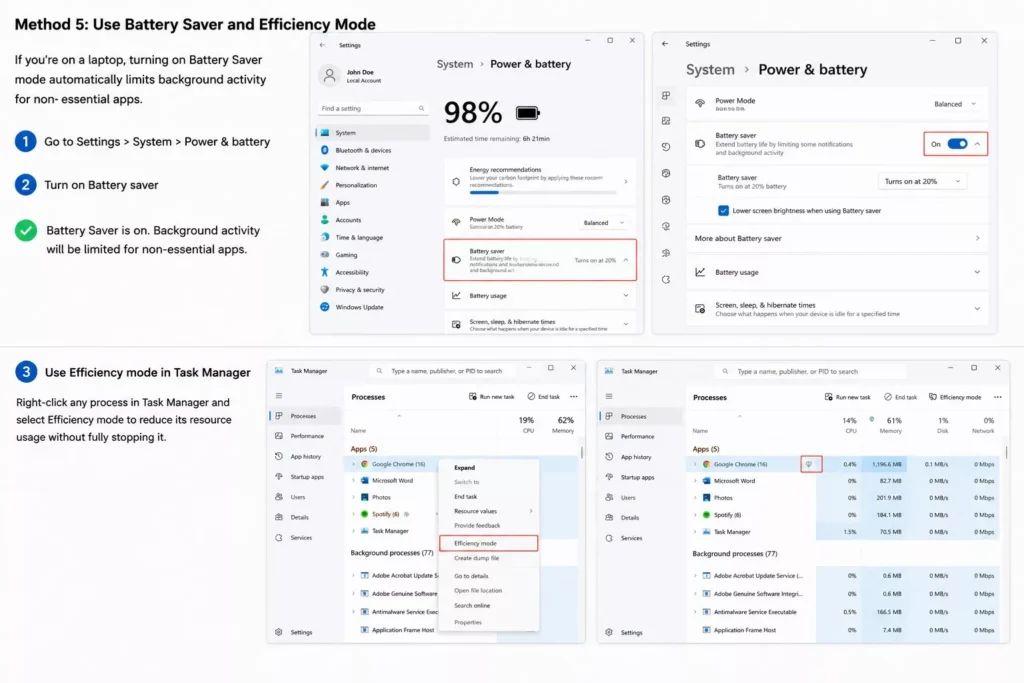
If you’re on a laptop, turning on Battery Saver mode automatically limits background activity for non essential apps.
You can also right click any process in Task Manager and select Efficiency mode to reduce its resource usage without fully closing it.
Which Background Apps Should You Disable?
A good rule of thumb is to disable apps you rarely open, apps that don’t need real time updates (like games, PDF readers, or one off utilities), and any third party app you don’t fully recognize or trust. Keep essential apps running, such as your antivirus, cloud storage, email, and messaging apps, since these rely on background activity to stay useful.
Which Background Apps Should You NOT Disable?
Not every background app needs to be disabled. Some, like antivirus software, cloud backup tools, or messaging apps, run in the background intentionally so you don’t miss important updates or security scans. Focus on disabling apps you rarely use or that don’t need to run continuously.
Will Stopping Background Apps Save Battery?
Yes, particularly on laptops.
Applications performing background tasks may periodically use the processor, Wi-Fi connection, disk, and other hardware.
Reducing unnecessary background activity can therefore contribute to longer battery life.
For additional battery savings, go to:
Settings > System > Power & battery
Windows 11 provides additional options for controlling power consumption and viewing battery usage.
What If an App Keeps Running After I Close It?
Some apps are designed to stay active even after you close their window, usually to keep notifications, sync, or downloads going. If an app keeps reappearing in Task Manager despite being closed, check its background app permission in Settings and turn it off, or disable it from Startup if it relaunches on its own. For apps that refuse to quit properly, use End Task in Task Manager as a quick fix, and consider uninstalling or updating the app if the issue keeps happening.