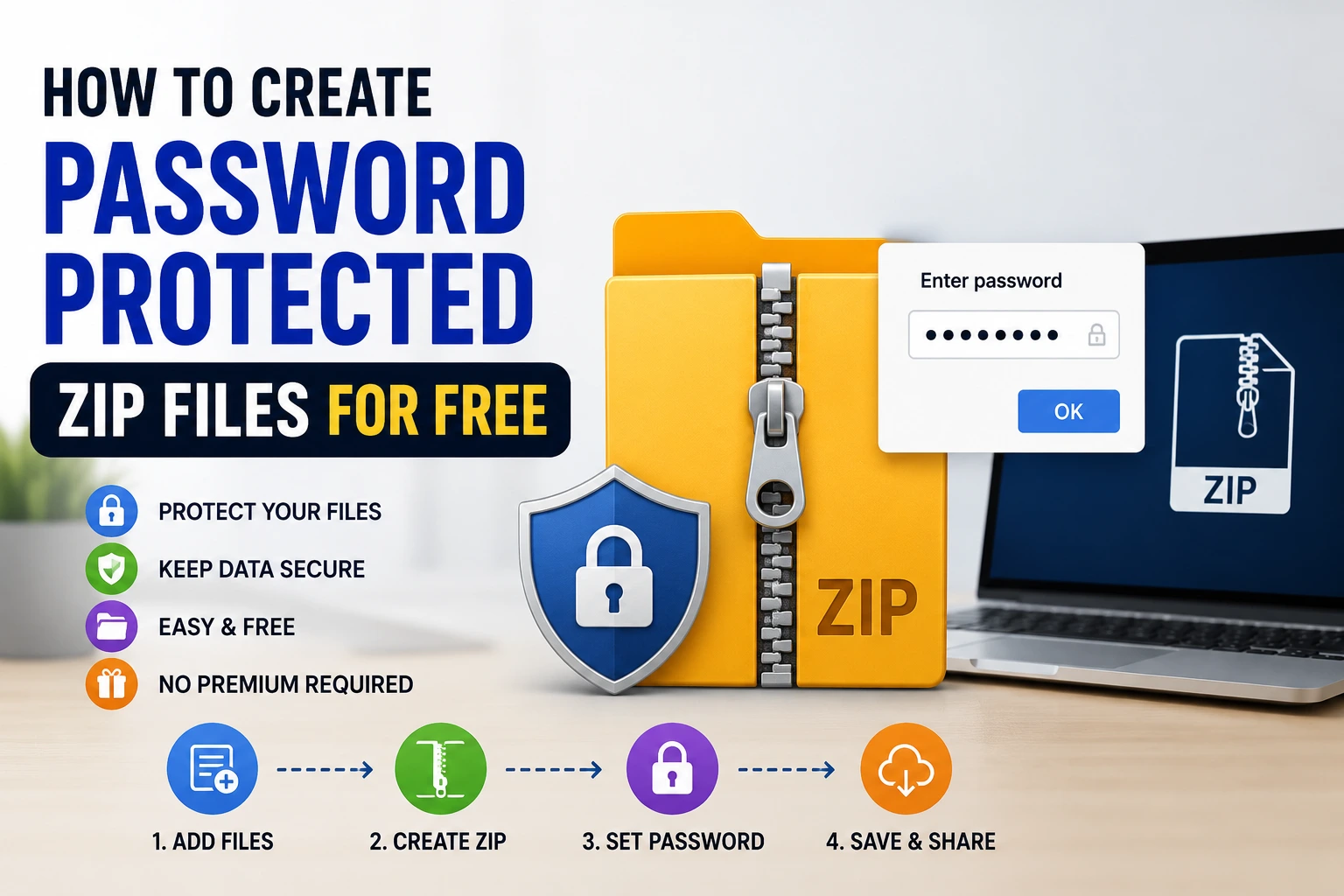

Whether you’re sending tax documents to your accountant, sharing sensitive work files, or just backing up something you’d rather keep private, putting a password on a ZIP file is one of the simplest ways to add a layer of protection before sending it off. The tricky part is that Windows’ built in ZIP tool doesn’t actually support password protection, which surprises a lot of people who assume it’s just a hidden setting somewhere.
The good news is you don’t need to pay for anything to get this done. A few free tools handle it easily, whether you’re on Windows, Mac, or just need something quick without installing software at all.
Method 1: Use 7-Zip (Best Free Option for Windows)
7-Zip is free, lightweight, and probably the most popular tool people turn to for this exact task. It also compresses files better than Windows’ built in tool in most cases.
- Download and install 7-Zip from the official 7-zip.org website
- Right click the file or folder you want to protect
- Hover over 7-Zip in the right click menu, then select Add to archive…
- In the window that opens, set the Archive format to ZIP
- Under Encryption, enter your password in both the “Enter password” and “Reenter password” fields
- For Encryption method, choose AES-256 for the strongest protection
- Click OK
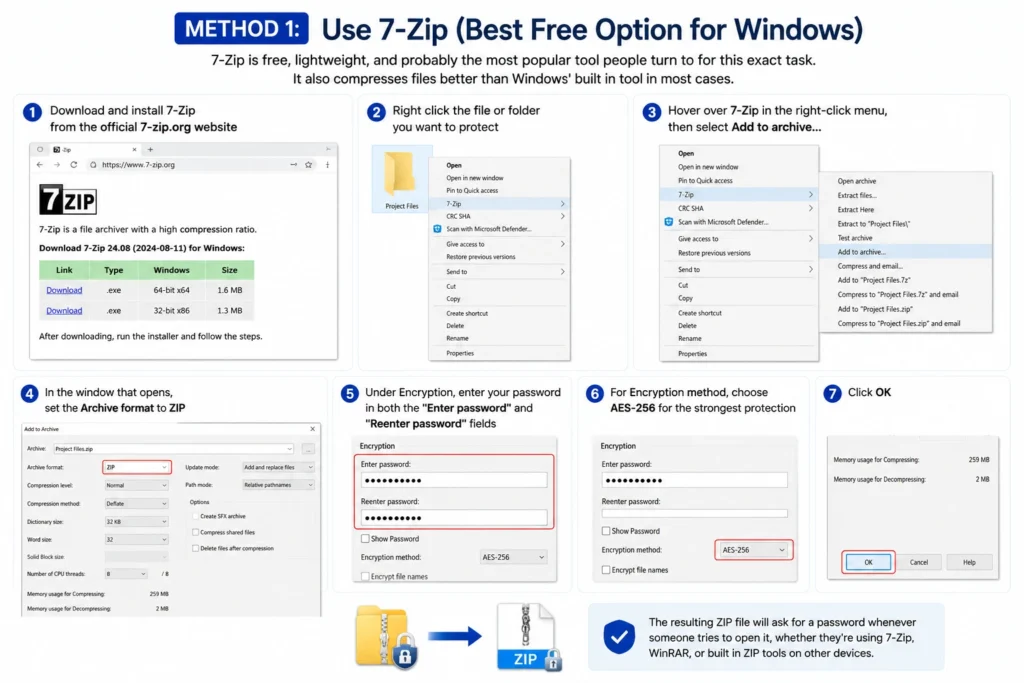
The resulting ZIP file will ask for a password whenever someone tries to open it, whether they’re using 7-Zip, WinRAR, or built in ZIP tools on other devices.
Method 2: Use WinRAR
WinRAR isn’t technically free forever ( it nags you after the trial period ), but it remains fully functional even after the trial ends, which is why a lot of people still use it long term without paying.
- Download and install WinRAR
- Right click the file or folder you want to protect
- Select Add to archive…
- Under the Archive format section, choose ZIP
- Click Set password… on the right side of the window
- Enter your password, and check Encrypt file names if you also want the file names hidden until the correct password is entered
- Click OK, then OK again to create the archive
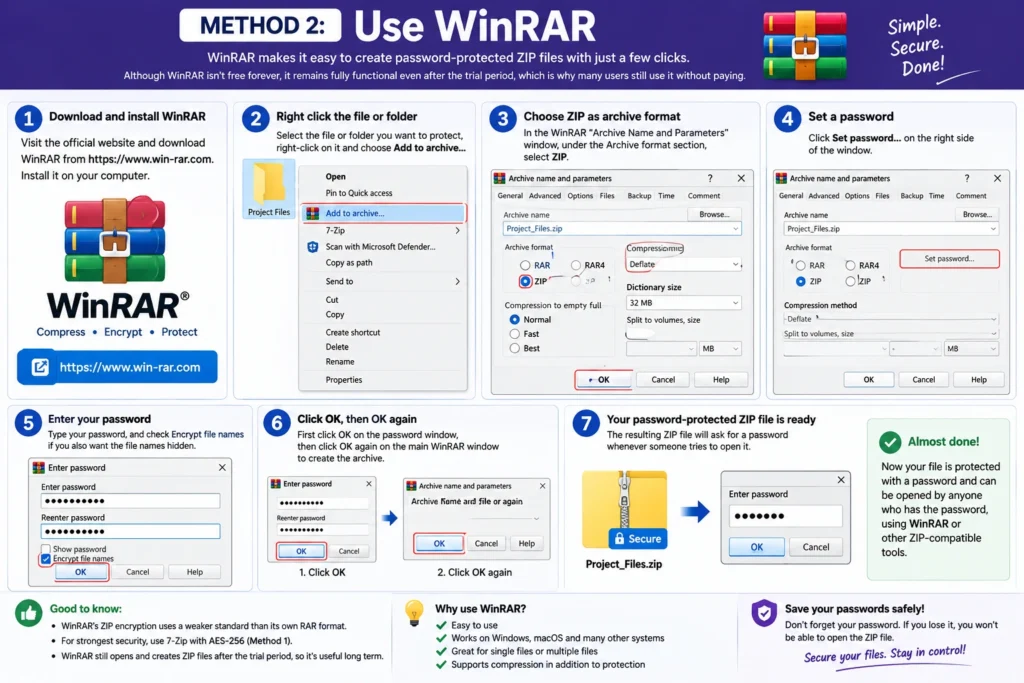
Keep in mind that WinRAR’s password protection for ZIP files uses a weaker encryption standard than its own RAR format, so if strong security matters more than ZIP compatibility, 7-Zip’s AES-256 option is generally the better choice.
Method 3: Password Protect a ZIP on Mac
Mac doesn’t include built in ZIP password protection either, but Terminal can handle it without installing anything extra.
- Open Terminal (found in Applications > Utilities)
- Navigate to the folder containing your file using the
cdcommand, for example:
cd Desktop
- Run the following command, replacing the file names as needed:
zip -e -r protected.zip yourfile.pdf
- Terminal will prompt you to enter and confirm a password right there in the command line
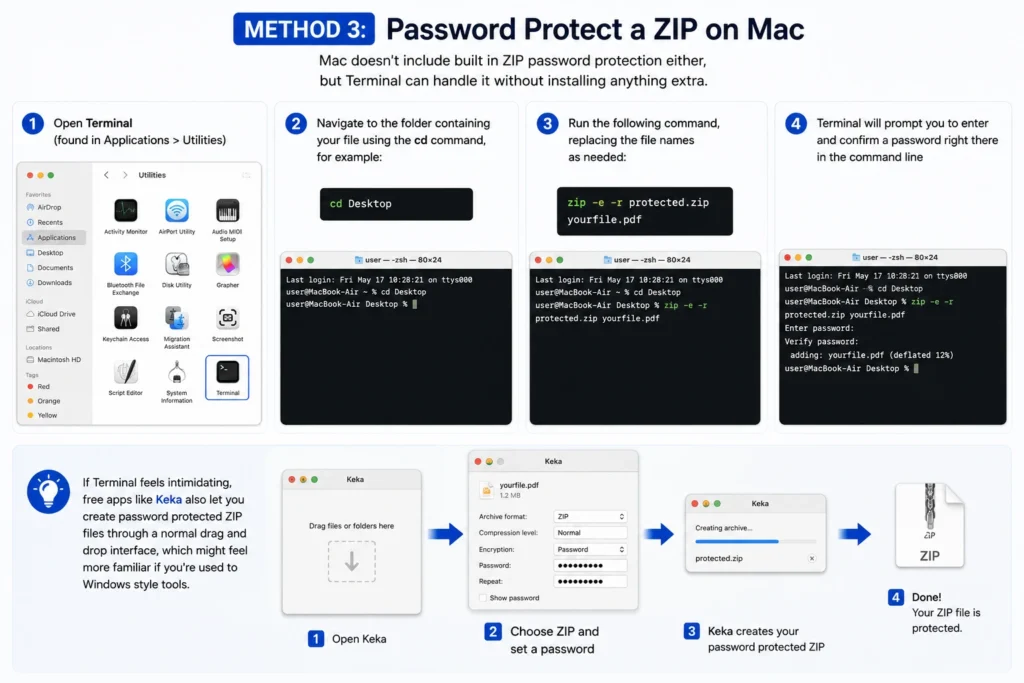
If Terminal feels intimidating, free apps like Keka also let you create password protected ZIP files through a normal drag and drop interface, which might feel more familiar if you’re used to Windows style tools.
Method 4: Use an Online Tool (No Installation Needed)
If you just need to protect one file and don’t want to install anything at all, a few free online tools can do this directly in your browser.
- Search for a free “password protect ZIP online” tool (sites like FreeConvert and Aspose offer this)
- Upload the file or files you want to protect
- Enter a password when prompted
- Download the resulting encrypted ZIP file
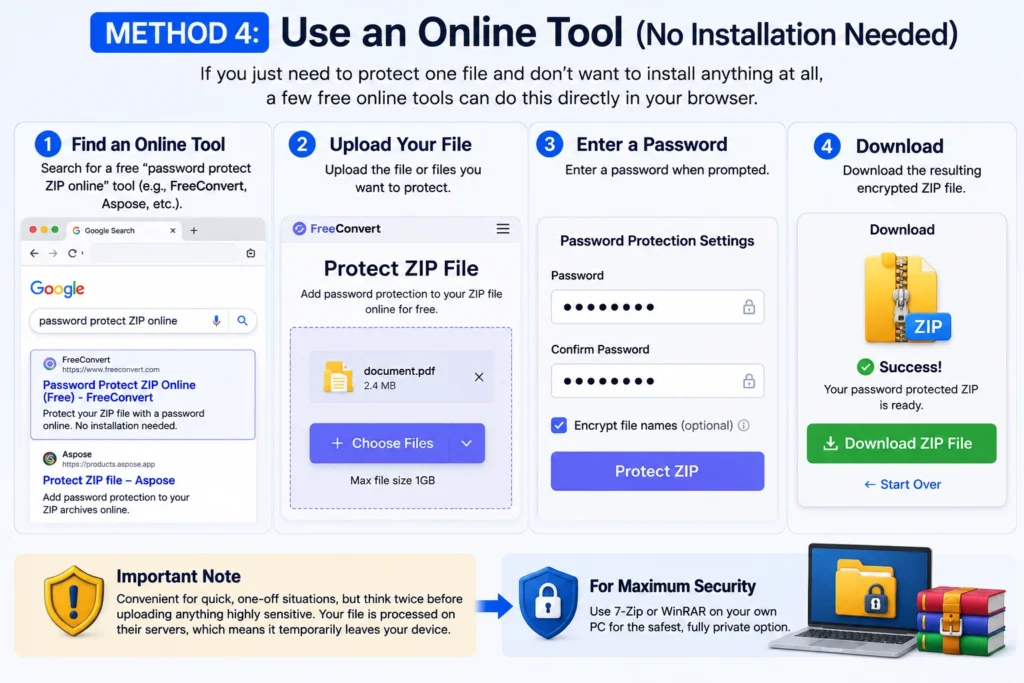
This is convenient for quick, one off situations, but it’s worth thinking twice before uploading anything highly sensitive to a third party website, since the file briefly passes through their servers during processing. For truly private documents, 7-Zip or WinRAR running locally on your own PC is the safer bet.
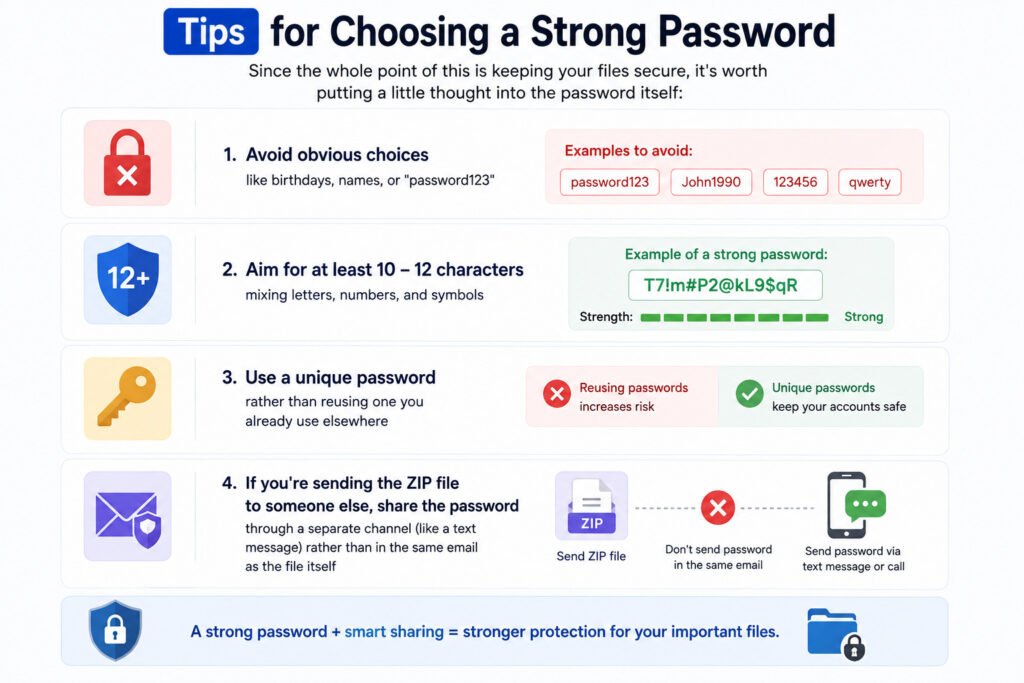
Tips for Choosing a Strong Password
Since the whole point of this is keeping your files secure, it’s worth putting a little thought into the password itself:
- Avoid obvious choices like birthdays, names, or “password123”
- Aim for at least 10 – 12 characters, mixing letters, numbers, and symbols
- Use a unique password rather than reusing one you already use elsewhere
- If you’re sending the ZIP file to someone else, share the password through a separate channel (like a text message) rather than in the same email as the file itself
How to Remove or Change the Password Later
If you no longer need the password, or you just want to update it to something new, you don’t have to start from scratch and re zip everything.
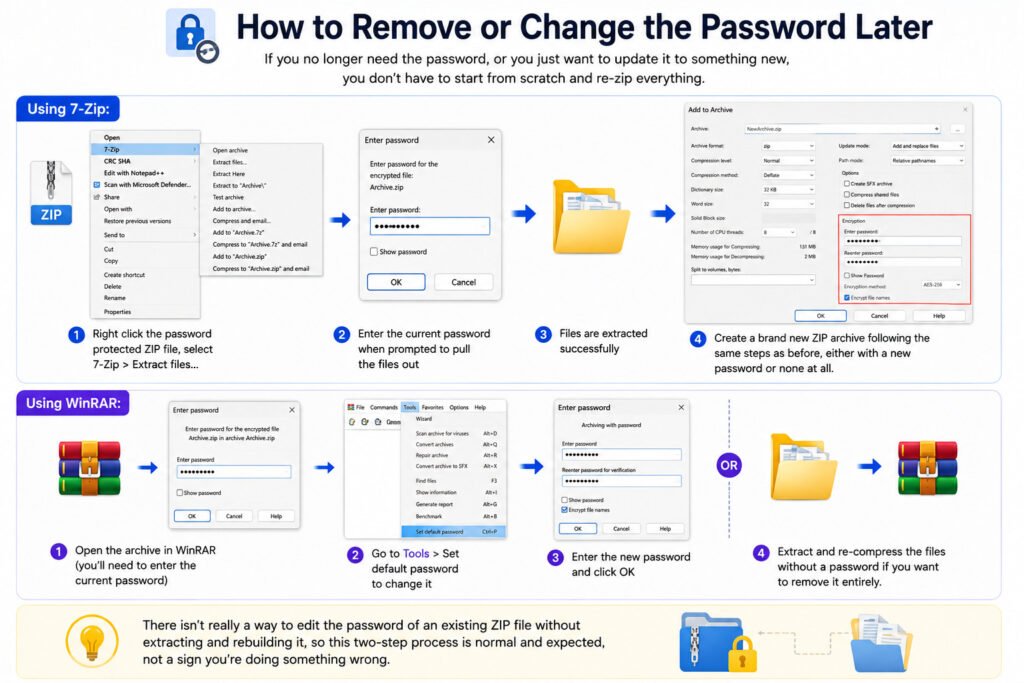
Using 7-Zip: Right click the password protected ZIP file, select 7-Zip > Extract files…, enter the current password when prompted to pull the files out, then create a brand new ZIP archive following the same steps as before, either with a new password or none at all.
Using WinRAR: Open the archive in WinRAR (you’ll need to enter the current password), then go to Tools > Set default password to change it, or simply extract and re compress the files without a password if you want to remove it entirely.
There isn’t really a way to edit the password of an existing ZIP file without extracting and rebuilding it, so this two step process is normal and expected, not a sign you’re doing something wrong.
ZIP Password Protection vs. Other Ways to Secure Files
Password-protecting a ZIP file is great for sharing files with someone else, but it’s worth knowing it isn’t your only option, and it isn’t always the best one depending on the situation.
- For sharing files with others: A password protected ZIP is ideal since the recipient just needs the password and a basic ZIP tool to open it, with no special software required on their end.
- For protecting files only you need access to: Windows’ built in BitLocker (available on Pro and Enterprise editions) or macOS’s FileVault encrypt your entire drive, offering stronger, more seamless protection than password locking individual ZIP files one at a time.
- For a single sensitive document rather than a whole ZIP file: Some programs, like Microsoft Word and Excel, let you password-protect the file directly through File > Info > Protect Document, which can be simpler if you’re only dealing with one file and don’t need to compress anything.
ZIP password protection hits a nice middle ground for most everyday situations, especially when you need to send files to someone else, but it’s good to know these alternatives exist if your situation calls for something a bit different.
Frequently Asked Questions
Can I open a password protected ZIP file on any device?
Mostly, yes. Standard ZIP encryption (like the one 7-Zip and WinRAR create) can be opened by most ZIP tools across Windows, Mac, and even some mobile apps, as long as the person has a program that supports password protected ZIP files, which most modern ones do.
What happens if I forget the password?
Unfortunately, there’s no simple built in way to recover it. Password protected ZIP files are encrypted, meaning the file basically becomes unreadable without the correct password. It’s worth storing important passwords somewhere safe, like a password manager, rather than relying on memory alone.
Is ZIP password protection actually secure?
It depends on the encryption method. AES-256 encryption, which 7-Zip offers, is considered strong and secure for everyday use. Older or weaker encryption methods (sometimes used by default in older ZIP tools) are easier to crack, so it’s worth double checking that AES-256 is selected if security is a real priority for the files you’re protecting