
There’s nothing more frustrating than compressing a PDF to get past an email attachment limit, only to open it later and find the text is blurry or the images look like they went through a photocopier three times. The good news is that with the right approach, you can shrink a PDF significantly without turning it into a mess. The key is understanding what’s actually taking up space in the file, and compressing that intelligently instead of just cranking the compression up as high as it’ll go.
Let’s walk through how to do this properly, starting with the easiest options.
Why PDFs Get So Large in the First Place
Before jumping into the how-to, it helps to know why some PDFs balloon in size while others stay small. In most cases, the bulk of the file size comes from embedded images, especially scanned pages or high-resolution photos that were placed into the document at full quality. Fonts, especially embedded custom fonts, can also add weight, as can unnecessary metadata or leftover data from multiple edits.
Text itself takes up almost no space by comparison, which is actually good news, since it means you can usually compress the images aggressively while leaving the text completely untouched and perfectly readable.
Method 1: Use a Free Online PDF Compressor
For most people, this is the fastest and easiest option, and it works well without needing any software installed.
- Search for a free PDF compressor (Smallpdf, iLovePDF, and Adobe’s own online compressor are all solid, well-known choices)
- Upload your PDF file
- Choose a compression level if the tool offers one look for an option labeled something like “Recommended” or “Standard,” since these usually balance file size and quality well, whereas “Extreme” or “Maximum” settings tend to sacrifice more image quality than necessary
- Download the compressed file and open it to double check the text and images still look sharp
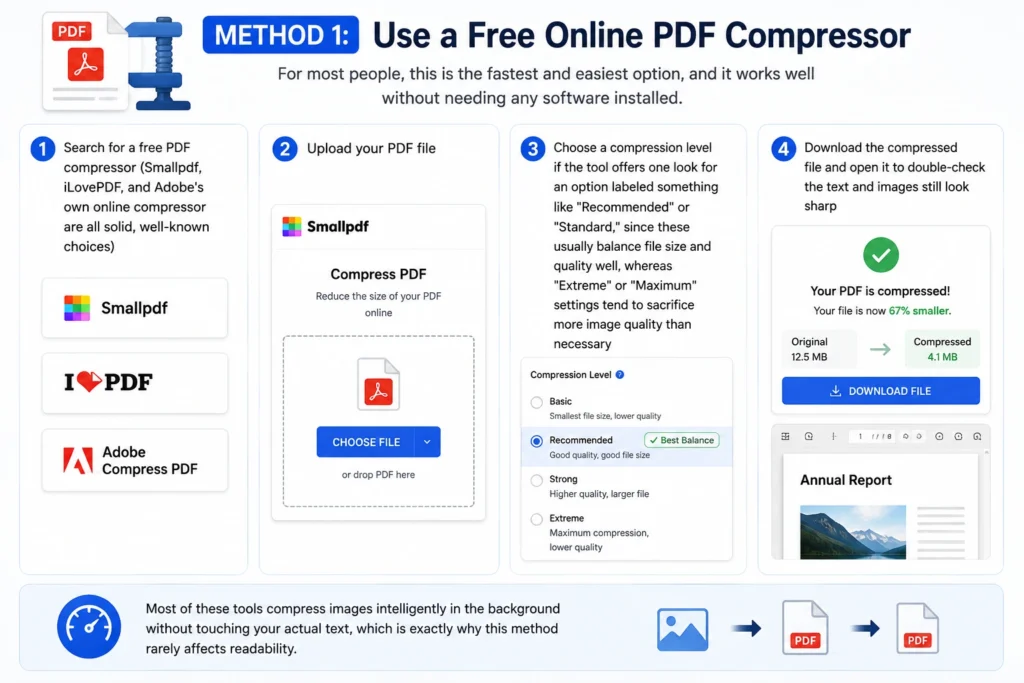
Most of these tools compress images intelligently in the background without touching your actual text, which is exactly why this method rarely affects readability.
Method 2: Compress a PDF Using Adobe Acrobat
If you already have Adobe Acrobat ( not just the free Reader ), it has a built-in compression tool that gives you a bit more control than most free online options.
- Open your PDF in Adobe Acrobat
- Go to File > Save as Other > Reduced Size PDF (or Compress PDF, depending on your version)
- Choose a compatibility setting if prompted, then click OK
- Save the file with a new name so you keep your original as a backup
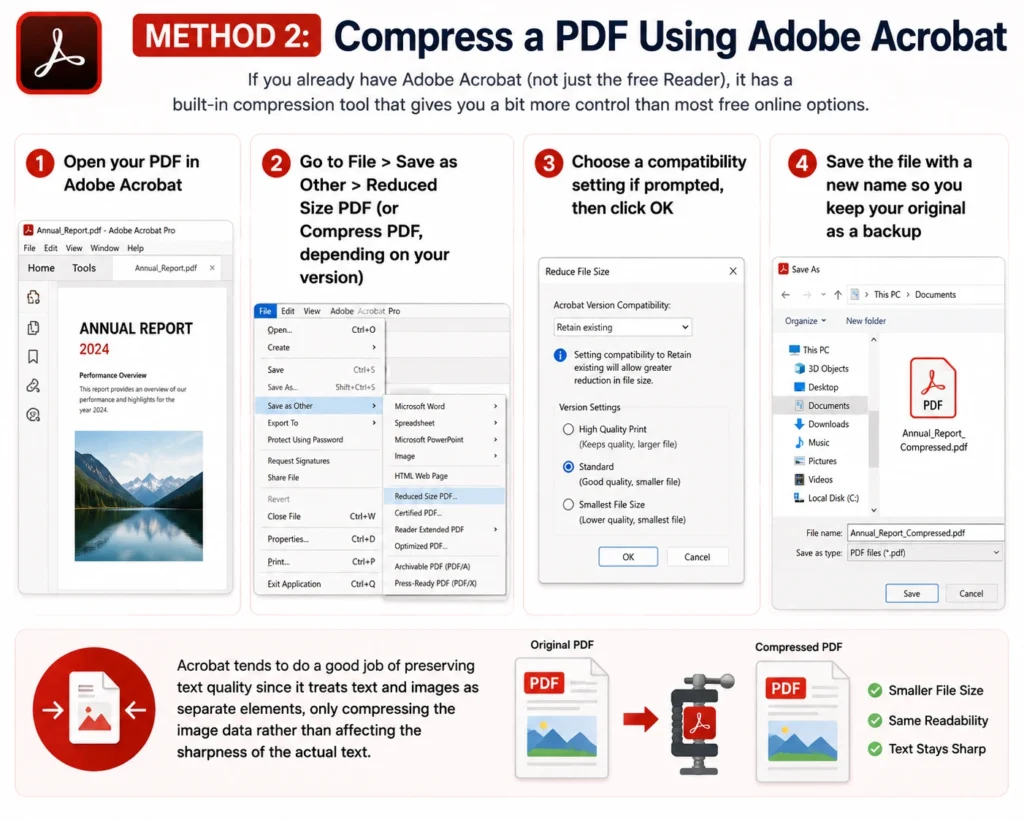
Acrobat tends to do a good job of preserving text quality since it treats text and images as separate elements, only compressing the image data rather than affecting the sharpness of the actual text.
Method 3: Reduce Image Quality Before Creating the PDF
If you’re the one creating the PDF in the first place (say, from Word or a scanning app), it’s often smarter to control image quality at the source rather than compressing the finished PDF afterward.
- In Microsoft Word, before saving as PDF, go to File > Options > Advanced, scroll to the Image Size and Quality section, and lower the default resolution (220 ppi is usually a good balance between clarity and file size)
- If you’re scanning documents, most scanning apps let you choose a resolution before scanning 150–200 DPI is typically more than enough for readable text without creating an oversized file
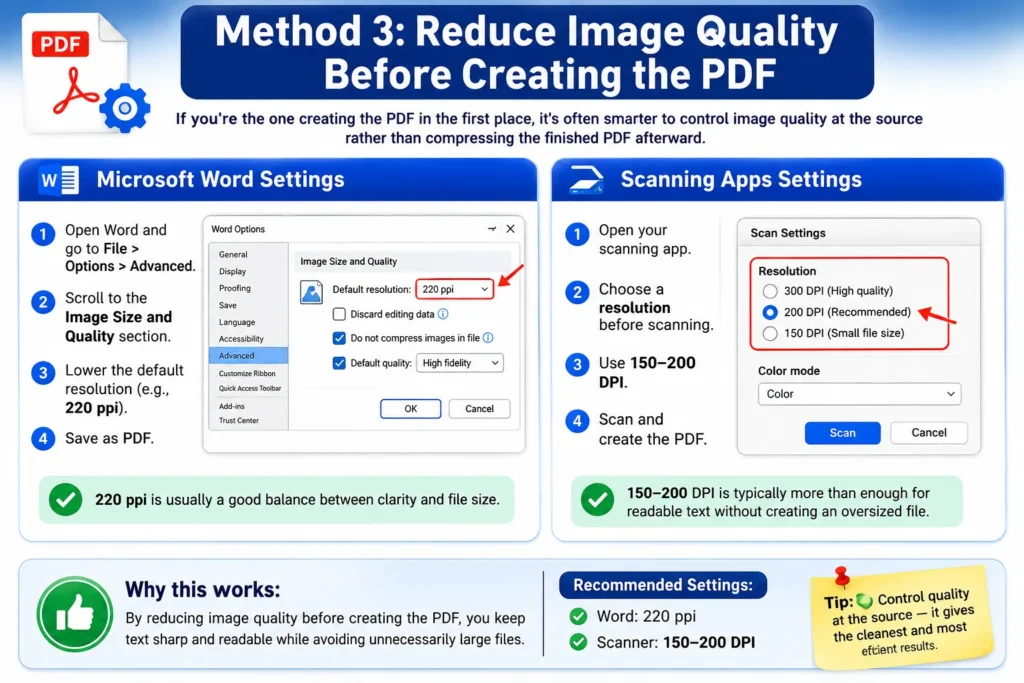
This approach tends to give you the cleanest results since you’re controlling quality before the file is even created, rather than trying to shrink something that’s already bloated.
Method 4: Use Free Desktop Software (No Internet Needed)
If you’d rather not upload documents to a website, especially for anything sensitive, free desktop tools can handle compression offline.
PDF24 Creator (Windows) is a solid free option that includes a compression tool with adjustable quality settings, letting you preview the estimated file size before saving.
Preview (Mac) can also reduce PDF file size:
- Open the PDF in Preview
- Go to File > Export
- Set the Quartz Filter dropdown to Reduce File Size
- Click Save
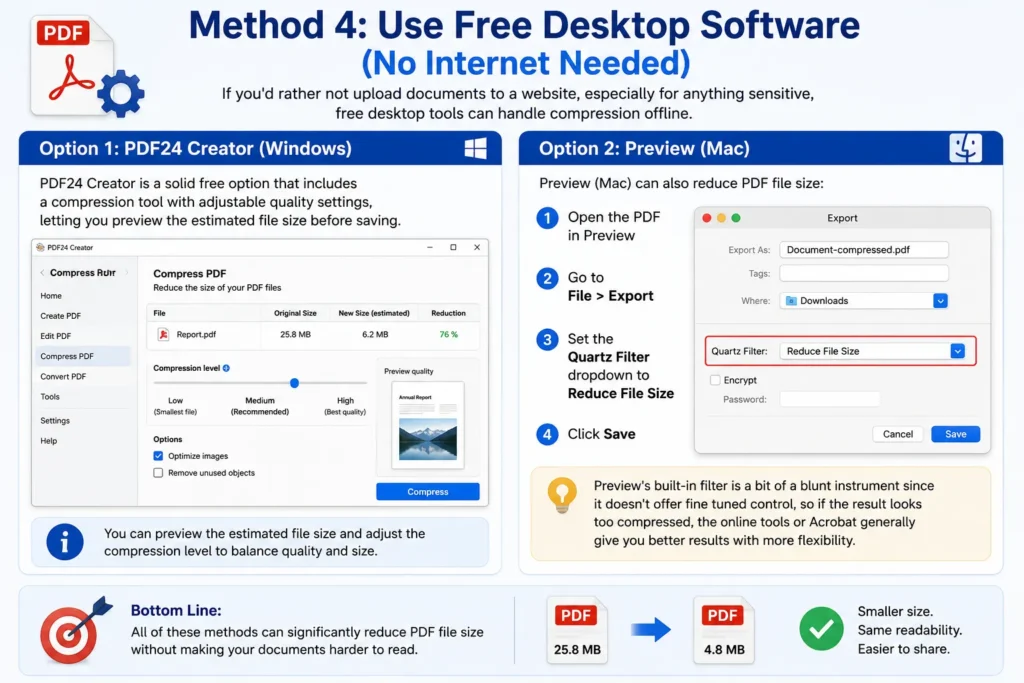
Preview’s built-in filter is a bit of a blunt instrument since it doesn’t offer fine tuned control, so if the result looks too compressed, the online tools or Acrobat generally give you better results with more flexibility.
What to Avoid When Compressing a PDF
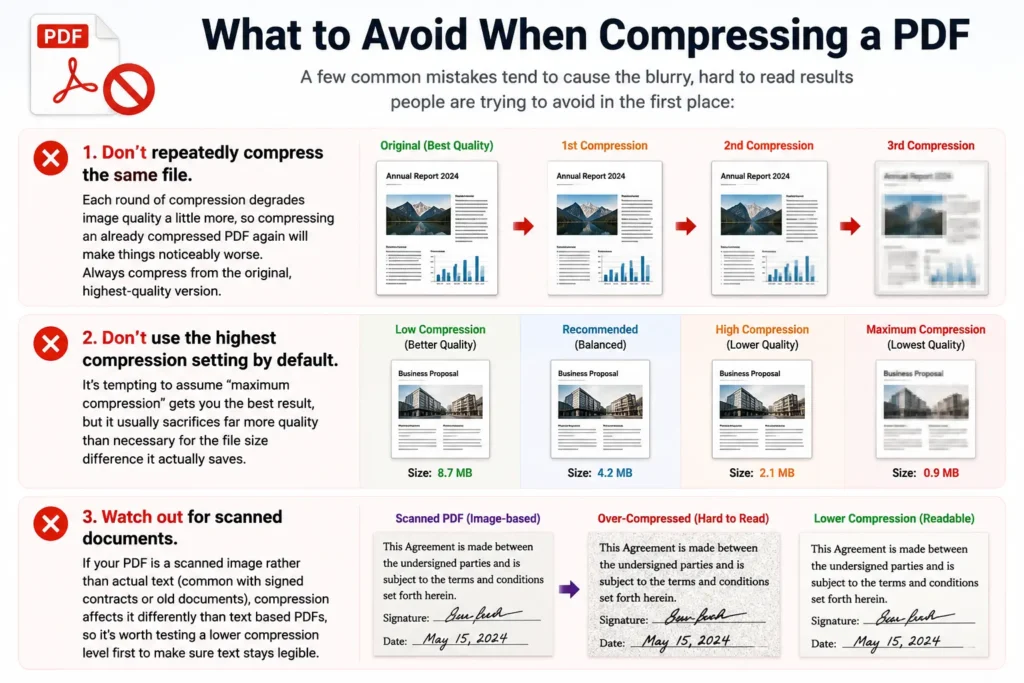
A few common mistakes tend to cause the blurry, hard to read results people are trying to avoid in the first place:
- Don’t repeatedly compress the same file. Each round of compression degrades image quality a little more, so compressing an already compressed PDF again will make things noticeably worse. Always compress from the original, highest-quality version.
- Don’t use the highest compression setting by default. It’s tempting to assume “maximum compression” gets you the best result, but it usually sacrifices far more quality than necessary for the file size difference it actually saves.
- Watch out for scanned documents. If your PDF is a scanned image rather than actual text (common with signed contracts or old documents), compression affects it differently than text based PDFs, so it’s worth testing a lower compression level first to make sure text stays legible.
How to Check If Compression Actually Hurt Readability
After compressing, it’s worth taking thirty seconds to actually verify the result rather than assuming it’s fine:
- Open the compressed PDF and zoom in on a page with small text, like a footnote or fine print
- Check any images or charts, since these are usually the first thing to visibly degrade
- Compare the file side by side with the original if you’re unsure, especially for documents you plan to print or share professionally
If the text looks noticeably blurry or the images turned into a pixelated mess, try a lighter compression setting or a different tool, since there’s almost always a version of compression that keeps things readable without giving up much on file size.
Compressing PDFs on Your Phone
If the PDF you need to shrink is already on your phone, you don’t necessarily need to email it to yourself first.
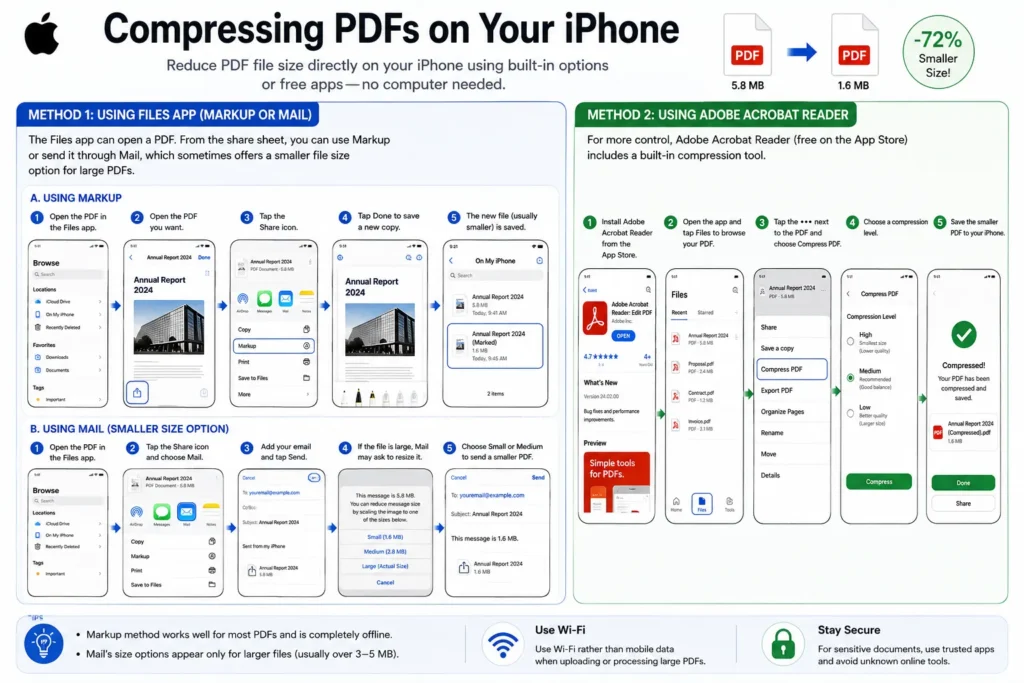
On iPhone: The Files app can open a PDF, and from the share sheet you can use Markup or send it through Mail, which sometimes automatically offers a smaller file size option when attaching large PDFs. For more control, free apps like Adobe Acrobat Reader (available on the App Store) include a built-in compression tool under the file’s menu options.
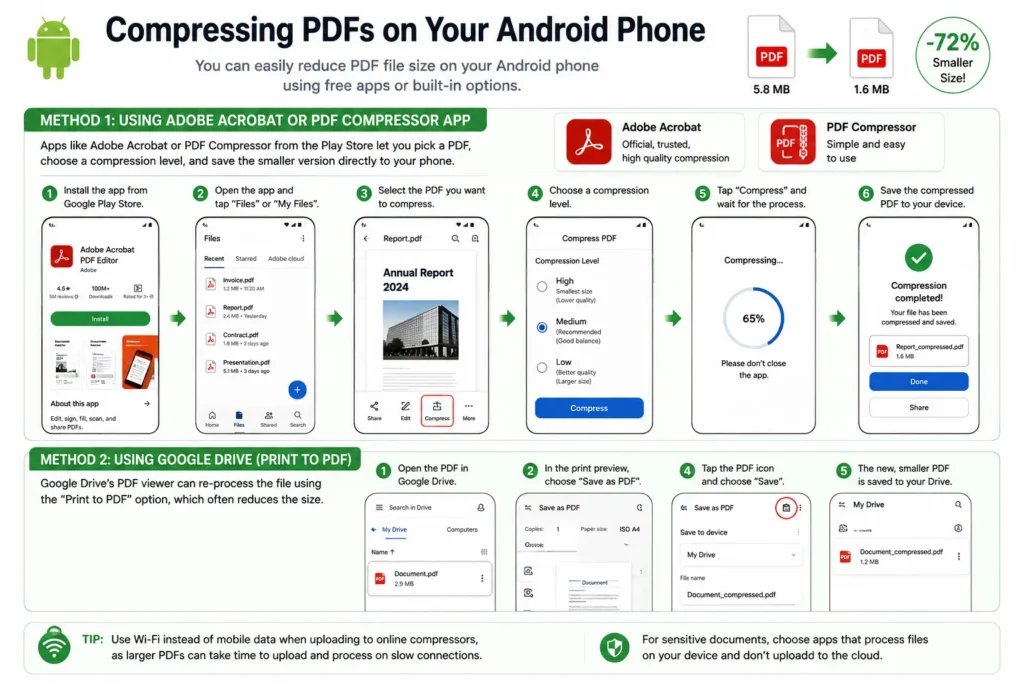
On Android: Apps like Adobe Acrobat or PDF Compressor from the Play Store let you pick a PDF from your storage, choose a compression level, and save the smaller version directly back to your phone. Google Drive’s PDF viewer also handles basic compression when you use the “Print to PDF” option, which re processes the file and often reduces its size in the process.
Either way, it’s worth using Wi-Fi rather than mobile data if you’re uploading to an online compressor, since larger PDFs can take a little while to process on a slower connection.
How Much Should a Compressed PDF Actually Shrink?
It’s natural to wonder if the compression even worked, especially if the file size difference doesn’t look dramatic. In general, PDFs made up mostly of scanned images or high resolution photos can often shrink by 50% or more with barely noticeable quality loss, since there’s usually a lot of unnecessary image data to trim. Text heavy PDFs, on the other hand, might only shrink by a small percentage, simply because there wasn’t much bloat to remove in the first place.
If a supposedly “compressed” file barely changed size at all, it usually means the original PDF was already fairly efficient, or the tool you used wasn’t able to touch whatever’s actually taking up the space (like embedded fonts or complex vector graphics). In that case, it’s less about finding a better compression setting and more about checking whether the file has something unusual going on, like duplicate embedded images or leftover data from repeated edits.
Wrapping Up
Compressing a PDF without ruining it really comes down to targeting the right part of the file, since images are almost always the real culprit, not the text. Whether you use a free online tool, Adobe Acrobat, or reduce image quality before the PDF is even created, sticking to moderate compression settings and double checking the result afterward will get you a smaller file that’s still perfectly easy to read.