
If your laptop sounds like it’s about to take off every time you open it, even when you’re just browsing or writing an email, something’s making it work harder than it should. A loud, constantly running fan isn’t just annoying, it’s usually your laptop’s way of telling you it’s overheating or struggling to keep up. The good news is that most of the time, this is fixable without needing to take your laptop apart or spend money on repairs.
Let’s go through the most common reasons this happens and how to fix each one.
Reason 1: Too Many Programs Running in the Background
This is by far the most common cause. When your CPU is working overtime, either from too many open programs, background apps, or a stuck process, it generates more heat, and the fan spins faster to cool things down.
How to check: Open Task Manager (Ctrl + Shift + Esc) and look at the Processes tab. Sort by CPU usage and see what’s actually using your resources. If something unfamiliar is sitting at 50% or higher CPU usage while you’re barely doing anything, that’s likely your culprit.
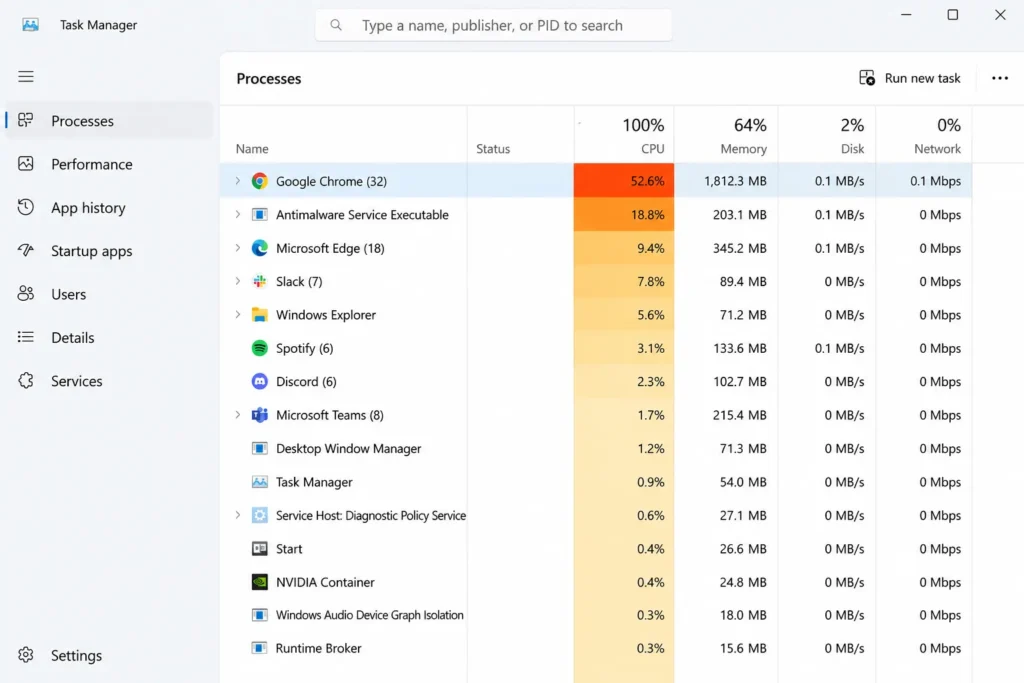
How to fix it: Close unnecessary programs and browser tabs, and check which apps are set to run automatically at startup, since these often keep running in the background without you realizing it. If a specific app is regularly spiking your CPU, it might be worth updating it or looking into whether it has a known issue causing this.
Reason 2: Dust Buildup Inside the Laptop
Over time, dust collects inside your laptop’s vents and around the fan itself, blocking airflow. When air can’t move properly, heat has nowhere to go, so the fan has to work much harder just to keep the temperature down, which is exactly why laptops tend to get louder the older they get.
How to check: If you can see dust around the vents on the outside of your laptop, there’s a good chance more has built up inside as well. A laptop that’s gotten noticeably louder over several months, without any real change in how you use it, often points to this.
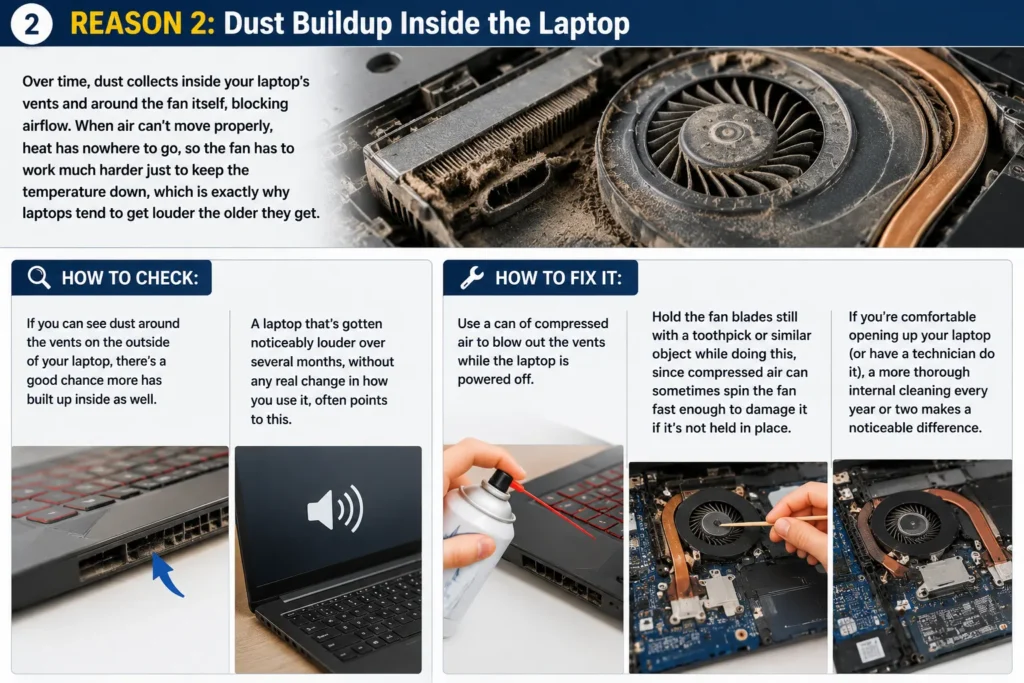
How to fix it: Use a can of compressed air to blow out the vents while the laptop is powered off. Hold the fan blades still with a toothpick or similar object while doing this, since compressed air can sometimes spin the fan fast enough to damage it if it’s not held in place. If you’re comfortable opening up your laptop (or have a technician do it), a more thorough internal cleaning every year or two makes a noticeable difference.
Reason 3: Blocked Airflow From Where You’re Using It
Laptops pull in cool air and push out hot air through vents, usually located on the bottom or sides. If you’re using your laptop on a soft surface like a bed, couch, or your lap, those vents can get partially or fully blocked, trapping heat inside.
How to check: Notice if your fan gets noticeably louder specifically when you’re using the laptop on a soft surface compared to a hard desk or table.
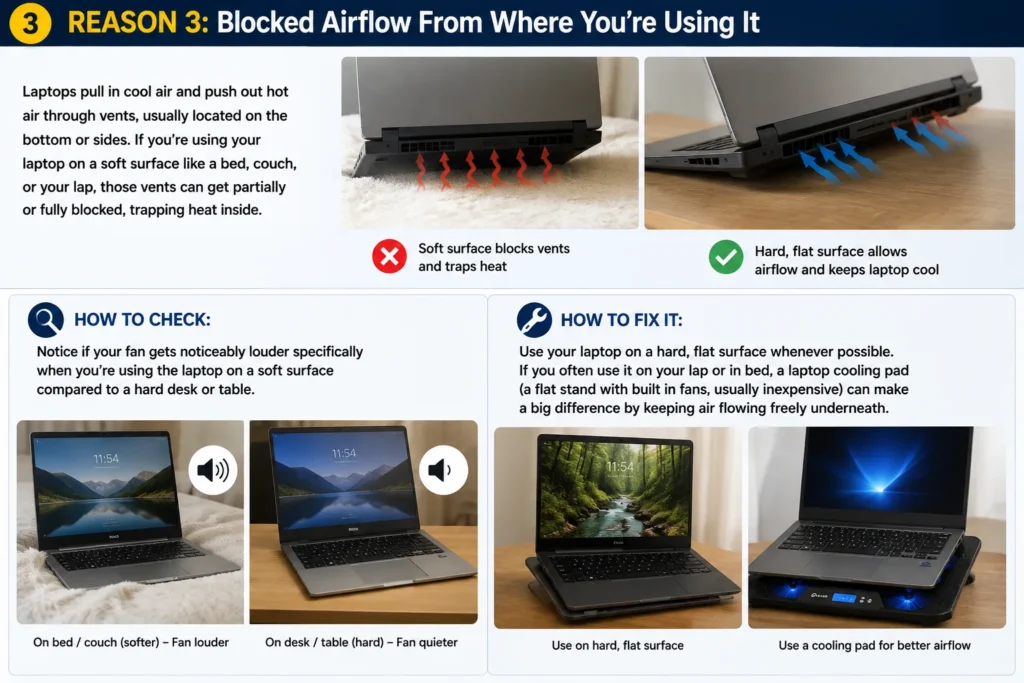
How to fix it: Use your laptop on a hard, flat surface whenever possible. If you often use it on your lap or in bed, a laptop cooling pad (a flat stand with built in fans, usually inexpensive) can make a big difference by keeping air flowing freely underneath.
Reason 4: Old or Worn Out Thermal Paste
This one’s a bit more technical, but it’s common in laptops that are a few years old. Thermal paste is the material between your CPU and its heatsink that helps transfer heat away efficiently. Over time, it dries out and becomes less effective, causing your laptop to run hotter than it used to, even under normal use.
How to check: If your laptop is more than 2-3 years old and the fan runs loudly even for basic tasks, despite having no dust buildup and nothing unusual running in the background, worn out thermal paste is a likely suspect.
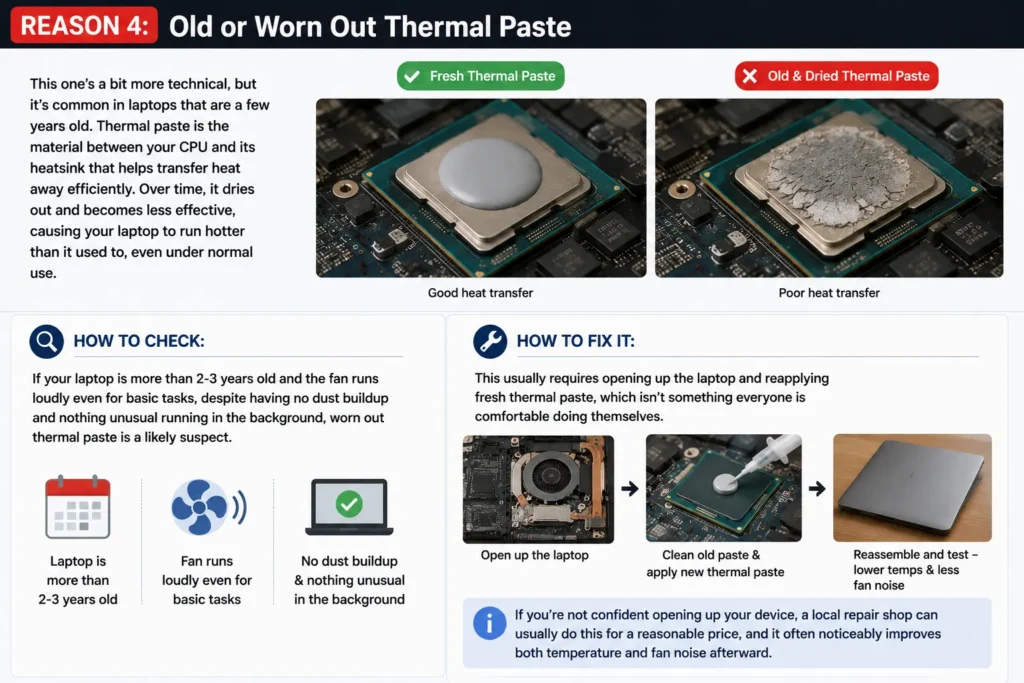
How to fix it: This usually requires opening up the laptop and reapplying fresh thermal paste, which isn’t something everyone is comfortable doing themselves. If you’re not confident opening up your device, a local repair shop can usually do this for a reasonable price, and it often noticeably improves both temperature and fan noise afterward.
Reason 5: Poor Ventilation or a Hot Room
Sometimes it’s less about the laptop and more about its environment. If you’re using your laptop in a hot room, in direct sunlight, or somewhere without much airflow, it has to work harder to stay cool no matter how well maintained it is.
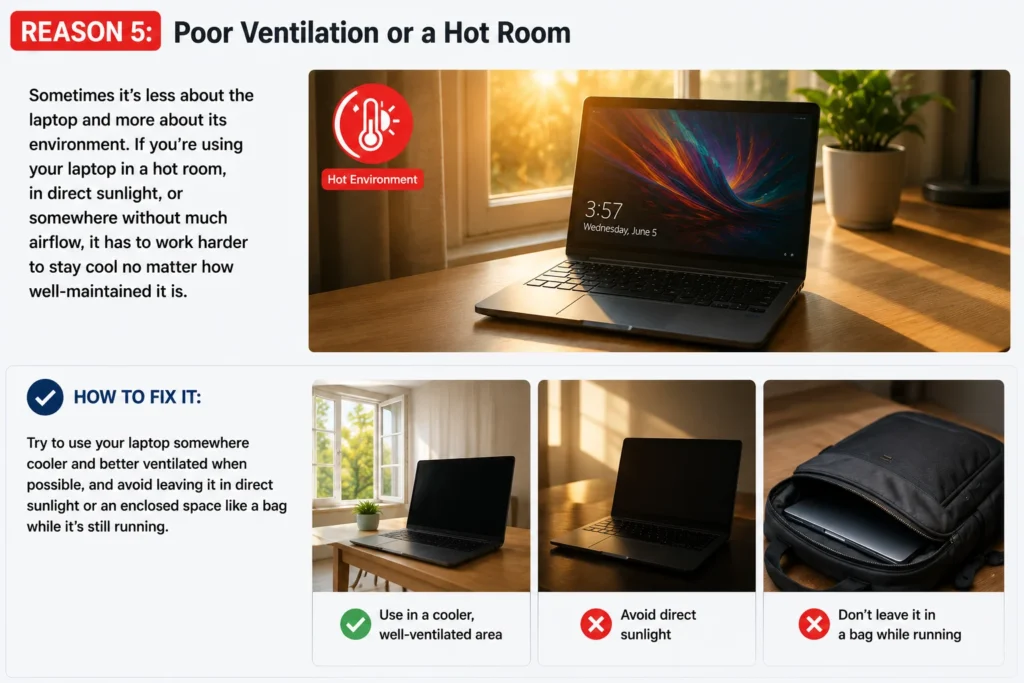
How to fix it: Try to use your laptop somewhere cooler and better ventilated when possible, and avoid leaving it in direct sunlight or an enclosed space like a bag while it’s still running.
Reason 6: A Demanding Task Is Actually Running
Sometimes the fan is loud simply because you’re asking a lot from your laptop, like gaming, video editing, or running multiple heavy programs at once. In these cases, the fan working hard is completely normal and expected, not a sign something’s wrong.
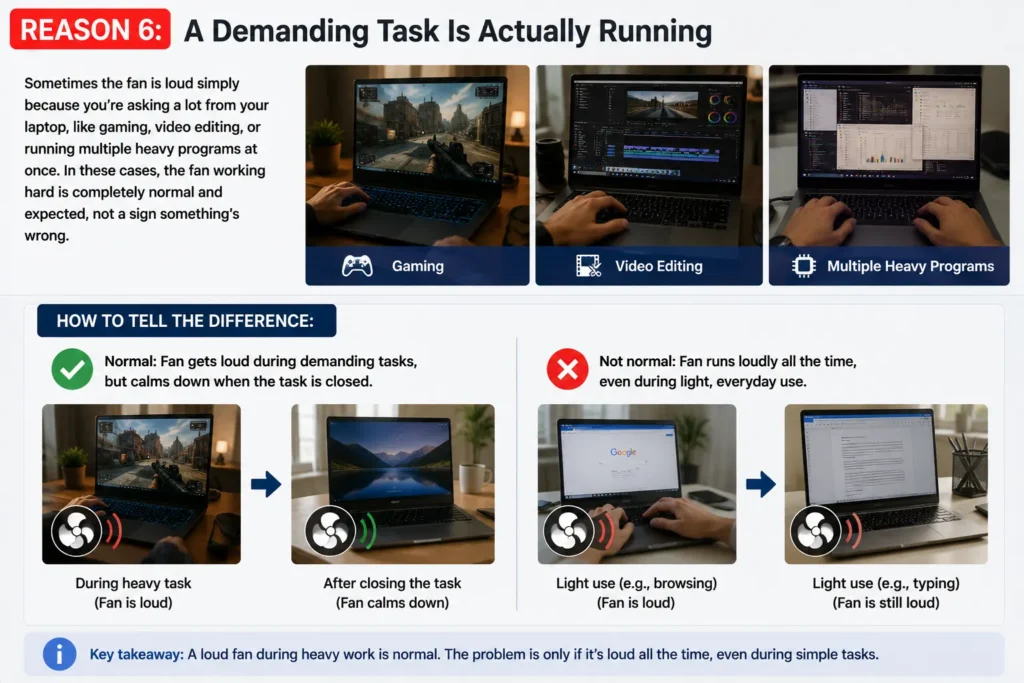
How to tell the difference: If the fan calms down once you close the demanding program or task, your laptop is behaving exactly as it should. The real concern is when the fan runs loudly all the time, even during light, everyday use like browsing or typing a document.
When It’s Worth Getting It Checked Out
Most fan noise issues can be fixed with the steps above, but it’s worth having a professional take a look if:
- The fan runs loudly non stop even right after a fresh restart with nothing open
- Your laptop feels hot to the touch even during light use
- You hear grinding, rattling, or clicking noises from the fan itself, which can point to a mechanical issue rather than just dust or heat
- The laptop shuts down unexpectedly, which can be a sign it’s overheating badly enough to protect itself
How to Check Your Laptop’s Actual Temperature
Instead of guessing whether your laptop is running hot, you can actually check the numbers, which makes it a lot easier to tell if there’s a real problem or if the fan noise is just normal.
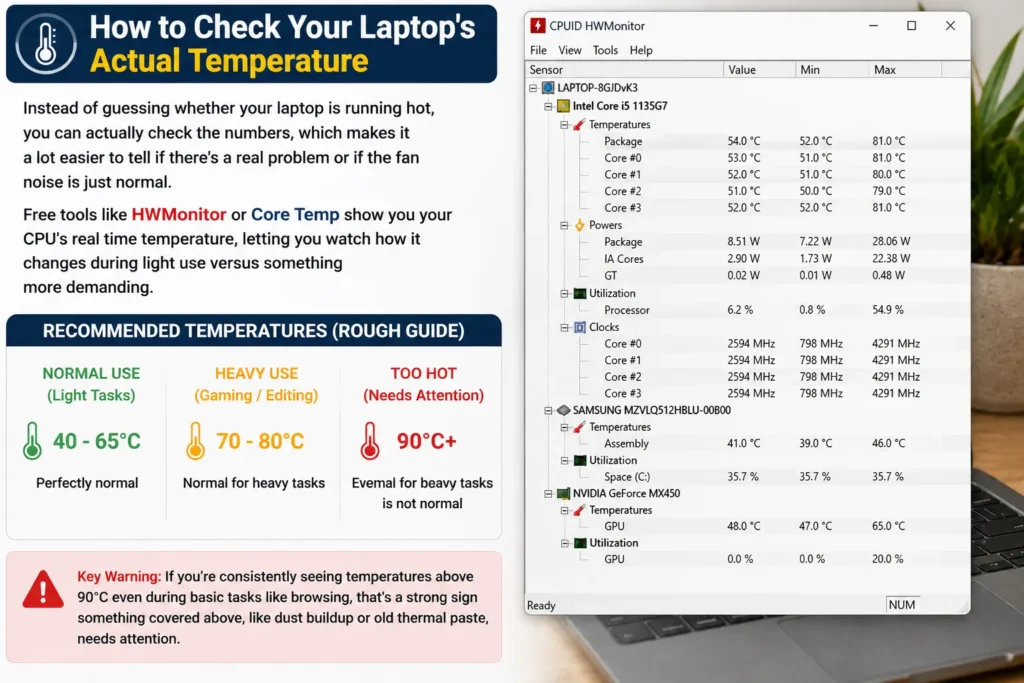
Free tools like HWMonitor or Core Temp show you your CPU’s real time temperature, letting you watch how it changes during light use versus something more demanding. As a rough guide, most laptops are fine running anywhere between 40 – 65°C during normal use, and it’s normal for temperatures to climb into the 70s or 80s during heavier tasks like gaming or video editing. If you’re consistently seeing temperatures above 90°C even during basic tasks like browsing, that’s a strong sign something covered above, like dust buildup or old thermal paste, needs attention.
Frequently Asked Questions
Is it bad for my laptop if the fan runs constantly?
Not necessarily on its own, since the fan is designed to run when needed to protect the internal components from overheating. The real concern is what’s causing it to run constantly in the first place, since prolonged high temperatures can shorten the lifespan of internal parts over time if the underlying cause is never addressed.
Why is my laptop fan loud even when I just turned it on?
This is usually a sign of dust buildup restricting airflow, worn thermal paste, or a background program launching automatically at startup and immediately using a lot of CPU. Since there’s no reason for demand to be high right after boot, this points more toward maintenance issues than normal usage.
Can a virus cause my laptop fan to run constantly?
Yes, this happens more often than people expect. Malware or unwanted background processes can quietly use up CPU resources without your knowledge, causing the fan to run harder than usual. Running a scan with Windows Security or a trusted antivirus tool is worth doing if nothing else on this list explains the noise.
Should I clean my laptop myself or take it to a professional?
Cleaning the external vents with compressed air is safe for most people to do at home. Opening up the laptop to clean internal components or replace thermal paste is more involved, and if you’re not comfortable doing that yourself, it’s worth having a repair shop handle it instead, especially since some laptops can be tricky to open without the right tools.