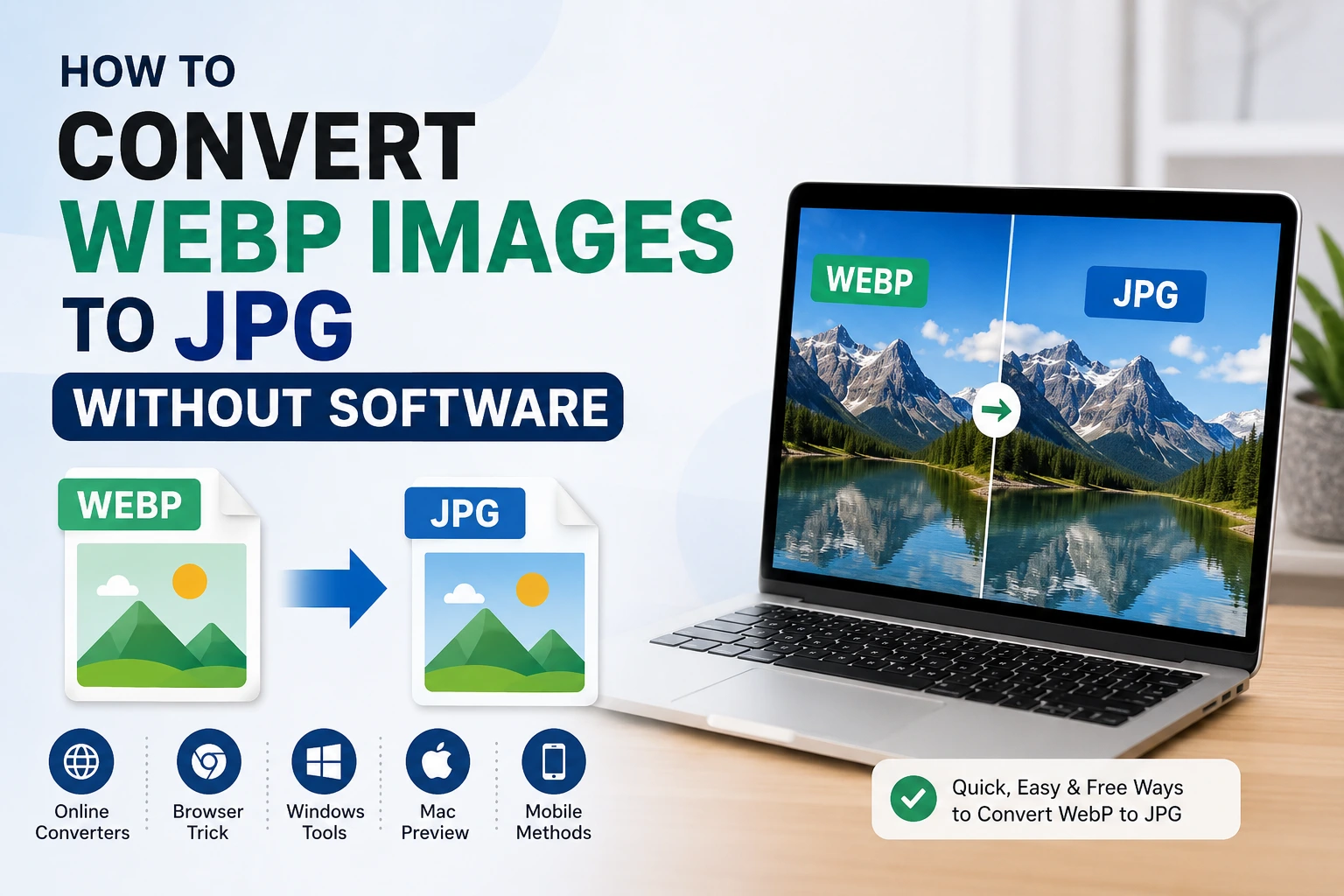

If you’ve ever tried to save an image from a website and ended up with a file ending in .webp instead of .jpg, you already know the headache that follows. WebP is a great format for websites since it loads faster and takes up less space, but a lot of apps, older devices, and even some editing tools still don’t play nicely with it. So now you’re stuck trying to convert a random image just to use it somewhere else.
The good news is you don’t need to install any software to fix this. There are a handful of simple, free ways to convert WebP to JPG using nothing but your browser or tools already built into your device.
Method 1: Use an Online Converter
This is the fastest option if you just need to convert one or two images and don’t want to deal with anything technical.
- Open your browser and search for a free WebP to JPG converter ( sites like CloudConvert, Convertio, and FreeConvert are popular options )
- Upload your WebP file, or in some cases just paste a link to the image
- Select JPG as the output format
- Click Convert, then download the finished file
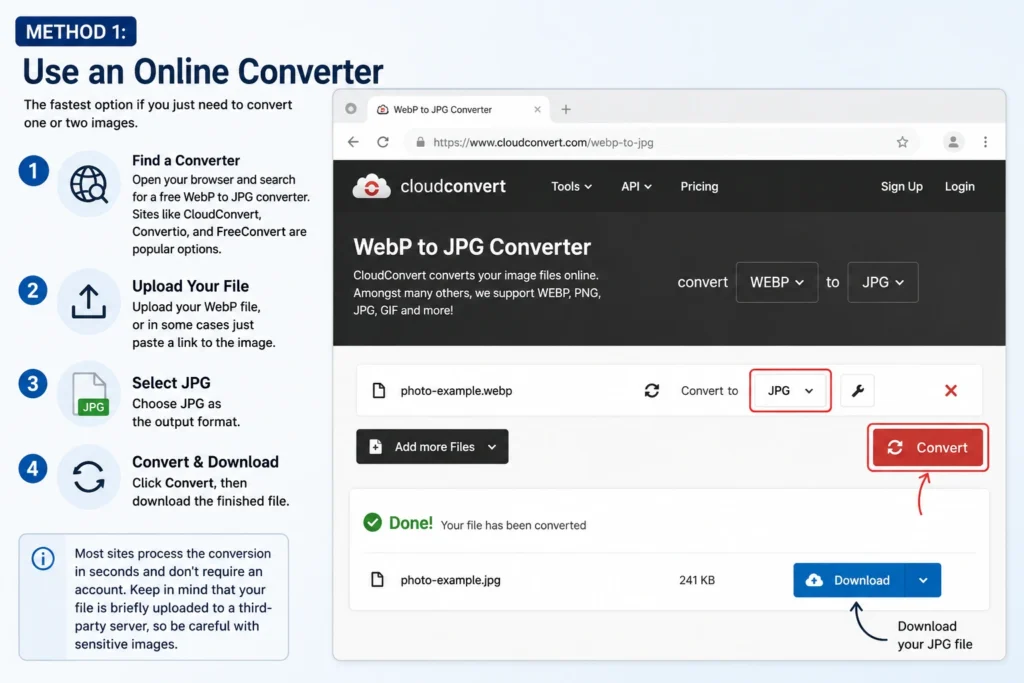
Most of these sites process the conversion in seconds and don’t require creating an account for basic use. Just keep in mind that if the image is something private or sensitive, it’s briefly passing through a third-party server, so it’s worth being mindful of what you’re uploading.
Method 2: Convert Directly in Google Chrome
Here’s a trick a lot of people don’t realize: Chrome can actually handle this conversion without any extra tools at all.
- Open the WebP image in a new Chrome tab (drag and drop the file into the browser, or right click it and choose Open with > Google Chrome)
- Right-click on the image once it loads
- Select Save image as…
- In the file name field, change the extension from
.webpto.jpg - Click Save
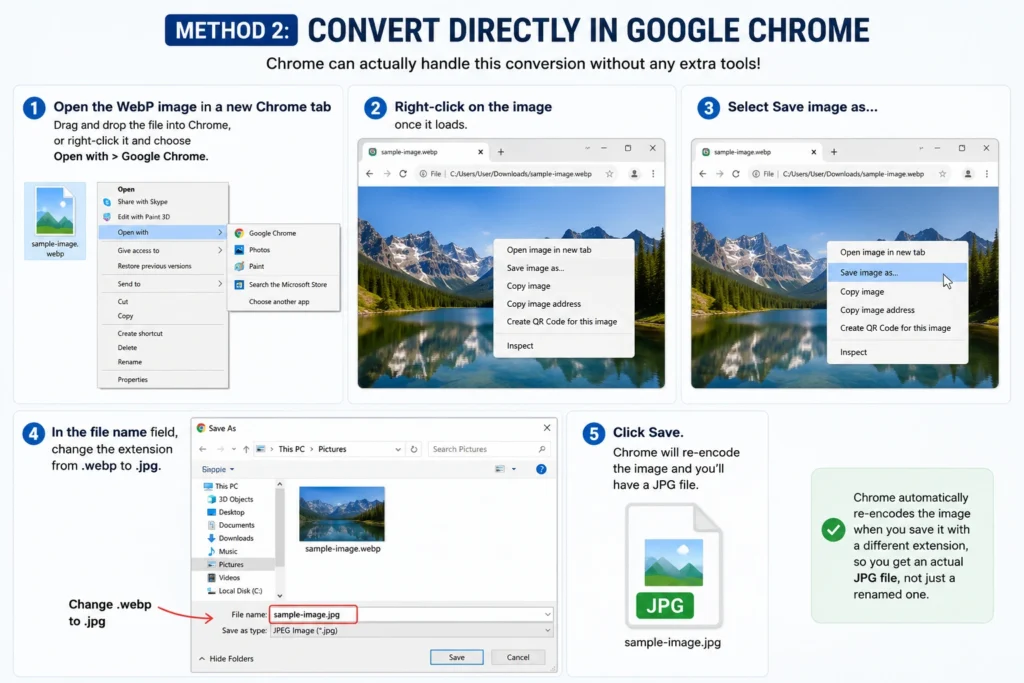
This works because Chrome automatically re encodes the image when you force a different file extension, so you end up with an actual JPG file rather than just a renamed one.
Method 3: Use Microsoft Paint (Built Into Windows)
If you’re on a Windows PC, Paint already comes installed and can handle this conversion in just a couple of clicks.
- Right-click the WebP file and choose Open with > Paint
- Once the image loads, click File > Save as
- Choose JPEG picture from the file type options
- Pick a location and click Save
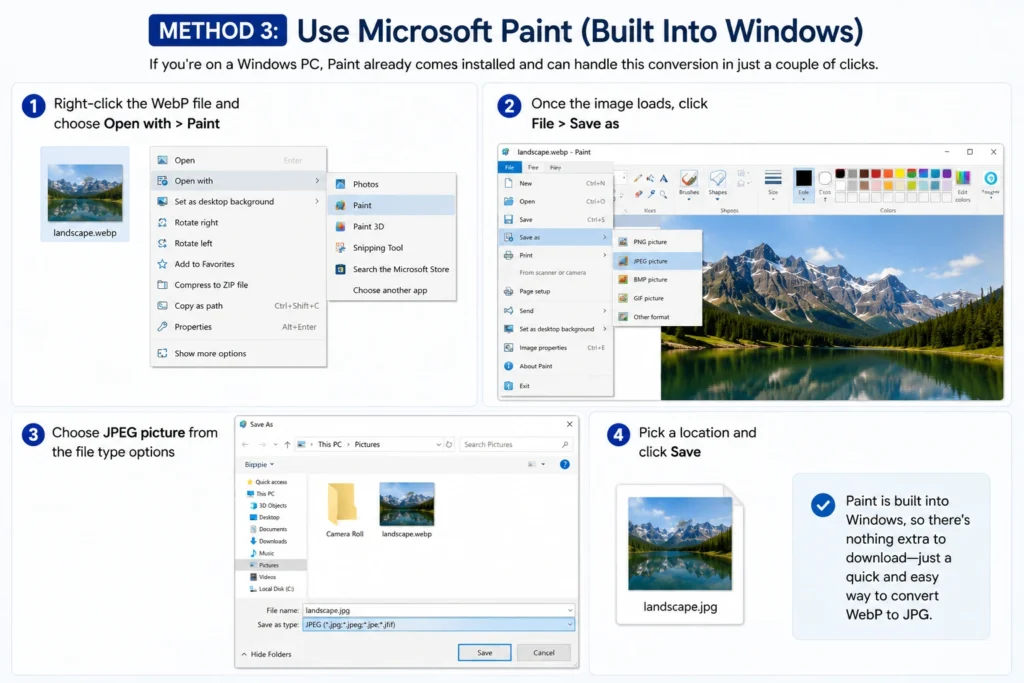
This is a solid option since Paint is already sitting on nearly every Windows PC, so there’s nothing new to download.
Method 4: Use the Photos App on Windows 11
Windows 11’s built in Photos app can also handle this without any extra downloads.
- Right-click the WebP file and select Open with > Photos
- Once it opens, click the three dot menu ( ⋯ ) in the top toolbar
- Select Save as
- Choose JPEG as the file format
- Click Save
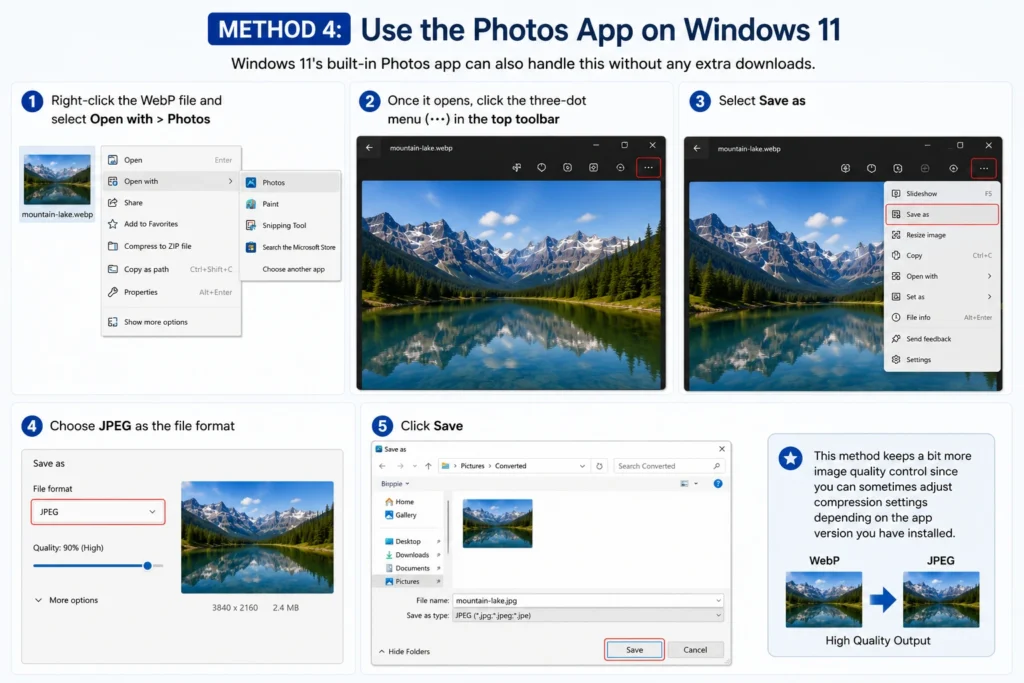
This method keeps a bit more image quality control since you can sometimes adjust compression settings depending on the app version you have installed.
Method 5: Convert on Mac Using Preview
If you’re on a Mac, Preview (which comes pre installed on every Mac) makes this just as easy:
- Open the WebP file with Preview (right click the file and choose Open With > Preview if it doesn’t open automatically)
- Go to File > Export
- Choose JPEG from the Format dropdown
- Adjust the quality slider if you want, then click Save
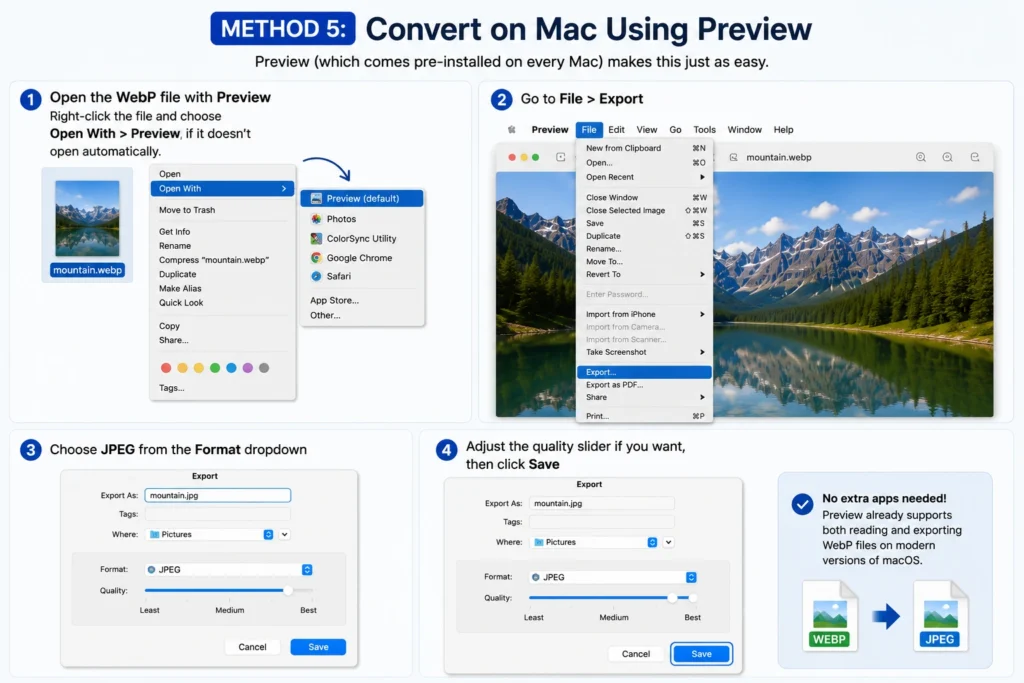
No extra apps needed here either, since Preview already supports both reading and exporting WebP files on modern versions of macOS.
Method 6: Convert on Your Phone
If the image you’re trying to convert is already on your phone, you don’t need a computer at all.
On Android: Open the image in Google Photos, tap the three dot menu, select Edit, and then use the export or “Save a copy” option, since Google Photos often converts WebP images to JPG automatically when saving edited copies. Alternatively, free apps like “Image Converter” from the Play Store handle this in one tap if the built in method doesn’t work for your specific photo.
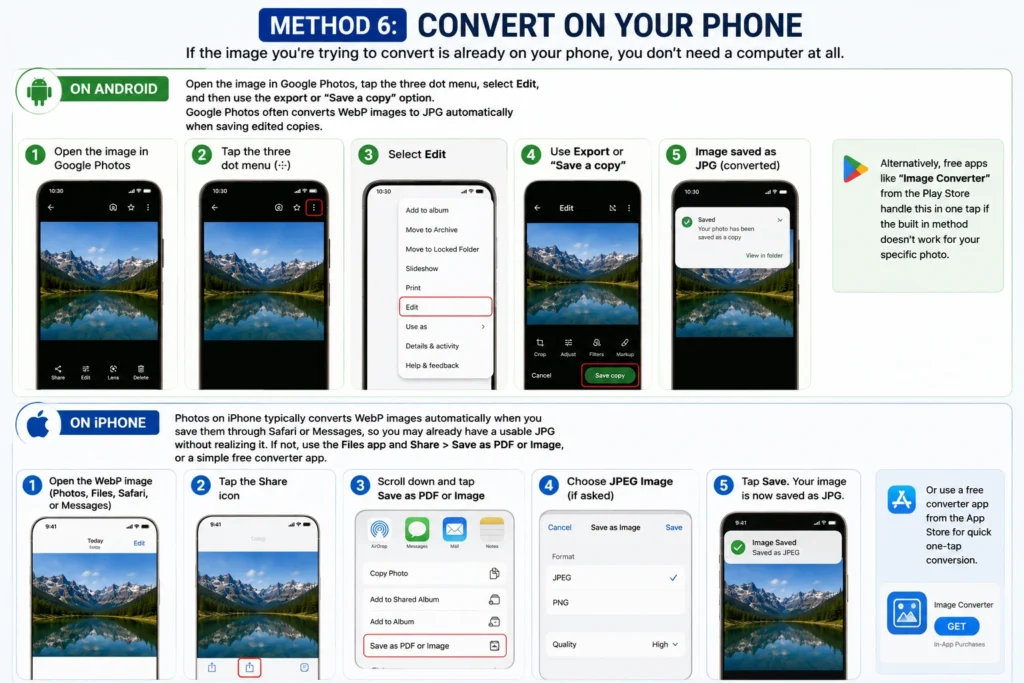
On iPhone: Photos on iPhone typically converts WebP images automatically when you save them through Safari or Messages, so you may already have a usable JPG without realizing it. If not, opening the image in the Files app and using the Share > Save as PDF or Image option, or a simple free converter app, will get the job done.
Why Bother Converting at All?
If you’re wondering whether this is even worth the extra step, it usually comes down to compatibility. JPG is one of the most universally supported image formats out there it works in basically every photo editor, printing service, presentation tool, and older device you can think of, while WebP support is still spotty in some software, especially older programs or certain design tools. Converting once means you won’t run into “unsupported file format” errors later when you’re trying to actually use the image somewhere.
Will Converting WebP to JPG Reduce Image Quality?
This is a fair concern, and the honest answer is: a little, but usually not enough to notice. JPG uses a slightly different compression method than WebP, so converting between the two involves re encoding the image, which can introduce a small amount of quality loss, especially if you convert the same file back and forth multiple times.
For most everyday uses, like sharing photos, uploading to social media, or using an image in a document, the difference is not something you’ll actually see. If you’re working with something where quality really matters, like a photo you plan to print or edit further, try to keep the original WebP file as a backup and only convert a copy, so you’re not stuck if you need the higher-quality version later.
Can I Convert Multiple WebP Files at Once?
Yes, and you don’t necessarily need special software for this either. Most online converters mentioned earlier, like CloudConvert and FreeConvert, support batch conversion, letting you upload several WebP files at once and download them all as JPGs in a single ZIP file. This is much faster than converting images one by one if you’re dealing with a whole folder of them.
If you convert WebP images often and don’t want to rely on a website each time, free desktop tools like IrfanView or XnConvert also support batch conversion and can process an entire folder in one go, though that does mean installing something rather than staying software free.
Frequently Asked Questions
Does converting a WebP to JPG remove transparency?
Yes. JPG doesn’t support transparent backgrounds the way WebP or PNG do, so if your WebP image has a transparent background, it’ll be filled in with a solid color (usually white) once converted to JPG. If you need to keep transparency, convert to PNG instead.
Why do some websites only offer images in WebP format?
Websites use WebP because it loads faster and uses less data than JPG or PNG, which helps with page speed and site performance. It’s great for the website itself, just not always convenient for the person trying to save and reuse the image elsewhere.
Is there a way to convert JPG back to WebP if I need to?
Yes, the same tools work in reverse. Most online converters and built-in apps like Preview or Photos let you choose WebP as the export format just as easily as JPG.