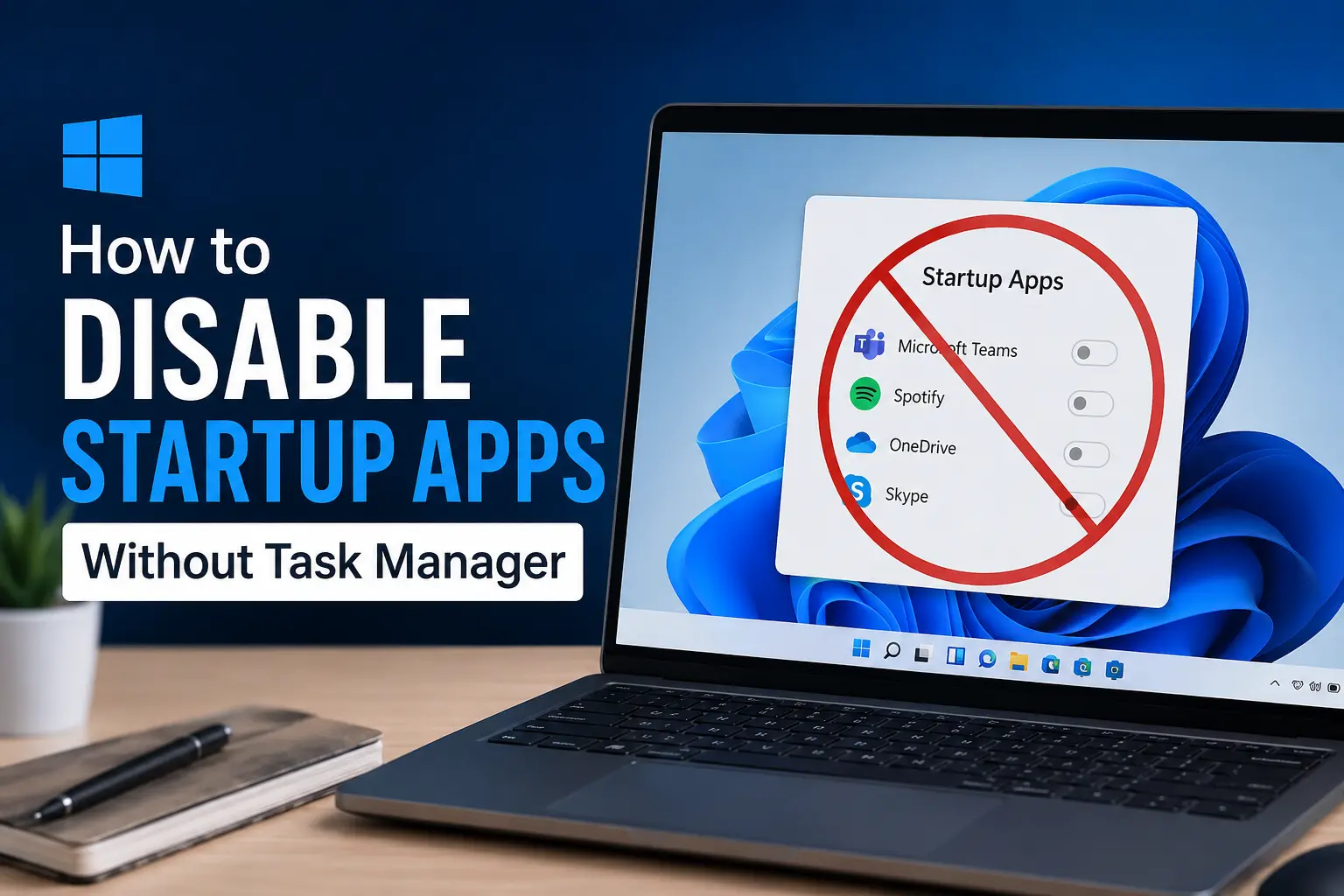

Most people know Task Manager is the go to place for managing startup apps in Windows, but it’s not the only option, and honestly, it’s not always the most convenient one either. Maybe Task Manager feels like overkill for a quick change, maybe it’s not opening properly, or maybe you’re just curious what other ways exist. Either way, Windows gives you several alternative routes to stop programs from launching automatically when you turn on your PC.
Here’s a look at a few different ways to get the same result without touching Task Manager at all.
Method 1: Windows Settings App
This is probably the simplest alternative, and it’s honestly just as fast as Task Manager once you know where to look.
- Open Settings ( Windows key + I )
- Go to Apps > Startup
- You’ll see a list of every app set to launch automatically, along with how much impact each one has on startup time
- Toggle Off any app you don’t want launching automatically
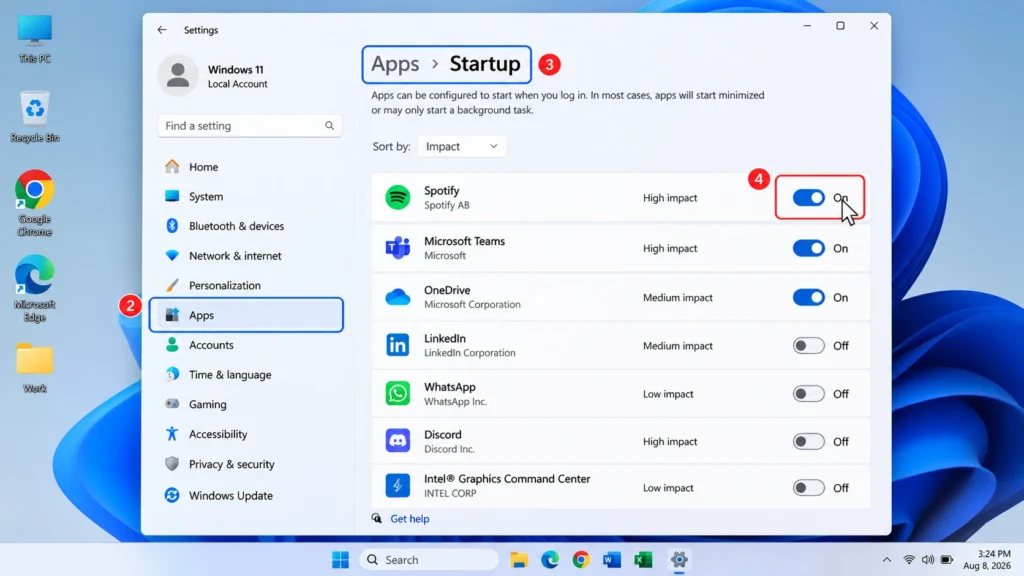
The nice thing about this method is that Windows also tells you whether each app has a “High,” “Medium,” or “Low” impact on startup speed, which makes it easier to decide what’s actually worth disabling.
Method 2: System Configuration ( msconfig )
This is an older tool that’s been part of Windows for years, and it still works well for managing startup items, especially for services that don’t always show up in the Settings app.
- Press Windows key + R to open Run
- Type
msconfigand hit Enter - Go to the Services tab
- Check Hide all Microsoft services at the bottom so you only see third party services (this helps avoid accidentally disabling something Windows actually needs)
- Uncheck any service you don’t want starting automatically
- Click Apply, then OK, and restart your PC when prompted
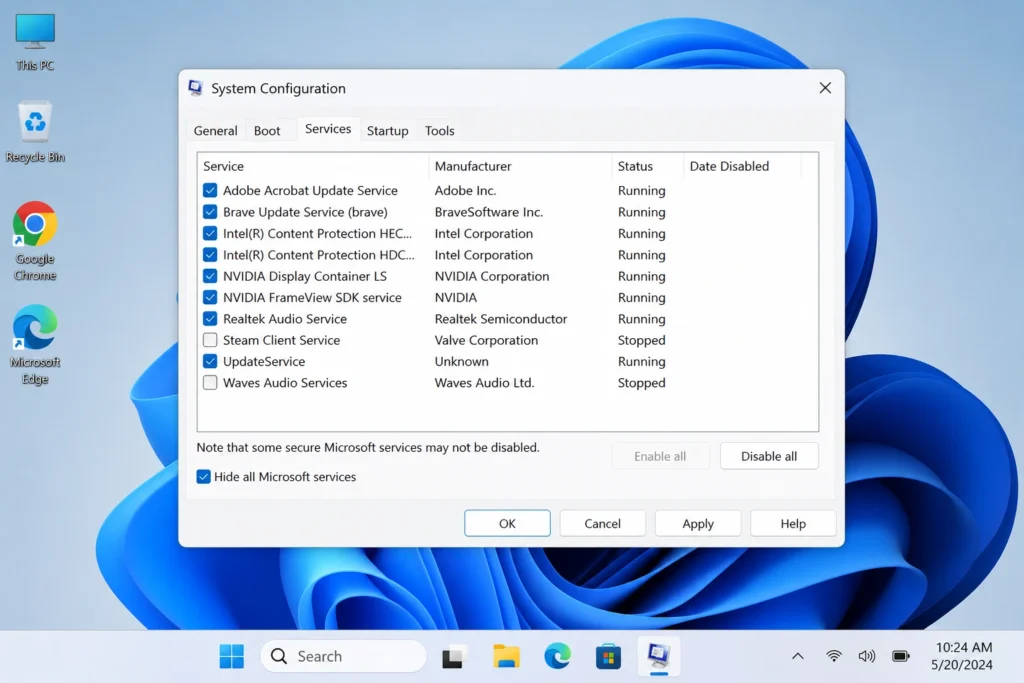
Note that msconfig’s Startup tab in newer Windows versions usually just redirects you to Task Manager, so the Services tab is really where this tool is still useful on its own.
Method 3: The Startup Folder
Some apps add themselves to a specific Startup folder rather than registering through Windows settings. You can manage these directly:
- Press Windows key + R to open Run
- Type
shell:startupand hit Enter this opens your personal Startup folder - Delete or move any shortcuts for apps you don’t want launching at startup
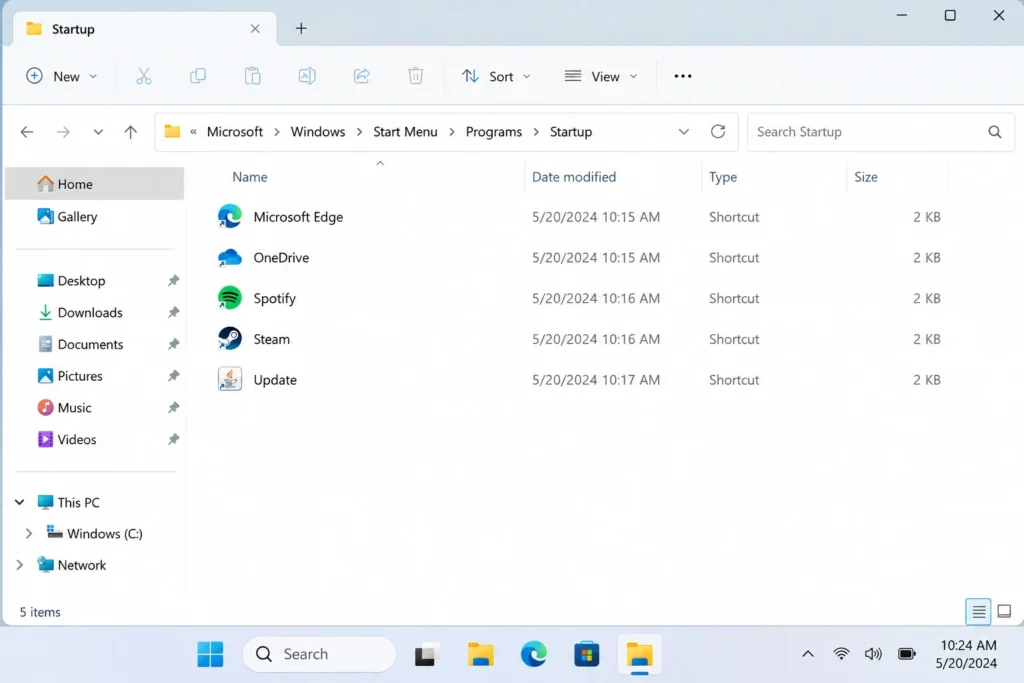
There’s also a shared Startup folder that applies to all users on the PC, which you can reach the same way using shell:common startup. If an app isn’t showing up in your personal folder, it’s worth checking there too.
Keep in mind this only removes the shortcut, not the app itself, so deleting something here won’t uninstall the program, it just stops it from opening automatically.
Method 4: Registry Editor ( For Advanced Users )
Some startup programs register themselves directly through the Windows Registry rather than the Startup folder, which is often how certain background processes or less common apps sneak into your startup list. If you’re comfortable making registry changes, this method gives you full control:
- Press Windows key + R, type
regedit, and hit Enter - Navigate to:
HKEY_CURRENT_USER\Software\Microsoft\Windows\CurrentVersion\Run
- Look through the list of entries on the right each one represents a program set to launch at startup
- Right click any entry you want to disable and select Delete
There’s also a separate location for programs that apply to all users on the PC:
HKEY_LOCAL_MACHINE\Software\Microsoft\Windows\CurrentVersion\Run
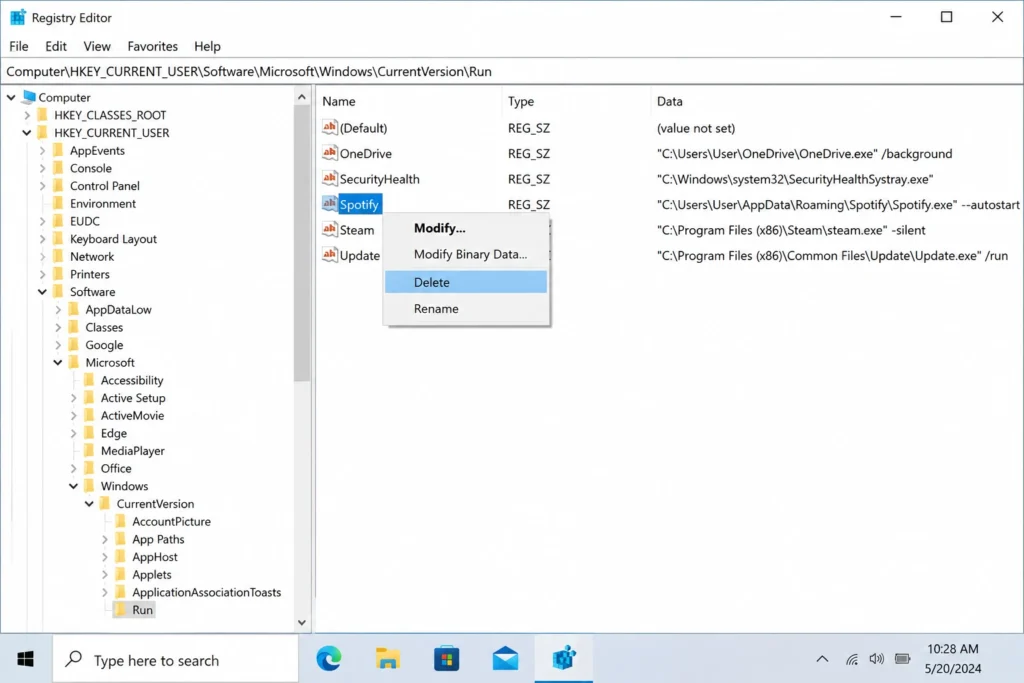
Since editing the registry can affect how Windows behaves if done carelessly, it’s worth backing up the registry key before deleting anything, and this method is really best saved for cases where the other options don’t show the program you’re trying to disable.
Method 5: Group Policy Editor (Windows Pro/Enterprise Only)
If you’re using Windows 11 Pro, Enterprise, or Education, Group Policy Editor offers another way to control startup behavior, particularly useful in managed or work environments.
- Press Windows key + R, type
gpedit.msc, and hit Enter - Navigate to User Configuration > Administrative Templates > System > Logon
- Look for policies related to running startup programs and configure them as needed
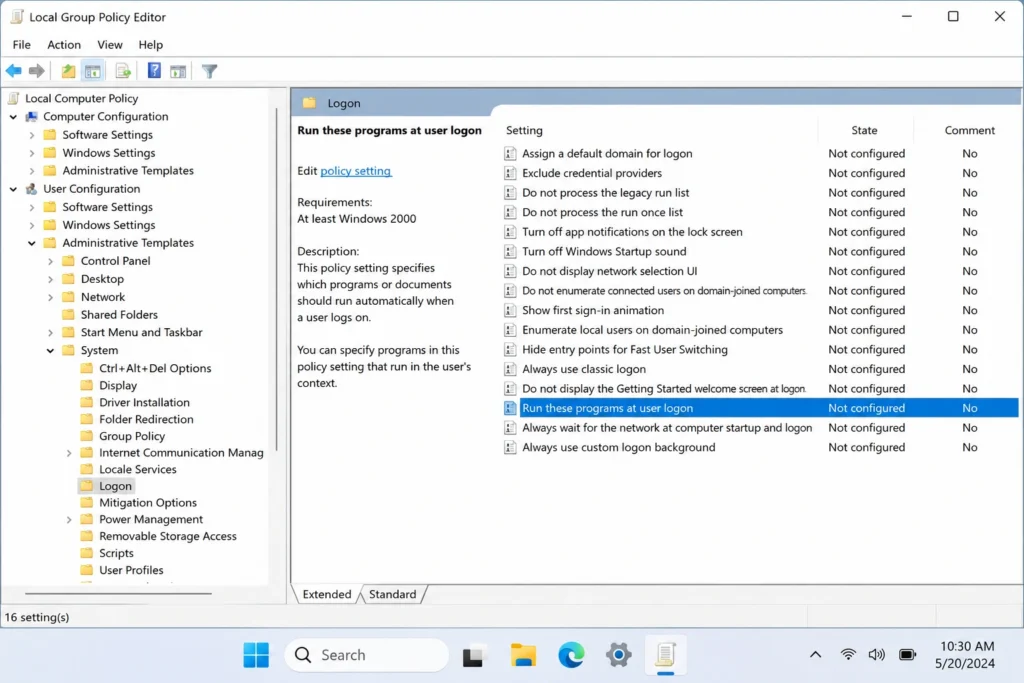
This method is less common for everyday users since it’s more geared toward IT admins managing multiple computers, but it’s there if you need that level of control.
Disabling vs. Uninstalling — What’s the Difference?
It’s worth understanding this distinction before you start turning things off. Disabling a startup app just stops it from launching automatically when you turn on your PC the app itself stays installed, and you can still open it manually whenever you want. Uninstalling, on the other hand, removes the program from your PC entirely.
If you’re not sure whether you’ll need an app again, disabling it is the safer route. You get the same faster startup time without losing the program, and you can always re enable it later if you change your mind. Save uninstalling for apps you’re confident you don’t need at all, since removing something you actually use means reinstalling it from scratch later.
How to Re Enable a Startup App Later
If you disable something and later realize you actually wanted it running automatically, turning it back on is just as easy as disabling it in the first place.
- Settings app: Go back to Settings > Apps > Startup and toggle the app back On
- msconfig: Reopen msconfig, go to the Services tab, and re check the box next to the service you disabled
- Startup folder: If you deleted the shortcut, you’ll need to recreate it manually by right clicking the app in the Start menu and choosing “Open file location,” then copying that shortcut into the
shell:startupfolder - Registry: If you deleted a registry entry, you’ll need to manually recreate it with the correct path, which is a bit more involved in this case, it’s often easier to just reinstall the app or check if it has its own “run at startup” setting within the app itself
Since the Startup folder and Registry methods aren’t as easy to reverse as the others, it’s a good habit to double check an app before removing it that way, rather than after.
A Quick Note on What’s Safe to Disable
Not everything in your startup list is safe to turn off. Antivirus software, your graphics driver’s control panel, and cloud sync tools (like OneDrive) are usually fine to leave running since they either protect your system or you’re likely using them regularly. Focus on disabling apps you rarely use, or ones that clearly don’t need to launch the second you log in, like game launchers, chat apps you check occasionally, or software you forgot was even installed.
Wrapping Up
Task Manager might be the fastest option for most people, but it’s far from the only way to manage startup apps in Windows. Whether you prefer the simplicity of the Settings app, the deeper control of msconfig and the Registry, or the more targeted approach of the Startup folder, there’s a method here that’ll fit however comfortable you are with digging into your system’s settings.