
You know the feeling, you get a “storage almost full” warning, delete a few obvious things, and somehow you’re still out of space a week later. That’s usually because the real space hogs aren’t your Downloads folder or old screenshots, they’re buried somewhere you’d never think to check: old installers, forgotten video files, duplicate backups, or a single game update that quietly ballooned to 40GB.
The good news is you don’t have to go digging through folders manually. Windows has a few built in tools for this, and there are some excellent free apps that make the whole process almost visual, so you can actually see what’s eating your storage instead of guessing.
Method 1: Use Windows’ Built In Storage Settings
This is the easiest starting point and doesn’t require installing anything.
- Open Settings (Windows key + I)
- Go to System > Storage
- Windows will show a breakdown of what’s using space apps, documents, temporary files, and more
- Click on any category to see more detail, or click View storage usage on other drives if you have multiple drives
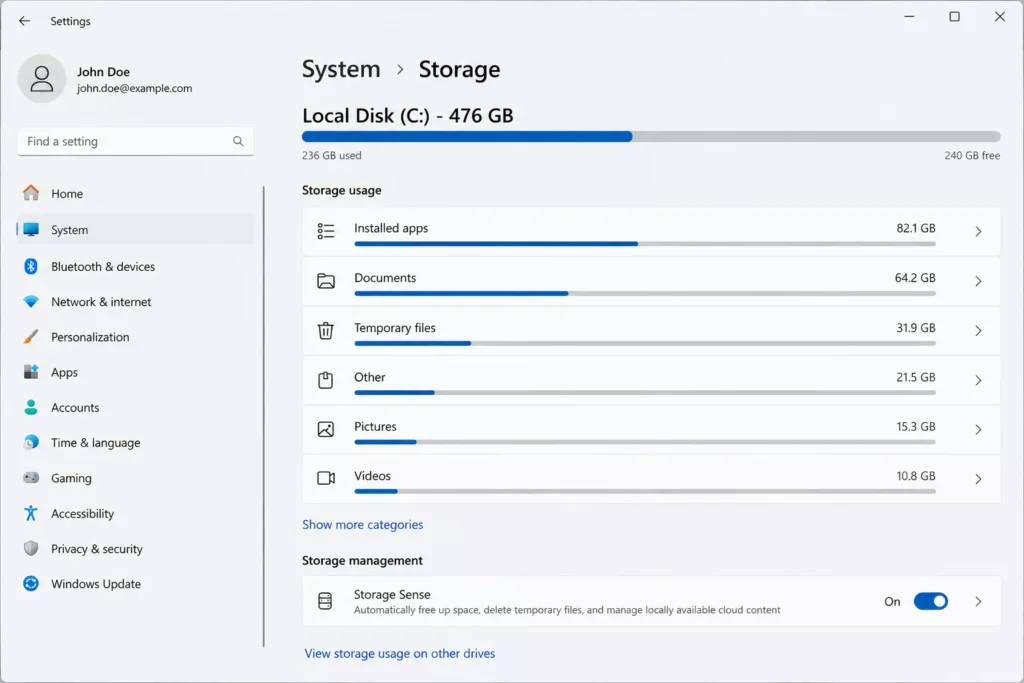
This gives you a decent overview, but it groups things into broad categories rather than showing you individual large files, so it’s more useful for spotting general trends than tracking down that one massive file.
Method 2: Search for Large Files Directly in File Explorer
If you already have a rough idea of where the big files might be ( like your Videos or Downloads folder ), File Explorer’s search can filter by file size.
- Open File Explorer and go to the drive or folder you want to search
- Click the search bar and type:
size:gigantic(or trysize:hugeorsize:largefor smaller thresholds) - Press Enter, and Windows will show only files matching that size range within the folder you’re searching
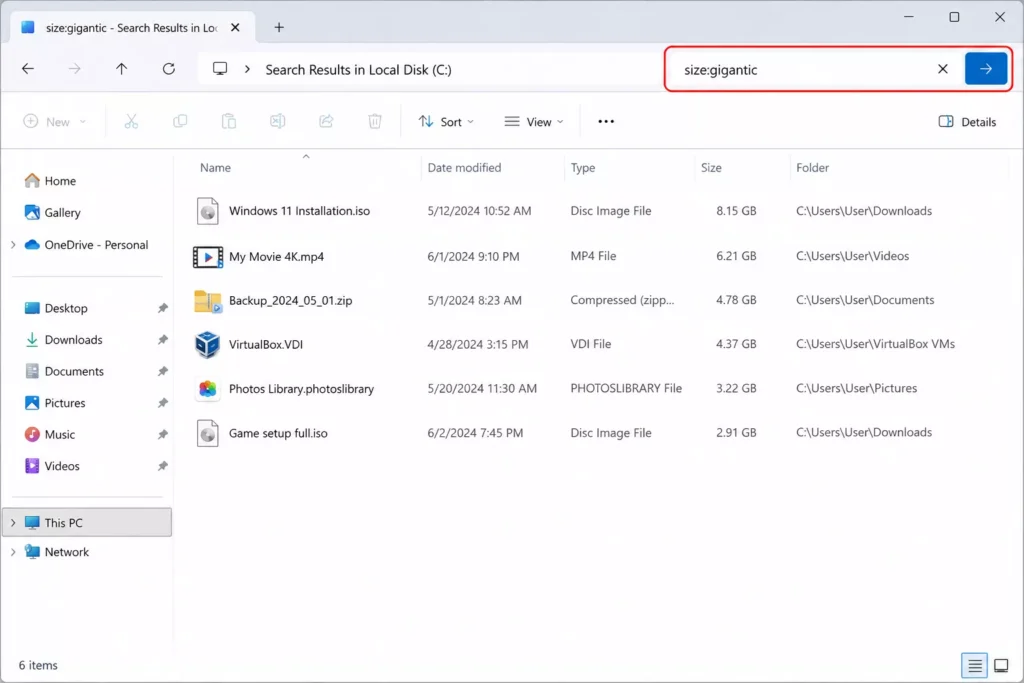
This is a quick way to hunt down big files without needing extra software, though it only searches within the folder you’re currently in, so you’ll need to run it separately for each drive or major folder.
Method 3: Use a Visual Disk Space Analyzer
If you want the clearest picture of what’s actually taking up space, a dedicated tool is the way to go. These apps scan your whole drive and show you a visual map of exactly what’s using space, which makes spotting huge files or bloated folders almost effortless.
Two solid free options:
WinDirStat Shows your storage as a colorful grid where bigger blocks mean bigger files. It takes a minute to scan your whole drive, but once it’s done, you can instantly see which folders are hogging the most space just by looking at which blocks are largest.
TreeSize Free Similar idea, but presented more like a traditional file list sorted by size, with folders you can expand to drill down further. Some people find this layout easier to navigate than WinDirStat’s visual map.
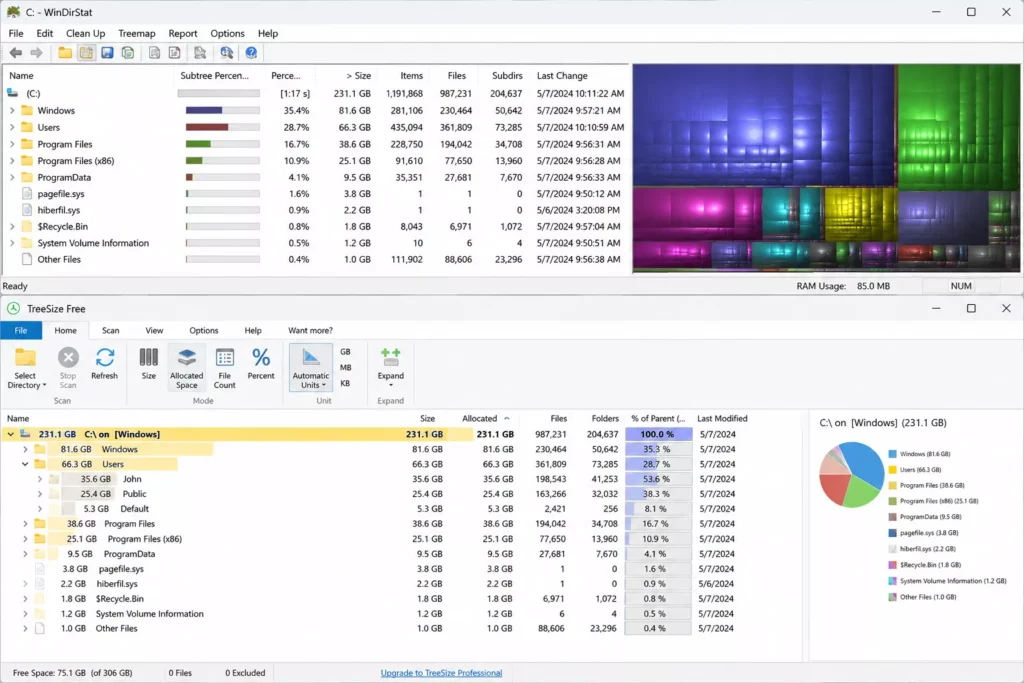
Either one works well it really just comes down to whether you prefer a visual layout or a more traditional list view.
Method 4: Check Storage Sense for Automatic Cleanup
Once you’ve found the big offenders, Windows has a feature called Storage Sense that can help keep things from piling up again in the future.
- Go to Settings > System > Storage
- Turn on Storage Sense
- Click into its settings to customize how often it runs and what it cleans up (temporary files, Recycle Bin contents, and old files in your Downloads folder)
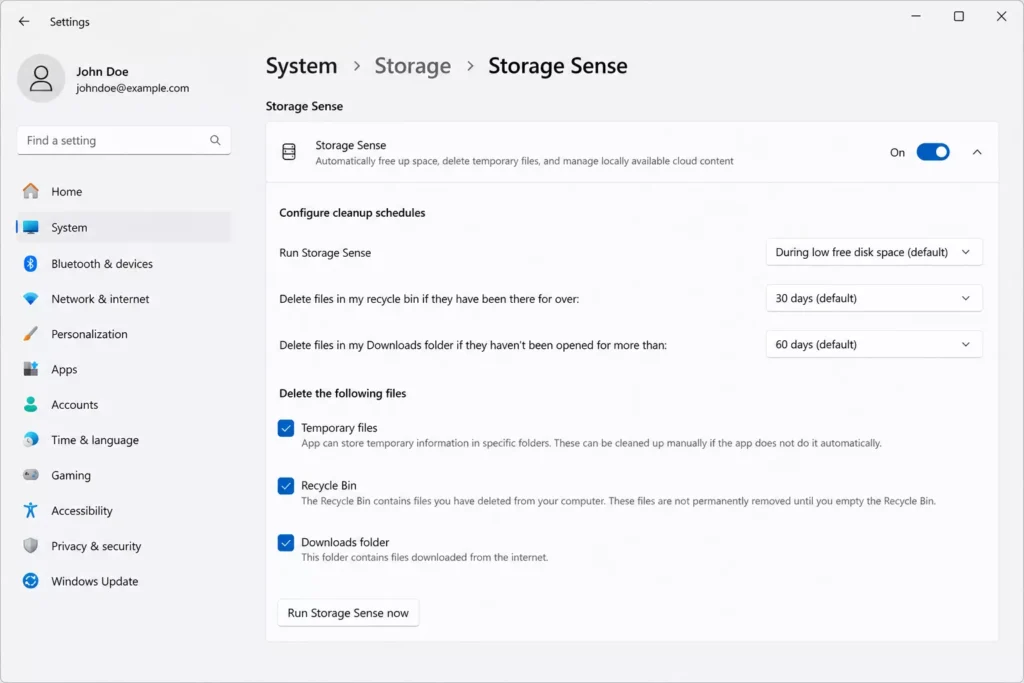
This won’t find large personal files for you, but it does a good job of automatically clearing out the smaller junk that builds up over time, so your drive stays a little tidier without much effort on your part.
Common Places Large Files Hide
A few spots worth checking manually, since they’re easy to overlook:
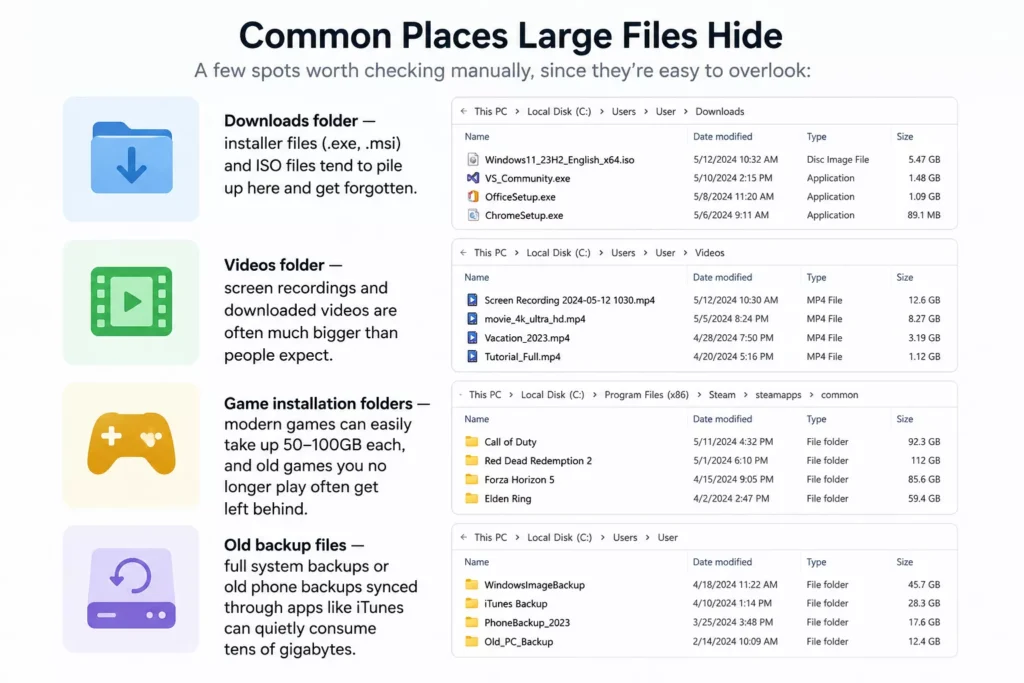
- Downloads folder — installer files (.exe, .msi) and ISO files tend to pile up here and get forgotten
- Videos folder — screen recordings and downloaded videos are often much bigger than people expect
- Game installation folders — modern games can easily take up 50 – 100GB each, and old games you no longer play often get left behind
- Old backup files — full system backups or old phone backups synced through apps like iTunes can quietly consume tens of gigabytes
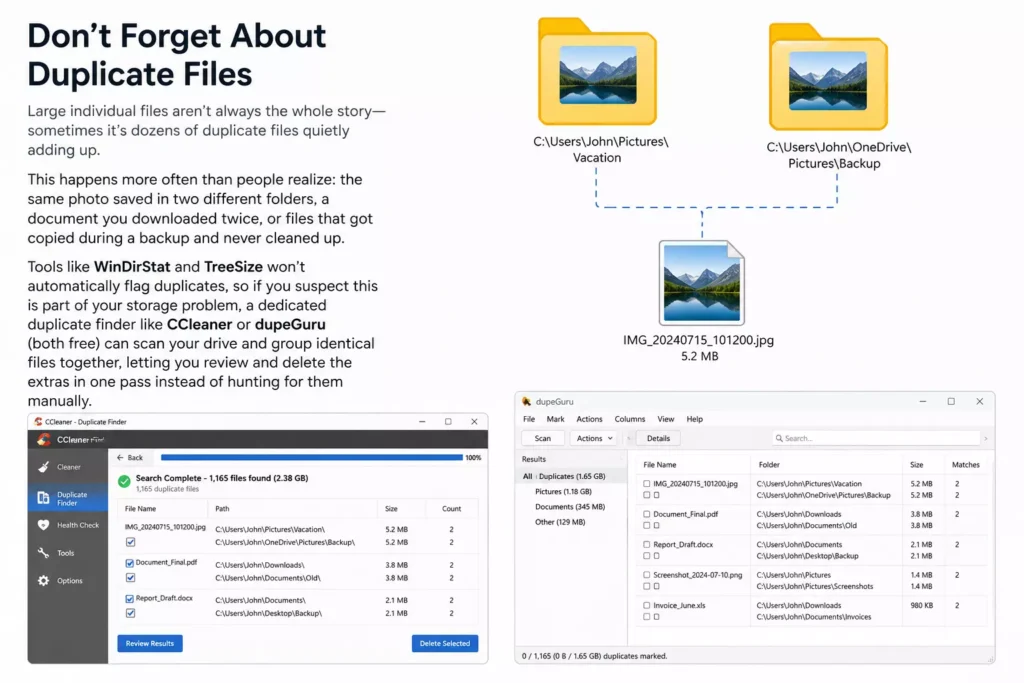
Don’t Forget About Duplicate Files
Large individual files aren’t always the whole story sometimes it’s dozens of duplicate files quietly adding up. This happens more often than people realize: the same photo saved in two different folders, a document you downloaded twice, or files that got copied during a backup and never cleaned up.
Tools like WinDirStat and TreeSize won’t automatically flag duplicates, so if you suspect this is part of your storage problem, a dedicated duplicate finder like CCleaner or dupeGuru (both free) can scan your drive and group identical files together, letting you review and delete the extras in one pass instead of hunting for them manually.
What to Do Once You’ve Found the Big Files
Finding the large files is only half the job what you do with them matters too, especially if you don’t want to accidentally delete something important.
- Double check before deleting. Before removing a large file you don’t recognize, take a second to confirm what it actually is. Some large files, like system restore points or virtual machine files, are meant to be there and deleting them can cause problems.
- Move, don’t always delete. If a file is large but still something you want to keep ( like old videos or project backups ), consider moving it to an external hard drive or a cloud storage service instead of deleting it outright.
- Empty the Recycle Bin afterward. Deleting a large file doesn’t actually free up space until it’s cleared from the Recycle Bin, so make sure to empty it once you’re done cleaning up.
- Uninstall instead of deleting game or app folders. If a large folder belongs to an installed program or game, use Settings > Apps to uninstall it properly rather than deleting the folder directly, which can leave leftover files behind or cause the app to stop working correctly.
Wrapping Up
Finding what’s actually eating your storage doesn’t have to involve guesswork. Windows’ built in Storage settings are fine for a quick overview, but if you actually want to find and deal with the real culprits, a tool like WinDirStat or TreeSize will show you exactly where your space is going in a couple of minutes. Once you’ve cleared out the big stuff, turning on Storage Sense helps keep things from piling back up.