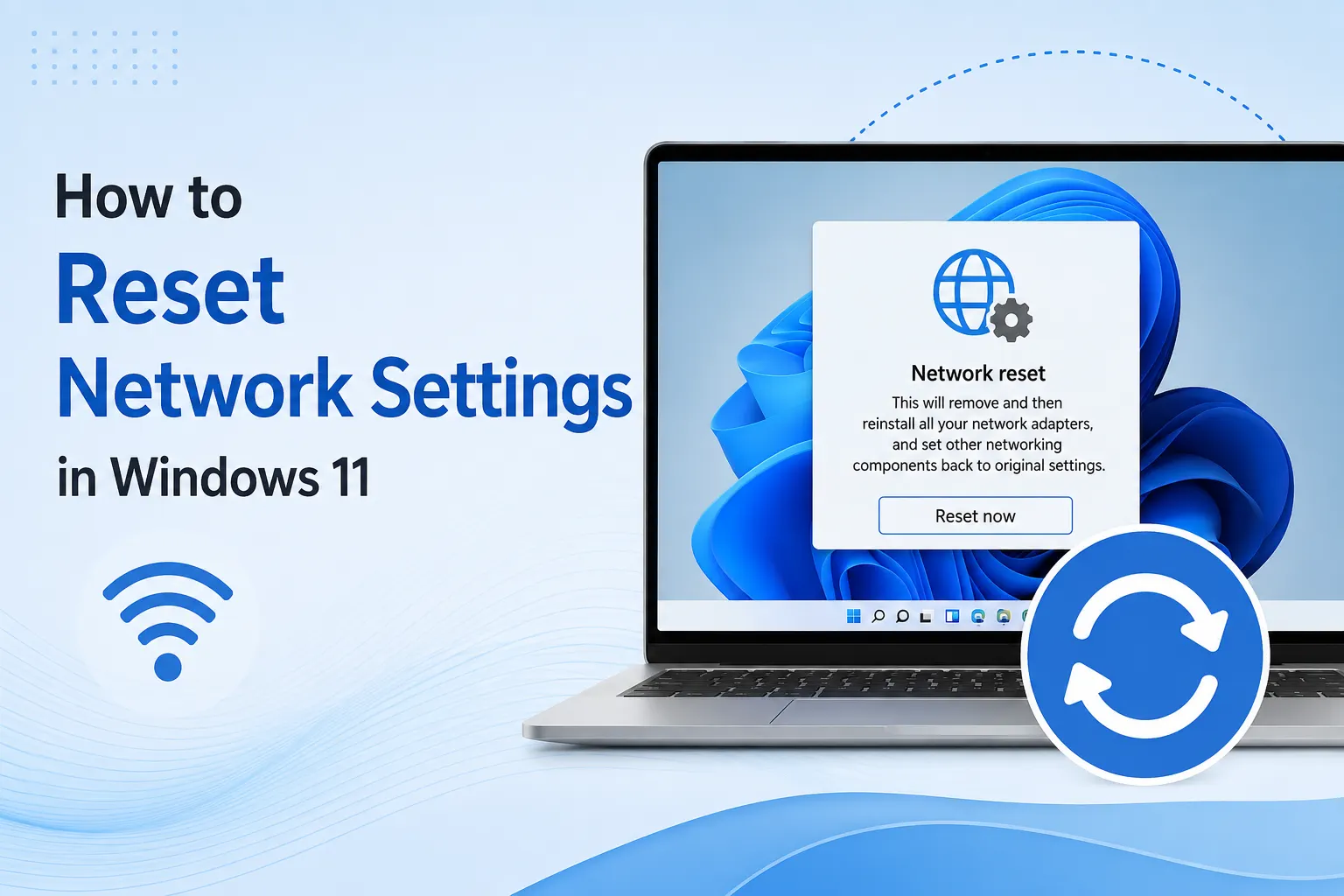

When your internet connection has been acting up for a while, dropping randomly, refusing to connect to certain networks, or just behaving strangely in ways that don’t match any obvious cause, sometimes the most effective fix isn’t chasing down one specific setting. It’s wiping the slate clean and letting Windows rebuild your entire network configuration from scratch. That’s exactly what a network reset does, and while it sounds drastic, it’s actually a safe, well-supported feature built directly into Windows 11 for exactly this kind of situation.
Here’s how to do it properly, what to expect afterward, and when it’s actually the right move versus trying something more targeted first.
What a Network Reset Actually Does
Before hitting that reset button, it’s worth understanding what’s actually happening behind the scenes. A network reset removes and reinstalls all your network adapters, resets networking components back to their original default settings, and clears out saved Wi-Fi passwords along with any custom network configurations you’ve set up, like manually entered DNS servers or static IP addresses.
Essentially, it treats your PC’s networking setup as if Windows had just been freshly installed. This is why it resolves such a wide range of stubborn connectivity issues, since it clears out any corrupted settings, outdated drivers, or conflicting configurations that built up over time, without needing you to track down the exact cause yourself.
When You Should ( and Shouldn’t ) Use a Network Reset
This is worth thinking through before jumping straight to a reset, since it’s a broad fix rather than a targeted one.
It’s worth trying when:
- You’ve already tried more specific fixes ( restarting your router, updating drivers, forgetting and reconnecting to Wi-Fi ) without success
- Your connection issues are inconsistent or hard to pin down to one specific cause
- You’re dealing with multiple network related problems at once
- A VPN, antivirus, or other software recently caused network issues that persisted even after uninstalling it
It’s probably not necessary if:
- You’re dealing with one specific, well understood issue ( like the wrong DNS server ), where a targeted fix would resolve it faster
- The problem is clearly on your router or internet provider’s end, rather than your PC, since resetting Windows won’t fix an issue that isn’t actually happening on your PC
How to Reset Network Settings
Once you’ve decided it’s the right move, here’s how to actually do it.
- Open Settings ( press Windows key + I )
- Go to Network & internet
- Scroll down and click Advanced network settings
- Click Network reset
- Click Reset now
- Confirm when prompted, Windows will warn you that your PC will restart
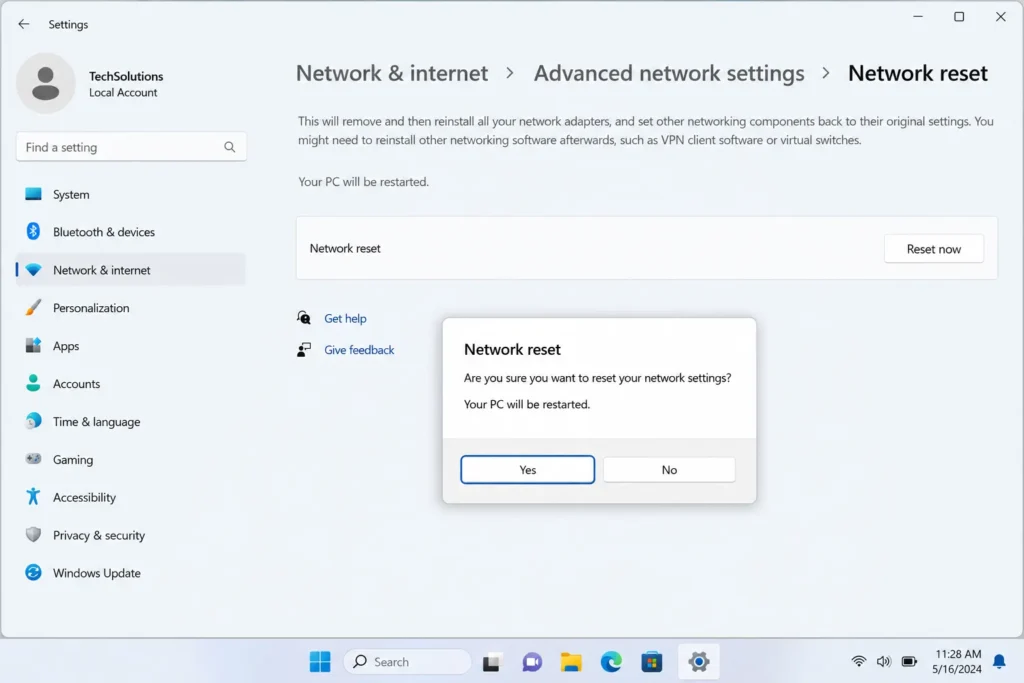
Your PC will restart automatically after about 5 minutes to apply the changes. Once it comes back on, your network settings will be back to their original defaults.
What to Do Right After a Network Reset
Since this clears out saved networks and custom settings, there are a few things you’ll need to redo once your PC restarts.
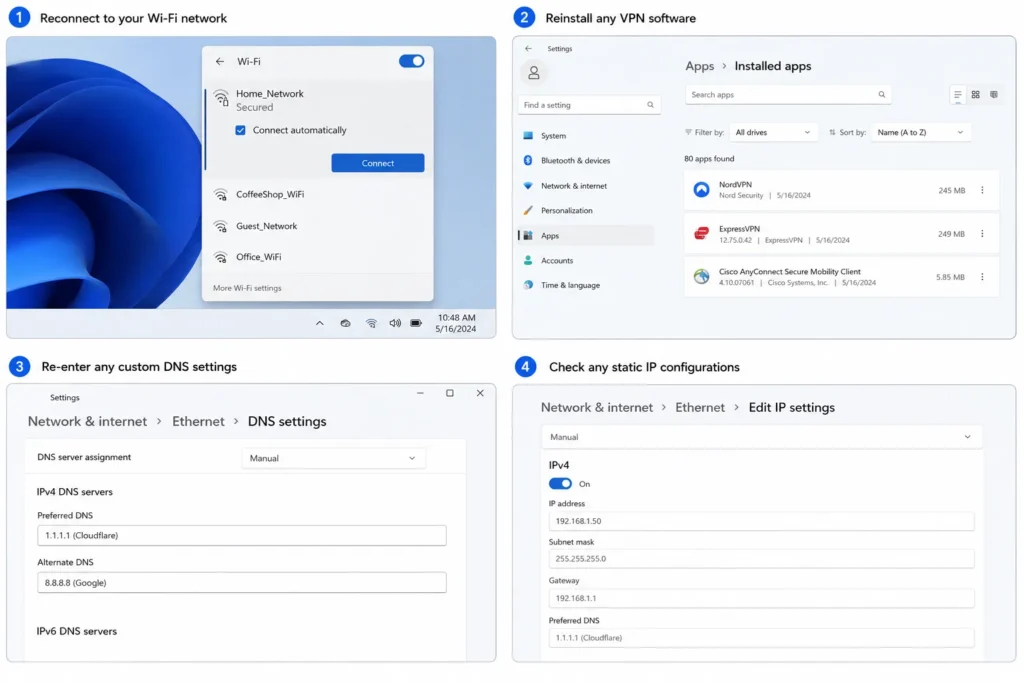
- Reconnect to your Wi-Fi network. You’ll need to select your network from the list again and re enter your Wi-Fi password, since saved networks are cleared during the reset
- Reinstall any VPN software. VPN client software sometimes needs to be reinstalled or reconfigured after a network reset, since it relies on specific network adapter configurations that get wiped
- Re-enter any custom DNS settings, if you had previously set up a custom DNS provider like Cloudflare or Google, this will have reverted back to automatic and needs to be set up again if you want to keep using it
- Check any static IP configurations, if you’d manually set up a static IP address for your PC ( common in some home network or work setups ), you’ll need to configure this again as well
None of this is complicated, but it’s worth knowing in advance so you’re not caught off guard wondering why your VPN suddenly stopped working after what seemed like an unrelated fix.
Alternative: Reset Just One Network Adapter ( Less Drastic Option )
If a full network reset feels like more than you actually need, Windows also lets you reset an individual network adapter without touching your entire network configuration, which is a good middle ground option if you suspect the issue is isolated to just Wi-Fi or just Ethernet specifically.
- Right click the Start button and select Device Manager
- Expand Network adapters
- Right click the specific adapter ( like your Wi-Fi adapter ) and select Uninstall device
- Restart your PC, Windows will automatically detect and reinstall the adapter with fresh default settings
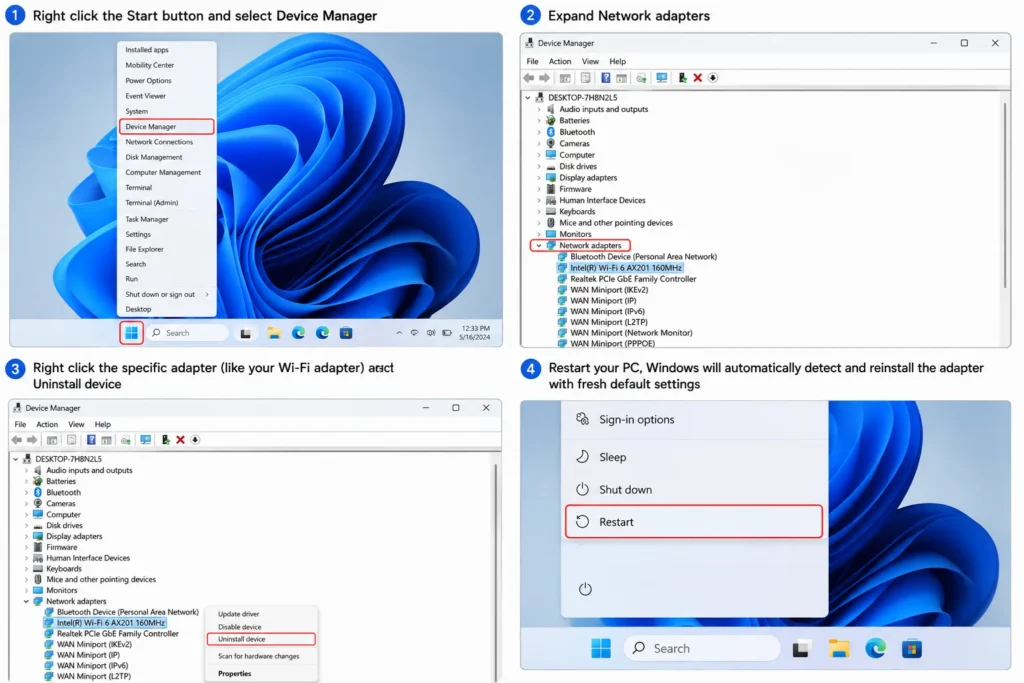
This achieves a similar “fresh start” effect but limits the reset to just that one piece of hardware, leaving your other network settings, saved networks, and configurations untouched.
Will This Fix Every Network Problem?
It’s worth setting realistic expectations here. A network reset is genuinely effective for software-related connectivity issues, corrupted settings, driver conflicts, and leftover configuration problems from old VPNs or network software. What it won’t fix is a hardware problem, like a failing Wi-Fi card, physical damage to an Ethernet port, or an issue that’s actually happening on your router or with your internet provider rather than on your PC itself.
If you reset your network settings and the exact same problem immediately comes back afterward, that’s a strong sign the cause is external to Windows entirely, and it’s worth shifting your troubleshooting toward your router, cables, or contacting your internet provider instead.
Backing Up Your Wi-Fi Passwords Before You Reset
Since a network reset clears all saved Wi-Fi passwords, it’s worth grabbing a copy of them beforehand if you don’t already have them written down somewhere, especially for networks you don’t visit often enough to have memorized, like a family member’s house or a network at work.
- Open Command Prompt as Administrator ( right click Start, select Terminal ( Admin ) )
- Run this command to see all networks your PC has saved:
netsh wlan show profiles
- For each network you want the password for, run the following, replacing “NetworkName” with the actual network name:
netsh wlan show profile name="NetworkName" key=clear
- Look for the line labeled Key Content, that’s your saved password
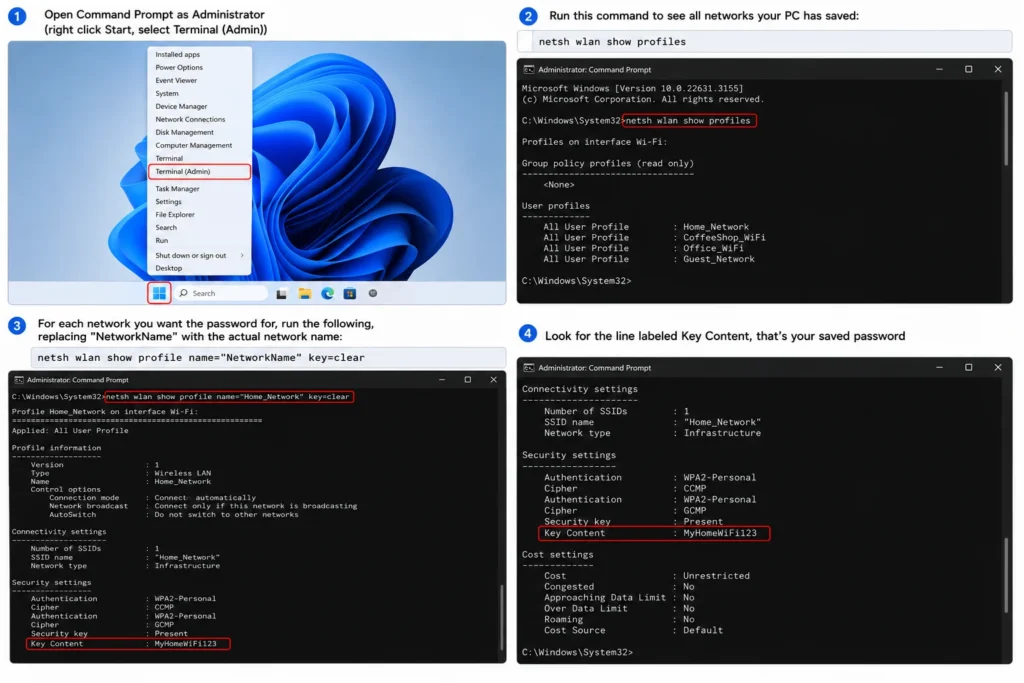
Jotting these down somewhere safe beforehand means you won’t be stuck trying to remember a Wi-Fi password from memory after the reset clears it out, particularly for networks you don’t connect to regularly enough to have memorized.
What’s the Difference Between a Network Reset and a Full System Reset?
It’s easy to see “reset” in Windows Settings and worry this might be the same as a full factory reset that wipes your entire PC, so it’s worth being clear about the distinction, since they’re very different in scope.
A network reset (covered in this guide) only touches networking components: adapters, saved Wi-Fi networks, and related settings. Your files, installed programs, personal settings, and everything else on your PC remain completely untouched. A full system reset (” Reset this PC ,” found under Settings > System > Recovery) is a much bigger action that reinstalls Windows itself and can optionally remove all your personal files and installed programs entirely.
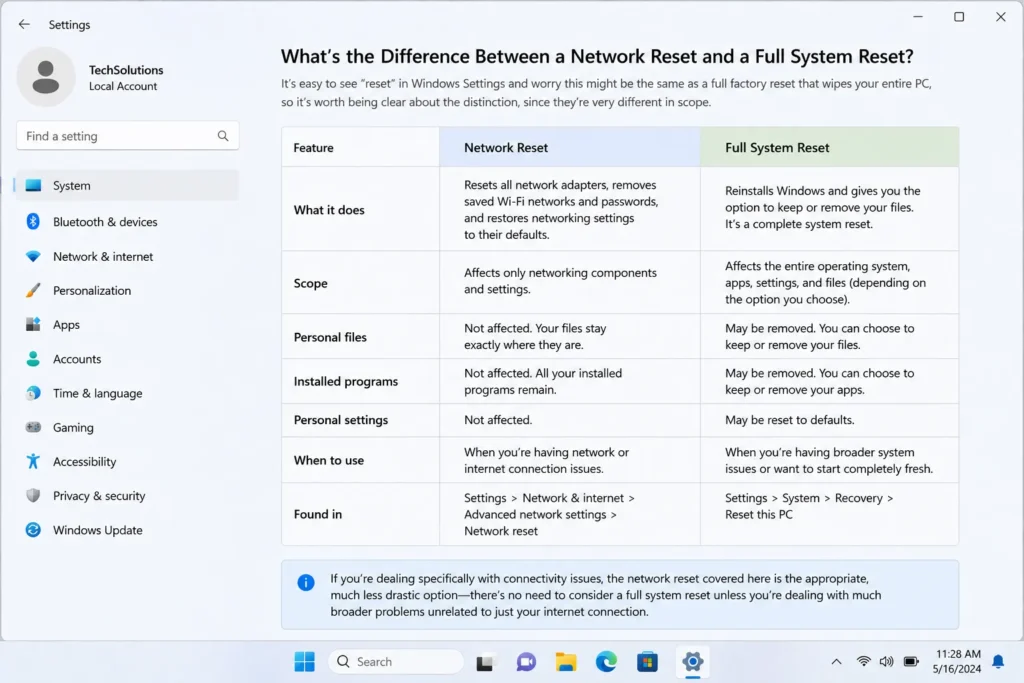
If you’re dealing specifically with connectivity issues, the network reset covered here is the appropriate, much less drastic option, there’s no need to consider a full system reset unless you’re dealing with much broader problems unrelated to just your internet connection.
Can You Undo a Network Reset?
There’s no direct “undo” button once you’ve confirmed a network reset, but since it only affects networking settings rather than deleting anything permanently important, there isn’t really anything to “undo” in a technical sense, you’re simply rebuilding your network configuration from the same default state Windows originally shipped with.
If you’re worried about losing specific custom settings, like a static IP address or manually configured DNS servers, the smart move is writing those down beforehand ( the same way described above for Wi-Fi passwords ), so you can quickly re enter them afterward rather than needing to “undo” anything. For most people, especially those who were just using their standard default settings without heavy customization, there’s genuinely nothing to worry about losing in the first place.
Frequently Asked Questions
Will a network reset delete my files or affect anything other than networking?
No. A network reset only affects network related settings and adapters, it doesn’t touch your personal files, installed programs, or any other part of Windows outside of networking specifically.
Do I need to reinstall my network drivers after a reset?
Generally no, Windows automatically reinstalls default drivers for your network adapters as part of the reset process. If you were using a specialized driver from your hardware manufacturer for better performance, you may want to reinstall that manually afterward, but the basic driver needed for connectivity comes back automatically.
How long does the whole process take?
The reset itself, including the restart, typically takes around 5 minutes. Afterward, reconnecting to your Wi-Fi network and re-entering any custom settings takes just a few more minutes, depending on how much custom configuration you had set up beforehand.
Is this safe to do on a work or company laptop?
It’s worth checking with your IT department first if you’re on a managed work device, since some organizations use specific network configurations or VPN setups that IT may need to help reconfigure afterward. On a personal PC, this is completely safe to do without any special precautions.