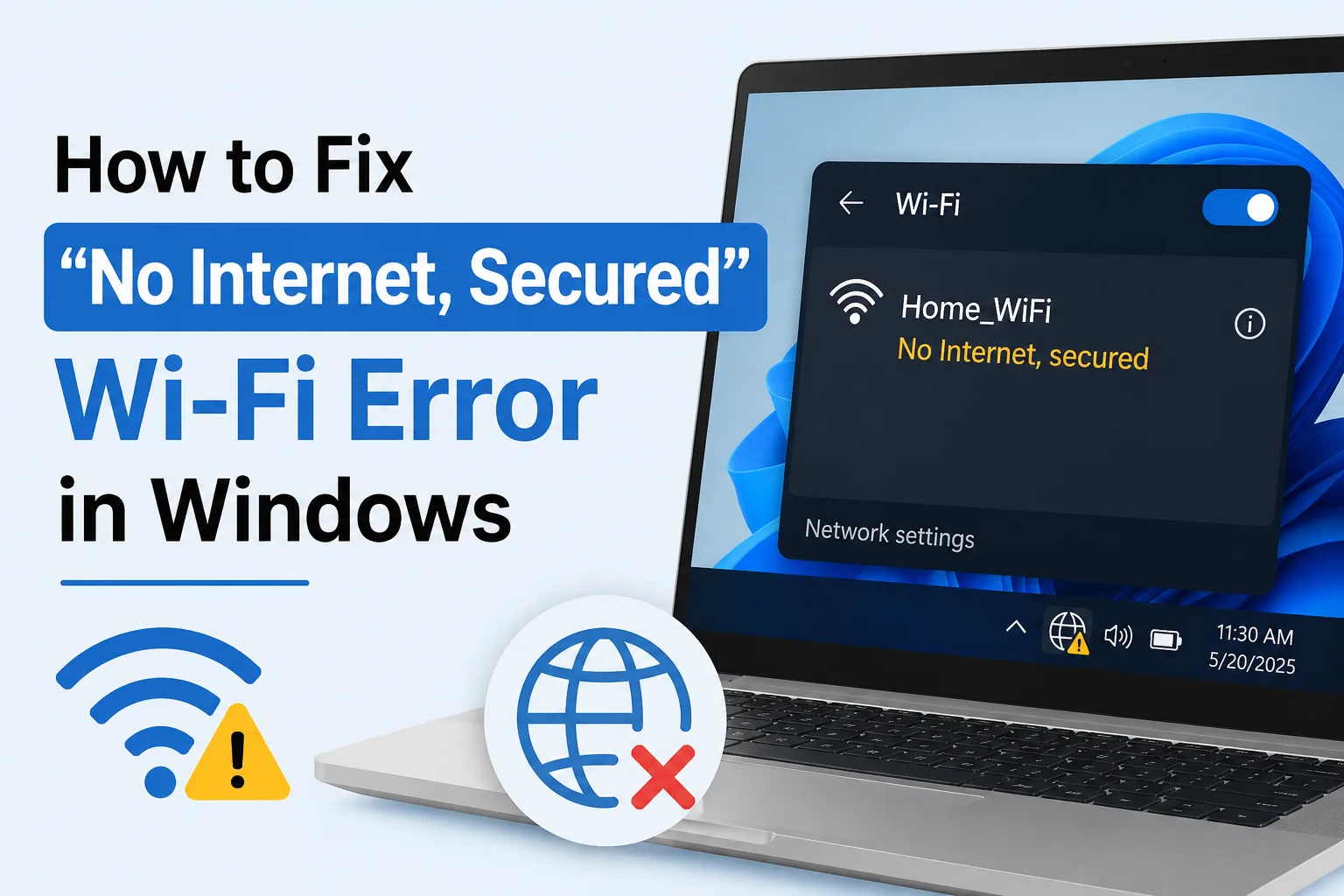

This is one of the more confusing Wi-Fi errors Windows throws at you, mainly because it doesn’t really tell you what’s wrong. Your PC shows you’re connected to Wi-Fi, the little lock icon confirms it’s a secured network, but then right underneath it says “No internet,” which leaves you wondering whether the problem is your PC, your router, or your internet connection entirely. The good news is this error usually comes down to one of a handful of common causes, and most of them are fixable in a few minutes without needing to call your internet provider.
Let’s work through the fixes, starting with the simplest ones first.
What This Error Actually Means
Before troubleshooting, it helps to understand what Windows is actually telling you. “No Internet, Secured” means your PC successfully connected to your Wi-Fi network itself, the “secured” part confirms the password worked and you’re on the network, but it’s not able to get an actual internet connection through that network. In other words, the problem usually isn’t your Wi-Fi password or network name, it’s something happening after that connection, either with how your PC is getting an IP address, a DNS issue, or the router’s own connection to the internet.
This distinction matters because it tells you where to focus your troubleshooting, rather than wasting time re-entering a Wi-Fi password that was never actually the issue.
Method 1: Restart Your Router and Modem
It sounds almost too simple, but this genuinely resolves this exact error a large percentage of the time, since routers occasionally lose their own connection to your internet provider without giving any obvious warning.
- Unplug your router ( and modem, if you have a separate one) from power
- Wait about 30 seconds
- Plug the modem back in first, and wait for its lights to fully stabilize ( usually 1 – 2 minutes )
- Plug the router back in and wait for it to fully restart
- Try connecting again on your PC
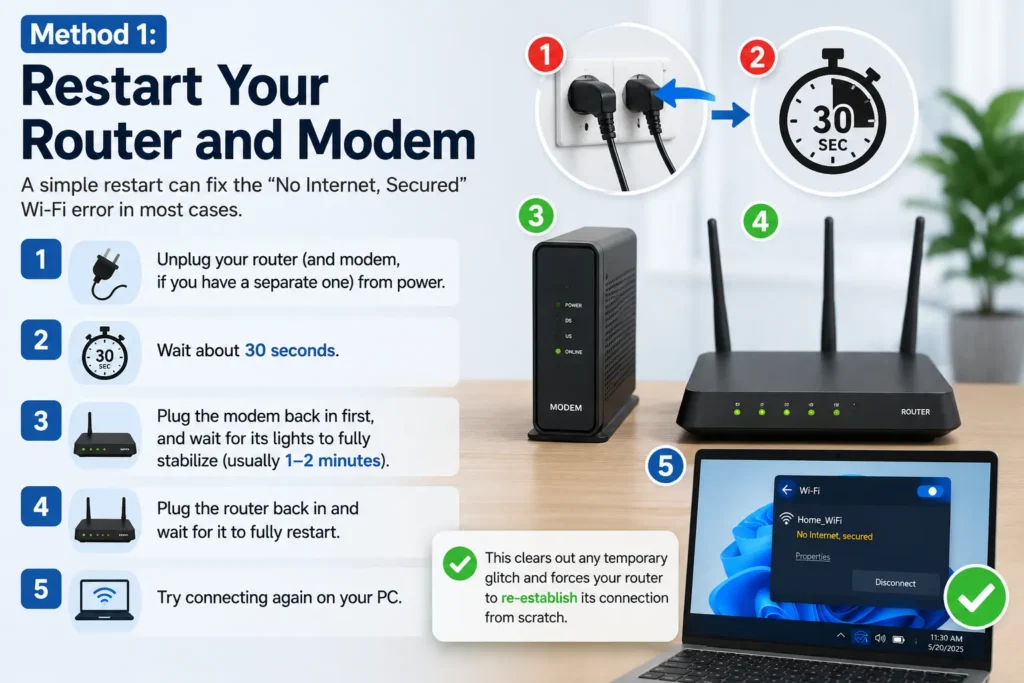
This clears out any temporary glitch on the router’s side and forces it to re establish its own connection to your internet provider from scratch.
Method 2: Run Windows Built In Network Troubleshooter
Windows has a diagnostic tool built specifically for this kind of issue, and it often identifies the exact problem automatically.
- Right click the Wi-Fi icon in your taskbar
- Select Troubleshoot problems ( or go to Settings > System > Troubleshoot > Other troubleshooters > Network and Internet )
- Let Windows run through its diagnostic checks
- Follow any suggested fixes it presents along the way
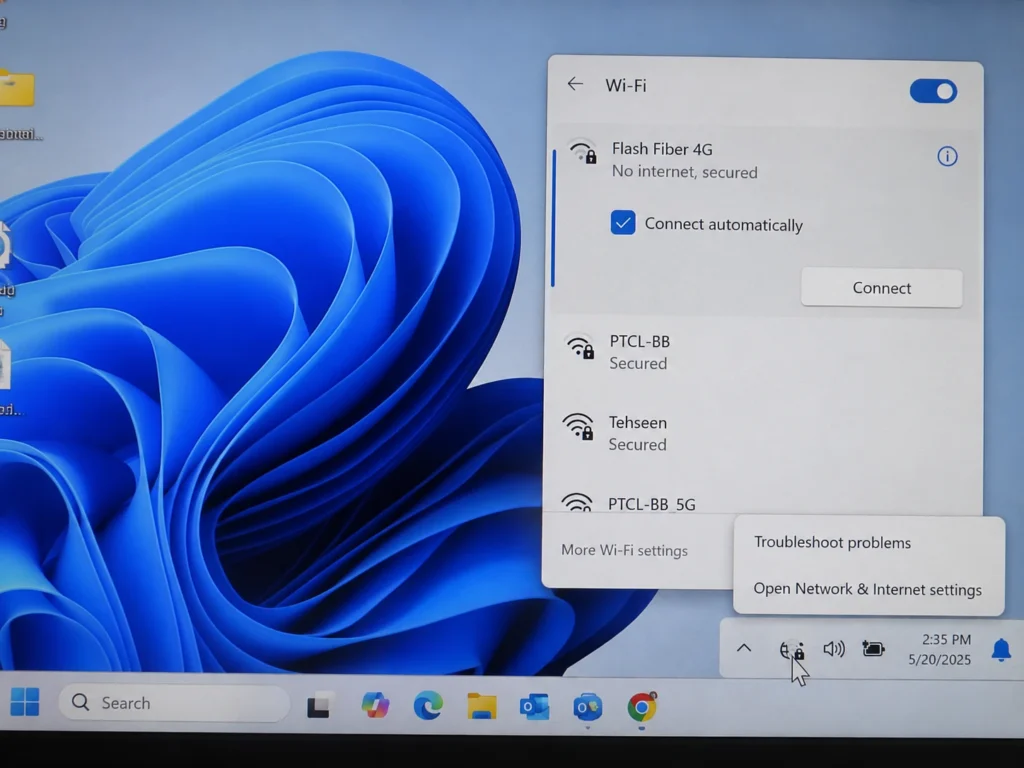
This won’t catch everything, but it’s a quick, no effort first step that’s worth running before moving on to more manual fixes.
Method 3: Forget the Network and Reconnect
Sometimes your PC is holding onto outdated or corrupted connection information for that specific network, and reconnecting from scratch clears it out.
- Go to Settings > Network & internet > Wi-Fi
- Click Manage known networks
- Click on your network name, then select Forget
- Reconnect to the network by selecting it from the Wi-Fi list and entering your password again
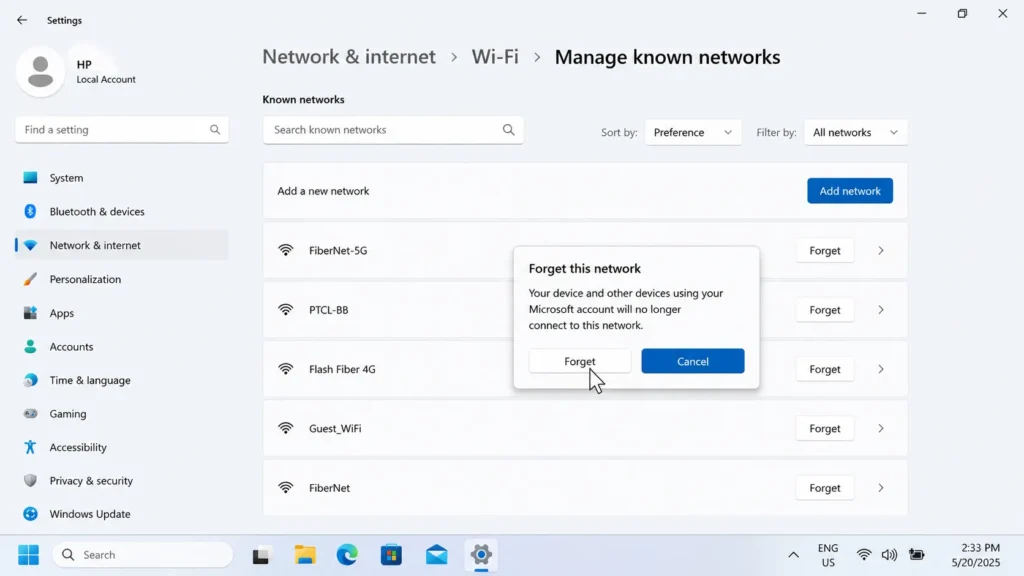
This forces Windows to build a completely fresh connection profile, which resolves the issue if the original one had somehow become corrupted.
Method 4: Reset Your IP Address
If your PC has an incorrect or conflicting IP address, it can connect to Wi-Fi just fine while still failing to reach the actual internet. Resetting it often clears this up.
- Right-click the Start button and select Windows Terminal ( Admin ) or Command Prompt (Admin)
- Run the following commands one at a time, pressing Enter after each:
ipconfig /release
ipconfig /renew
ipconfig /flushdns
- Restart your PC once these finish running
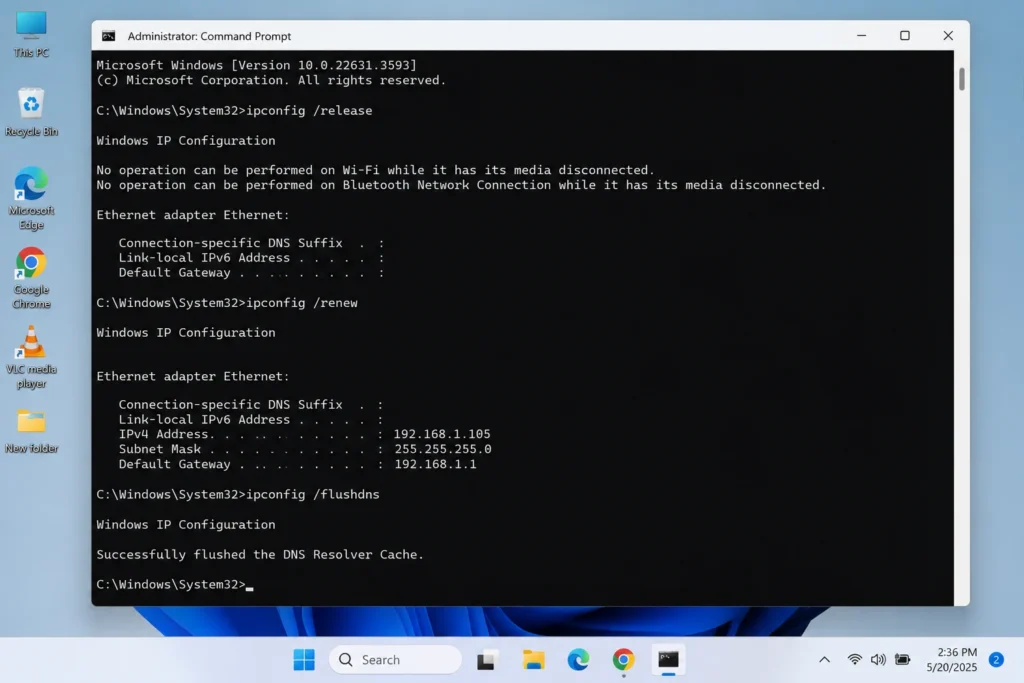
This releases your current IP address, requests a fresh one from your router, and clears out any outdated DNS information that might be causing the connection to fail.
Method 5: Change Your DNS Settings
Occasionally, this error is actually a DNS problem rather than a Wi-Fi problem, meaning your connection technically works, but your PC can’t properly resolve website addresses through it.
- Go to Settings > Network & internet > Wi-Fi
- Click your network, then Hardware properties
- Click Edit next to DNS server assignment
- Change it to Manual, turn on IPv4, and enter 8.8.8.8 as the preferred DNS and 8.8.4.4 as the alternate ( Google’s public DNS )
- Click Save and try reconnecting
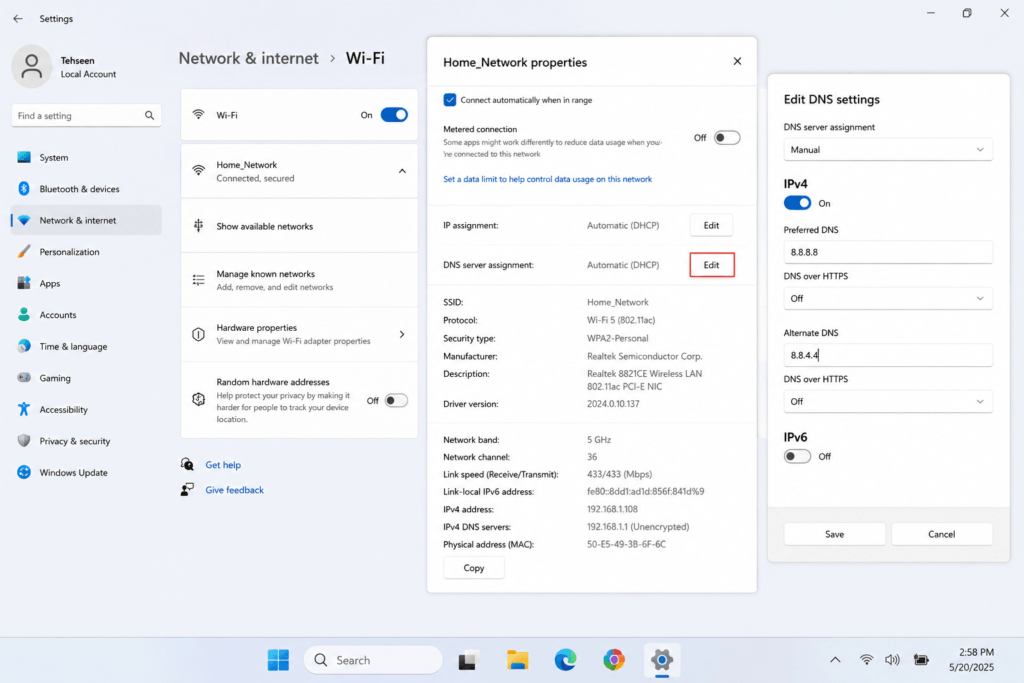
If this resolves the issue, your router or ISP’s default DNS server was likely the underlying cause, and switching permanently to a reliable public DNS provider can prevent this from happening again in the future.
Method 6: Update or Reinstall Your Network Adapter Driver
An outdated or corrupted network driver is a common, easy to overlook cause of this error, especially after a recent Windows update.
- Right click the Start button and select Device Manager
- Expand Network adapters
- Right click your Wi-Fi adapter and select Update driver
- Choose Search automatically for drivers
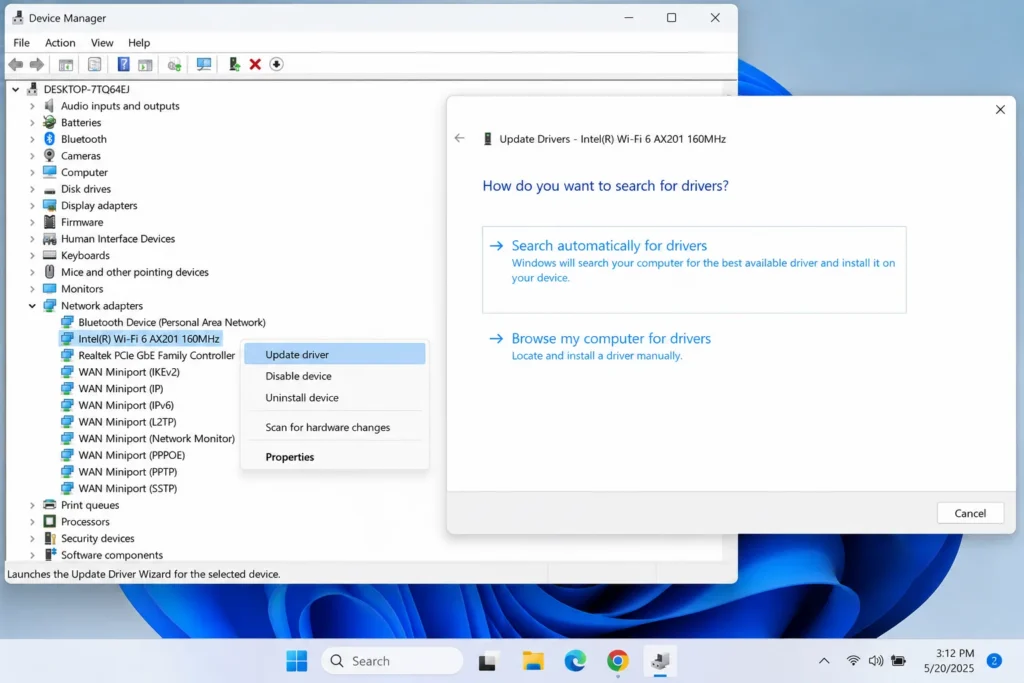
If updating doesn’t help, try uninstalling the driver entirely ( right click, Uninstall device ) and restarting your PC, Windows will automatically reinstall a fresh copy of the driver on startup, which sometimes resolves issues an update alone doesn’t fix.
Method 7: Disable and Re Enable Your Wi-Fi Adapter
This is a simple reset that forces Windows to reinitialize your Wi-Fi hardware entirely, which can clear up a connection stuck in a bad state.
- Right click the Start button, select Device Manager
- Expand Network adapters
- Right click your Wi-Fi adapter and select Disable device
- Wait about 10 seconds, then right click it again and select Enable device
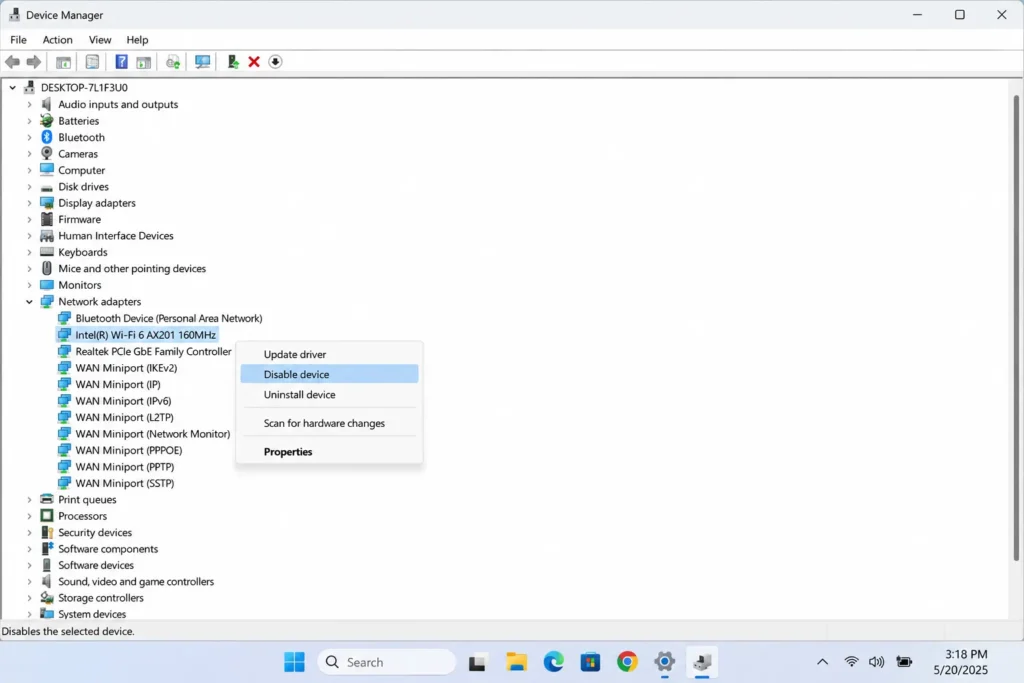
This is quick to try and occasionally fixes the issue even when nothing else has, since it’s essentially a hardware level restart without needing to reboot your entire PC.
Method 8: Reset Network Settings Completely
If none of the above has worked, Windows has a nuclear option that resets all network related settings back to their original defaults, essentially treating your network configuration as if it were freshly installed.
- Go to Settings > Network & internet
- Scroll down and click Advanced network settings
- Click Network reset
- Click Reset now, and confirm
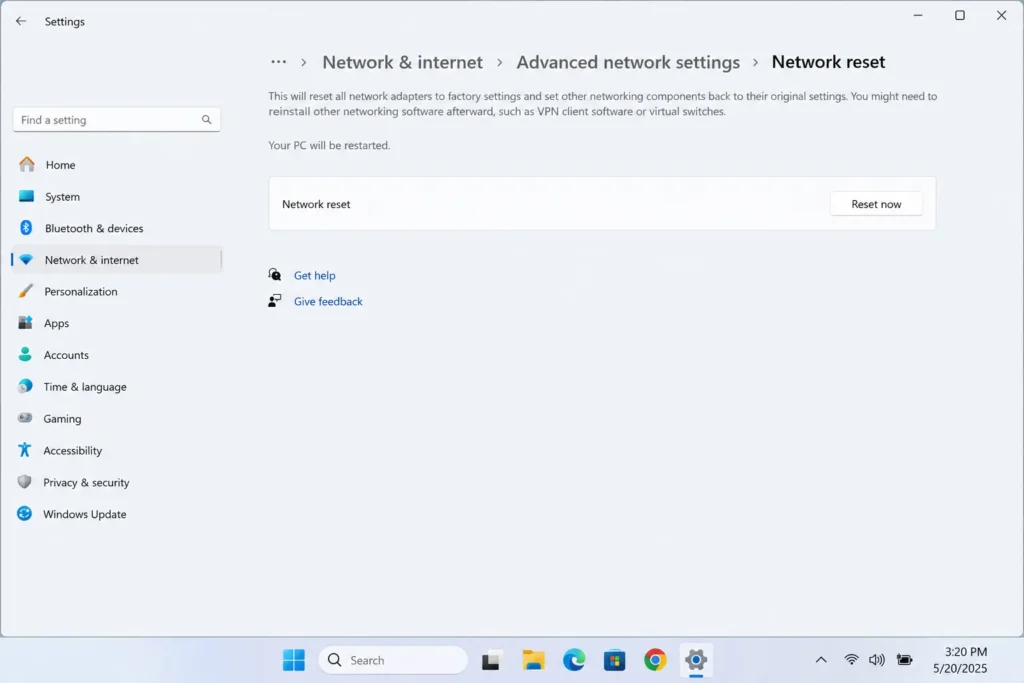
Your PC will restart, and you’ll need to reconnect to your Wi-Fi network and re enter your password afterward, but this clears out any deeply buried configuration issue that simpler fixes weren’t able to resolve.
What to Do If It’s Working on Wi-Fi But Not Ethernet (Or Vice Versa)
If you’re seeing this error specifically on one type of connection while the other works fine, like Wi-Fi failing but a wired Ethernet connection working normally on the same PC, that’s actually a useful clue that narrows things down significantly. It usually means the problem is isolated to your Wi-Fi adapter specifically, rather than your internet connection or router as a whole, since a working Ethernet connection confirms your internet service itself is fine.
In this situation, it’s worth focusing specifically on Methods 6 and 7 above ( updating the network driver and disabling/re enabling the adapter ), since these directly target Wi-Fi adapter issues rather than broader network settings. If you need internet access immediately while troubleshooting, staying connected via Ethernet in the meantime is a reasonable temporary workaround while you work through fixing the Wi-Fi side separately.
Is It a Router Firmware Issue?
Router firmware, the software running on your router itself, occasionally causes exactly this kind of intermittent “connected but no internet” behavior, especially if it hasn’t been updated in a long time or a recent automatic update introduced a bug.
- Open a browser and enter your router’s IP address ( commonly 192.168.1.1 or 192.168.0.1, check the sticker on your router itself if you’re not sure )
- Log in with your router’s admin credentials
- Look for a section labeled Firmware Update, Router Update, or similar, usually found under Advanced or System settings
- Check if an update is available, and install it if so
This is a less common cause compared to the other fixes in this guide, but worth checking if the “No Internet, Secured” error keeps recurring across multiple devices over time rather than being isolated to just one PC, since that pattern points more toward the router itself than any individual device’s settings.
How to Tell If the Problem Is Your PC or Your Router
This distinction is worth figuring out before spending too much time troubleshooting your PC specifically, since if the problem is actually with your router or internet provider, no amount of Windows settings changes will fix it.
Check whether other devices, like your phone or another computer, can connect to the same Wi-Fi network and get internet access normally. If they can’t either, the problem is almost certainly with your router or your internet service itself, and it’s worth contacting your internet provider or checking for a broader outage in your area, rather than continuing to troubleshoot your Windows PC specifically.
Frequently Asked Questions
Why does this error happen right after a Windows update?
Updates occasionally reset network adapter settings or temporarily affect driver compatibility. Running the network troubleshooter or updating your network driver ( Method 6 ) usually resolves version-related issues like this.
Does this error mean my Wi-Fi password is wrong?
No. If your password were incorrect, Windows typically wouldn’t show you as “connected” at all, it would fail to connect in the first place. Since you’re seeing “Secured” alongside “No internet,” your password worked, the issue is happening after that point in the connection process.
Will restarting my PC fix this on its own?
Sometimes, since it’s a simple way to clear out temporary network glitches, but if the issue keeps coming back after restarting, it’s worth working through the more specific fixes above rather than relying on a restart alone each time.
Could this be caused by antivirus or firewall software?
Occasionally, yes. Some security software can interfere with network connections. If you’ve recently installed new antivirus or firewall software and the issue started around the same time, temporarily disabling it to test your connection can help confirm whether it’s the actual cause.
What to Do Next
The “No Internet, Secured” error looks alarming, but it’s almost always fixable without professional help, since it usually comes down to a router hiccup, a DNS issue, or a network setting that needs a quick reset. Working through these methods in order, starting with the simple router restart and network troubleshooter before moving into driver updates or a full network reset, resolves this for the vast majority of people.