
If your PC starts chugging the moment you open a browser, especially with a bunch of tabs going, it’s natural to wonder whether the browser itself is part of the problem. Different browsers really do handle memory differently, some are genuinely lighter than others, but the more useful question isn’t “which browser uses the least RAM in general,” it’s “which one uses the least RAM on my PC, with my tabs, and my extensions.” The good news is checking this yourself takes just a few minutes, and you don’t need to trust anyone else’s benchmark to get an honest answer for your own setup.
Here’s how to actually measure it, and what tends to separate the lighter browsers from the heavier ones.
Why RAM Usage Varies So Much Between Browsers
Before comparing anything, it helps to understand why this difference exists in the first place. Chrome and Chromium based browsers (which includes Edge, Brave, and Opera) use what’s called a multi process architecture, meaning each tab and extension runs somewhat independently. This design has a real benefit: if one tab crashes, it doesn’t take the whole browser down with it. The tradeoff is that this approach tends to use more memory overall compared to browsers that share resources more across tabs.
Firefox uses a similar multi process model but has historically tuned its memory management a bit differently, often resulting in slightly lower usage with a large number of tabs open, though this gap has narrowed over the years as both browsers have improved. Extensions, background processes, and features like automatic tab preloading also play a huge role, so two people using the “same” browser can see very different memory numbers depending on how they’ve set things up.
Checking RAM Usage With Windows Task Manager
This is the simplest way to get real numbers without installing anything extra, and it lets you compare browsers directly on your own PC.
Open each browser you want to test, one at a time, and try to recreate a similar situation in each: the same number of tabs, roughly the same websites open, and no other major programs running that could skew the results. Then press Ctrl + Shift + Esc to open Task Manager and click the Processes tab. Look for your browser’s name; since Chrome based browsers split into multiple processes, you’ll want to look at the combined total rather than just one entry, Task Manager usually groups these together under the browser’s name with an expandable arrow you can click to see the breakdown, or shows a combined total next to the main entry.
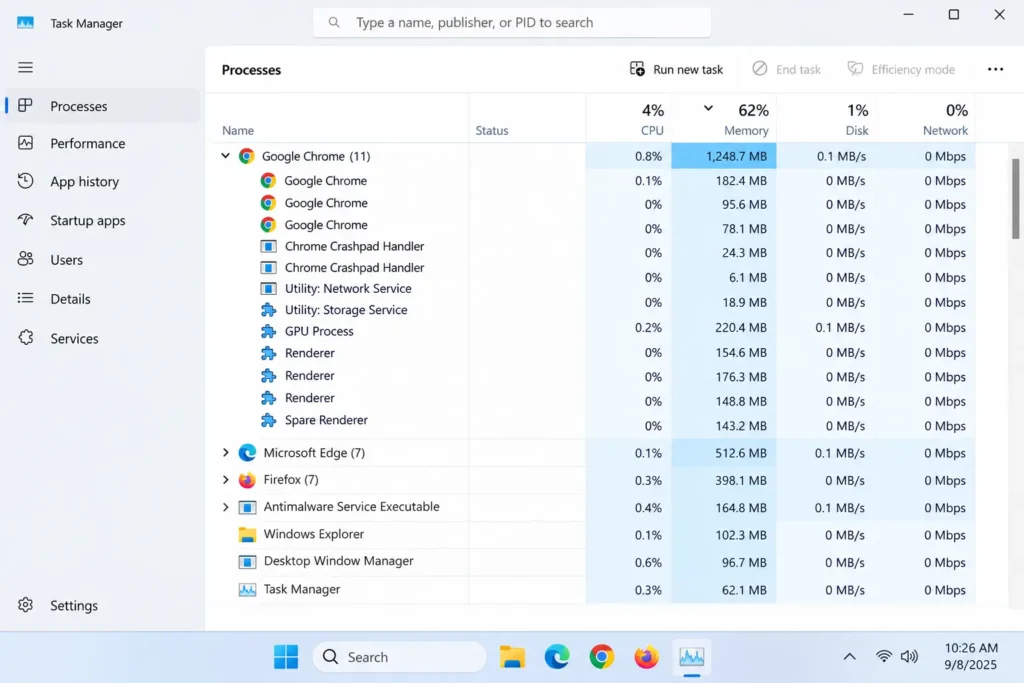
Note the total memory figure, close that browser completely, and repeat the same test with the next one. Doing this with the same tabs and websites each time gives you a genuinely fair comparison specific to how you actually use your computer, rather than relying on a generic benchmark that might not reflect your particular mix of extensions and browsing habits.
Using Each Browser’s Built In Task Manager for More Detail
Beyond the Windows level view, most major browsers include their own internal task manager that breaks down memory usage tab by tab and extension by extension, which is genuinely useful for spotting exactly what’s driving usage up within a single browser.
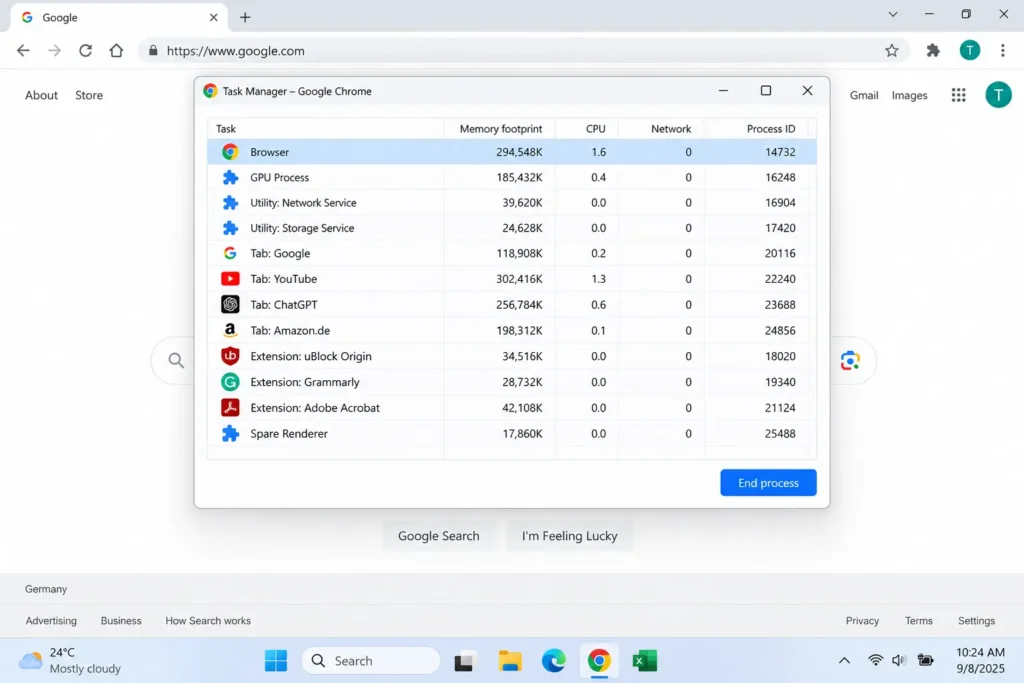
In Chrome or Edge: Press Shift + Esc while the browser is open. This shows a detailed list of every tab, extension, and background process, along with exactly how much memory each one is using individually.
In Firefox: Type about:performance into the address bar and press Enter. This displays a similar breakdown of memory usage per tab and per extension.
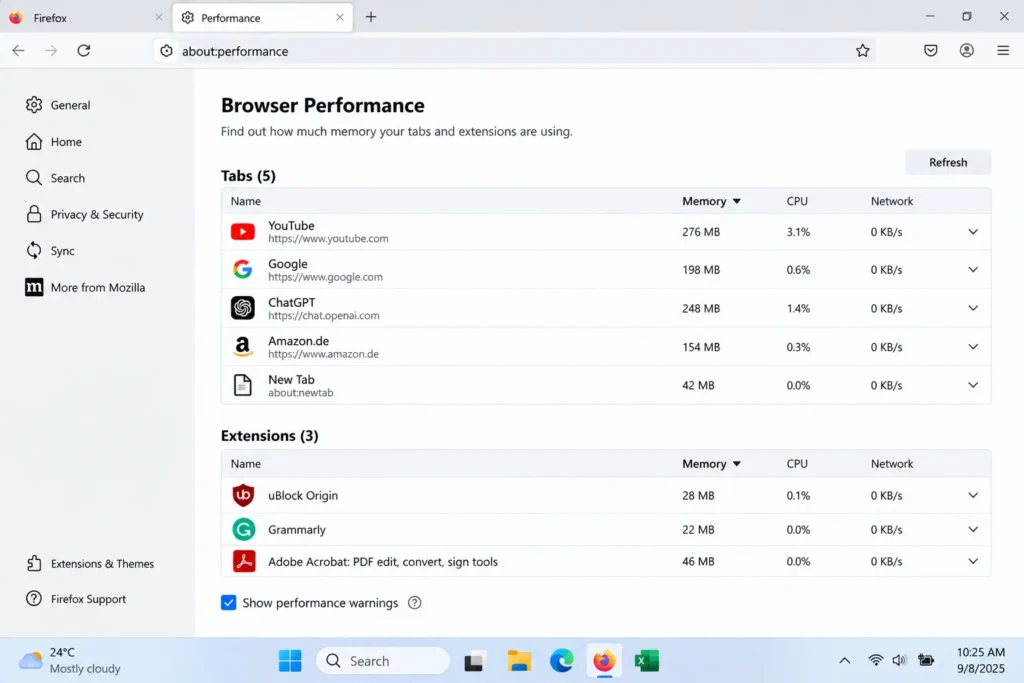
This level of detail is often more useful than the total number alone, since it can reveal that one specific tab or extension is responsible for the bulk of your memory usage, rather than the browser itself simply being “heavy” across the board.
Testing With a Consistent, Fair Setup
To get results that actually mean something, it’s worth being deliberate about how you test rather than just glancing at whatever happens to be open at the time.
Start with a completely fresh browser session each time, close all windows and reopen the browser before testing, rather than comparing a browser you’ve had open for hours against one you just launched. Open the exact same set of tabs across each browser you’re testing, ideally a realistic mix you’d actually use day to day, like an email tab, a couple of news or shopping sites, and maybe a video streaming tab, since browsers can behave very differently depending on the type of content loaded. Disable or remove extensions during testing if you want to isolate the browser’s own baseline memory usage, then test again with your normal extensions enabled separately, so you can see how much of your memory usage is coming from the browser itself versus what you’ve added to it.
Give each browser a minute or two after loading your tabs before checking Task Manager, since memory usage can fluctuate right after pages first load as caching and background processes settle into a steady state.
What Typically Separates Lighter Browsers From Heavier Ones
Once you start testing, a few consistent patterns tend to show up across most comparisons, even though exact numbers vary depending on your specific setup.
Browsers with fewer built in features and a simpler internal architecture generally use less memory at baseline, which is part of why some lightweight, lesser known browsers built specifically around minimalism can outperform major browsers in raw memory usage, though often at the cost of fewer built in conveniences or a smaller extension library. Browsers with active tab-sleeping or memory saving features, like Chrome’s Memory Saver or Edge’s Sleeping Tabs, can significantly reduce memory usage specifically when you have a lot of background tabs open that you’re not actively using, since these features free up resources from inactive tabs automatically rather than keeping every tab fully active in memory at all times.
The number and type of extensions installed often matters more than the browser choice itself, a browser with ten heavy extensions running will frequently use more memory than a “heavier” browser running with none at all, which is exactly why testing your own realistic setup matters more than trusting a generic “browser A vs browser B” comparison you find online.
Making Your Results Meaningful Over Time
A single test gives you a snapshot, but memory usage can shift depending on time of day, how many browser updates have rolled out recently, and even how many tabs you’ve accumulated without noticing. It’s worth repeating this kind of comparison every so often, especially after a major browser update, since companies do periodically make real improvements (or occasionally regressions) to how efficiently their browser handles memory.
If you’re deciding between browsers specifically because your PC has limited RAM, like an older laptop with 4GB or 8GB total, it’s especially worth testing with your actual heaviest typical browsing session, lots of tabs, maybe a video call or streaming tab included, since the difference between browsers tends to become far more noticeable under heavier, more realistic load than it does with just two or three simple tabs open.
How Mobile Browsers Compare on RAM Usage
If you’re running into memory issues on a phone or tablet rather than a PC, the same general principles apply, but checking usage works a bit differently since mobile operating systems handle background apps more aggressively than Windows does.
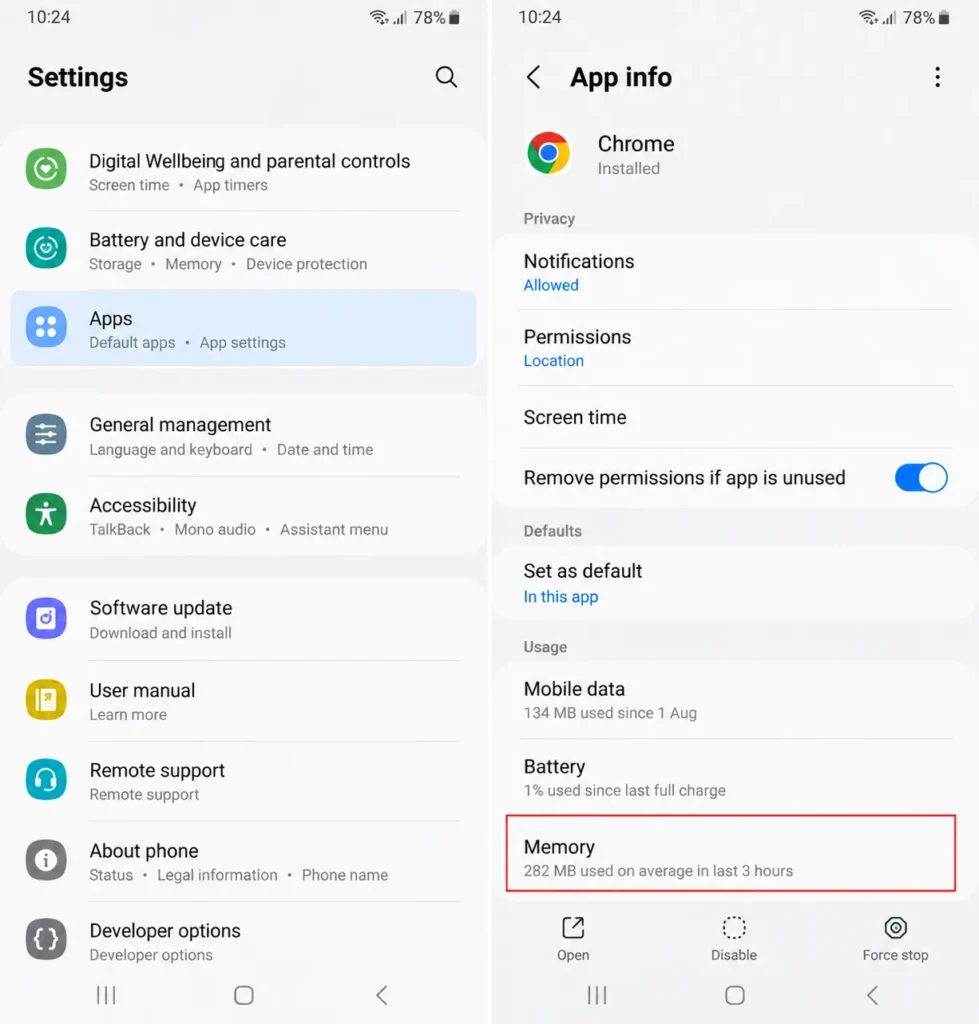
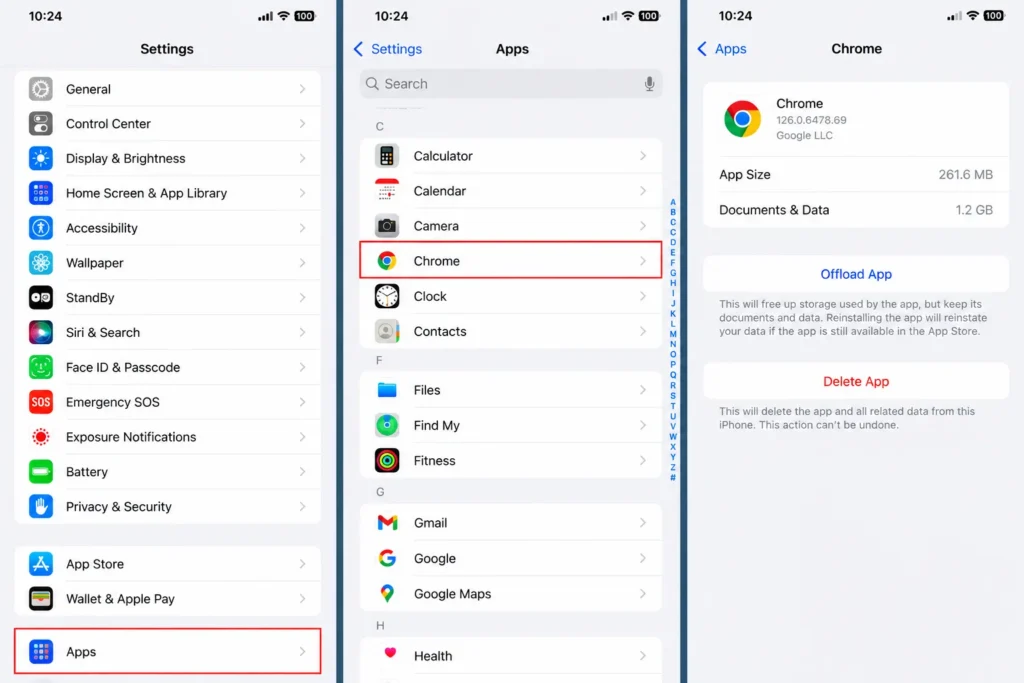
On Android, you can check individual app memory usage by going to Settings > Apps, selecting your browser, and looking under Usage or Memory for how much it’s currently consuming. On iPhone, Apple doesn’t expose exact memory numbers for individual apps the way Android does, so the most practical way to compare is simply noticing which browser feels smoother with a similar number of tabs open, or watching how quickly tabs reload after being in the background for a while, since iOS aggressively closes background tabs on lighter browsers to save memory, meaning a tab reloading frequently is often a sign that browser is being more memory conscious on your specific device, not necessarily a flaw. Chrome and Safari tend to be the most commonly compared options on mobile, and testing with your actual daily tab habits, the same way described for desktop, gives a far more useful answer than relying on general claims about which one is “lighter.“
Does Closing Tabs Actually Free Up RAM Immediately?
This is worth clarifying, since it affects how you interpret your test results. When you close a tab, most modern browsers do release the associated memory back to your system relatively quickly, but not always completely instantly, there can be a short delay of a few seconds while the browser cleans up background processes tied to that tab.
If you’re testing memory usage right after closing several tabs and the number doesn’t drop as much as expected, waiting 15 – 30 seconds and checking again usually shows a more accurate picture. It’s also worth knowing that browsers sometimes keep a small amount of cached data in memory intentionally, even after a tab is closed, specifically so that if you reopen a recently closed tab, it loads faster rather than starting completely from scratch. This is a deliberate performance tradeoff rather than a memory leak, though if memory usage stays unusually high long after closing most of your tabs, that’s a more legitimate sign something specific, like a stuck extension or a problematic site, might be worth investigating separately.
Should RAM Usage Be Your Only Consideration When Choosing a Browser?
It’s worth stepping back and acknowledging that raw memory usage, while genuinely useful to know, isn’t the only factor worth weighing when picking a browser, especially if you’re considering switching specifically because of what you find in your testing.
A browser using slightly more RAM but offering significantly better extension support, security updates, or cross device syncing might still be the more practical choice overall, particularly if you have plenty of RAM to spare and memory usage was never actually causing you a real problem in daily use. On the other hand, if you’re specifically working with a lower RAM device where every gigabyte genuinely matters, prioritizing a lighter browser makes a lot more sense, even if it means giving up a few conveniences. The goal of testing RAM usage isn’t necessarily to find the single “best” browser, it’s to make an informed decision about the actual tradeoff you’re making, based on real numbers from your own setup rather than assumptions.
Putting It All Together
Checking which browser uses the least RAM isn’t really about finding a universal winner, since the honest answer depends heavily on your specific tabs, extensions, and how the browser is configured. Using Task Manager (or each browser’s own internal version) to run a fair, side by side comparison with your actual everyday setup gives you a far more useful answer than any generic ranking, and it only takes a few minutes to get numbers you can actually trust for your own PC.