
If your Windows 11 PC has become slow over time, you don’t always need to install optimization software. In fact, many third party “PC cleaner” apps do little to improve performance and may even slow your computer further by running unnecessary background processes.
The good news is that Windows 11 includes several built-in tools and settings that can significantly improve speed. Whether your PC takes too long to boot, applications open slowly, or games stutter, these simple tweaks can help restore smooth performance without downloading anything.
In this guide, you’ll learn the best ways to speed up Windows 11 using only built-in Windows features.
Why Does Windows 11 Become Slow?
Several factors can reduce your computer’s performance over time, including:
- Too many startup applications
- Background apps consuming memory
- Low available storage
- Visual effects using extra system resources
- Outdated Windows updates
- Disk fragmentation (HDD only)
- Temporary files and cache accumulation
Fortunately, Windows provides built in tools to fix most of these issues.
1. Disable Unnecessary Startup Apps in Windows 11
Many programs automatically launch when Windows starts. The more startup apps you have, the longer your computer takes to boot.
How to disable startup apps:
- Press Ctrl + Shift + Esc to open Task Manager.
- Click Startup apps.
- Find applications you don’t need at startup.
- Right click each one and choose Disable.
Keep security software and essential drivers enabled, but disable apps like Spotify, Discord, Adobe Updater, Teams, or other software you rarely use at startup.
2. Restart Your Computer Regularly
Many people leave their PC running for days or even weeks.
Restarting Windows:
- Clears RAM
- Ends stuck background processes
- Applies Windows updates
- Refreshes system performance
If your PC feels sluggish, a simple restart often provides an immediate improvement.
3. Free Up Disk Space in Windows 11
Windows performs better when your system drive has enough free space.
Try to keep at least 15 – 20% of your SSD or HDD free.
Delete temporary files
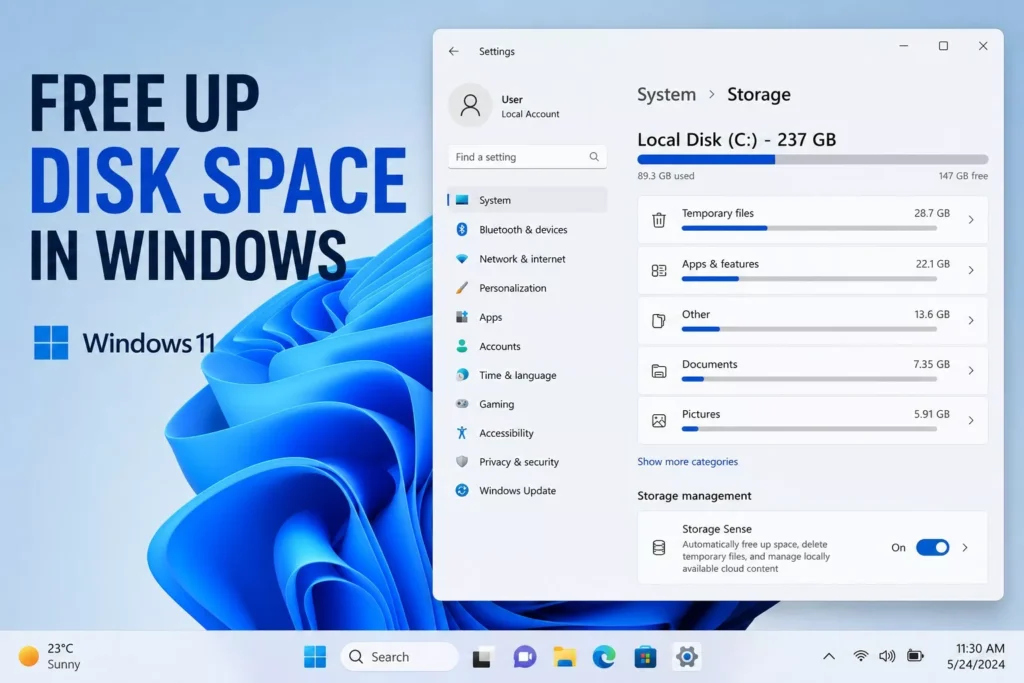
- Open Settings
- Go to System > Storage
- Select Temporary Files
- Remove unnecessary files
You can safely delete:
- Temporary files
- Delivery Optimization Files
- Windows Update Cleanup
- Recycle Bin contents (if no longer needed)
4. Enable Storage Sense in Windows
Storage Sense automatically removes unnecessary files to keep your computer clean.
To enable it:
- Open Settings
- Go to System > Storage
- Turn on Storage Sense
You can configure it to clean temporary files automatically.
5. Turn Off Background Apps in Windows 11
Many apps continue running even when you’re not using them.
To reduce background activity:
- Open Settings
- Go to Apps > Installed Apps
- Select an app
- Open Advanced Options
- Set Background App Permissions to Never (where available)
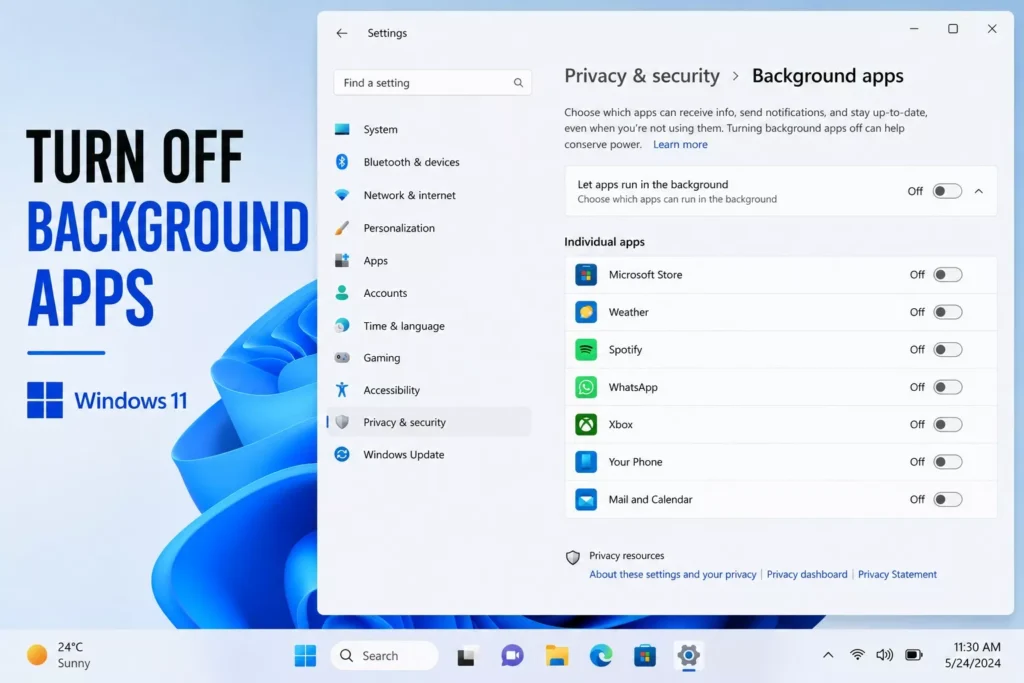
This can reduce RAM and CPU usage.
6. Choose the Best Performance Power Mode
Windows may prioritize battery life over speed.
To maximize performance:
- Open Settings
- Go to System > Power & Battery
- Under Power Mode, select:
Best Performance
This setting helps desktop PCs and plugged in laptops perform at their best.
7. Reduce Visual Effects in Windows 11
Windows 11 animations and transparency effects look attractive but consume system resources.
To improve performance:
- Press Windows + R
- Type:
sysdm.cpl
- Open the Advanced tab.
- Under Performance, click Settings.
- Select:
Adjust for best performance
Or manually disable:
- Animations
- Fade effects
- Window shadows
- Transparency effects
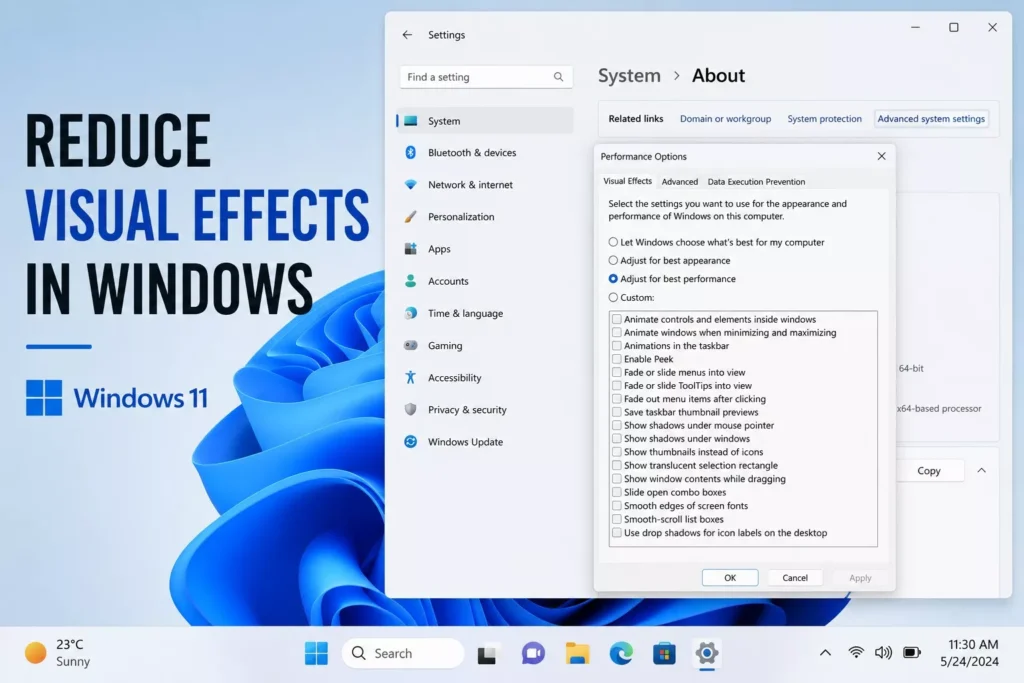
Older computers often see a noticeable speed improvement.
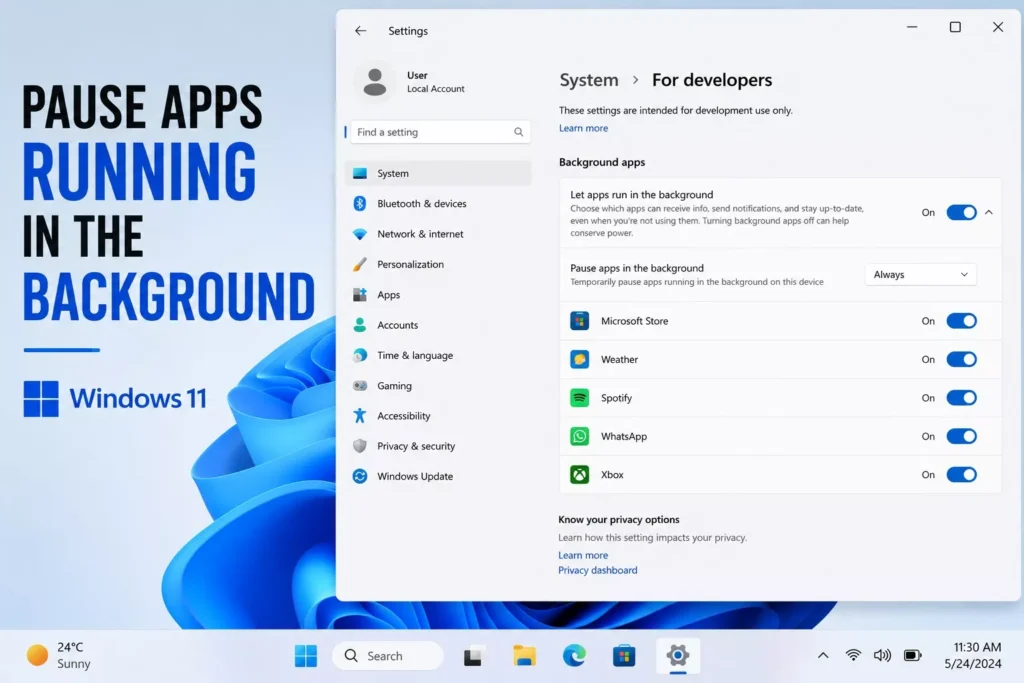
8. Pause Apps Running in the Background
Task Manager helps identify apps consuming excessive resources.
Open Task Manager and check:
- CPU usage
- Memory usage
- Disk usage
If an application is using unusually high resources, close it if it’s not needed.
9. Keep Windows Updated
Microsoft regularly releases updates that improve:
- Performance
- Security
- Stability
- Driver compatibility
To check for updates:
Settings > Windows Update > Check for Updates
Install all available updates and restart your PC afterward.
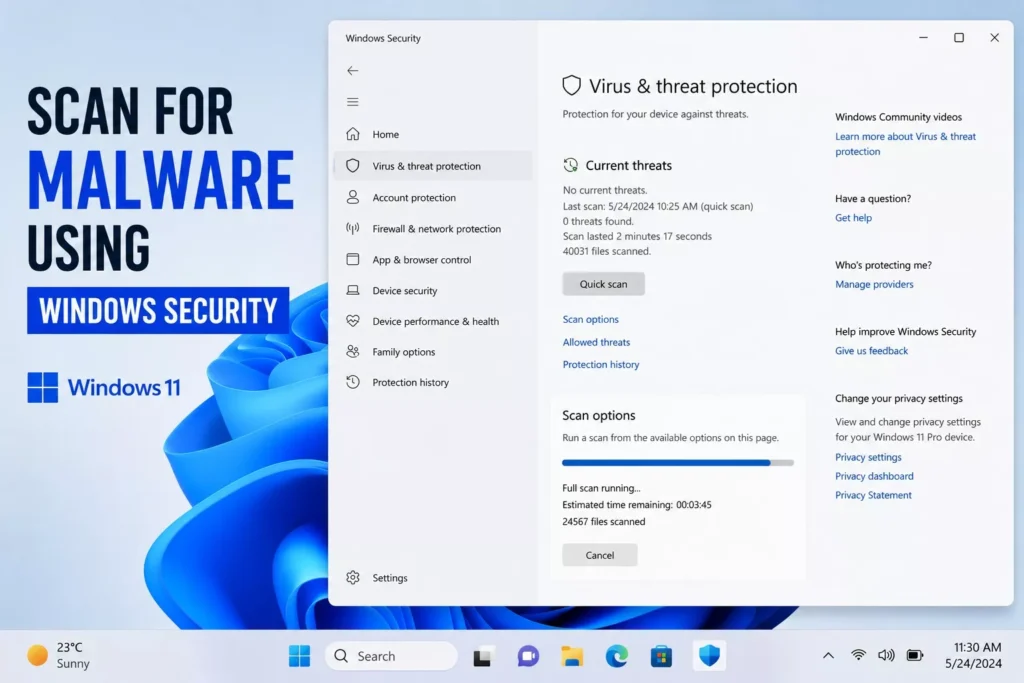
10. Scan for Malware Using Windows Security
Malware can significantly slow your computer.
Windows includes Microsoft Defender at no extra cost.
To scan your PC:
- Open Windows Security
- Select Virus & Threat Protection
- Click Quick Scan
Run a full scan if you suspect malware.
11. Defragment Your Hard Drive (HDD Only)
If your computer uses a traditional hard drive (HDD), optimizing it can improve file access speed.
To optimize drives:
- Search for Defragment and Optimize Drives
- Select your HDD
- Click Optimize
Note: If your PC uses an SSD, Windows automatically handles optimization. You do not need to manually defragment an SSD.
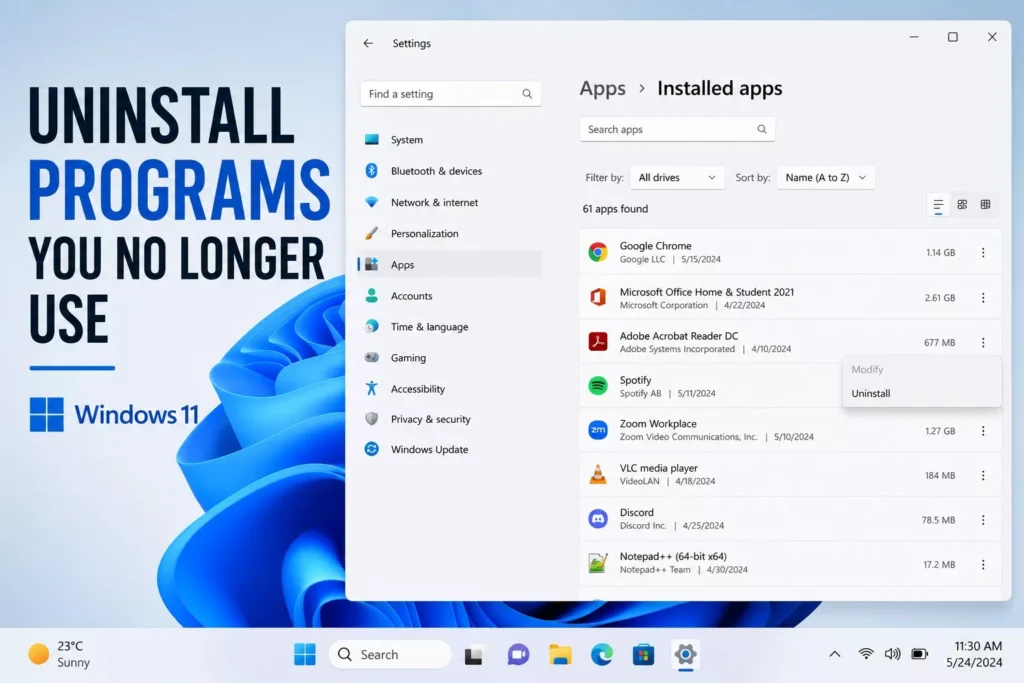
12. Uninstall Programs You No Longer Use in Windows 11
Unused software takes up storage and may run background services.
To uninstall programs:
- Open Settings
- Go to Apps > Installed Apps
- Remove software you no longer need
Be careful not to uninstall drivers or system components.
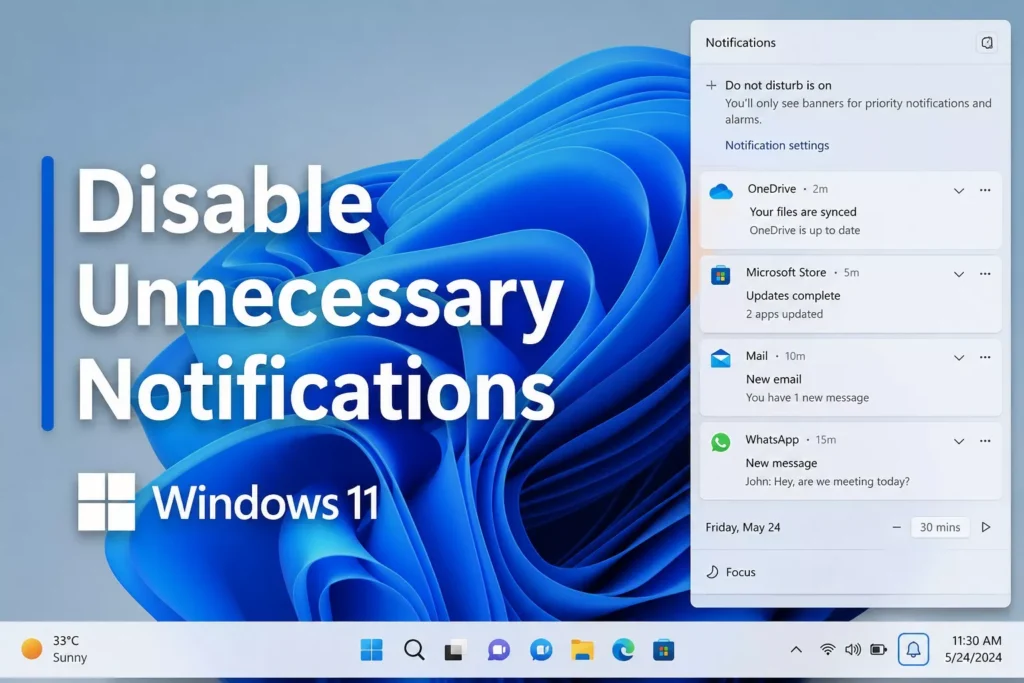
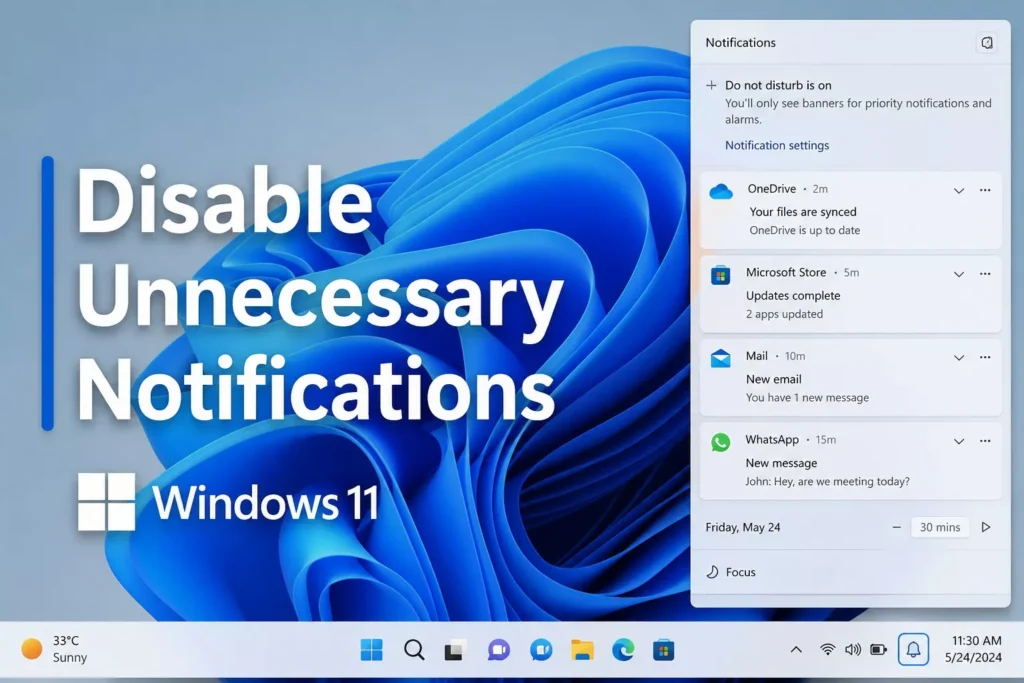
13. Disable Unnecessary Notifications in Windows 11
Too many notifications can interrupt your workflow and use system resources.
To reduce them:
- Open Settings
- Select System > Notifications
- Disable notifications from apps you don’t use frequently
14. Check Available RAM
If your computer frequently uses over 90% RAM, performance will suffer.
Open Task Manager > Performance > Memory
If RAM usage is consistently high, consider:
- Closing unused browser tabs
- Exiting unnecessary applications
- Upgrading RAM (if possible)
15. Keep Your Desktop Organized
Hundreds of files and shortcuts on the desktop can slightly slow Windows Explorer.
Move files into folders and keep only frequently used shortcuts on the desktop.
Common Mistakes to Avoid
Avoid these practices that rarely improve performance:
- Installing multiple PC cleaner applications
- Using registry cleaners
- Disabling essential Windows services
- Downloading “RAM booster” software
- Installing unknown optimization tools from the internet
Windows 11 already includes most of the maintenance tools you’ll need.
Frequently Asked Questions
Can Windows 11 run fast without optimization software?
Yes. Windows 11 includes built in maintenance tools like Storage Sense, Task Manager, Windows Security, and Disk Cleanup that can improve performance without third party software.
Does disabling startup apps make Windows faster?
Yes. Fewer startup programs reduce boot time and free up system resources, especially on older computers.
Should I use registry cleaners?
No. Registry cleaners rarely improve performance and can sometimes create system problems.
How often should I restart Windows 11?
Restarting every few days, or whenever updates are installed, helps clear memory and refresh background processes.