
There’s a certain kind of dread that comes with realizing your PC has slowed to a crawl right in the middle of something important, a video call, a deadline, a game you were mid match in, and the last thing you want to hear is “just restart it.” Sometimes that’s genuinely not an option. The good news is a restart isn’t actually the only way to reclaim memory, it’s just the laziest one. Windows gives you several ways to free up RAM on the fly, some of which take less effort than restarting would anyway.
Start By Actually Looking at What’s Using It
Before doing anything, it’s worth spending thirty seconds seeing where your memory is actually going, since blindly closing things can mean shutting down exactly the program you needed while leaving the real culprit untouched.
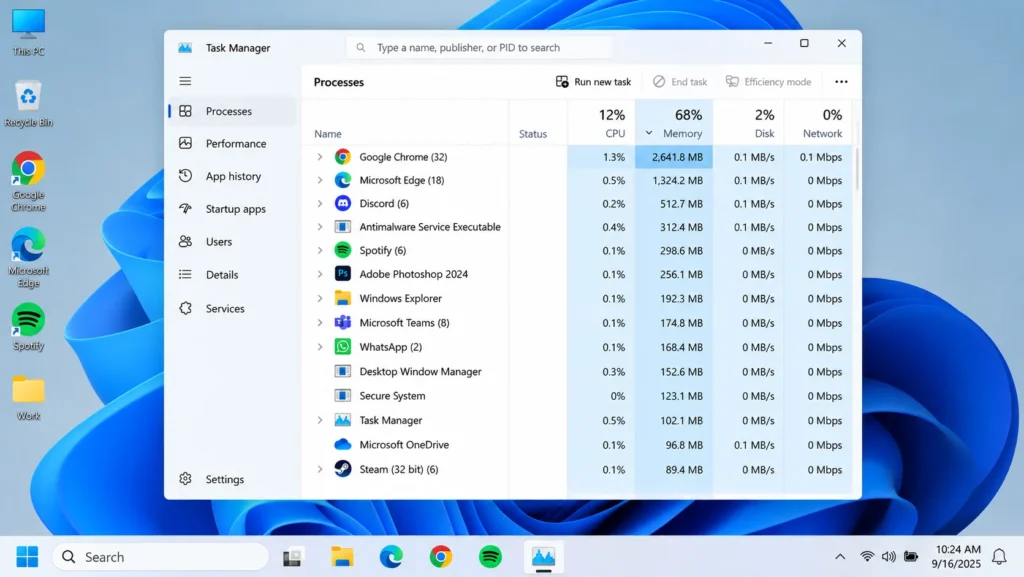
Press Ctrl + Shift + Esc to pull up Task Manager, click the Processes tab, and sort by the Memory column. This instantly reorganizes everything by how much RAM it’s currently eating, putting the heaviest offenders right at the top. More often than you’d expect, the top of that list isn’t the program you were actively blaming, it’s a browser with forty tabs open, or something that quietly launched itself in the background hours ago and never closed.
Closing the Right Things Without Losing Work
Once you can see what’s using memory, ending individual processes is the fastest, most surgical fix available, and it doesn’t require touching anything you’re actually in the middle of.
Right click any process near the top of that sorted list and choose End task. For browser tabs specifically, rather than closing the entire browser, most Chromium based browsers let you close individual heavy tabs directly, which frees up a chunk of memory without losing your other open work. If a specific application seems frozen or unresponsive and refuses to respond to a normal close, ending its task here forces it shut without needing to reboot the whole system just to get rid of one stuck program.
Letting Windows Handle It Automatically Going Forward
If this keeps happening regularly rather than as a one off emergency, it’s worth turning on a feature that manages this passively instead of relying on you to notice and intervene every time.
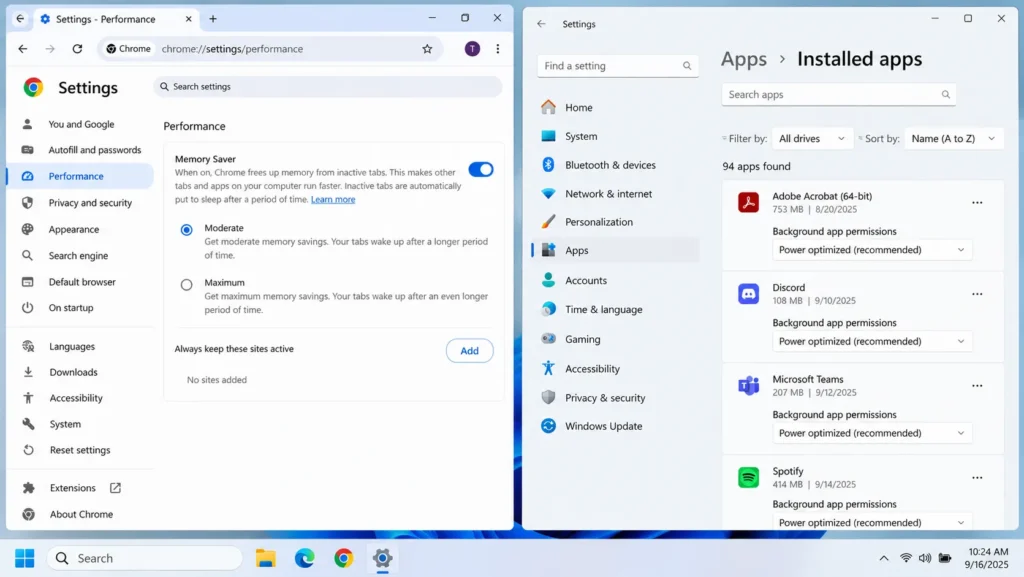
In Chrome specifically, head to Settings > Performance and switch on Memory Saver, which automatically puts inactive tabs to sleep and reclaims their memory without you closing anything manually, waking them back up instantly the moment you click back over. Windows itself doesn’t have a direct equivalent for general apps, but Storage Sense and background app permissions (found under Settings > Apps > Installed apps, checking each app’s background permissions) can prevent certain programs from quietly consuming resources even when you’re not using them.
The Command Line Trick Most People Never Try
If you’re comfortable with a bit of technical poking around, there’s a genuinely underused method involving Windows’ own memory management tools that can force a cleanup without any restart involved.
Open Command Prompt as Administrator and run:
Rundll32.exe advapi32.dll,ProcessIdleTasks
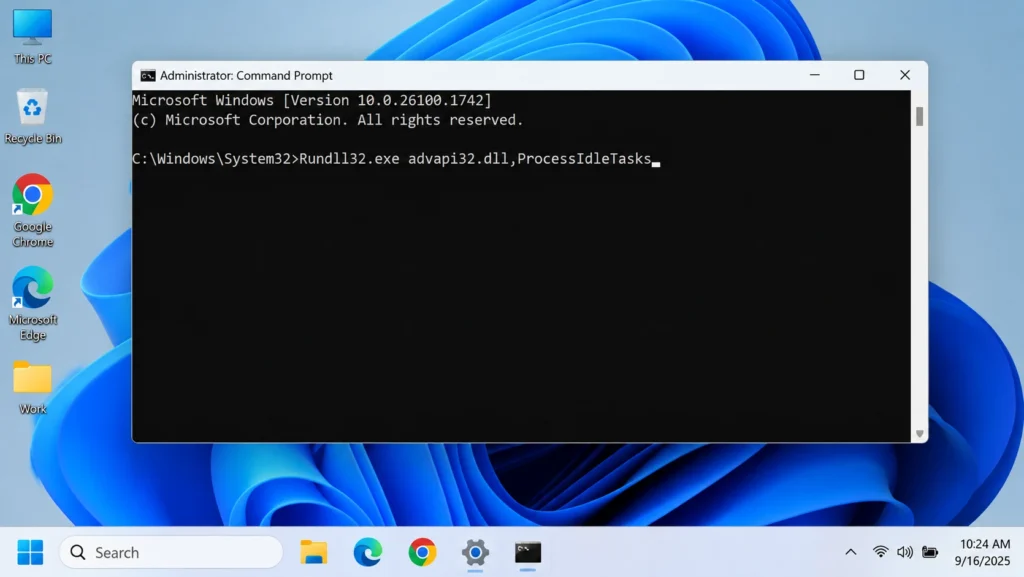
This nudges Windows into performing some of the idle time maintenance tasks it normally handles automatically in the background, which can include releasing memory that’s technically still allocated to processes but isn’t actively being used. It’s not a guaranteed dramatic fix, results vary depending on what’s actually running, but it’s a completely safe, zero risk command worth having in your back pocket.
What’s Actually Happening When RAM Feels “Full” Anyway
Here’s something worth understanding before you panic over a high memory number: Windows deliberately uses as much available RAM as it reasonably can for caching, since unused memory sitting idle doesn’t help you in any way. A system showing 85 – 90% RAM usage isn’t necessarily struggling, it might just be using available capacity efficiently, the way it’s designed to.
The number that actually matters more is whether your system is using the page file heavily, which happens when physical RAM genuinely runs out and Windows starts borrowing space from your hard drive or SSD to compensate, this is what causes real, noticeable slowdowns, not simply a high RAM percentage on its own. You can spot this in Task Manager’s Performance tab, checking the Memory section for a rising “Committed” figure well beyond your physical RAM total, which is a much more reliable sign of genuine memory pressure than the percentage alone.
Restarting Specific Apps Instead of the Whole PC
If one particular application has been open for hours or days and seems to be the actual source of the problem, sometimes the smartest middle ground between “do nothing” and “restart the whole computer” is simply closing and reopening that one app.
Browsers, in particular, are notorious for gradually accumulating memory the longer they stay open across many browsing sessions, largely due to extensions, cached tabs, and background processes that pile up over time. Fully closing the browser (not just the window, actually quitting it from Task Manager if it’s still lingering in the background) and reopening it fresh often recovers a meaningful chunk of memory without needing to touch anything else running on your system.
Dealing With a Memory Leak Instead of Just Normal Usage
Sometimes what looks like ordinary memory pressure is actually a specific program slowly leaking memory over time, meaning its usage keeps climbing the longer it stays open, even if you’re not doing anything more demanding within it. This is different from a program simply using a lot of RAM consistently, the telltale sign of a leak is memory usage that keeps rising steadily hour after hour without leveling off.
Leaving Task Manager open in the background and glancing at it periodically over the course of a few hours is the easiest way to catch this pattern. If one specific app’s memory footprint keeps growing without ever stabilizing, closing and reopening just that program is a far more targeted fix than restarting your whole PC, and it’s also worth checking whether that app has a pending update, since memory leaks are frequently bugs that get patched in newer versions rather than something inherent to how the program works.
Freeing Up RAM on a Laptop Specifically
Laptops add a wrinkle worth mentioning, since battery saving features sometimes interact with how memory gets managed in ways that don’t apply the same way on a desktop. If your laptop is running in a battery saver or power saving mode, some background processes get throttled rather than fully closed, which can occasionally mean memory isn’t released quite as promptly as it would be under full performance mode.
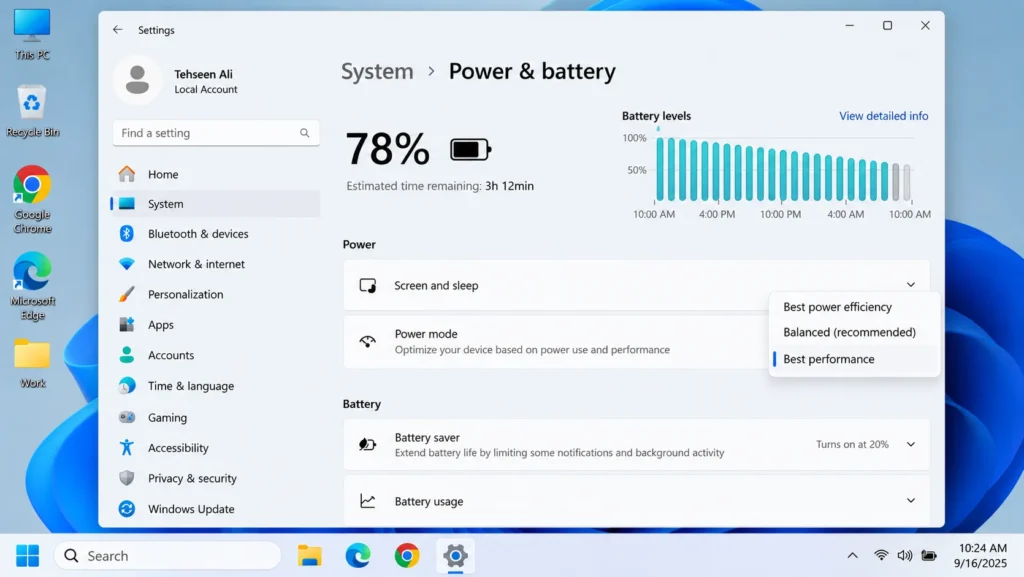
Switching to Best Performance temporarily under Settings > System > Power & battery while you’re actively trying to free up memory for something demanding, then switching back afterward, can make a noticeable difference on laptops specifically. It’s also worth remembering that closing your laptop lid or letting it sleep isn’t the same as actually closing programs, sleep mode keeps everything exactly as it was in memory rather than releasing anything, so if memory pressure was the issue before sleeping, it’ll still be there the moment you wake it back up.
A Quick Word on Third Party “RAM Cleaner” Apps
It’s worth addressing these directly since they show up constantly in ads promising instant, dramatic memory recovery. Most of these tools work by aggressively force closing background processes or by triggering a temporary, cosmetic drop in the reported memory number that doesn’t reflect any real, lasting improvement, Windows itself already manages memory allocation more intelligently than a generic third party tool typically can.
Rather than relying on one of these, the built in methods covered throughout this guide, Task Manager, Memory Saver, background app permissions, generally accomplish the same goal more reliably and without the risk of a third party tool closing something you actually needed running. If a “RAM booster” app is making bold claims about freeing up gigabytes instantly with one click, that’s usually a sign of marketing exaggeration rather than a genuinely superior method.
Common Questions About Freeing Up RAM
Does closing a program actually release all its memory immediately?
For the most part, yes, though there can be a short delay of a few seconds while Windows fully reclaims the memory a closed program was using. If you check Task Manager the instant after closing something and the total doesn’t seem to have dropped, waiting 10-15 seconds and checking again usually shows a more accurate picture.
Is it bad for my PC if RAM usage stays high most of the time?
Not inherently. High RAM usage on its own isn’t damaging, memory sitting unused doesn’t benefit you in any way, so Windows filling available RAM with caching is actually normal, efficient behavior. The real concern is when your system starts relying heavily on the page file because physical RAM has genuinely run out, which is what actually causes noticeable slowdowns.
Will freeing up RAM manually make my PC permanently faster?
It provides a temporary boost by reclaiming memory that was tied up in something you no longer need running, but it doesn’t change your PC’s underlying hardware capacity. If you find yourself needing to do this constantly just to maintain normal performance, that points more toward needing additional RAM long term than a repeatable quick fix being a sustainable solution.
Can too many browser tabs alone cause serious memory problems?
Yes, genuinely. Modern browsers, especially Chromium based ones, allocate separate memory for each tab, so dozens of open tabs can consume several gigabytes on their own, sometimes rivaling or exceeding what several actual applications would use combined. Enabling a feature like Chrome’s Memory Saver specifically addresses this without requiring you to manually close tabs you might want to return to later.
When Freeing Up RAM Manually Stops Being a Real Solution
It’s worth being honest about the limits here. If you’re regularly finding yourself needing to manually free up memory just to get through normal daily tasks, browsing, a handful of open programs, nothing especially demanding, that’s less a “how do I manage this better” situation and more a sign your system might genuinely be under equipped for how you’re using it.
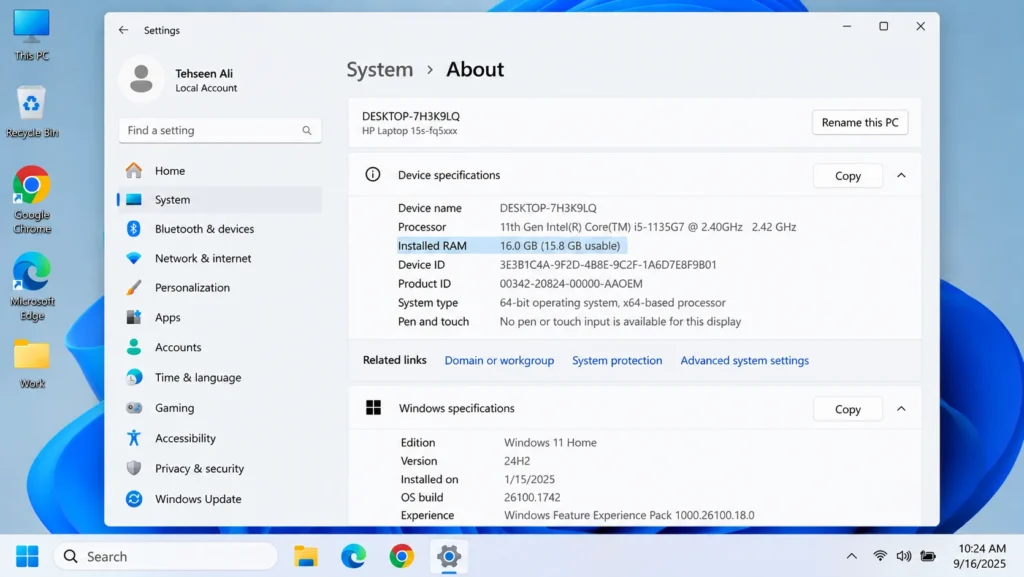
Checking your total installed RAM under Settings > System > About gives you a quick reality check, 8GB is increasingly tight for modern multitasking, while 16GB comfortably handles most everyday workloads without constant juggling. If manual memory management has become a daily ritual rather than an occasional emergency fix, that’s a reasonable signal to start looking at whether a RAM upgrade makes more sense long-term than repeatedly treating the symptom.