
You click a link from a text message, a search result, or a random ad, and something about it feels off before you even land on the page. Maybe the URL looks slightly wrong, or you just have that nagging feeling you get right before entering your email on a site you’ve never heard of. That instinct is worth listening to, and thankfully, you don’t have to just guess. There are several quick, free ways to check whether a website is actually safe before you click through, enter any information, or download anything from it.
Here’s how to actually verify a site before trusting it.
Method 1: Check the URL Carefully First
Before using any tool at all, a quick manual look at the web address itself catches a surprising number of scam and phishing sites.
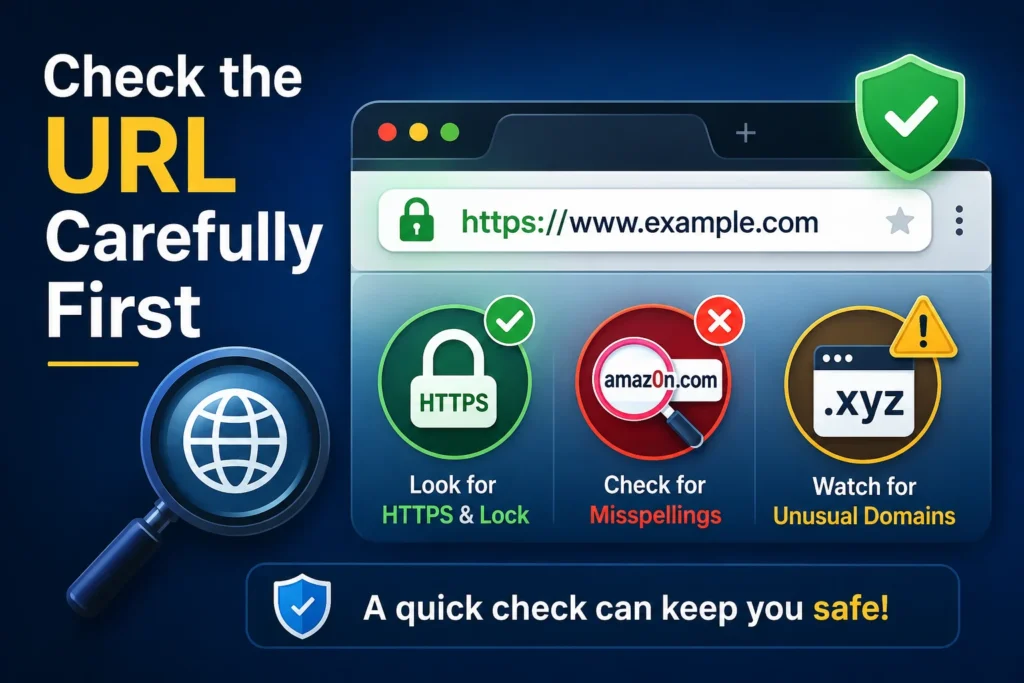
Look for small misspellings of well known brand names, like “amaz0n.com” or “paypa1.com,” since these are extremely common in phishing attempts and easy to miss if you’re not looking closely. Check whether the site uses HTTPS rather than just HTTP, indicated by a small lock icon next to the address bar, this means the connection is encrypted, though it’s worth knowing HTTPS alone doesn’t guarantee a site is legitimate, scammers can and do use HTTPS too. Also pay attention to unusual domain extensions, a banking site ending in “.xyz” or “.info” instead of the expected “.com” is a red flag worth pausing on.
Method 2: Use Google Safe Browsing
Google maintains a massive, constantly updated database of known unsafe websites, and you can check any URL against it directly for free.
- Go to transparencyreport.google.com/safe-browsing/search
- Paste in the website URL you want to check
- Click Search
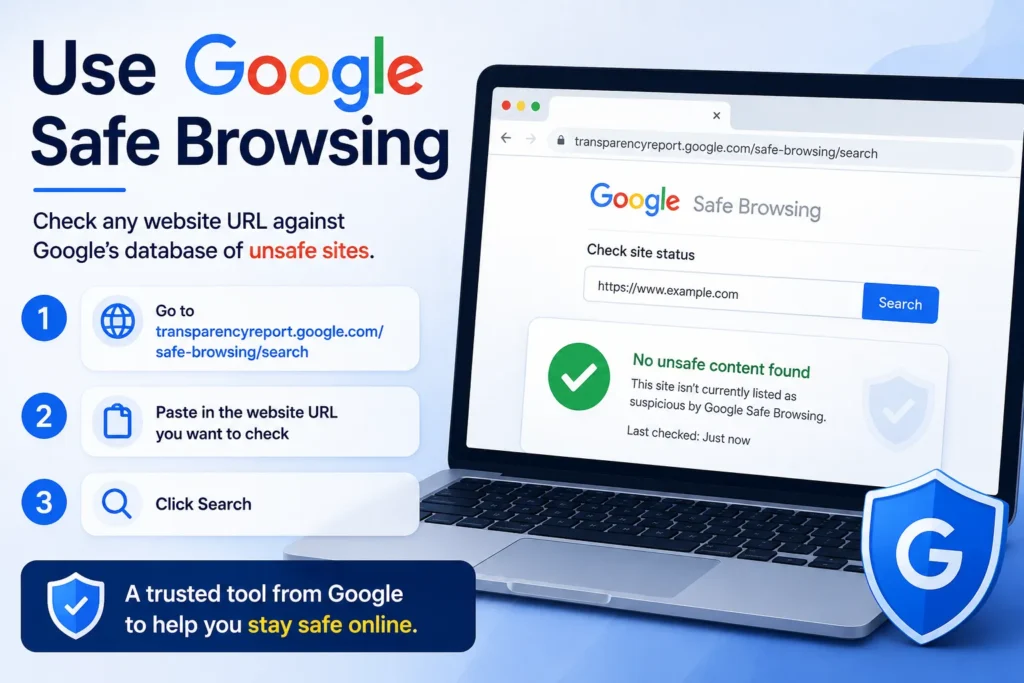
The results will show whether Google has flagged the site for malware, phishing, or other unsafe content, along with when it was last checked. This is one of the most trusted sources available, since it’s the same database that powers the warning pages you sometimes see in Chrome when trying to visit a genuinely dangerous site.
Method 3: Use VirusTotal for a Deeper Scan
If you want a more thorough check than a single database lookup, VirusTotal scans a URL against dozens of different security engines simultaneously, giving you a much broader picture.
- Go to virustotal.com
- Click the URL tab
- Paste in the website address
- Click the search or scan button
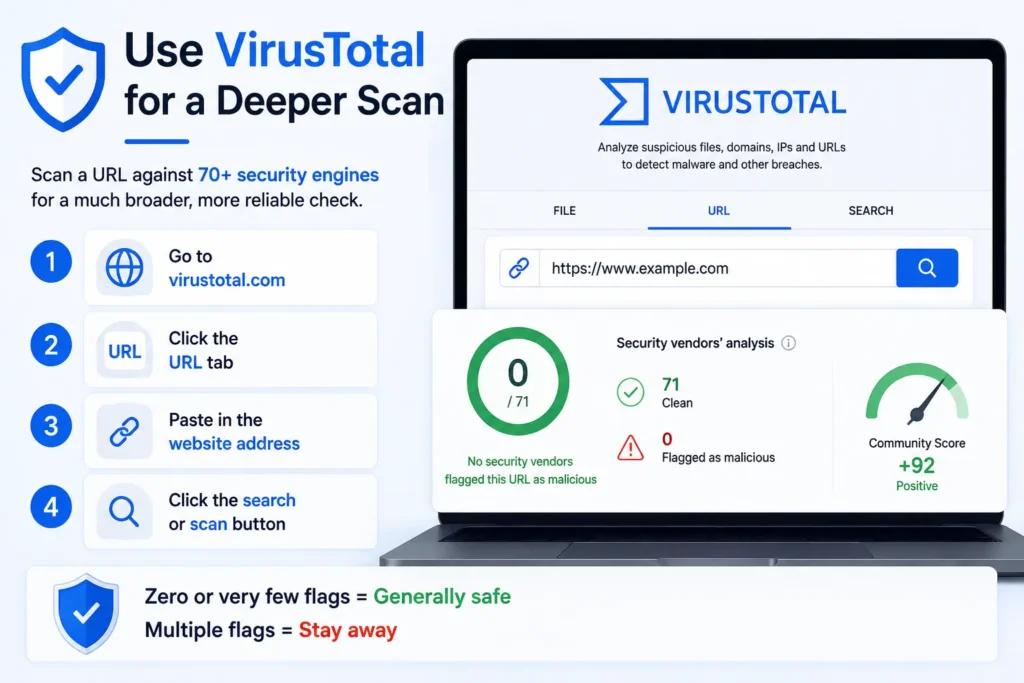
VirusTotal will show you results from over 70 different antivirus and security services, telling you how many flagged the site as suspicious or malicious versus how many consider it clean. A site with zero or very few flags is generally safe, while multiple flags from reputable engines is a clear sign to stay away.
Method 4: Check Who Owns the Website
Legitimate businesses are usually easy to verify, while scam sites often have suspiciously little information behind them. A quick WHOIS lookup shows you when a domain was registered and sometimes who registered it.
- Go to a free WHOIS lookup site like whois.domaintools.com or who.is
- Enter the website’s domain name
- Review the registration details
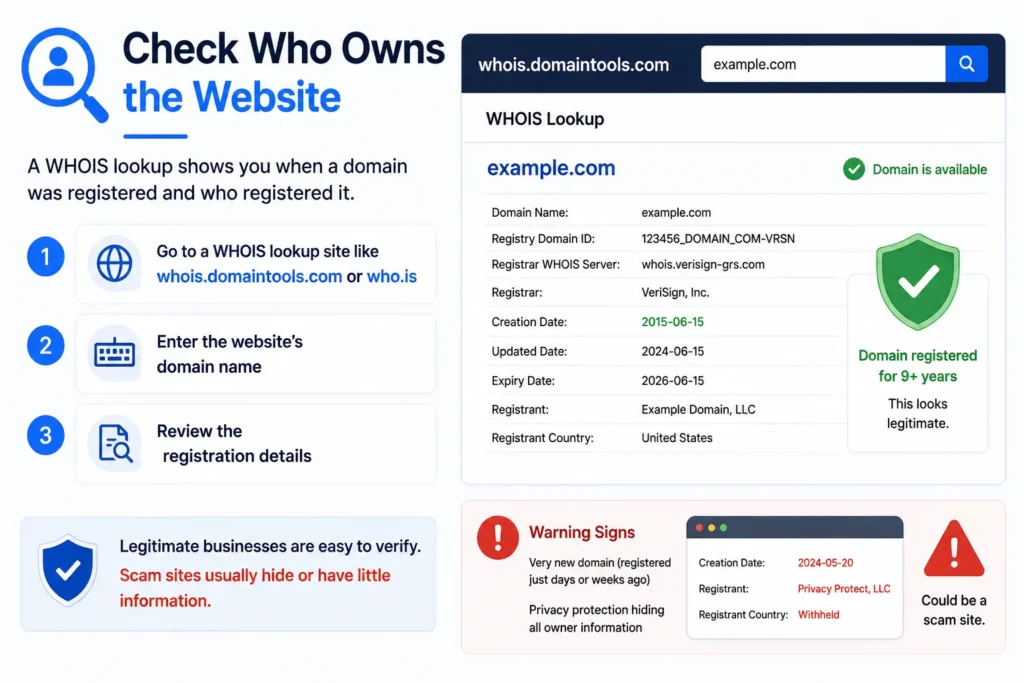
A domain registered just days or weeks ago, especially one claiming to be a long established business, is a significant warning sign. Established, trustworthy businesses typically have domains registered years in advance, and this mismatch alone has exposed a lot of scam sites people were about to trust.
Method 5: Check Website Reviews and Reputation
Sometimes the fastest way to check a site’s legitimacy is simply seeing what other people have already said about it.
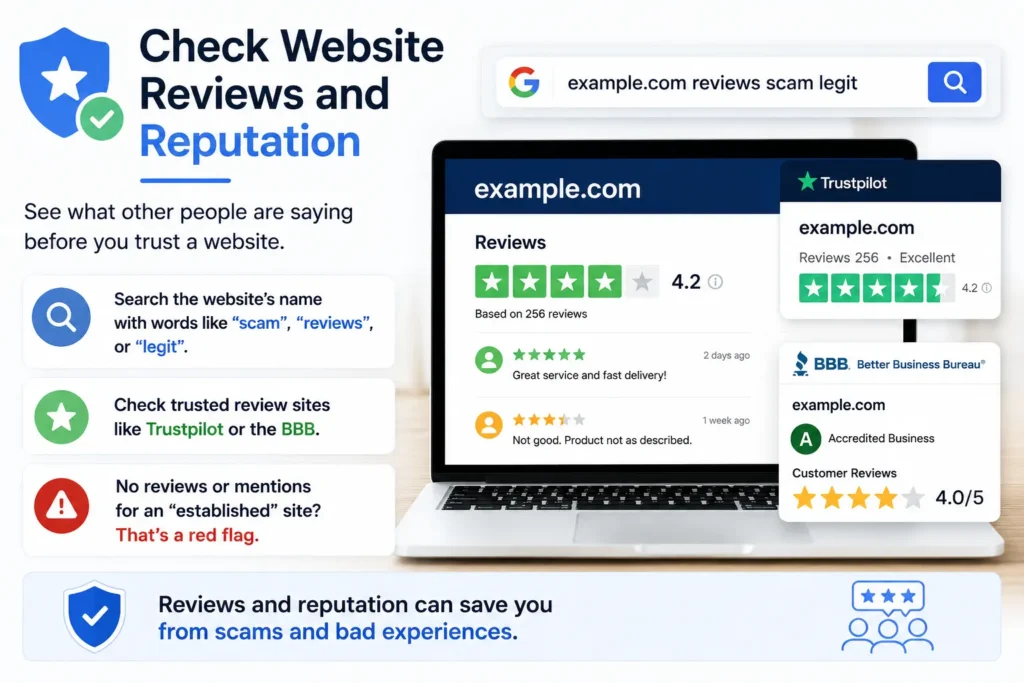
Search for the website’s name along with words like “scam,” “reviews,” or “legit” to see what comes up. Sites like Trustpilot or the Better Business Bureau (BBB) often have reviews for legitimate businesses, and a complete absence of any reviews or mentions anywhere online for a site claiming to be an established business is itself a red flag worth noticing.
Method 6: Use Your Browser’s Built In Safety Features
Modern browsers already include safety features working quietly in the background, and it’s worth making sure they’re actually turned on.
In Chrome: Go to Settings > Privacy and security > Security, and make sure Enhanced protection or Standard protection is selected under Safe Browsing, rather than having it turned off entirely.
In Microsoft Edge: Go to Settings > Privacy, search, and services, and check that Microsoft Defender SmartScreen is turned on, which actively warns you before loading known malicious or phishing sites.
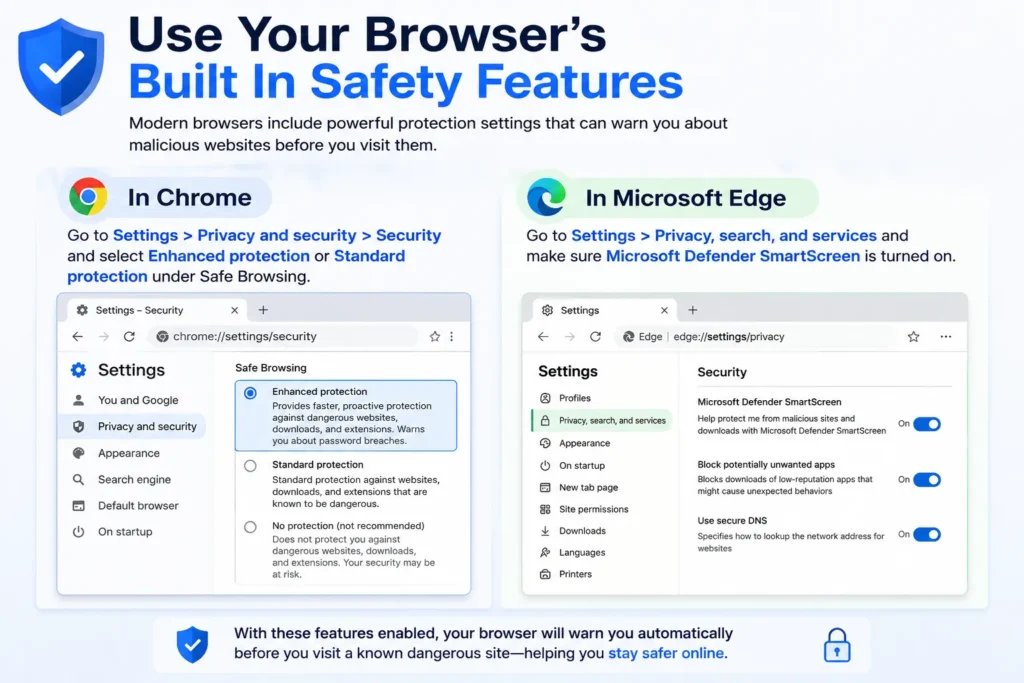
With these enabled, your browser will often warn you automatically before a page even fully loads if it’s on a known list of dangerous sites, adding a layer of protection even if you forget to manually check a link yourself.
Warning Signs That Suggest a Site Isn’t Safe
Beyond running an actual check, a few practical red flags are worth watching for on any website, even one that hasn’t been formally flagged yet:
- Urgent, pressure driven language, like countdown timers claiming you’ll “miss out” or warnings that your account will be suspended unless you act immediately
- Requests for unusual information, a legitimate retailer doesn’t need your bank PIN, and a legitimate service rarely asks for information unrelated to what you’re actually trying to do
- Poor spelling and grammar throughout the site, especially on pages that should be professionally written, like a checkout or login page
- No clear contact information, legitimate businesses typically list a real address, phone number, or support email somewhere on the site
- Deals that seem unrealistically good, a brand-new phone at 80% off from an unfamiliar site is a common scam pattern
Checking Links Before You Click (Not Just After)
It’s often better to check a suspicious link before ever visiting the site directly, especially one you received through email, text, or social media, rather than clicking through and hoping it’s fine.
- On desktop, hover your mouse over the link without clicking, most browsers show the actual destination URL in the bottom corner of the screen, letting you compare it against what the link claims to be
- On mobile, press and hold the link (without releasing), which usually brings up a preview of the actual URL before you commit to opening it
- If it looks suspicious, copy the link and paste it into Google Safe Browsing or VirusTotal (Methods 2 and 3 above) instead of visiting it directly
This habit alone prevents a large share of phishing attempts, since many scam links are specifically designed to look trustworthy in a text message or email while actually leading somewhere completely different once you look closely at the real destination.
What to Do If You Already Visited an Unsafe Site
If you’ve realized after the fact that you visited a site that turned out to be unsafe, a few quick steps help limit any potential damage:
- Close the tab immediately and avoid entering any further information if you haven’t already
- Run a malware scan using Windows Security or your antivirus software, especially if the site prompted any kind of download
- Change your passwords for any account where you may have entered login details on the site, particularly if it looked like a fake login page
- Monitor your accounts for unusual activity over the following days, especially financial accounts if you entered any payment information
Acting quickly here genuinely matters, the sooner you change a compromised password or catch unauthorized activity, the less opportunity a scammer has to actually use whatever information they may have collected.
How to Spot a Fake Login Page Specifically
Fake login pages, designed to look like your bank, email provider, or a popular service like PayPal or Netflix, are one of the most common and effective phishing tactics, since they’re built specifically to trick you into typing in your actual username and password.
A few details are worth checking closely before entering any login credentials: compare the URL letter by letter against the real site’s known address, since fake pages often use a nearly identical domain with one subtle difference. Check whether the page looks slightly outdated or has small visual inconsistencies compared to the real site, like a slightly different logo size or font, small design details that real companies are usually meticulous about but scammers sometimes overlook. If you arrived at the login page by clicking a link from an email or text rather than typing the address yourself or using a saved bookmark, that’s reason enough to pause, close the page, and navigate to the site directly through your browser instead, just to be safe.
Checking Safety on Mobile Devices
Everything covered so far works on mobile too, but there are a few extra considerations worth knowing specifically for phones, since scam links often arrive through text messages and social media apps rather than email.
On both iPhone and Android, you can copy a suspicious link (press and hold, then select Copy) without opening it, then paste it into Google Safe Browsing or VirusTotal through your mobile browser to check it first. It’s also worth being extra cautious with shortened links (like ones starting with bit.ly or tinyurl.com), which are common in text messages and hide the actual destination URL completely, tools like CheckShortURL.com let you paste a shortened link and see exactly where it actually leads before you commit to opening it. Since phone screens make it harder to carefully examine a full URL at a glance compared to a desktop browser, taking that extra ten seconds to verify a link on mobile is arguably even more worthwhile than doing the same check on a computer.
Should You Use a VPN or Antivirus Software for Extra Protection?
While the tools covered in this guide focus specifically on checking a site’s safety before you visit, it’s worth knowing there are additional layers of protection that work continuously in the background rather than requiring a manual check each time.
A reputable antivirus program (like Windows Security, which comes built into Windows for free, or a trusted paid option) often includes real time web protection that blocks known malicious sites automatically as you browse, catching threats even if you didn’t think to check manually. A VPN, while primarily used for privacy and encrypting your internet traffic, doesn’t specifically protect you from unsafe websites themselves, so it shouldn’t be relied on as a substitute for the safety checks covered in this guide, it serves a different purpose entirely. For most everyday users, keeping your browser’s built-in Safe Browsing feature turned on (covered earlier in this guide) combined with a trusted antivirus program’s web protection offers solid, largely automatic protection without needing to manually verify every single link you come across.
Frequently Asked Questions
Does having HTTPS mean a website is completely safe?
No, HTTPS only means the connection between you and the site is encrypted, it says nothing about whether the site itself is trustworthy or legitimate. Plenty of scam and phishing sites use HTTPS today, so it should be treated as one small positive signal rather than proof of safety on its own.
Are free URL checking tools like VirusTotal actually reliable?
Yes, tools like VirusTotal and Google Safe Browsing are widely trusted and used by security professionals, since they pull from extensive, constantly updated threat databases. No single tool catches everything, which is why checking a suspicious link through more than one method offers a more complete picture.
Can a website be unsafe even if it shows up high in Google search results?
Yes, unfortunately. While Google does filter out many known dangerous sites, sophisticated scam sites occasionally rank well temporarily before being detected and removed, especially newer domains. Search ranking alone isn’t a reliable safety signal on its own.
Is it safe to enter my email address to check if a site is legitimate?
It’s best to avoid entering any personal information, including your email, directly on a site you’re still trying to verify. Stick to checking the URL itself through the tools mentioned above rather than testing the site’s legitimacy by interacting with it directly.
Final Words
Checking whether a website is safe before visiting takes just a minute or two once you know where to look, whether that’s a quick Google Safe Browsing search, a broader scan through VirusTotal, or simply a closer look at the URL itself. Building the habit of pausing before clicking unfamiliar links, especially ones that create a sense of urgency, goes a long way toward avoiding scam and phishing sites before they ever have a chance to cause a problem.